
You can export the grades that students entered on an application form to a CSV spreadsheet. The export creates one column for each exam title, such as English Language, English Literature, and Mathematics.
This is an export guide. Use it to download grades that are already recorded on applications. It does not add, import, or change grades.
Go to Data > Export in the application form.
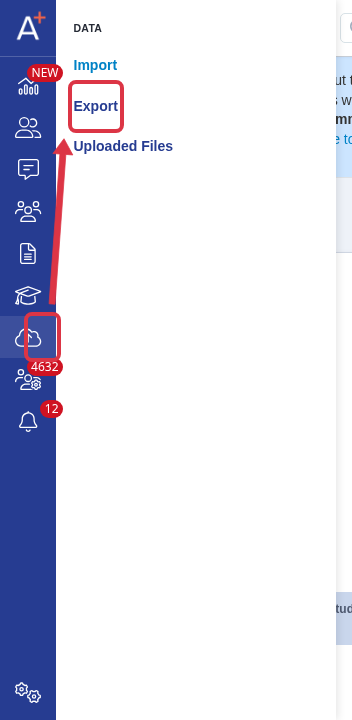
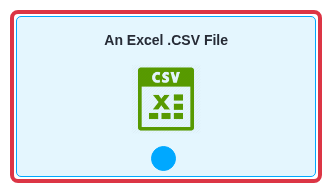
Select Start an Export, give the export a name, choose An Excel .CSV File, and select Next.
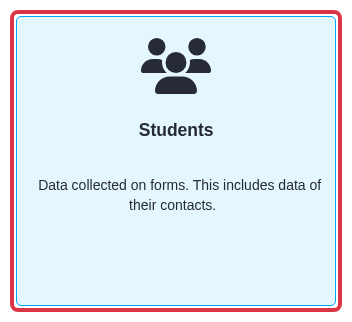
Select Students and select Next.
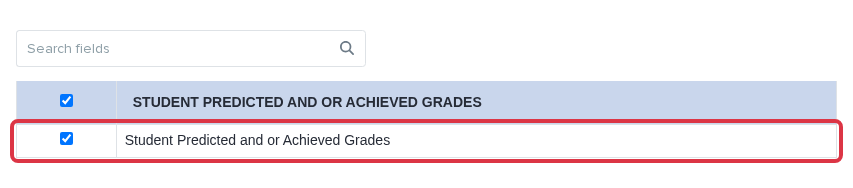
On Field selection & configuration, select Student Predicted and or Achieved Grades, then select Next.
On Select Students, use the student filters to select the required cohort. You can filter by enrolled course, internal or external status, an exam subject, result status, and a grade comparison. Select the matching students, then select Next to run the export.
Export students at more than one enrolment stage
On Select Students, select the Edit filter pencil next to Filter Summary.
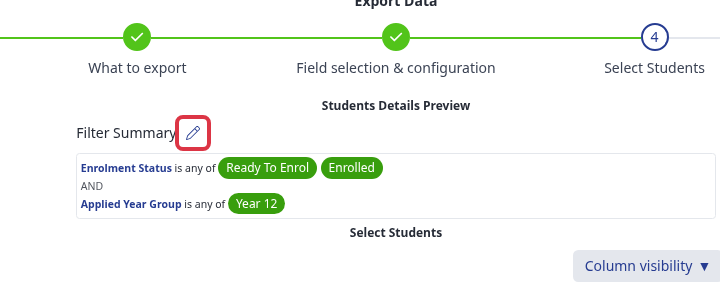
Set Enrolment Status to is any of, then select Ready To Enrol and Enrolled.
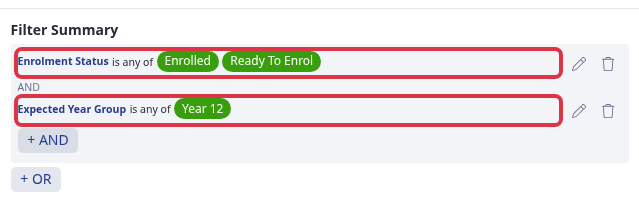
To export Year 12, add Expected Year Group as an AND condition. Set it to is any of and select Year 12. Select Apply filter(s).
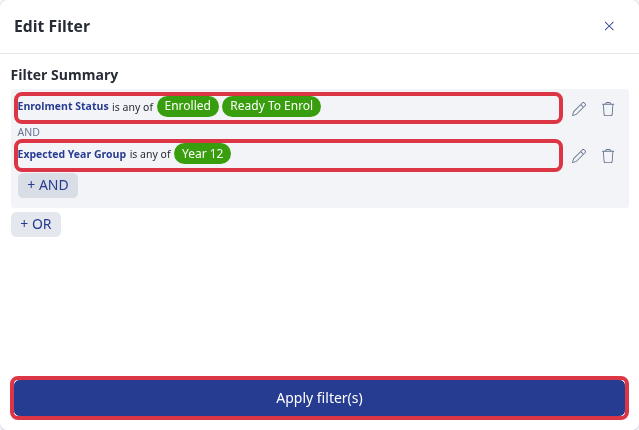
The filter selects only students who match every condition. The External condition identifies external applicants. It does not replace an enrolment-status condition.
- The CSV adds one column for each exam title that exists in the selected students' results.
- Each grade shows its status. Use the Achieved status filter when you need achieved grades only.
- Use the exam filter for a named subject and grade, such as English Language equal to 3 or Mathematics less than 4.
For an enrolled course list with achieved grades, filter the students by the enrolment course first, then select the grades field in this export.
To get each student's calculated average grade, add the APS (Average Point Score) field. On Field selection & configuration, select this field next to Student Predicted and or Achieved Grades.
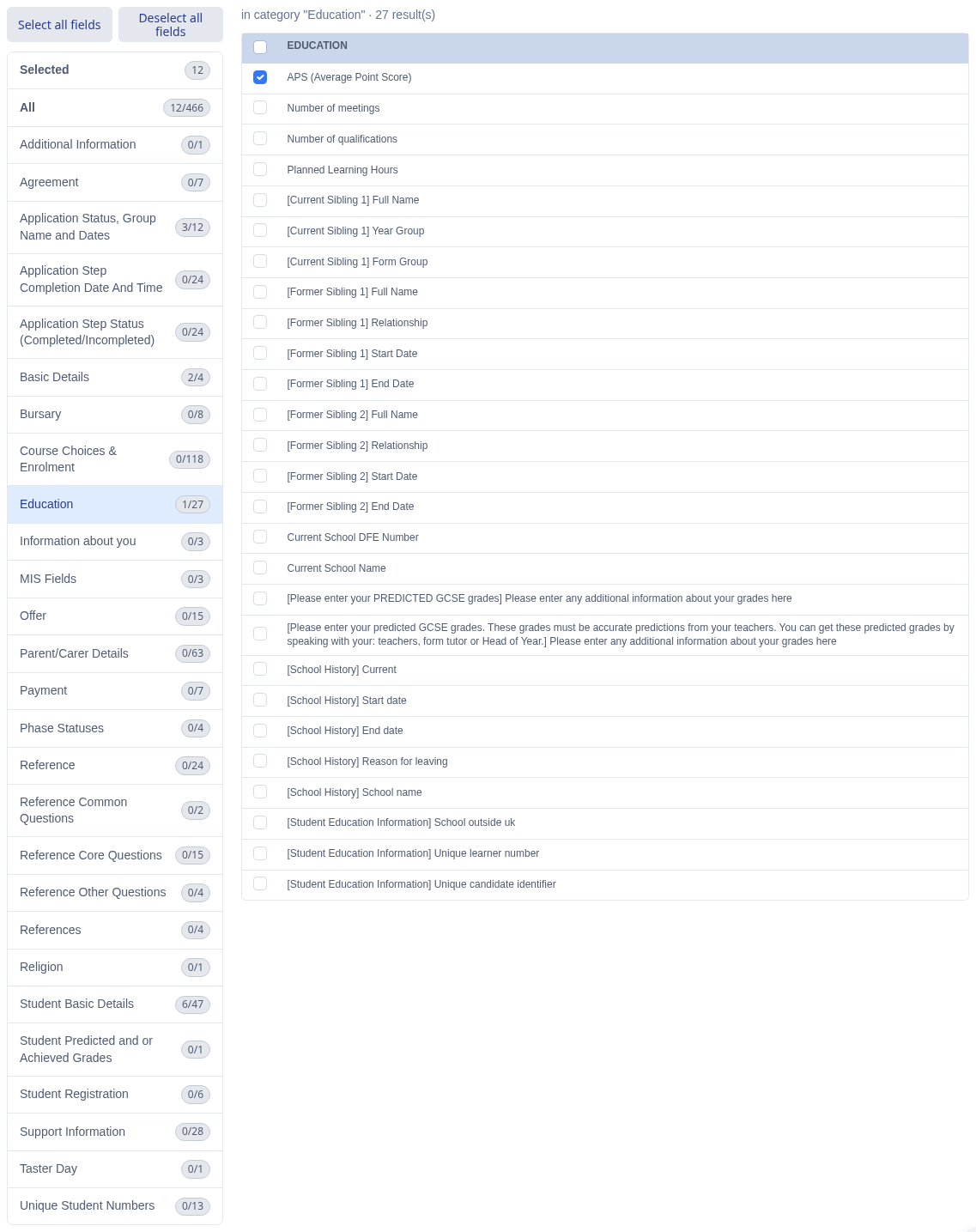
Combine the APS field with the External filter on Select Students to get a list of external students with their calculated average grade. Some application forms show a total score in this field instead of an average. This depends on a setting on the application form.
What it does not do
This export does not send grades to your school's MIS. The Bromcom, Arbor, iSAMS, and Progresso exports send student, contact, and class data only. They do not send exam results.
- Use this CSV export to get grades for external students. Use your MIS's own import process to load the file into Bromcom, Arbor, iSAMS, or Progresso.
Related articles
Use Emma in Admissions+ if you need help with a filter or an export.