
You can save the columns in a Registered Students view and export the displayed list. This helps you repeat a report without choosing the same columns each time.
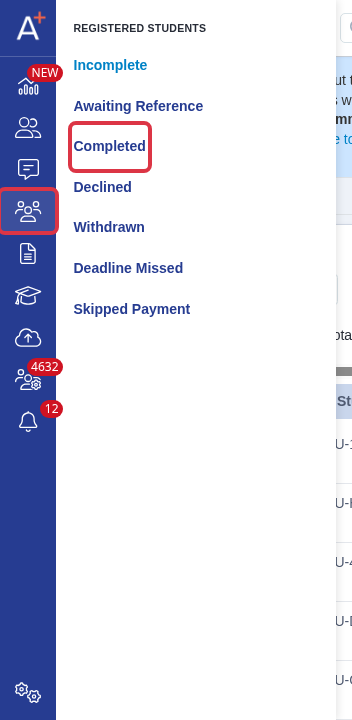
Go to "Registered Students" and select "Completed".
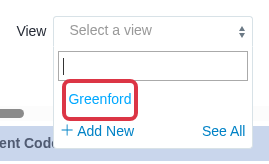
Use "View" to select the saved view that contains the columns you need.
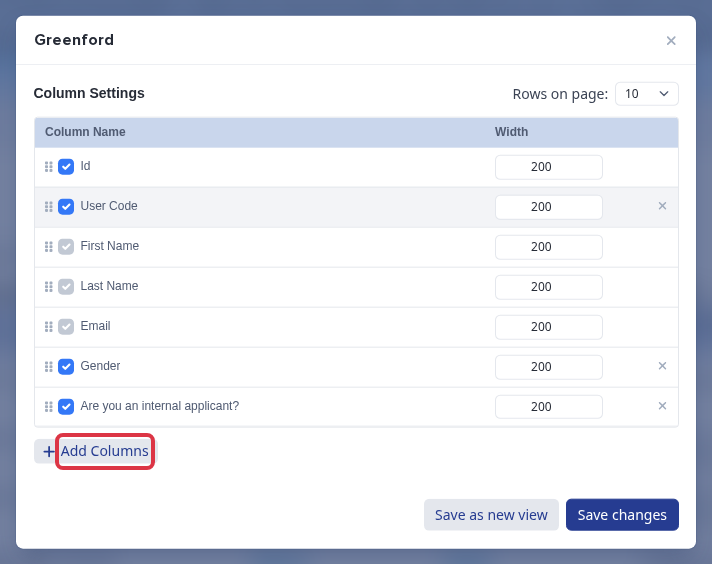
Select the eye icon to open the selected view's column settings.

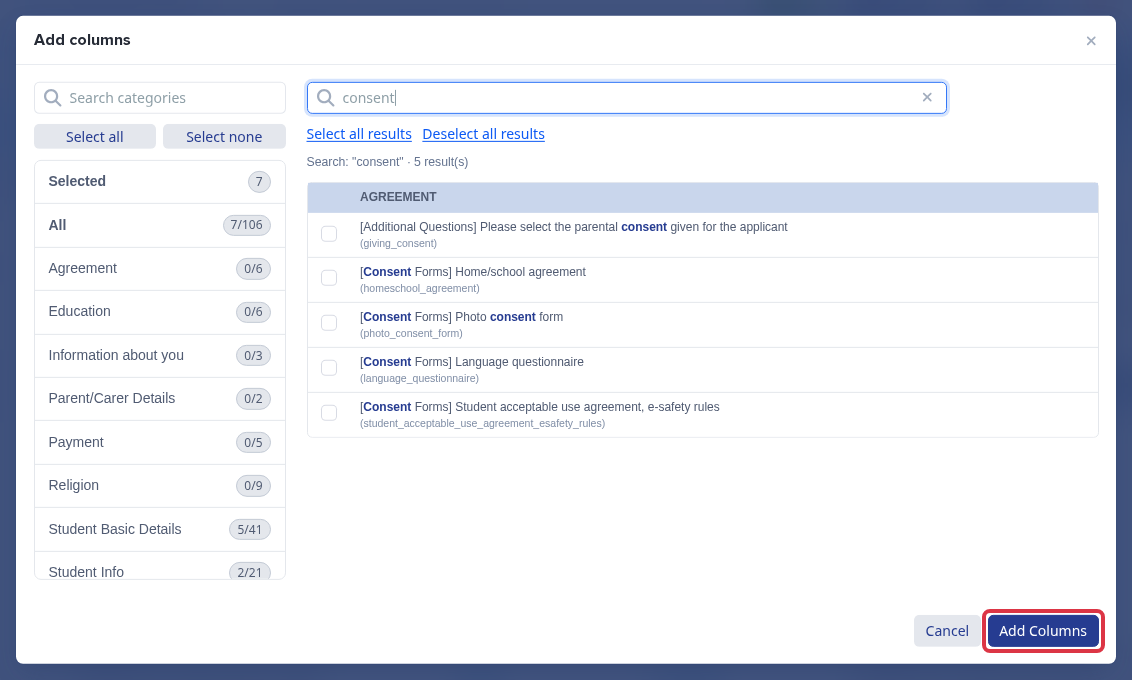
Select "Add Columns".
Enter the field label in "Search fields", then select its checkbox. Search for the label that your form uses, such as EAL, Photo consent, or Biometric consent.
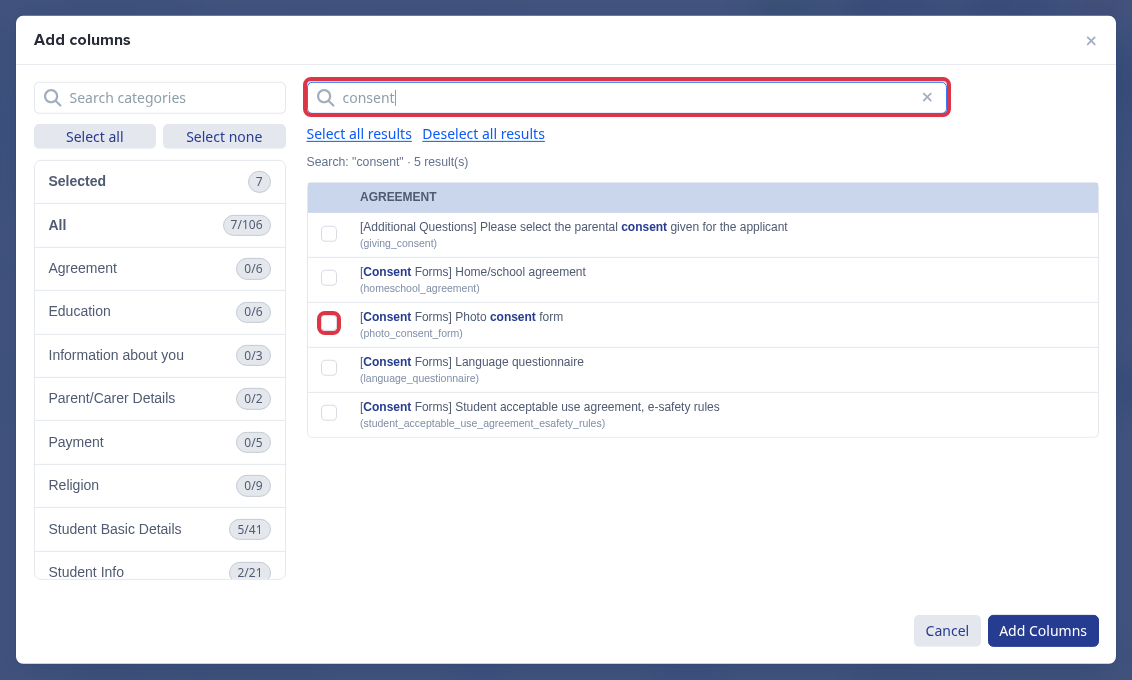
Select "Add Columns" to add the selected fields to the view.
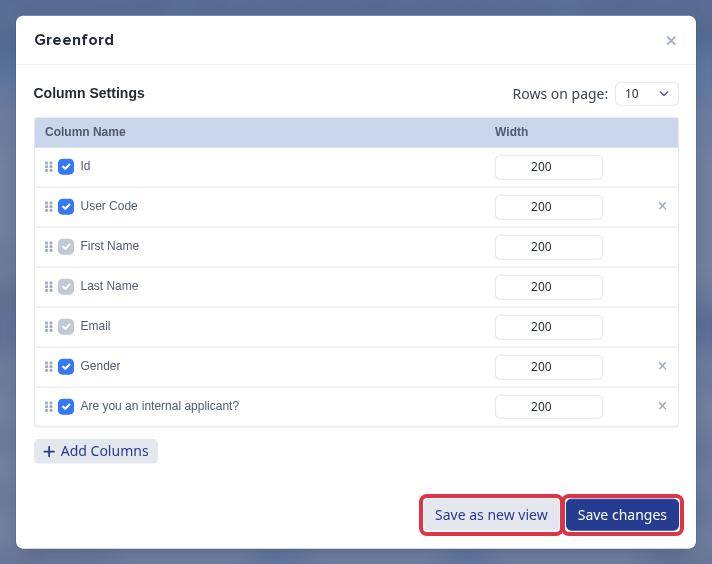
Select "Save changes" to keep the columns in this view. Use "Save as new view" when you need a separate version.
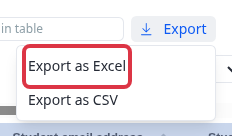
Apply any filters that you need, then select "Export" and "Export as Excel". The export uses the displayed results and columns.
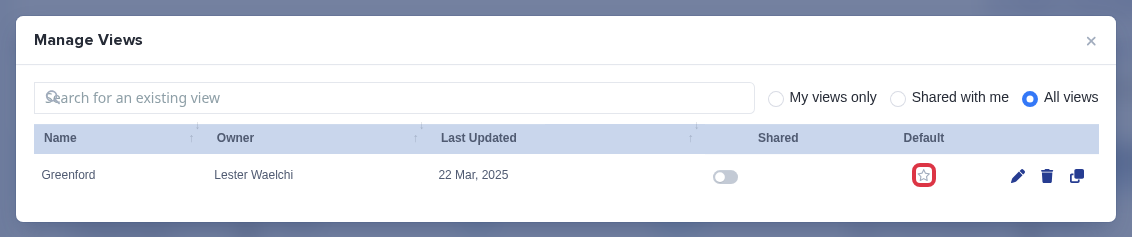
To load one saved view for yourself each time, select "See All" from the View list and select its star. This default applies only to your user account.
- If a field has no recorded answer, its column is blank.
- Use a saved view for the Registered Students table. Use a cloned Data export when you need to change an export job name, date, or other export settings.
BACS and bank detail exports
A Registered Students saved view does not include bill payer bank account numbers or bank sort codes. Use a Data export when you need BACS details. The data export can include the masked Bill Payer bank account number and bank branch sort code fields when your staff account can edit bill payers.
If you need help with a field or export, use Emma in Admissions+.