
Use these checks when an application form or applicant does not appear in the Admissions+ SIMS App. The checks explain what Admissions+ sends before you continue in the desktop app.
On the Application Forms page, find the form for the intake that you plan to transfer.

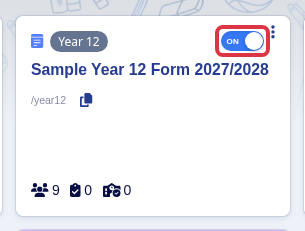
Check the switch on that form card. Admissions+ sends every application form to the SIMS App with its on or off state.
- The standard applicant list in the SIMS App contains applicants with the application status "Completed". An incomplete applicant does not appear in that standard list.
- The default form sets the first form for a SIMS App login. It does not limit the application forms that Admissions+ sends to the app.
- Admissions+ sends all application forms to the SIMS App. A form switch state alone does not confirm why a form is absent from the desktop app.
Questions staff ask
Why can I not see an incomplete applicant?
The standard SIMS App list only receives completed applicants. Complete the application first. Then check the list again.
Why does the SIMS App start on the sixth-form form?
The app starts with the default form when your school has one. Otherwise, it starts with an active form or the first form.
Why does my Year 7 or new intake form not appear?
Check the form card and its switch in Admissions+. The form list sent to the SIMS App includes all forms. Use the SIMS App guide for the desktop selection steps.
What it does not do
- This check does not create a SIMS pre-admissions group, change a SIMS offer mapping, repair a SIMS postcode error, reverse an import, or recover a deleted SIMS record.
- This check does not move applicants between Admissions+ forms, export staff forms, GCSE grades, enrolment dates, or Year 12 option data.
For a desktop SIMS App error, ask Emma in Admissions+ and include the exact error text.