Hello, how can I help?

How to Add Students to an Application Group

Once you have created your application group, this article will show you how you can add students to it.

\n

Adding several students at once

\n

In the "Registered Students" table, use "Search in table" or a filter to find the students. Select their checkboxes to show the bulk actions.

\n[[media:edit-application-group-bulk-list-1.png]]\n

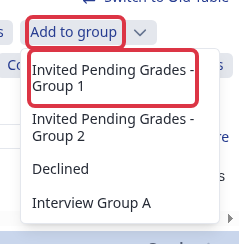
Select "Add to group", then select the application group. This adds the selected students together, so you do not need to open each student record.

\n[[media:edit-application-group-bulk-list-2.png]]

On your dashboard, click a group of students you wish to add. For this example, let's go for Registered students. Search for the students you'd like to add on the 'search in table' box.
You need to select students first in order for the options at the top to show.


image-png-Oct-21-2022-09-50-23-43-AM.png 105 KB


It will show you the list of application groups available so just click on the name of the group in the dropdown.
image-png-Oct-21-2022-09-51-46-34-AM.png 16.6 KB


To check, you can go to Dashboard and scroll down to the 'Application Group' section.
Click on the group title to view all or the number on the right if you'd like to view them specifically as (internal or internal students). 

image-png-Oct-21-2022-09-56-05-75-AM.png 42.3 KB


You can also remove a student from a group by selecting the student then click on
'Remove from Group' and select from the dropdown the group you'd like the student to be removed from


image-png-Oct-21-2022-10-10-31-58-AM.png 68.5 KB

edit-application-group-bulk-list-1.png 47 KB
edit-application-group-bulk-list-2.png 14.4 KB

Was this article helpful?