
You can use the "Steps status" report to compare completion of each form section for selected students. The report shows the selected group together, so you can identify students who completed or did not complete one section.
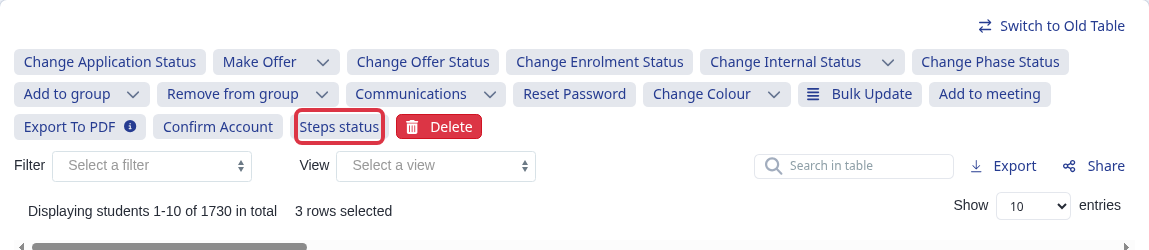
On the Registered Students list, select the students you want to check. Then select "Steps status".
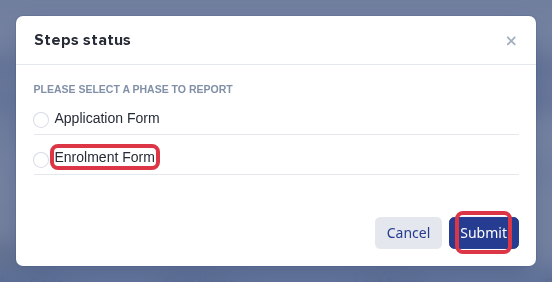
In "Steps status", select "Enrolment Form" and then select "Submit".
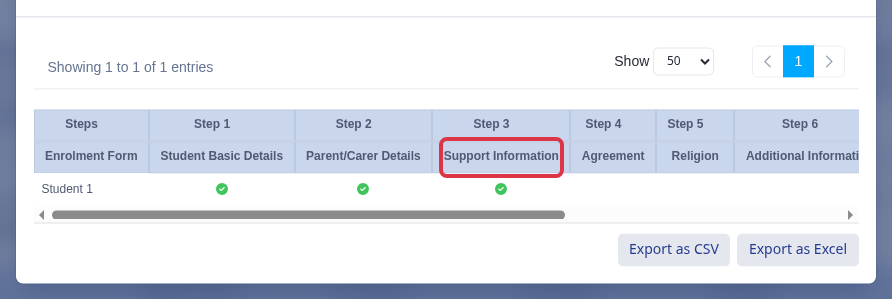
Find the column for the section you want to check. For example, "Support Information" is Step 3 in this form. A green check means the student completed that step. A blank cell means the student has not recorded completion for that step.
- Select the group you want to compare before you open the report.
- The report lists each selected student and every available step in the chosen form phase.
- Use the completed and blank cells in the relevant step column to make your completed and not-completed lists.
If you need help with a report, ask Emma in the app.