
When you create test applications to try out a new form - for example, to check new Pathways and subject choices before you go live - those applications often sit at the "Awaiting Reference" stage. This is the reference stage: the application is waiting for a referee to return a reference, which never arrives for a test applicant. You can move these applications on yourself, without waiting for a real reference, so that you can carry on testing later steps such as subject choices.
To move a single test applicant, open their profile from "Registered Students" and look at the "Application Status" tile at the top of the profile. It shows the current status - here, "Awaiting Reference".
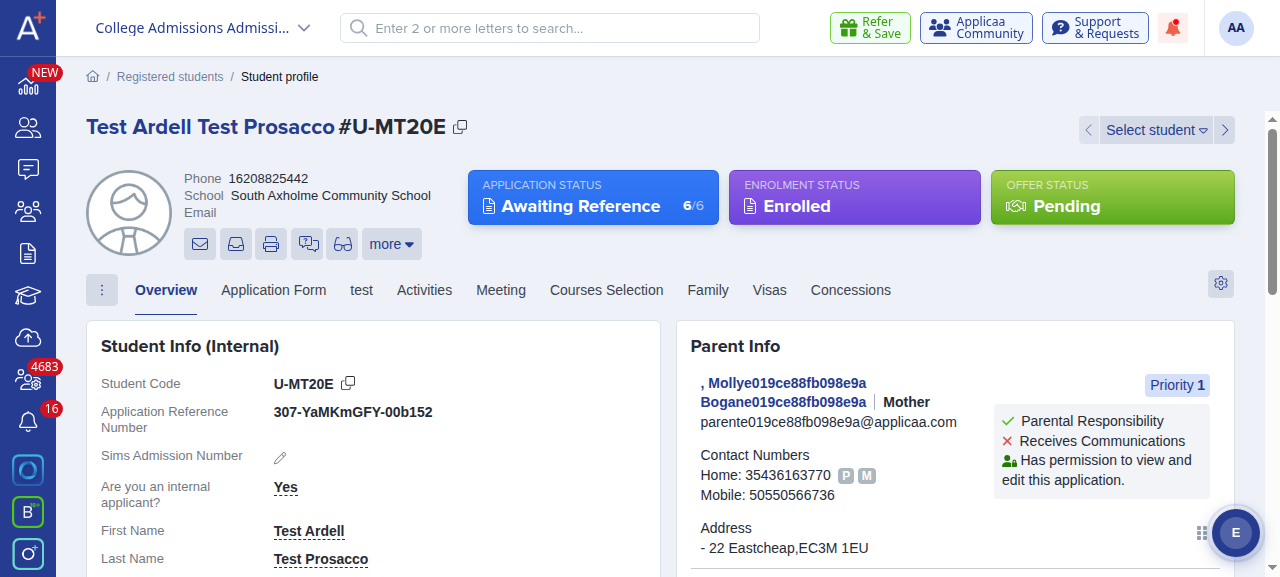
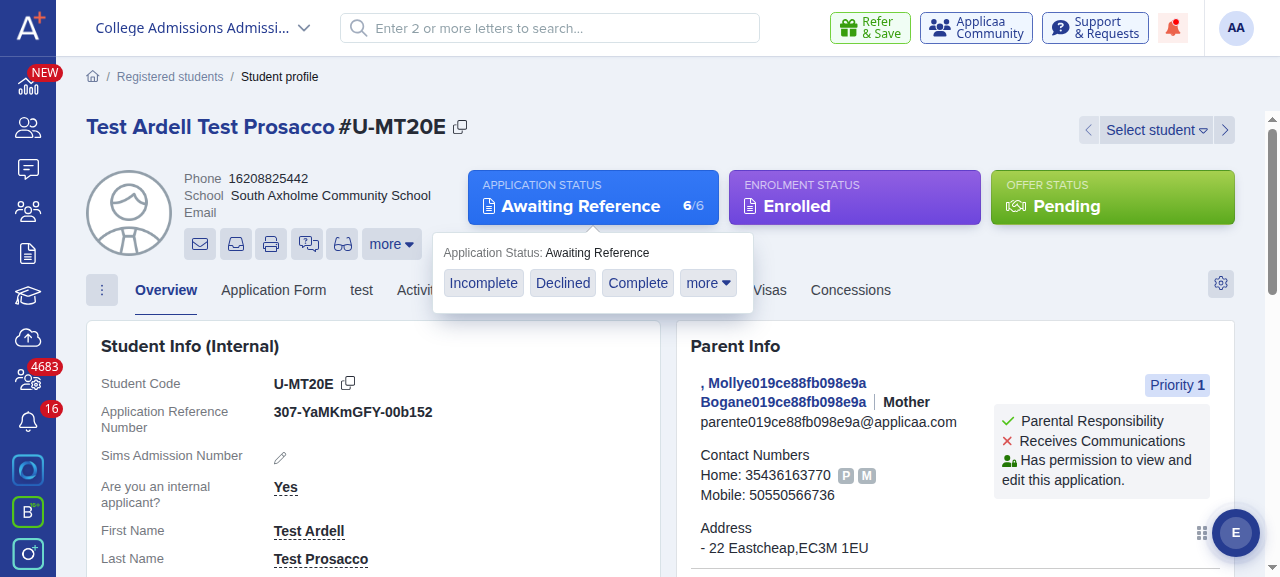
Click the "Application Status" tile, then click "Complete" in the pop-up. This moves the application past the reference stage: the status changes to "Completed" and the "Application Form" phase is marked complete. If you would rather send or record a reference first, use the "more" menu for the "Reference request" option, or choose "Incomplete & Reset Step" to re-open the applicant's steps.
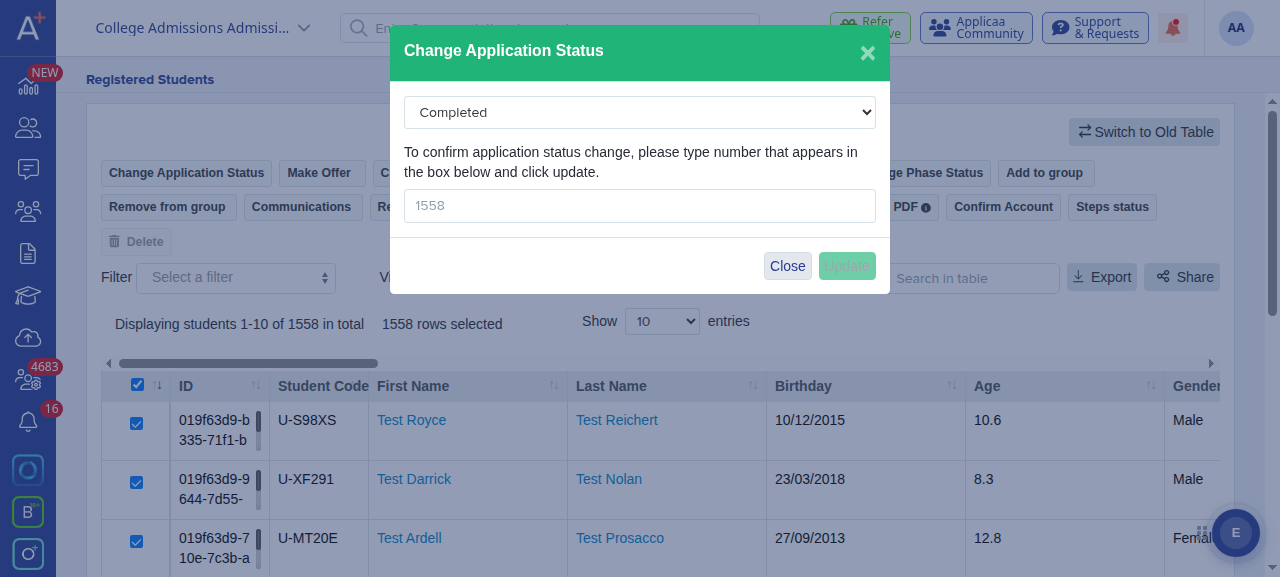
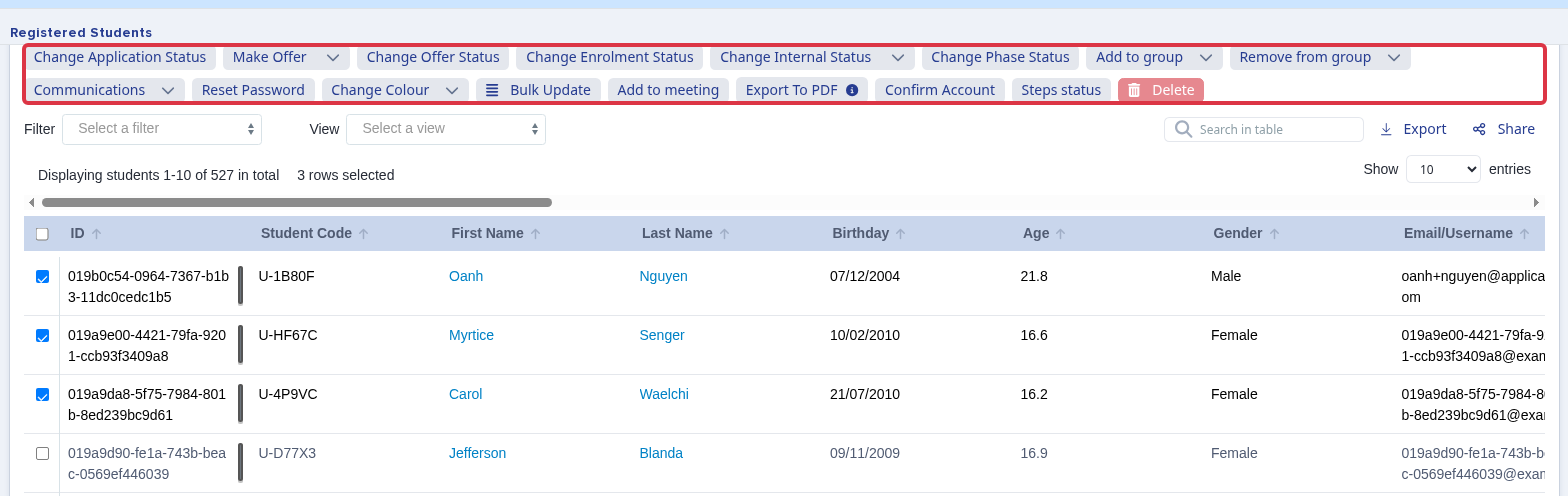
To move several test applications at once, open the form's students list, tick the applicants you want, and click "Change Application Status". Choose "Completed" from the drop-down, type the confirmation number shown into the box, and click "Update".
- Marking an application "Completed" is what lets your test applications carry on through the form without waiting for a real reference.
- Use "Incomplete & Reset Step" from the same menu to re-open an applicant's steps and re-enter their answers while you test.
- Subject and pathway choices are confirmed during enrolment, so a test application needs to be past the reference stage and have an offer before you reach them.
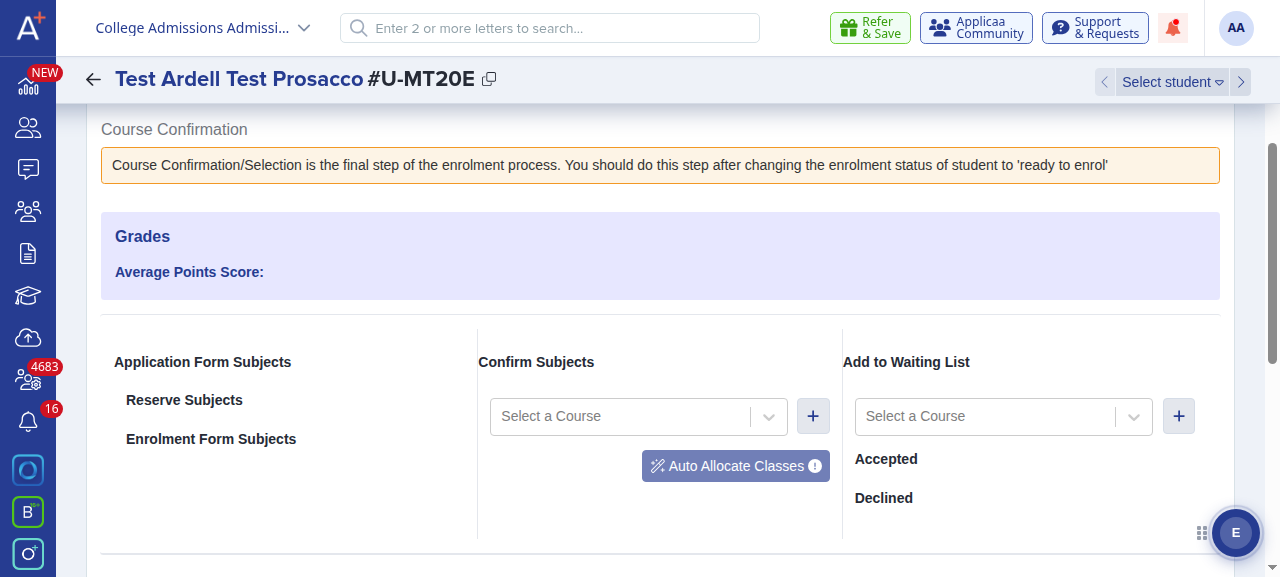
Once the application is "Completed", make an offer and move the applicant into enrolment. Their subject and pathway choices are confirmed in the "Courses Selection" area of the profile. This is the final enrolment step, so set the enrolment status to "Checked & Ready to Enrol" first, then add and confirm subjects there.
Moving applicants to a different application form
The bulk action above, "Change Application Status", is the only bulk action for test applications, and it changes status only: it can move many applicants forward at once, for example past "Awaiting Reference" to "Completed", but it never changes which application form an applicant is on. No action in the bulk action bar moves an applicant onto a different form, for one applicant or for several at once.
Admissions+ moves an applicant to a different form one at a time, from the applicant profile. Open the profile, click "more", then click "Change Application Form" and select the form you want. There is no bulk version of this action, so repeat it for each applicant you want to move.
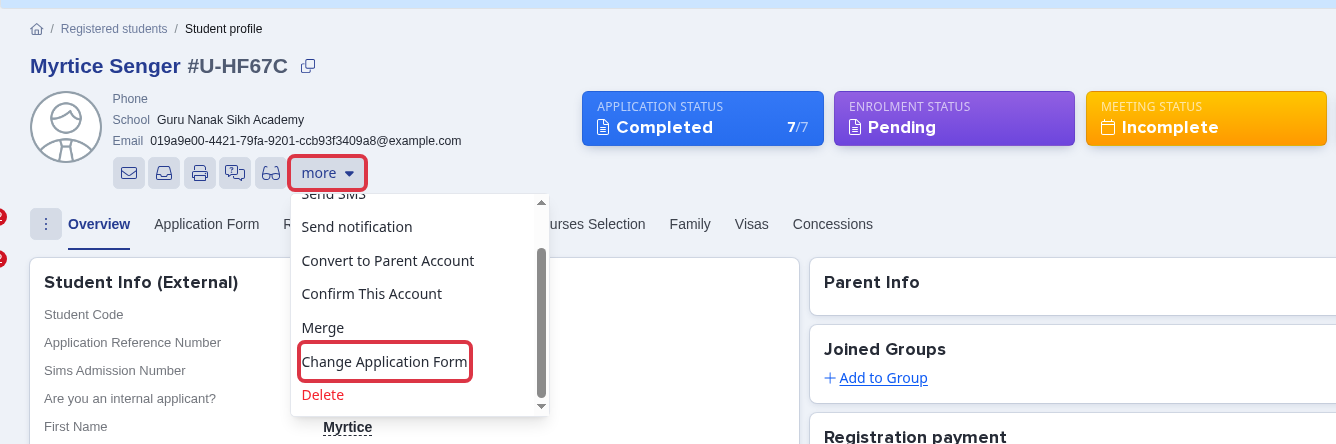
Check the enrolment status of each applicant before you move them. A move sets the application status back to "Incomplete" and the enrolment status back to pending, removes any offer and removes course choices, and you cannot undo it. To move a group of applicants and keep one who is already enrolled, leave the enrolled applicant on the current form and move only the others.
Still stuck? Ask Emma, your in-app assistant, or contact the Applicaa support team using the "Support & Requests" button in the top bar.
Questions staff ask
Is there a way to move multiple applications at once to a new application form?
No. "Change Application Status" is the only bulk action for test applications, and it changes status only, not the application form. Moving an applicant onto a different application form always uses "Change Application Form" from the profile's "more" menu, one applicant at a time - even when you also use "Change Application Status" in bulk on the same applicants.