This guide assumes your courses have all been set up already.
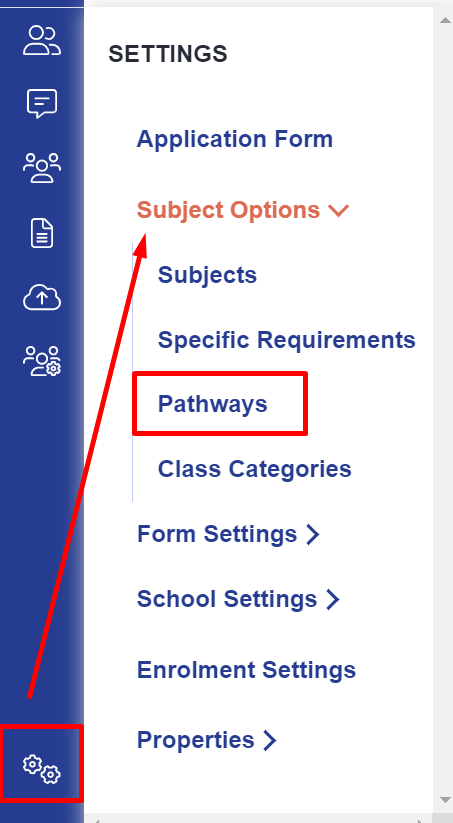
To set up your pathway options, go to settings > subject options > pathways.
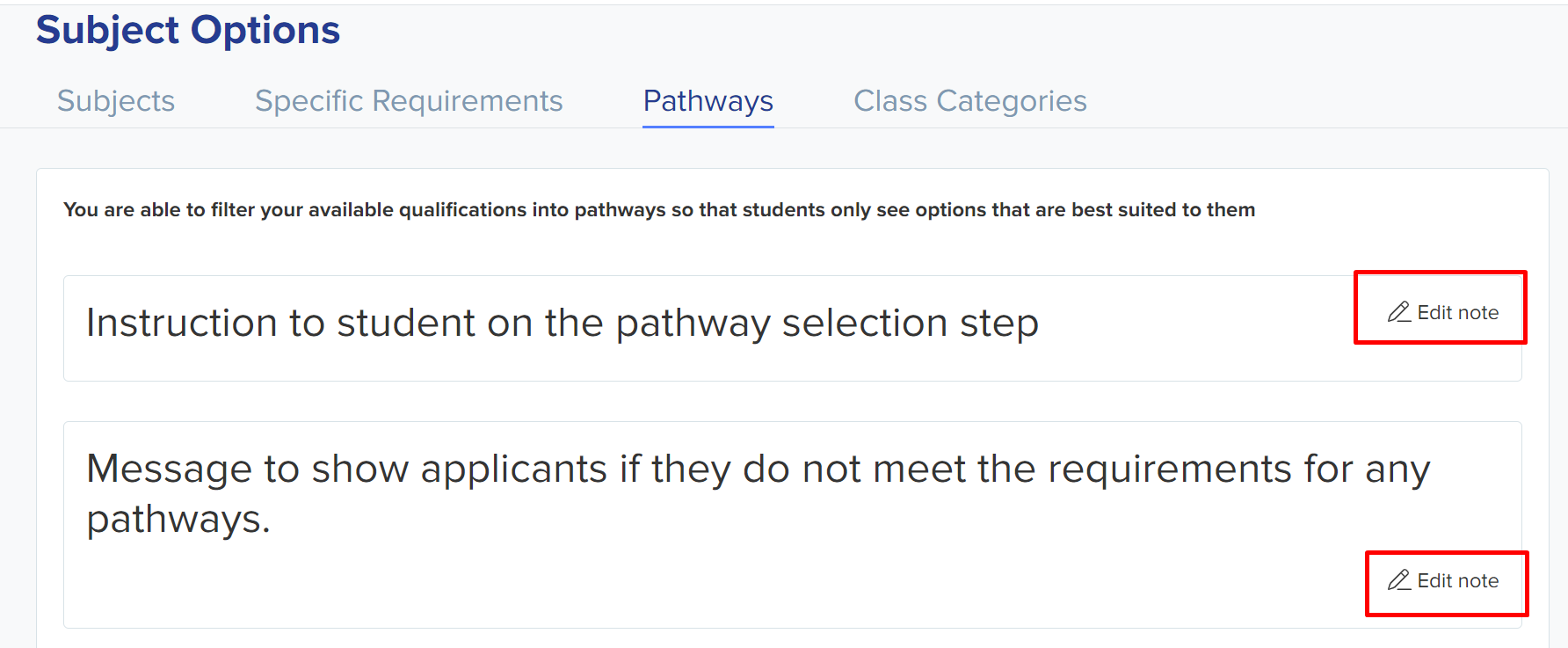
You may put a message here to explain to students about the different pathway options and any restrictions or guidelines they need to be aware of when selecting their pathway:
To add a new pathway - Click the 'Add new' button to begin the setup and add the correct subjects.

If you would like students to have the option of choosing an A-level pathway or a BTEC pathway for example, you can allocate the courses to a pathway each for students to follow one or the other; this will ensure they are choosing subjects which are appropriate to their route.
In this example you might name the pathway 'A Levels' and in the second box, select all the courses you are offering as A levels.
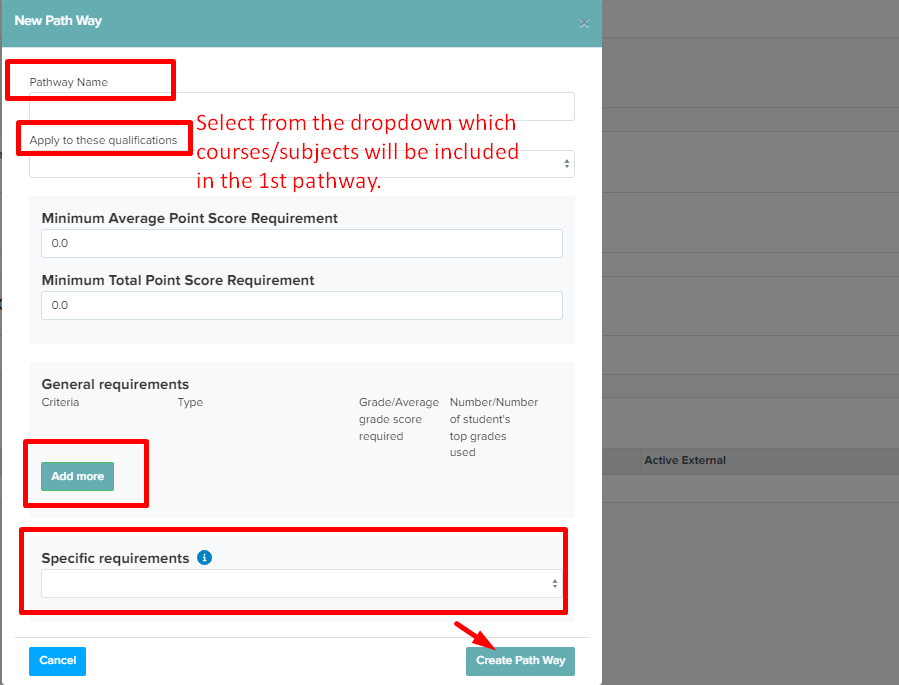
You can also add a minimum point score, general requirements, or specific requirements on there as well in order to restrict students who do not have the required grades to be successful on this route. For further guidance on these restrictions, please refer to the guides focused on setting specific requirements within the Knowledge Base.
Once a pathway has been created, you can toggle the switch on to activate it for internal and/or external applicants, and you can choose whether to activate each pathway at Application Form phase, Enrolment Form phase, or both.
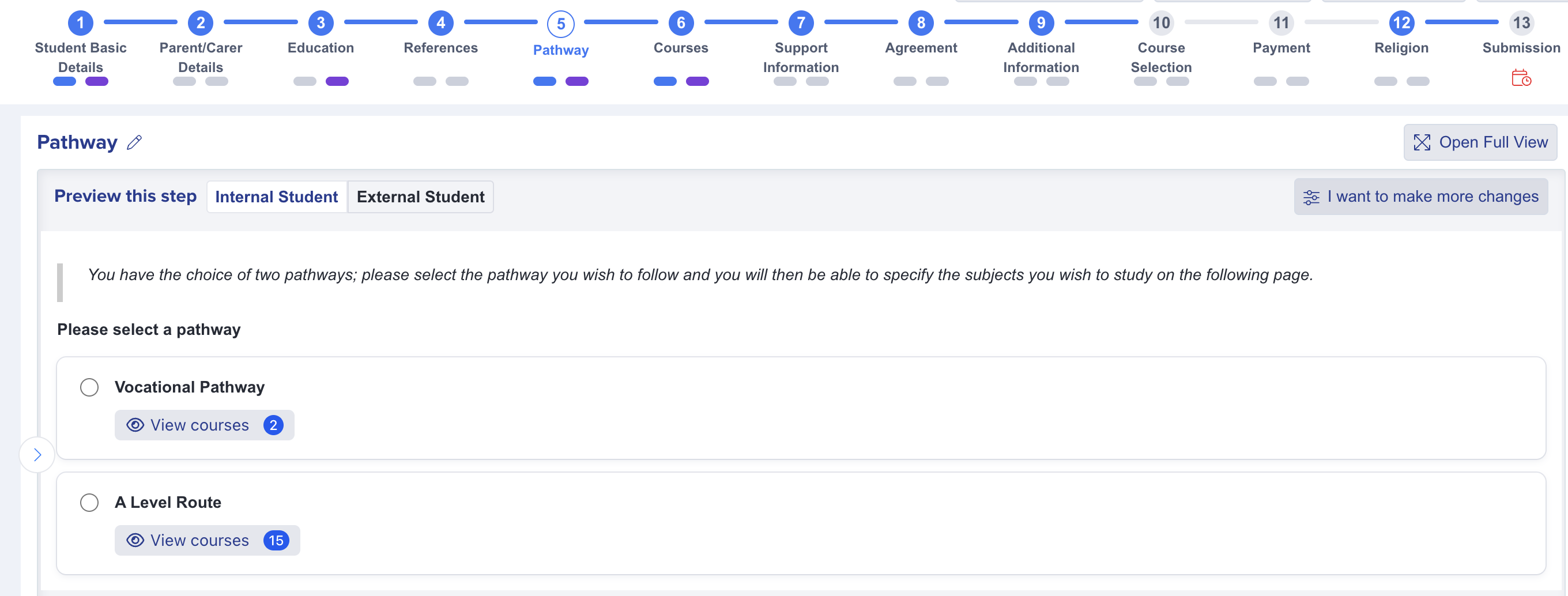
An applicant would then see the pathway step immediately prior to the courses step within the form(s) in which the pathways are active. The pathway acts as a gate; it will only enable applicants to choose a pathway which they meet the criteria for, and then will only show them courses which belong to that pathway when they reach the courses step.

Note: if using the pathways functionality, the settings in the pathways area will override the equivalent settings in the courses step of the application/enrolment form.
For example, each pathway will need to have its own minimum/maximum learning hours or minimum and maximum number of courses set as these are the settings which will be in effect on an applicant's application/enrolment form.
Use the settings cog within the Actions column to edit your min/max number of subjects or learning hours per pathway.

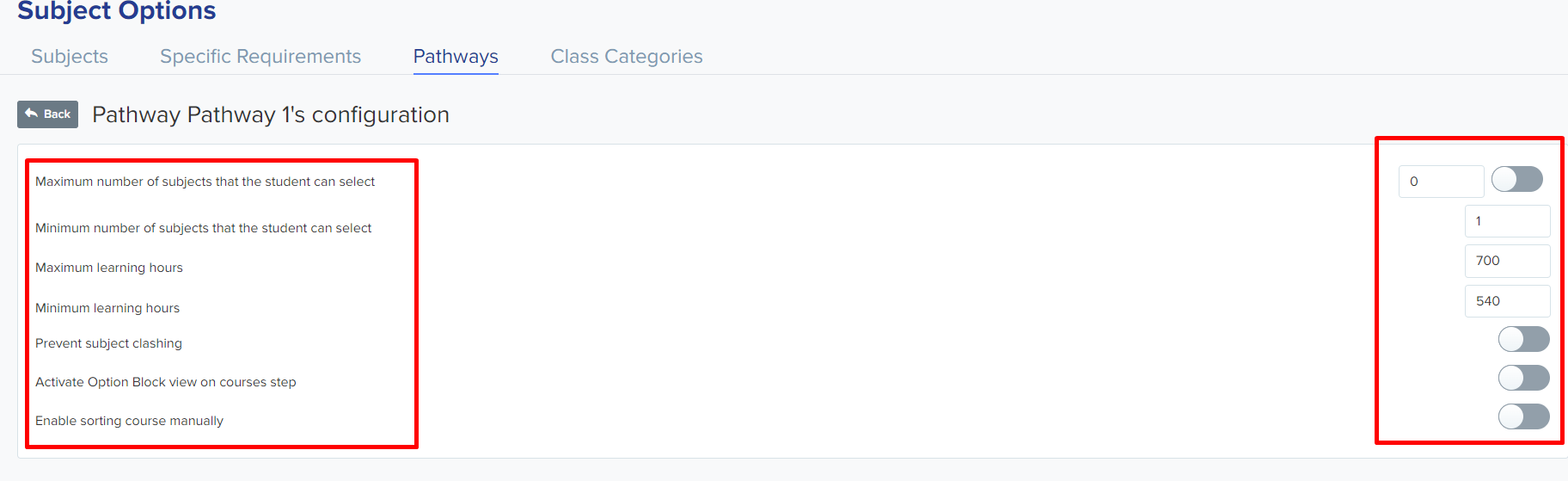
You can always check the equivalent settings currently in place on the courses step of your application form to compare and ensure your pathways are set as you wish them to be:
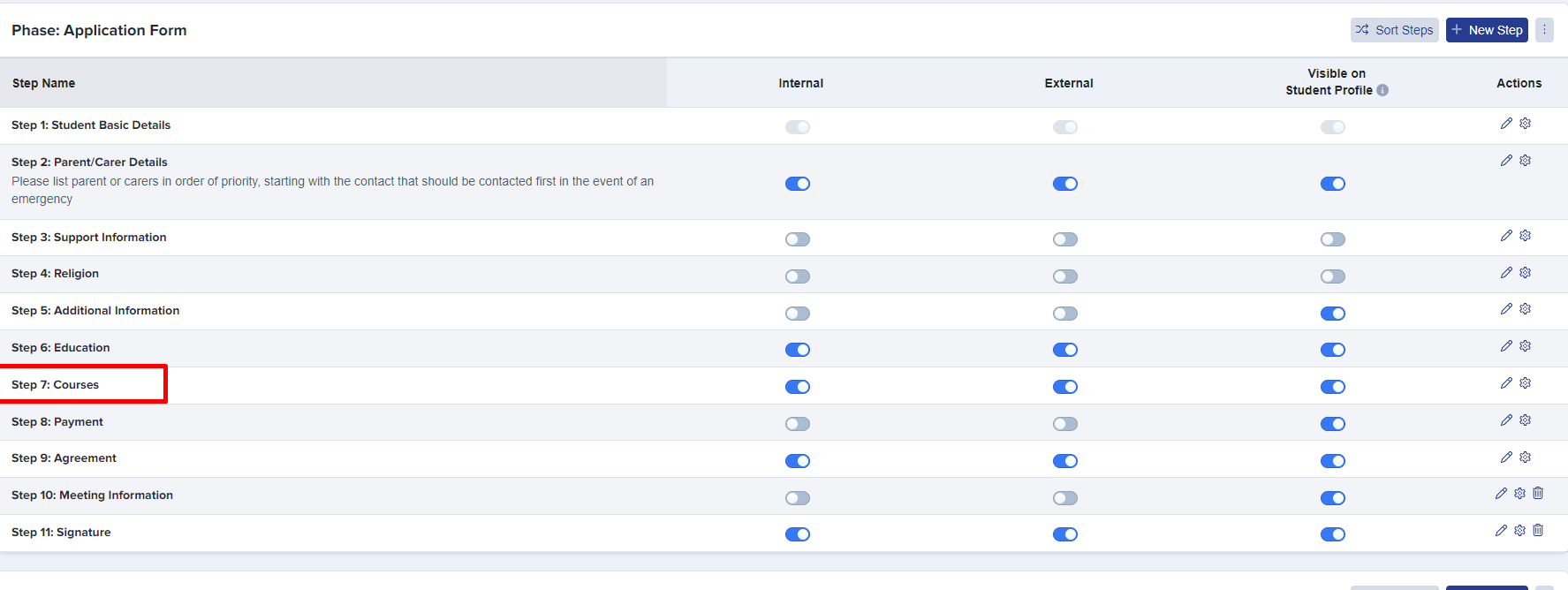
To preview your pathways from an applicant's perspective, navigate to the application form area (settings > application form) and click to open the pathway step (click the name of the step, or the settings cog). The preview will load automatically.
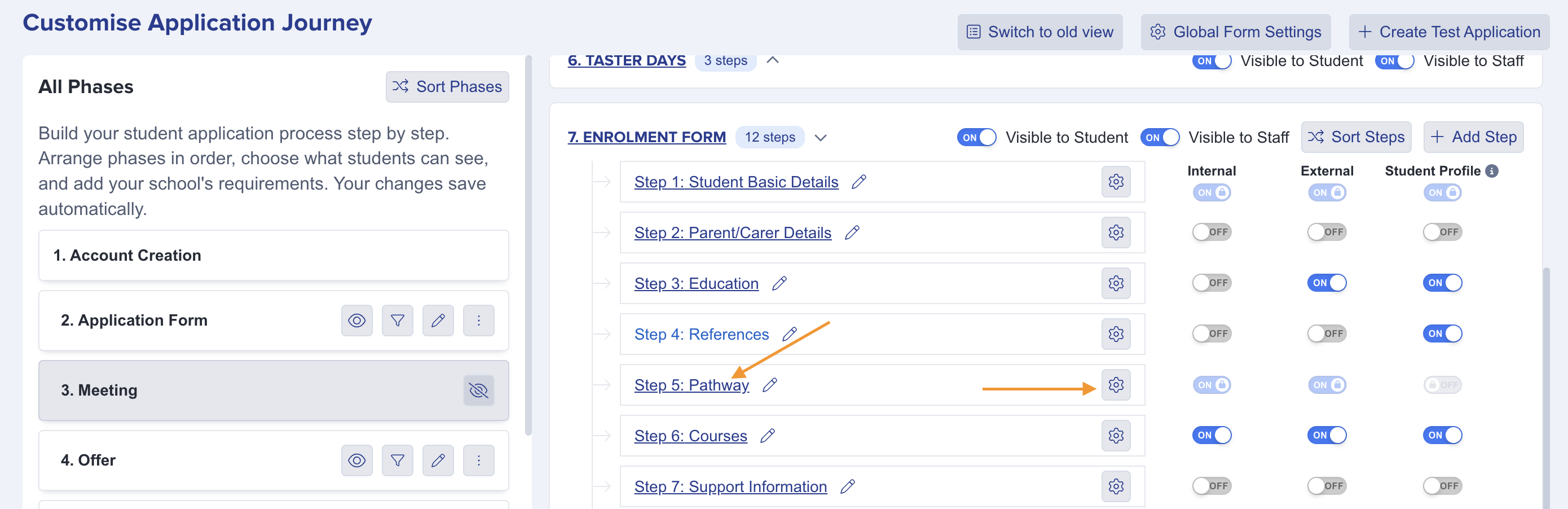
They will see the pathways available to them and the pathways selector appears directly before the courses step.