
If the Admissions+ SIMS App or the Enrolment App is not working as expected, use the troubleshooting steps below to resolve common issues with installation, login, syncing and connectivity.
Install or download failures
If the SIMS App or Enrolment App will not install or download:
- Check that your machine meets the minimum requirements - the SIMS App must be installed on a workstation or server that has direct access to your school's SIMS database.
- If you have hosted SIMS, the app must be installed on the same machine as SIMS.net and the connector, with the VPN connection active.
- Ensure your IT team has whitelisted the required URLs - see Which URLs to whitelist when setting up the A+ SIMS App.
- Try downloading the installer again from within the app's update check, or contact support for a direct download link.

Login failures
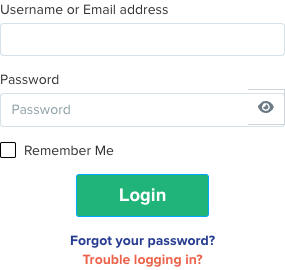
Both apps sign in with your Admissions+ staff account - the same username and password you use to log in to Admissions+ itself. There is no separate account for the apps.
- If you see "Invalid email/password", double-check that you are using your Admissions+ staff email and password - not a personal or school email.
- If you have forgotten your password, reset it from your school's Admissions+ staff sign-in page by selecting Forgot your password?- see FAQs on SIMS / Admissions+ app upgrade for a walkthrough.
- Your account is temporarily locked after several incorrect sign-in attempts and unlocks automatically after a short wait. If you have just had failed attempts, wait 15 minutes before trying again.
SIMS App: DFE number / connection-settings error
When the SIMS App logs in, it checks that the DFE number entered in the app matches the one configured in your Admissions+ settings. If they do not match, the login is marked as failed.
- In SIMS, go to Help > System Information to find your correct Server name and Database name.
- Verify that the DFE number in the SIMS App matches the one in your Admissions+ school settings.
- If the connection still fails, check that the machine can reach the SIMS database and that no firewall or VPN is blocking the connection.
Stale data or sync not working
If the app shows outdated information or changes are not syncing through:
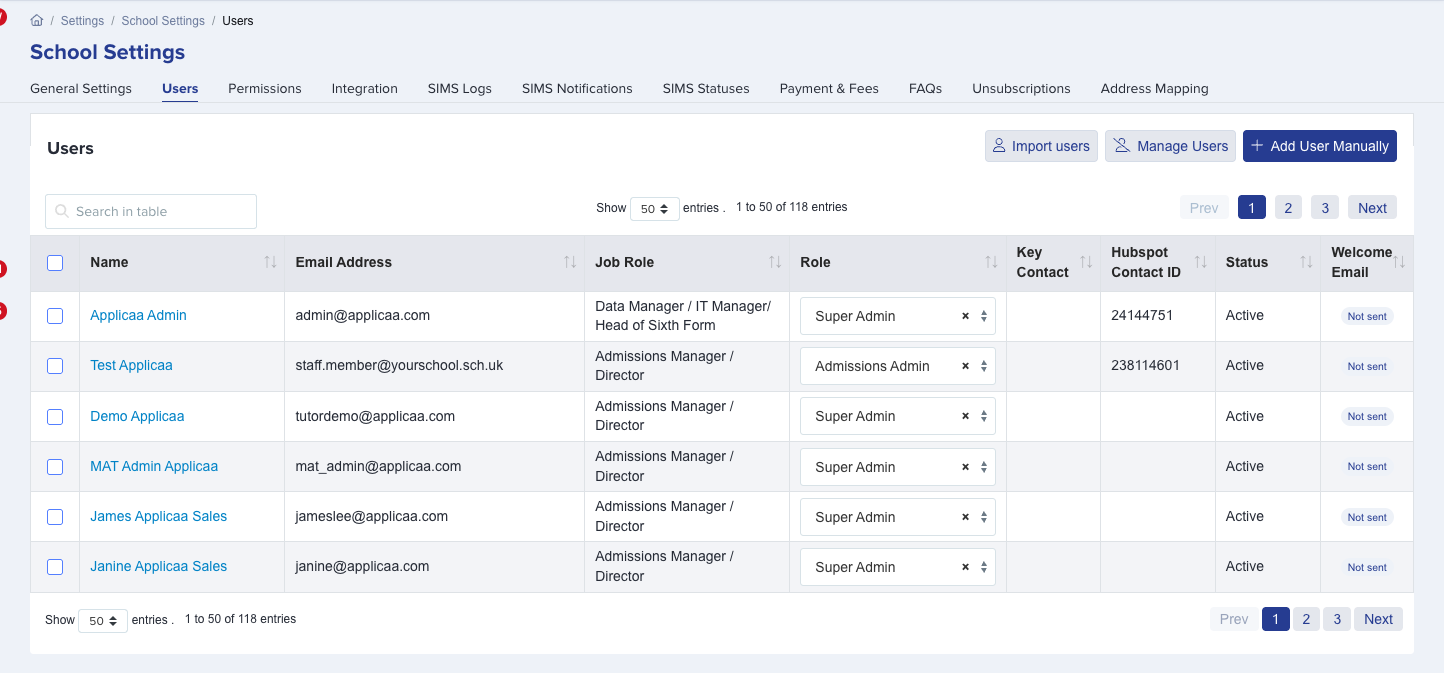
- Enrolment App: your school can reset the Enrolment App settings from within Admissions+ - this triggers a fresh sync of your school's data to the app.
- SIMS App: ensure you are running the latest version of the app (versions below 6.4.0 do not auto-update - you must uninstall and reinstall). Check the version number in the app and compare it against the latest listed in Admissions+.
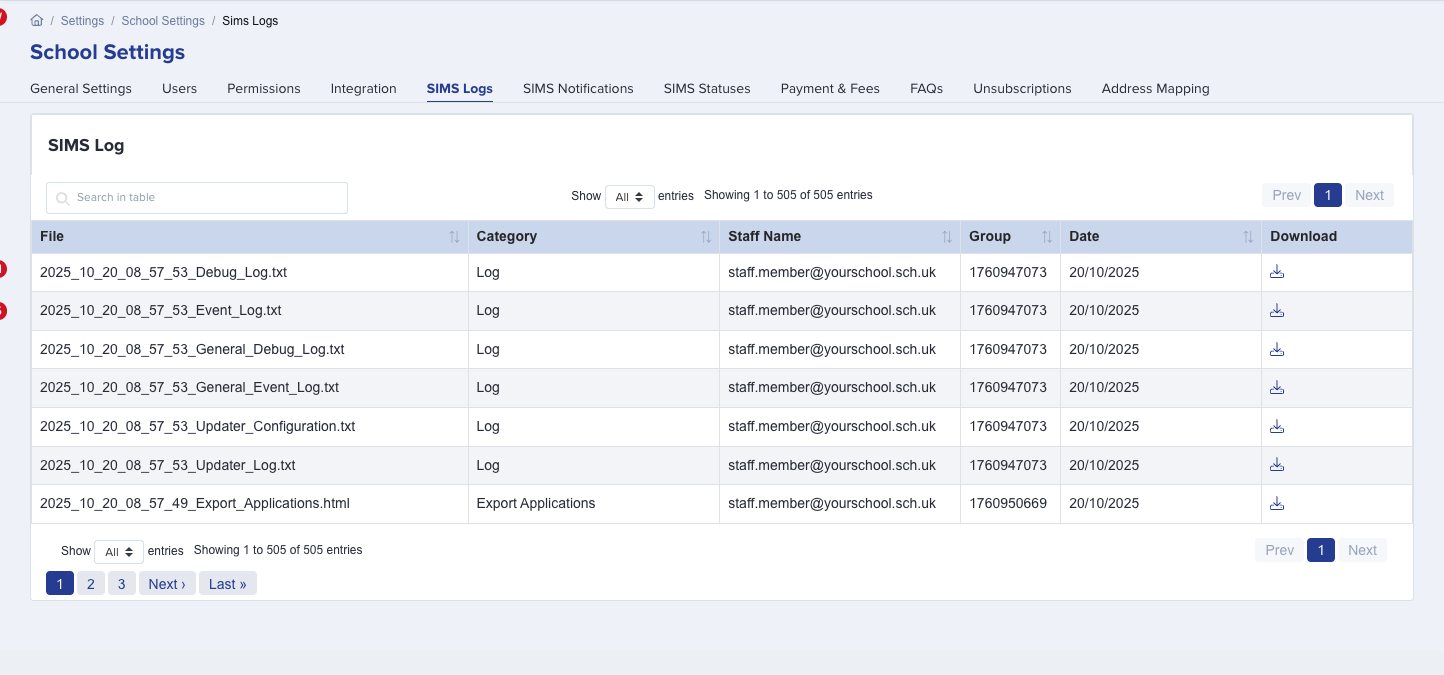
- If data still appears stale after a reset or update, contact support with the app version number and a description of what is out of date.
Reinstall the latest version
If none of the above resolves the issue, uninstalling and reinstalling the latest version often clears persistent problems:
- Uninstall the current version of the app from your machine (via Windows Add/Remove Programs).
- Download the latest installer - for the SIMS App, your school's Admissions+ admin area links to the latest EXE or MSI. For the Enrolment App, use the download link on the Download the Enrolment App helpdesk page.
- Run the installer and sign in with your Admissions+ credentials.
Still stuck?
If the issue persists after trying the steps above, contact support through Emma (the chat assistant in your Admissions+ dashboard) or raise a ticket via the Admissions+ helpdesk. Include your app version number, the error message you see, and whether you are on hosted or local SIMS.