
When a student cannot submit their enrolment, it is almost always because one of the rules you have set on your enrolment form has not been met. This guide maps each blocked or greyed-out message to the exact setting that causes it, and shows you where to change it.
There are two places the block shows up. On the student's own enrolment form, pressing "Finish" or "Submit" pops up a message telling them which rule they have failed. On the staff side, when you open a student's profile and go to their "Courses" tab, the "Submit" button is greyed out and a tick-and-cross checklist sits directly above it. Read that checklist first - every rule is listed, and the ones marked with a red exclamation mark are the ones stopping the submission.

Where the subject and learning-hours rules are set
All four of these rules live in one place. Go to settings > enrolment navigator and open step 5, "Timetable And Classes".

Scroll down that page to the courses settings and you will find "Maximum number of subjects that the student can select", "Minimum number of subjects that the student can select", "Maximum learning hours", "Minimum learning hours" and "Excluded Subjects".
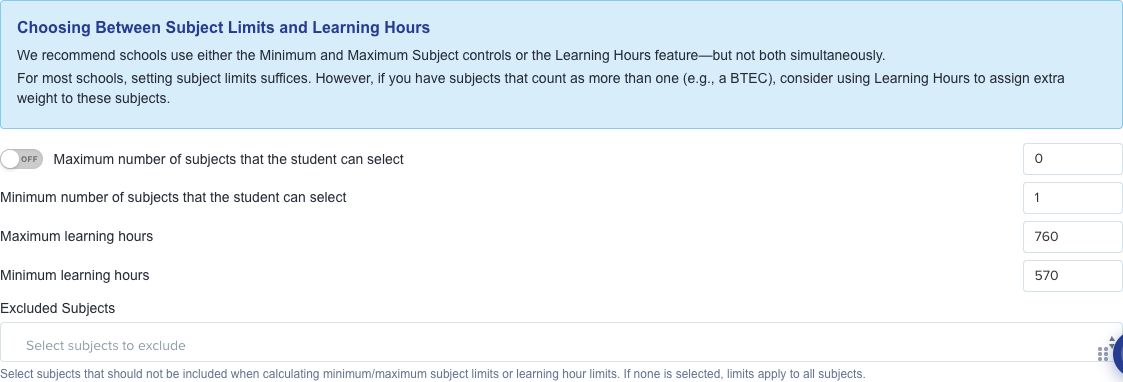
Use this to match the message on screen to the setting you need to change:
- "Minimum subjects to be selected" on the checklist, or "You are under the minimum number of courses allowed, please select more courses" on the student's form, comes from "Minimum number of subjects that the student can select".
- "Maximum subjects to be selected", or "You have selected too many courses, please select fewer courses", comes from "Maximum number of subjects that the student can select". This maximum only applies while its toggle is switched on - with the toggle off the checklist shows "unlimited" and there is no upper limit.
- "Minimum learning hours", or "You are under the minimum number of learning hours, please select more courses", comes from "Minimum learning hours".
- "Maximum learning hours", or "You are over the maximum number of learning hours, please select fewer courses", comes from "Maximum learning hours".
Two things are worth knowing before you change a value. Setting a learning-hours box to 0 (or leaving it empty) switches that rule off completely - the student's form then shows the maximum as "∞" and the rule stops blocking submission. And any subject you add to "Excluded Subjects" is left out of both the subject count and the learning-hours total, so use that list when a particular course should not count towards a student's limits.
Learning hours are set per subject, so if the total is not what you expect, check the learning hours recorded against each course as well as the limits on this page. We recommend using either the subject limits or the learning-hours limits, rather than both at once, unless you have subjects that deliberately carry extra weight.
If the student is on a pathway
Pathways have their own subject and learning-hours limits, and those override the settings above. If the student has been placed on an active pathway, changing the numbers on the Courses step will have no effect on them - you need to make the change on the pathway itself. When pathways are switched on for both internal and external applicants, these boxes are greyed out on this page and a link to the Pathway area appears in their place. This is a common dead end, so check the pathway first if a change you made has not taken effect.
"Over Capacity" and "no spaces available" are a different rule
Class capacity is separate from the subject and learning-hours limits. When a class is full, the student sees that class greyed out with "Over Capacity" against it and a badge showing how many are enrolled out of the maximum. If someone else takes the last place while the student has the page open, pressing Submit returns "Some of the spaces are no longer available. Please try again!" - reloading the page and choosing again is all that is needed there.
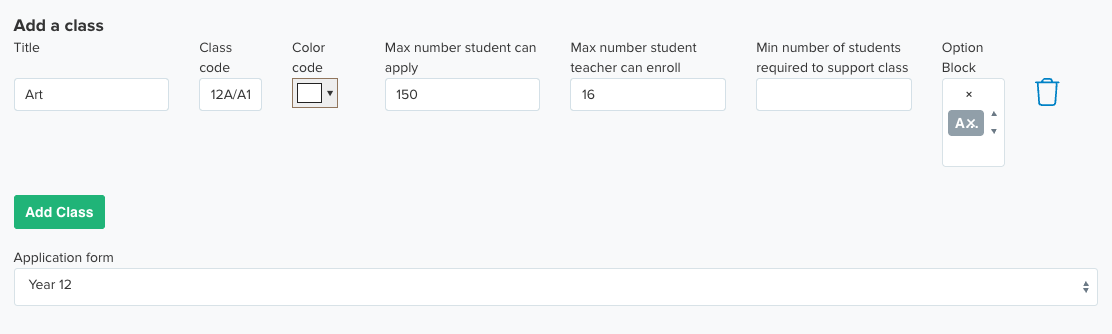
The cap itself is set per class. Go to settings > subject options, open the course, and check "Max number student teacher can enroll" against the class in question. Raising this number lets students enrol straight into that class instead of going onto the waiting list.
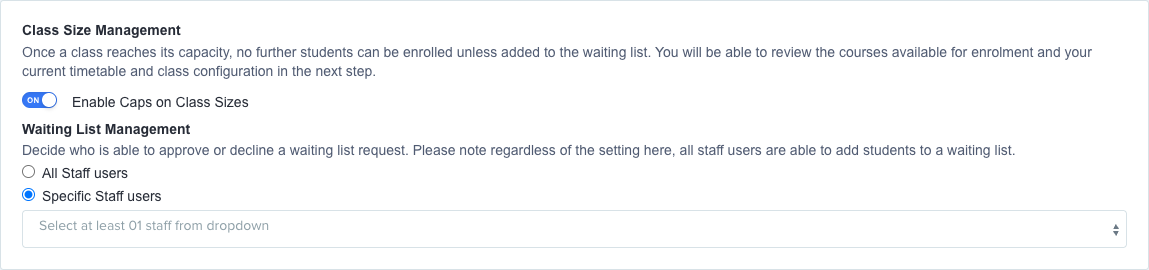
If you do not want class caps at all, turn off "Enable Caps on Class Sizes". You will find it under "Class Size Management" in step 4 of the enrolment navigator, "Grade Requirements".
The other rules on the checklist
The same checklist also covers rules that have nothing to do with limits, and any one of them will keep the Submit button greyed out:
- "Select a form group for student" - the student has no form group and your form requires one.
- "Select class for all compulsory courses" - a course marked compulsory has not been given a class.
- "Select class for every selected subjects" - a subject has been chosen but no class picked for it.
- "You must select at least N subjects from the list below" - a required-subjects rule from the student's pathway has not been satisfied.
If a student is blocked from choosing a class because they do not meet the entry requirements, that is a different setting again - see the specific requirements guide below.
If the checklist does not explain what is happening on your system, ask Emma from the help icon in your Admissions+ system, or raise it with us through the helpdesk and we will take a look with you.