
From the dashboard, click on Communications & Events, select Events, and then Event Guests.

Note: The list includes registrants for all events you have in the form.
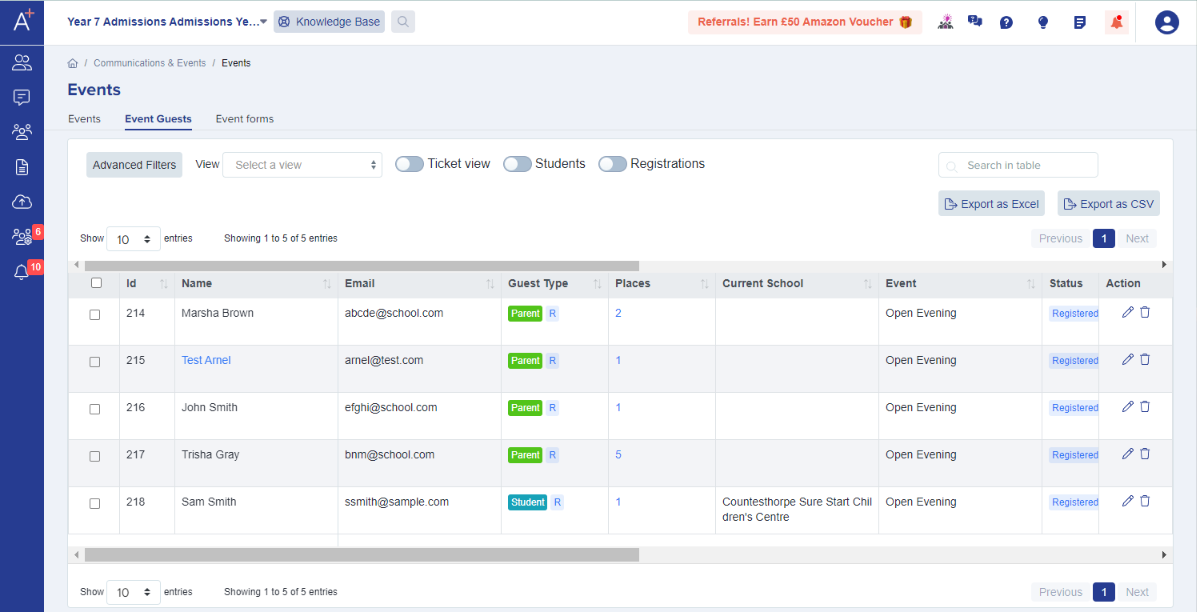
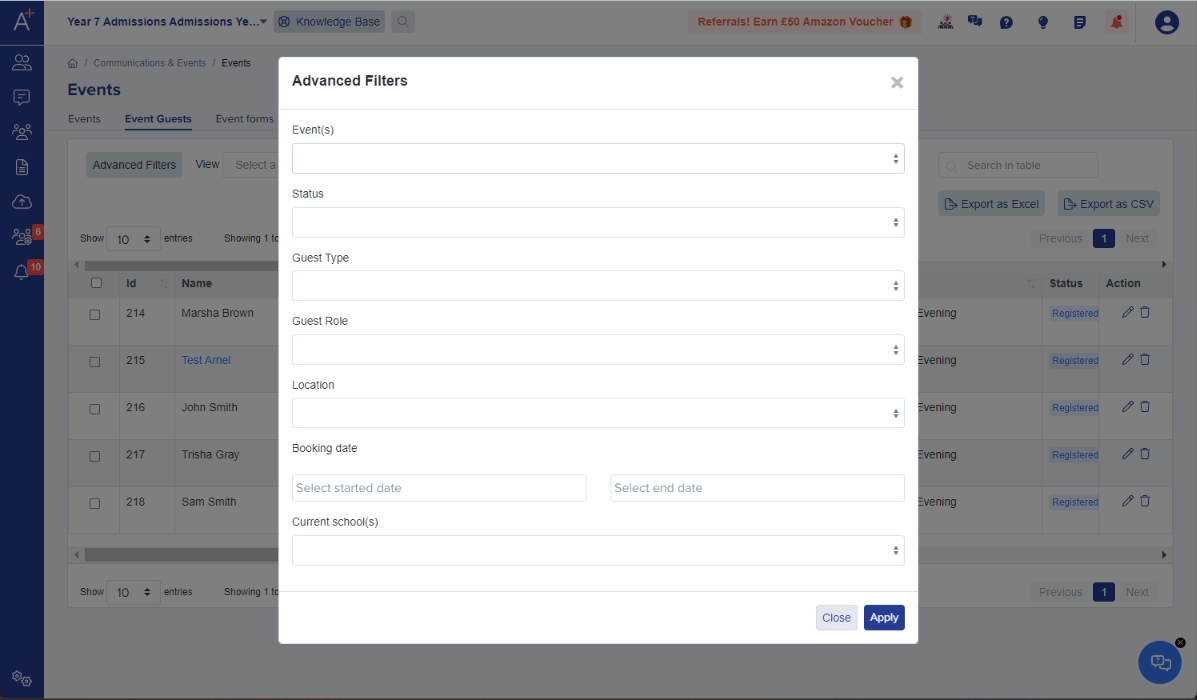
Click on Advanced Filters and set your preferred filter. You may also enable the toggle button for the Ticket view, Students, and Registrations properties to only view guests who meet the criteria.

Event(s) - the event guests registered for that you would like to view
Status - whether the guests registered, attended, did not attend, or cancelled
Guest Type - if the guest is a student or a parent
Guest Role - if the guest is the lead contact (the one who registered) or an additional attendee
Location - where the event is held / will be held (this is based on the location you set when you created the event/s)
Booking date - date range guests registered
Current School - current school of the student
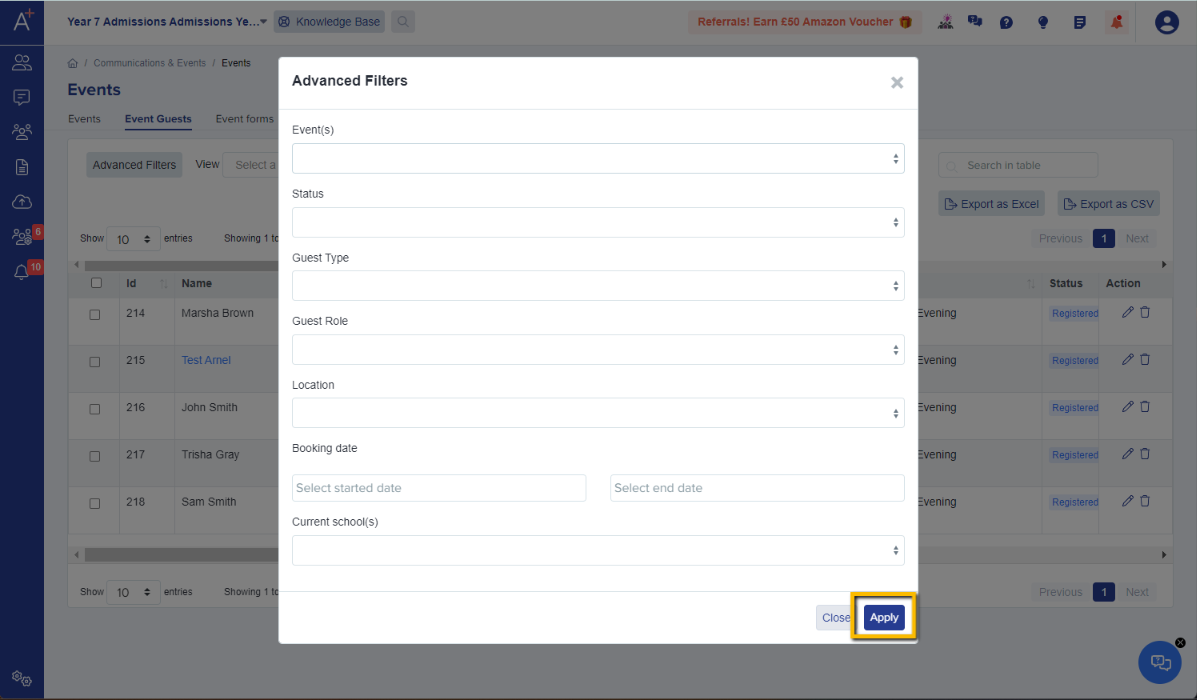
Once you’re happy with the filter you have set, click on Apply and it will show you the list of guests who fit the criteria.
Filter guests by a time slot
Use this method when each time slot is a ticket. In Advanced Filters, select the time-slot ticket under Ticket(s), then select Apply. The table shows guests who registered for that ticket.
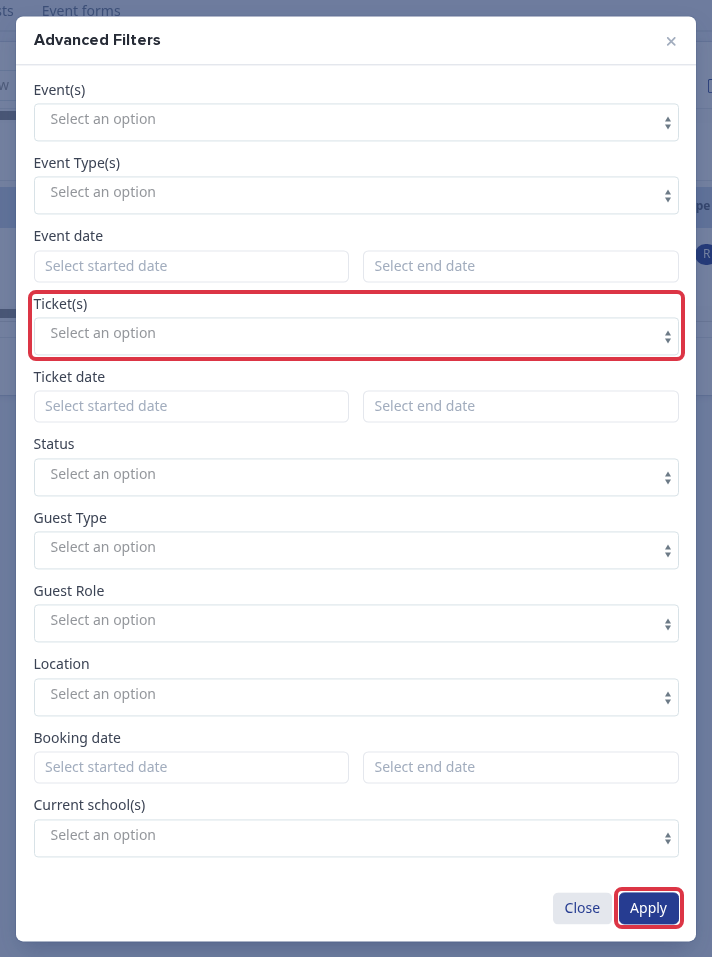
You cannot filter the Event Guests table by an answer to an event registration-form question. The Advanced Filters screen does not include registration-form questions or their answers. If your three time slots are answers to one question, the table cannot separate guests by those answers. Set up each time slot as a separate ticket when you need to filter guests by slot.
Walk-ins and a full event
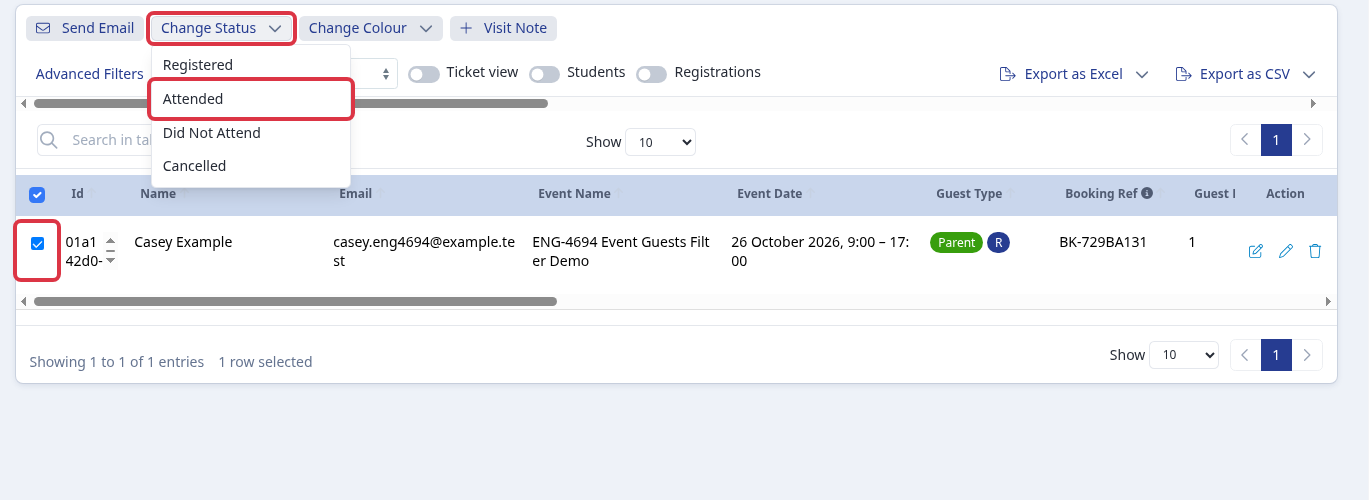
When capacity remains, add the walk-in through the normal event registration process. The guest then appears in the Event Guests table. Select the guest, then select Change Status and Attended to record their attendance.
Adding a guest follows the normal registration capacity checks and does not override a full event or full ticket.
When no places remain, the event uses its configured fully booked message. A ticket can also show: “There are insufficient places left for your booking quantity. Please amend the number of places or contact the school.” Enable and manage a waitlist when you need to keep a record of people after capacity is reached.