
Your Enrolment Test System is a complete, private copy of your live Admissions+ system where you can practise the enrolment process, fine-tune your settings and train your team without affecting live data or contacting applicants. This article explains how to create your test system, how to refresh it so it picks up settings you have changed on your live system since, and how to copy settings the other way — from your test system back to your live system.
Creating your Enrolment Test System
On your live system, go to "Settings" > "Enrolment Navigator" and open the "Testing" step of the enrolment setup.
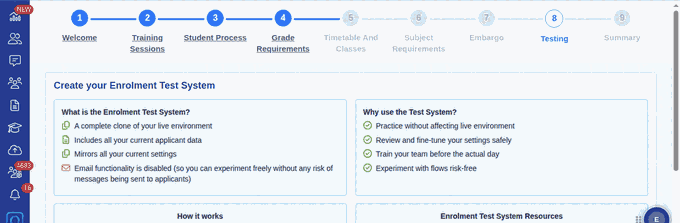
Your Enrolment Test System is a complete clone of your live environment. It includes all of your current applicant data, mirrors all of your current settings, and has email sending switched off so you can experiment freely without any messages reaching applicants or parents. When you log in, it is clearly identified as a test system.
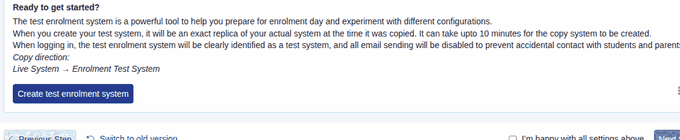
Under "Ready to get started?" you will see the copy direction "Live System → Enrolment Test System". Click "Create test enrolment system" and confirm. It can take up to 10 minutes for the copy to be created.
Refreshing your test system to include recent changes
If you have already created a test system and have since changed settings on your live system, you can refresh the test system so it reflects those changes. On your live system, return to "Settings" > "Enrolment Navigator" > "Testing". Because a test system already exists, the button now reads "Update Test System", and the page shows the date your test system was last copied from your live system along with a "Navigate to enrolment test system" button to open it.
Clicking "Update Test System" makes a brand-new copy of your live system — including your latest settings and all current applicant data — and replaces the contents of your existing test system. This action is irreversible and overwrites whatever was previously in your test system, so use it whenever you want your test system to start again from a fresh copy of live.
- The refresh always copies in one direction only: Live System → Enrolment Test System.
- You can run "Update Test System" as often as you need — each run gives you a fresh replica of your live system.
- A copy can only be started from your live system. If you are already logged into the test system you will be told that nested test systems are not supported, so switch back to your live system to run the copy.
Copying settings from your test system back to your live system
Once you have practised enrolment in your test site and you are happy with your settings, you can copy the settings over to your live site.
To copy the settings from your test enrolment site to your live Admissions+ system, click "Settings" > "Enrolment Settings" in your test system. Navigate to the bottom of the page and click the button to "Apply enrolment configuration back to live system".


This message will appear, alerting you to which areas can be synced automatically and which will need to be updated manually, if applicable:

- Copied automatically: your Enrolment Settings, and changes to any of your application form phases (for example the Application Form and Enrolment Form).
- Not copied automatically — if you changed these on your test system, update them manually on your live system: Subjects (including subject classes and general requirements), Specific Requirements, Pathways, and Timetable Blocks.
You can sync back and forth between your live and test systems as often as needed.