
The Matching Hub works in a similar way to University Clearing:
- Sixth Forms and Colleges who have spaces remaining in any subjects after their enrolment period is complete can publish these spaces on the Matching Hub
- Students who have not yet secured a place can find available spaces on courses for which they are eligible and express their interest
- Sixth Forms/Colleges are notified when an eligible student expresses interest and can review their details and make enrolment offers directly
- Students can review their offers and accept one, at which point the Sixth Form/College can enrol the student and collect any additional data from them
Posting your available places to the Matching Hub is free.
If you successfully recruit students via the Matching Hub, the fee per student is £299, recruited and staying with you beyond October census.
The Matching Hub opens Friday 28 August 8:00AM
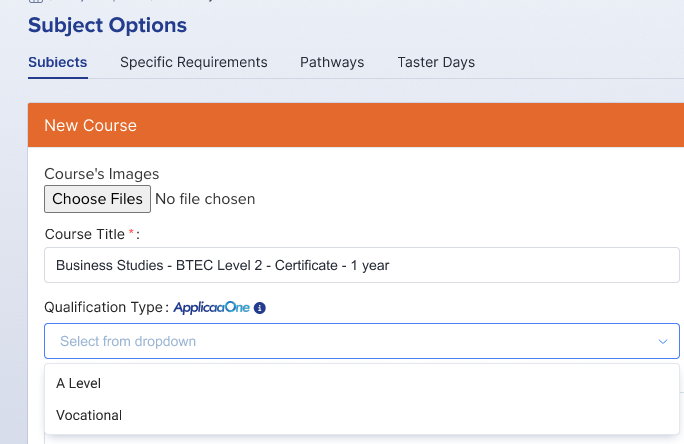
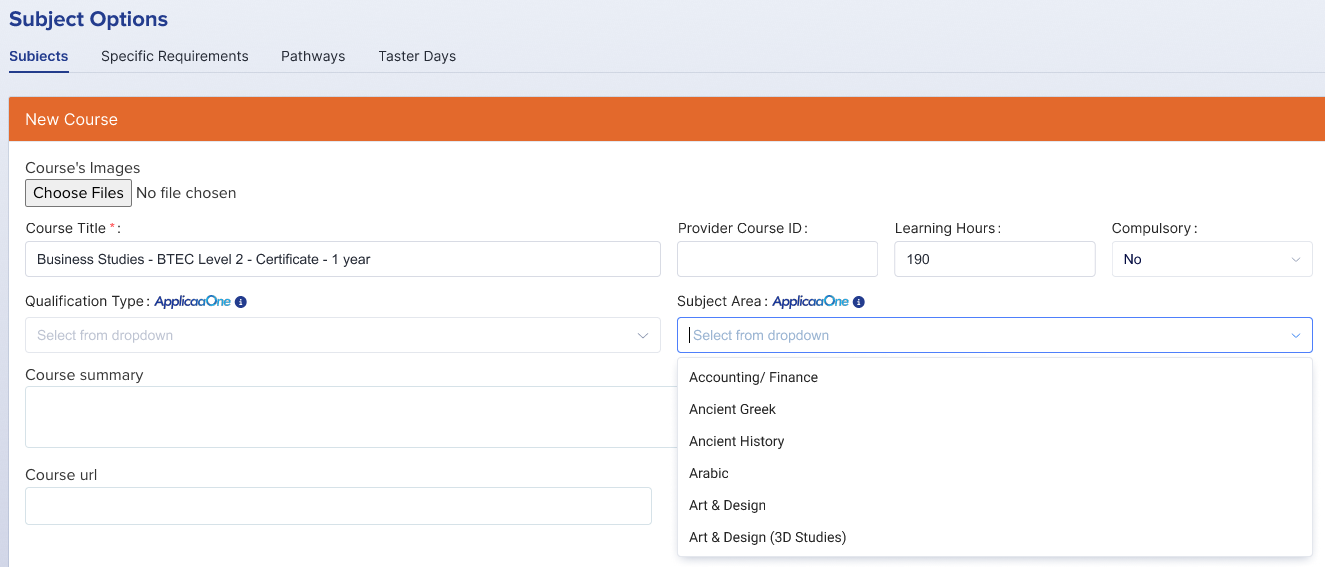
Prior to the Matching Hub being activated, your courses will be need to tagged with their Course Title, Qualification Type and Subject Area. Applicaa have bulk filled the courses that were easy to map. You may have some that need to be checked (settings > subject options > subjects).
You publish your available spaces for each course to the Matching Hub by navigating to the Timetables area within your A+ system.
Select which courses you would like to publish and select “publish to ApplicaaOne”.

This can be completed in bulk by selecting multiple courses before clicking the “publish” button.
Once a course is published to ApplicaaOne, the button will be ticked (those unpublished appear greyed out).
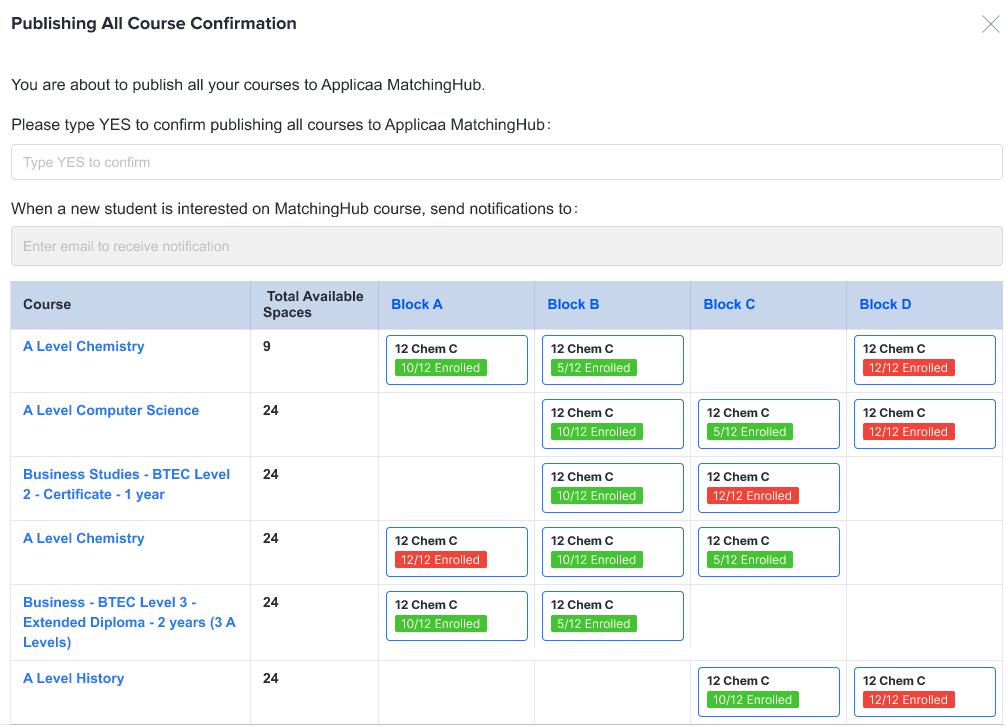
Type YES to confirm your selection.
You can also specify who should be notified when a new expression of interest is received.
You will see an overview of courses and classes, showing the total number of spaces available.
Expressions of interest will be visible to you within your Enrolment area in A+.
You will see a Matching Hub tab, where all students who are approaching you via the Matching Hub will be listed so you can see their achieved grades and proof, and their preferred subjects.
Process them by selecting to “make an offer” or “decline”.
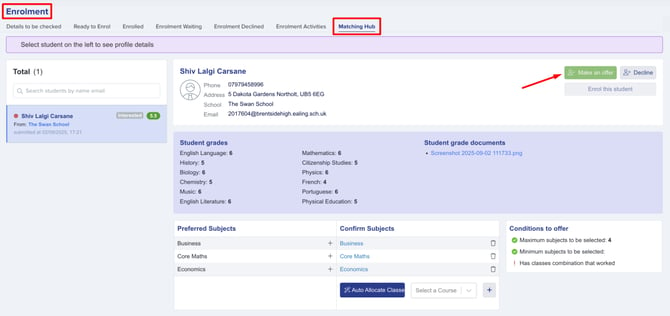
If you choose to make them an offer, the student will then respond to this on the Matching Hub.
If they accept, you will see the option to “enrol this student”.
How it works for Students
Students log into ApplicaaOne to access the Matching Hub - this will only be available to them if they are not currently enrolled elsewhere.
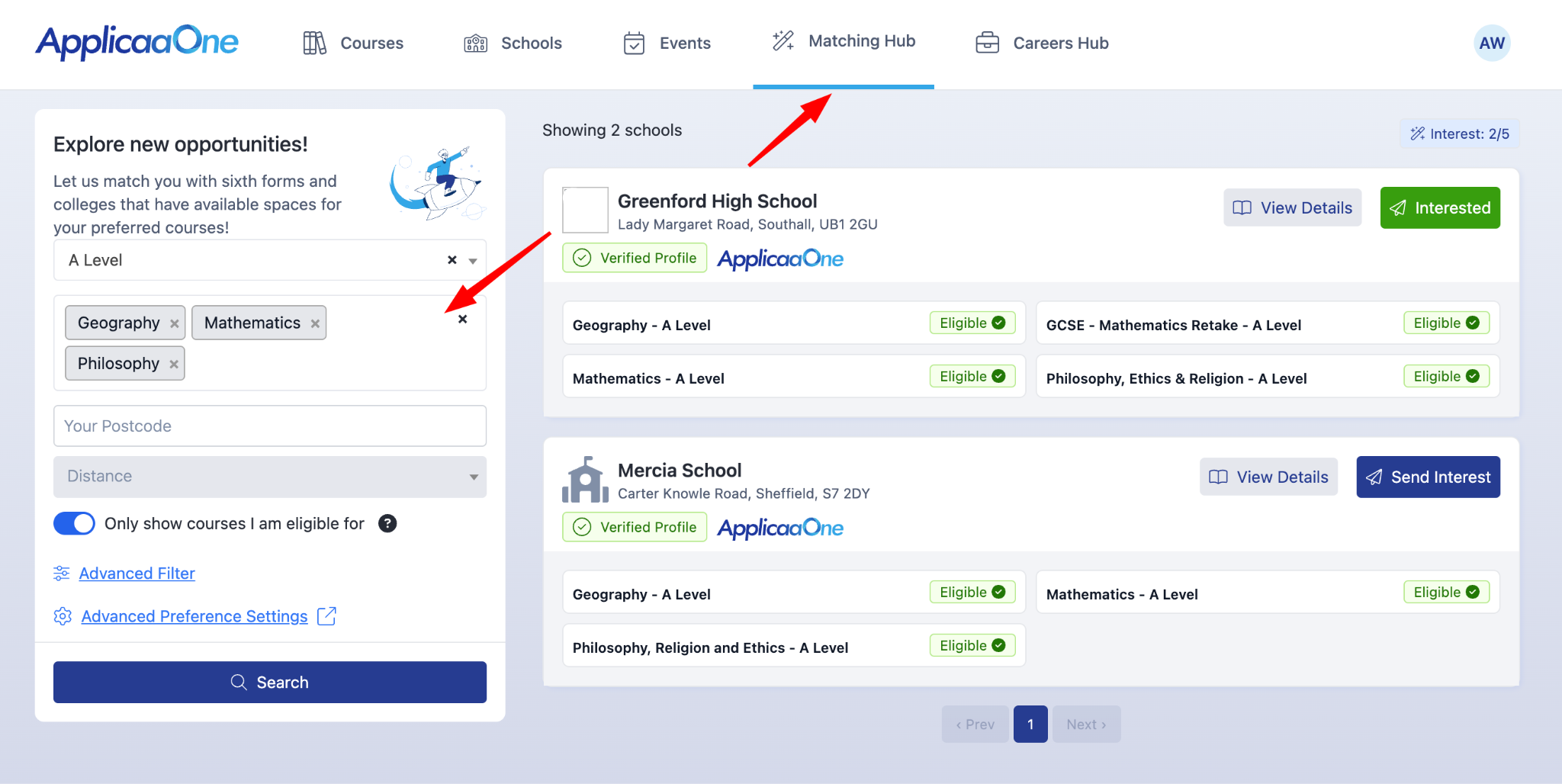
They specify their preferred courses, achieved grades (with evidence), and their contact information.
They can then search for providers and express an interest with up to 5 Sixth Forms/Colleges - schools they match with, who have published available spaces will show in their results.
Students can track and respond to their offers in the Matching Hub - on receiving offers, they can only choose to accept one.
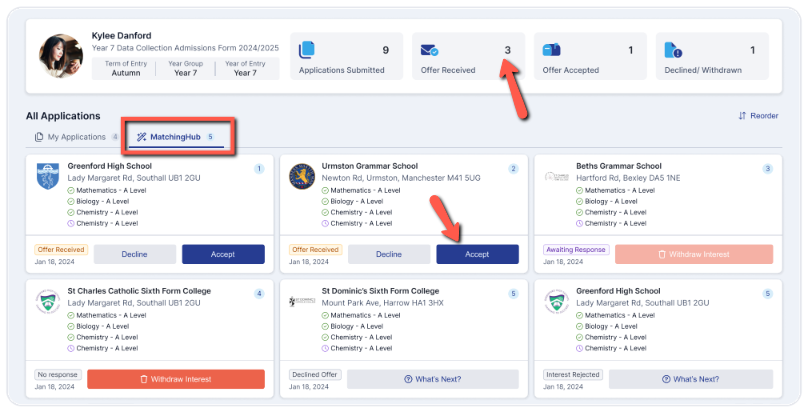
On accepting an offer, they may then be contacted again by the Sixth Form or College to request additional information to complete their enrolment, such as parent/carer information, medical and welfare details etc.
Why doesn't a student show up in the Matching Hub?
The Matching Hub tab lists records for your school that are in the Matching Hub process. Check that the student expressed interest in your school when a student does not appear in this list.
- The course they are interested in is not published to the Matching Hub. Only a course you have switched "publish to ApplicaaOne" on (see above) is offered to students on ApplicaaOne, so an unpublished course never generates an expression of interest for your school.
- The student applied to a different school. The list only ever shows students who expressed interest in your school, not students matched elsewhere.
Why is "Make an offer" greyed out?
"Make an offer" is disabled, not broken, while the student's selected courses do not meet the course-selection criteria your school has set. A Matching Hub status does not disable this button. You set these criteria on the same application form, on the enrolment settings for the course step.
Open Enrolment Settings on the application form and select the "Timetable And Classes" step.

This step holds the course-selection criteria that decide whether "Make an offer" is available.

Until every one of these is met, the button stays disabled:
- Minimum/Maximum number of subjects that the student can select- the student's selected courses must add up to at least the minimum and no more than the maximum you allow.
- Minimum/Maximum learning hours- the combined learning hours of the selected courses must sit between these two limits.
- The selected courses must fit your timetable - each one needs a class with space (where you cap applicants per subject) that does not clash with the student's other classes.
Once the student accepts an offer, enrolling them also needs a form group assigned to them, where your school requires one.
Still stuck once every condition is met? Ask Emma from your A+ homepage, or contact our support team from the helpdesk - they can check the student's record for you.