
This article covers where student-uploaded results and documents appear, why the upload button may be missing, and how to adjust the date range and mandatory-upload settings. For initial setup of grade collection and uploads, check settings > enrolment navigator.
Where uploads appear on a student's profile
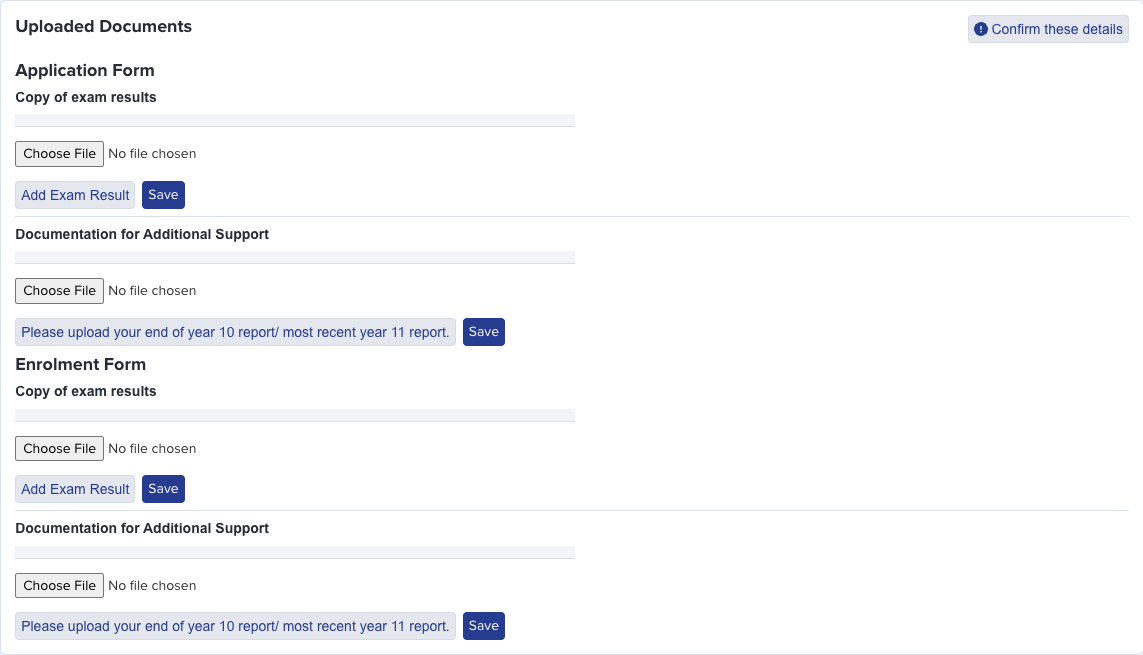
When a student uploads exam results or supporting documents during enrolment, they appear under the Uploaded Documents section of the student's profile. This section is split by form: uploads from the Application Form and from the Enrolment Form are shown separately.
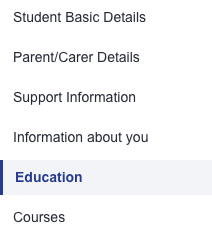
Each upload shows the file name, the date it was uploaded, and a link to download the file. Staff can also delete individual uploads from here.
Why the upload button may be missing
The upload button is controlled by separate Internal and External toggles on the Education step of your enrolment form. If a student cannot see the upload button, check that the correct toggle is enabled for their applicant type.
To check, go to Enrolment Navigator and open the Grade Requirements step.

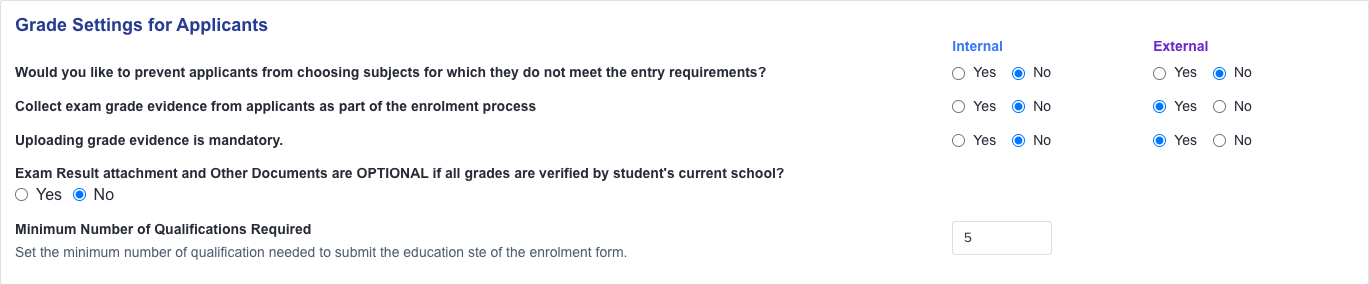
Under Grade Settings for Applicants, look for "Collect exam grade evidence from applicants as part of the enrolment process". This has separate Internal and External columns - if External is set to No, external applicants will not see the upload button.
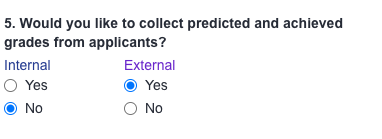
Also check "Would you like to collect predicted and achieved grades from applicants?" further up the page - if this is set to No for External, the entire grades section (including uploads) is hidden for external applicants.
The upload date-range cap and how to widen it
When students enter their exam results, they must select a Received Date from a fixed list. If the current month is not in the list, students cannot record results received this month.
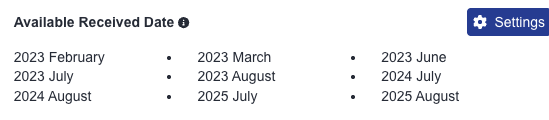
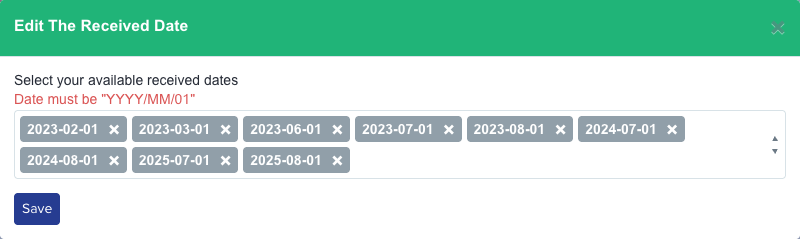
To add new dates, click the Settings button next to Available Received Date, then add the required month in the Edit The Received Date modal. Dates must be in YYYY/MM/01 format. Click Save when done.
Making the upload genuinely mandatory
To require students to upload exam result documents before they can submit, set "Uploading grade evidence is mandatory" to Yes for the relevant applicant type (Internal, External, or both).

There is also a bypass setting: "Exam Result attachment and Other Documents are OPTIONAL if all grades are verified by student's current school?". If this is set to Yes, students whose grades have all been verified by their school can submit without uploading documents, even when the mandatory toggle is on. Set this to No if you always require document uploads regardless of verification status.

Still need help?
If uploads are still not appearing or settings are not behaving as expected, ask Emma (the chat assistant in your Admissions+ dashboard) or raise a ticket via the Admissions+ helpdesk.