
MultiForm lets your school run more than one application form at the same time — for example a Year 7 admissions form, a Sixth Form form and an in-year form all live together. This guide shows you where to manage your forms, how to activate them, and how to request activation of multiform.
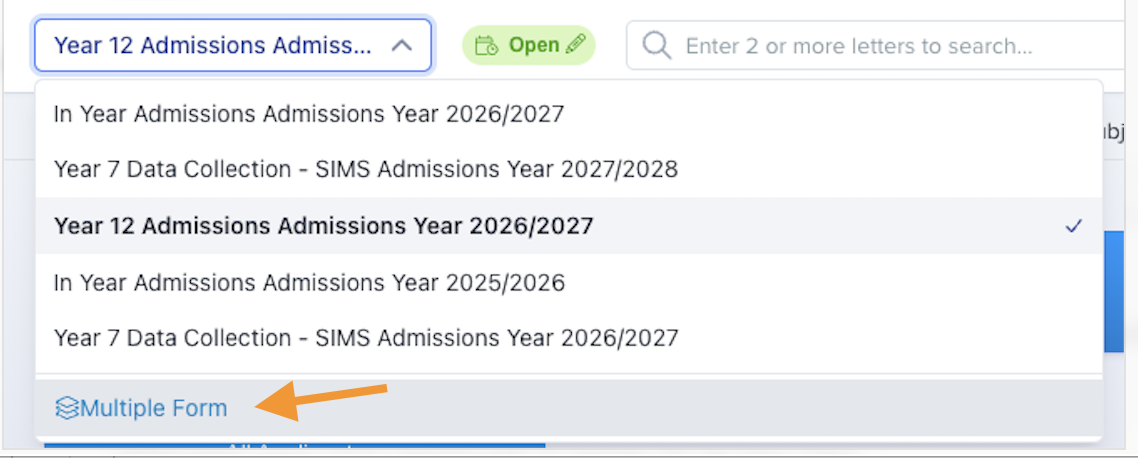
Open the user menu in the top-left of your dashboard and select "Multiple Form" or "Forms Area". This takes you to the forms area, where every application form your school has is shown as its own card.
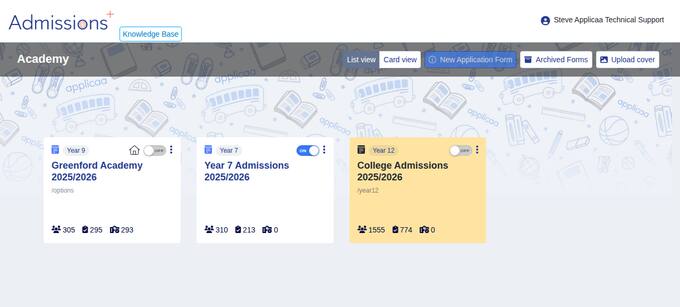
IIn the forms area, each form appears as a folder-style card showing its year group(s) and its registered, completed and enrolled applicant counts. Use "Card view" or "List view" to change how they are displayed.
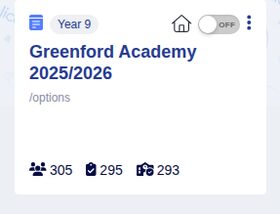
Each card has an on/off toggle in its top-right corner. Turn the toggle on to make that form active, or off to deactivate. The home icon marks your default form.
Whether you can keep more than one form live at once depends on MultiForm:
- Without MultiForm — only one application form can be active at a time, plus one in-year form. Turning a form on automatically turns the others off, and you will see the message "You can activate only one application form, plus one in-year form".
- With MultiForm — you can keep several application forms active at the same time. Turning one on no longer switches the others off.
MultiForm is enabled at the account level, so it is not a setting you switch on yourself. If you need to run more than one application form at the same time, contact Support on 0203 667 0764 or via the LiveChat in the bottom-right of your platform, and the team will enable MultiForm for your school.
Once MultiForm is enabled you can:
- Keep multiple application forms live at the same time from the "Multiple Form" area.
- Activate or deactivate each form independently using its toggle.
- Set one form as your default using the "Set as default" option in each card's menu.