
Use this article to correct an email address recorded against a student's application, or against a linked parent or guardian.
Search for the student and open their profile.

On the "Student Info" card, find the row for the student's personal or school email - the label depends on your settings. Click the email value to open the update popup.
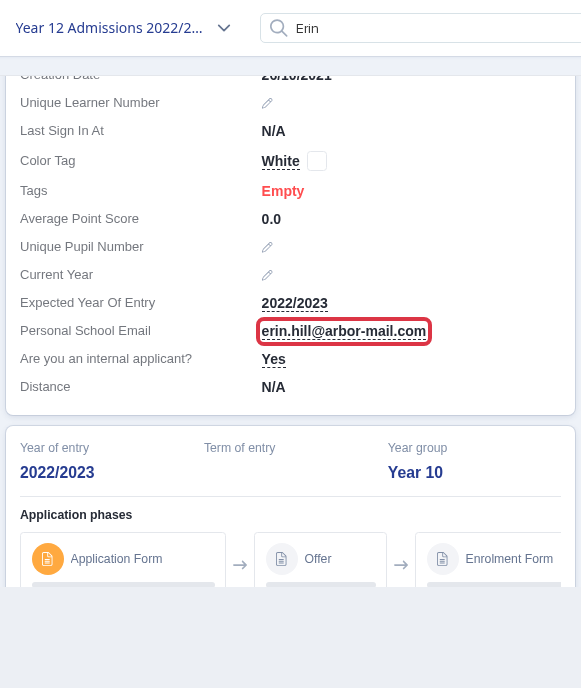
Type the corrected address in "Update School Email" (or "Update Personal Email") and click "Save".
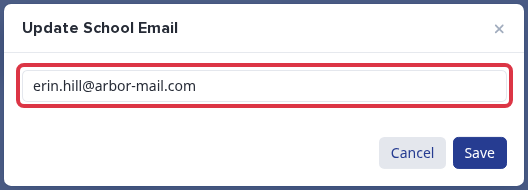
- A duplicate address - one already used by another student or contact - is rejected with an error, and the popup stays open so you can correct it.
- A badly formatted address is rejected the same way.
This is a different field from the student's account email, the address they use to log in. That field shows as plain text on "Student Info" and is not clickable. To correct it, open the student's profile and add ?edit_email=true to the end of the page's URL, then press Enter. This opens the "Edit Email" popup.
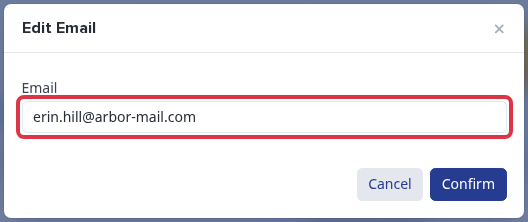
Type the corrected address and click "Confirm".
Parent or guardian email
Open the student's profile and select the "Family" tab. Click the parent or guardian's email value to open the same style of update popup, correct the address, and save.
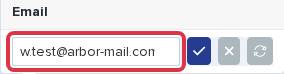
This only works while the parent has not yet confirmed a login account for their own portal. Once they have, the field shows as read-only text with a link to their full profile - see "How to change parent's email address" below for that flow.