
Use the Admissions+ SIMS App when you need to transfer completed applicants to SIMS and do not know where to start. Install the App on a school workstation where SIMS is installed.
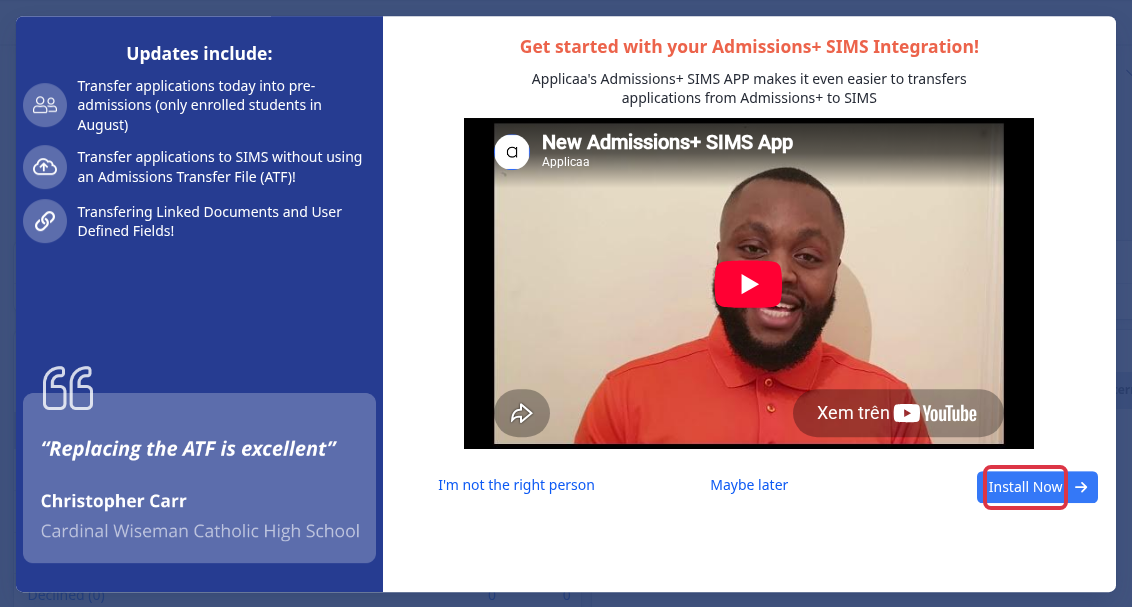
When the Admissions+ SIMS Integration panel opens, select "Install Now".
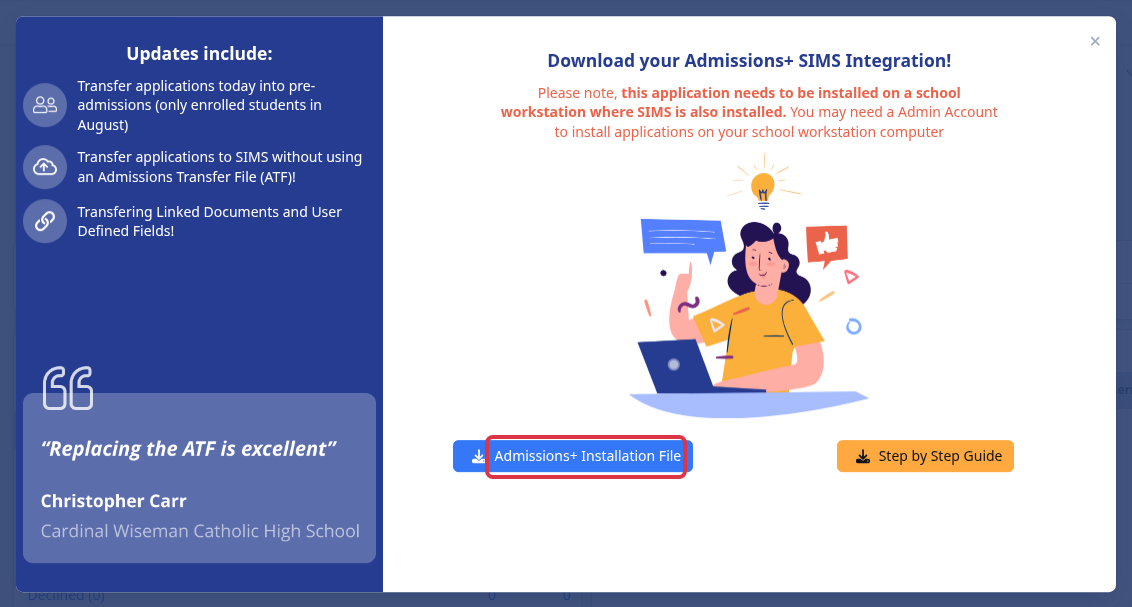
Select "Admissions+ Installation File" to download the installer. Then select "Step by Step Guide" and use that guide for the desktop SIMS transfer.
Before you start
The standard SIMS App list contains applicants with the application status "Completed". If a Year 7, sixth-form, or new admissions-year form does not appear, or an applicant is missing, first follow Check forms and completed applicants before a SIMS transfer.
What it does not do
This start panel does not create a SIMS pre-admissions group, change SIMS mappings, reverse an import, recover a deleted SIMS record, or configure a SIMS App URL. Ask Emma in Admissions+ and include the exact desktop App error when you need help with one of those tasks.