
This guide will show you how to enrol students and make changes, as well as checking the number of enrolled students per class.
First, you'll go to your Enrolment area.
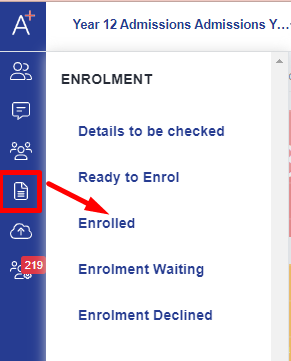
Once you've processed your students through Details to be Checked & Ready to Enrol and confirmed their courses, you can then review each student in the "enrolled" area.
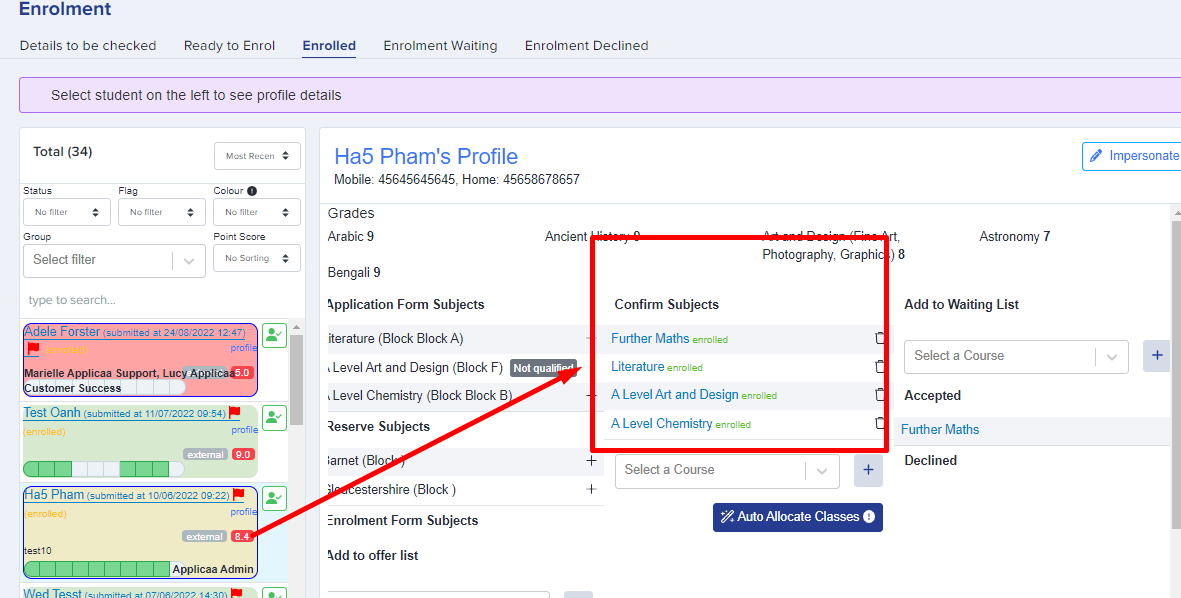
You will see that the student has been enrolled into their courses under the 'Confirm Subjects' box.
Checking that an individual student's enrolment is correct
If a student (or a colleague) asks you to double-check that someone has been enrolled correctly, open the Enrolment area and select the Enrolled tab, then choose that student from the list on the left to open their profile.

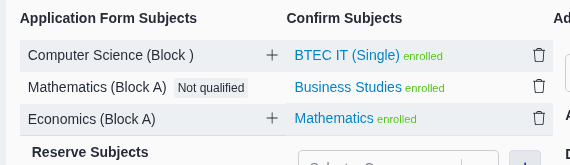
In the Confirm Subjects box you will see every course the student is enrolled onto. Each confirmed subject shows a green "enrolled" label – that label is your confirmation that the subject has been fully processed for that student. If an expected subject is missing, or a subject appears in the box without the "enrolled" label, that student's enrolment is not complete yet and you can add or adjust their subjects using the steps below.
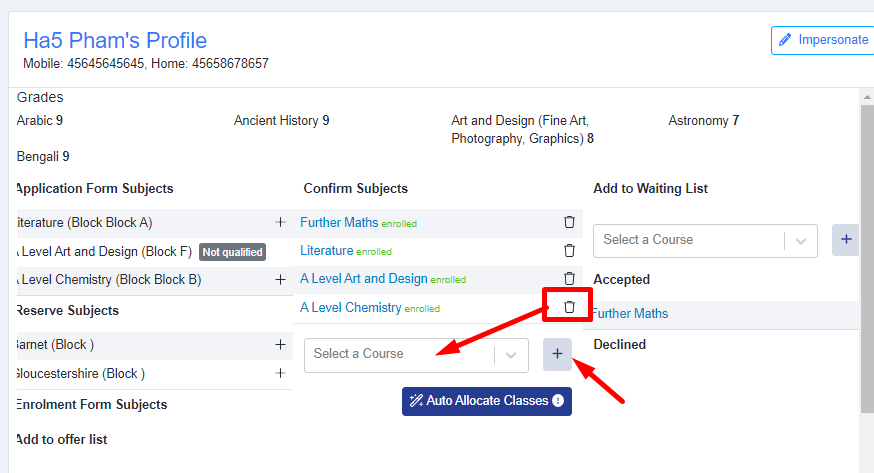
If the student wishes to change their enrolled subjects, or if you need to make changes, you can click on the bin icon next to each course you wish to remove. Select another course from the dropdown and then click the '+' icon to add it as a new confirmed subject.
For any subjects you have changed, when you scroll further down, you will have to select which option block (class) to assign the student to.
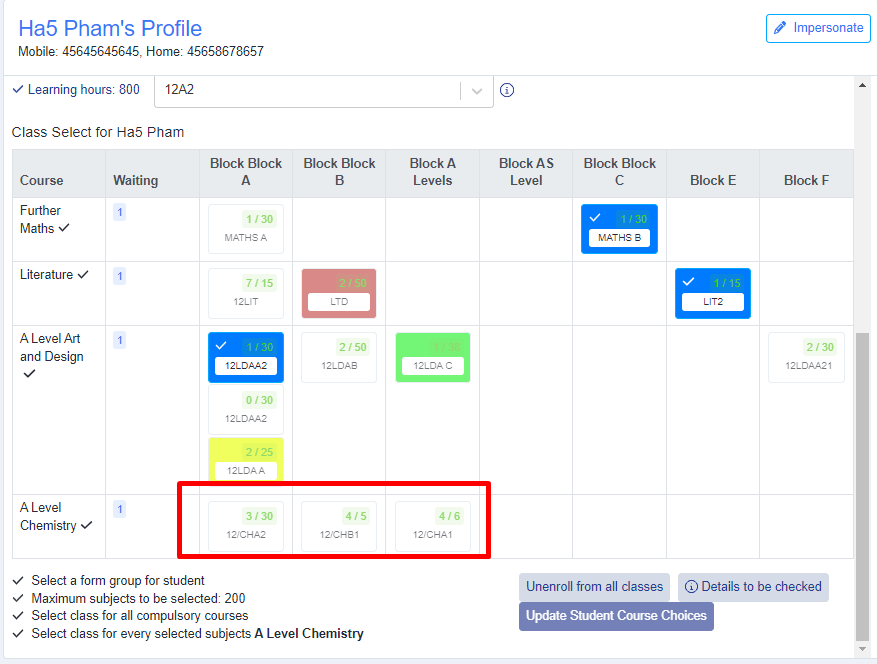
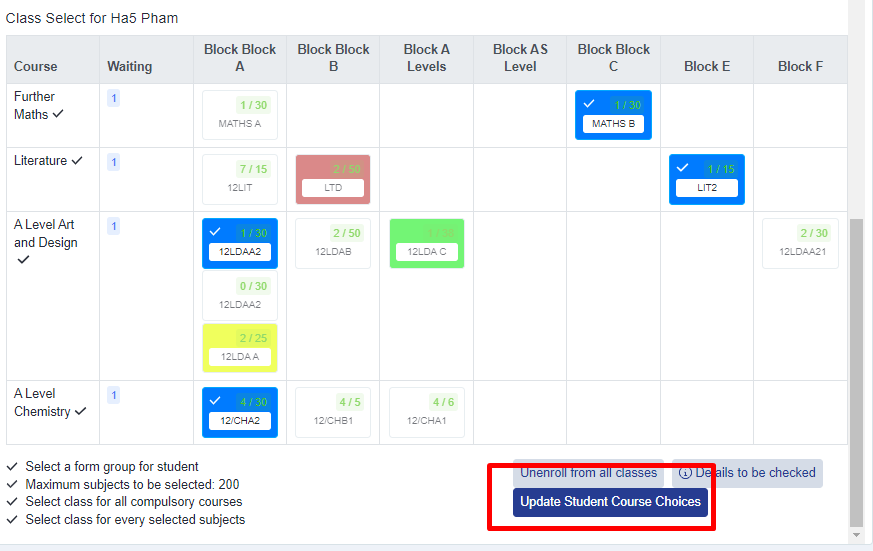
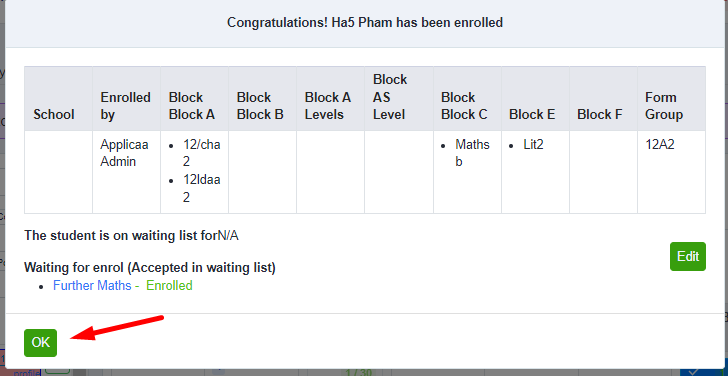
Once the new block has been selected, click on the 'Update student course choices' button and you will be able to see an overview of the classes that the student is enrolled onto.
To check your enrolled numbers per class, go back to the main dashboard and go to the 'Timetables' area.
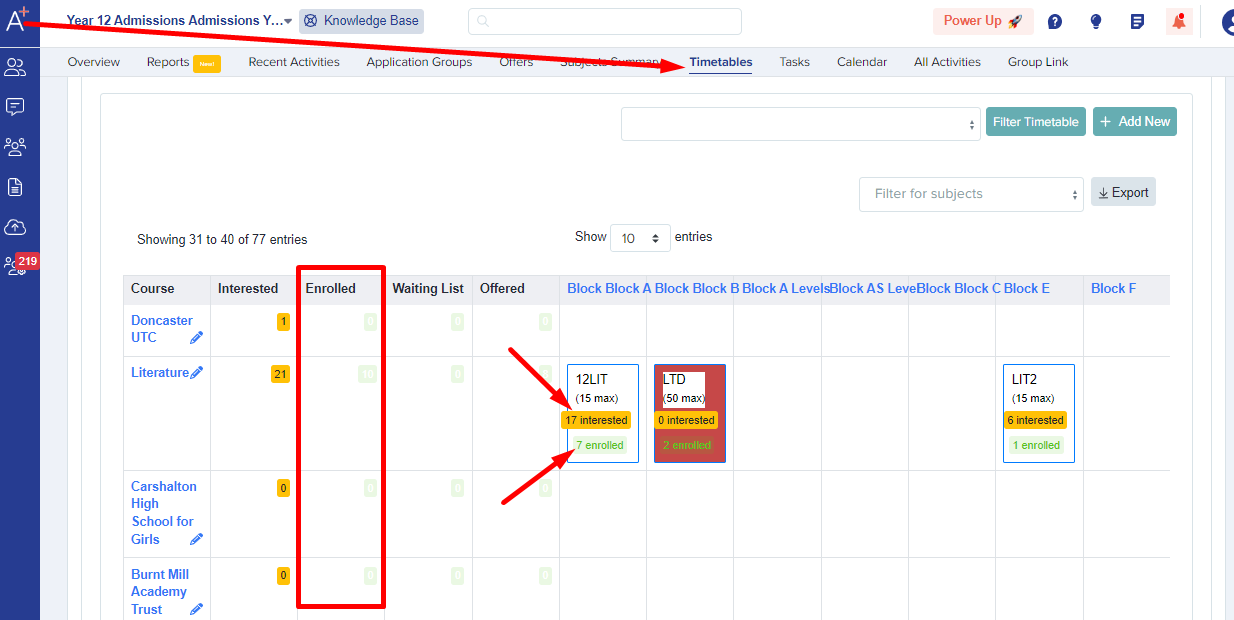
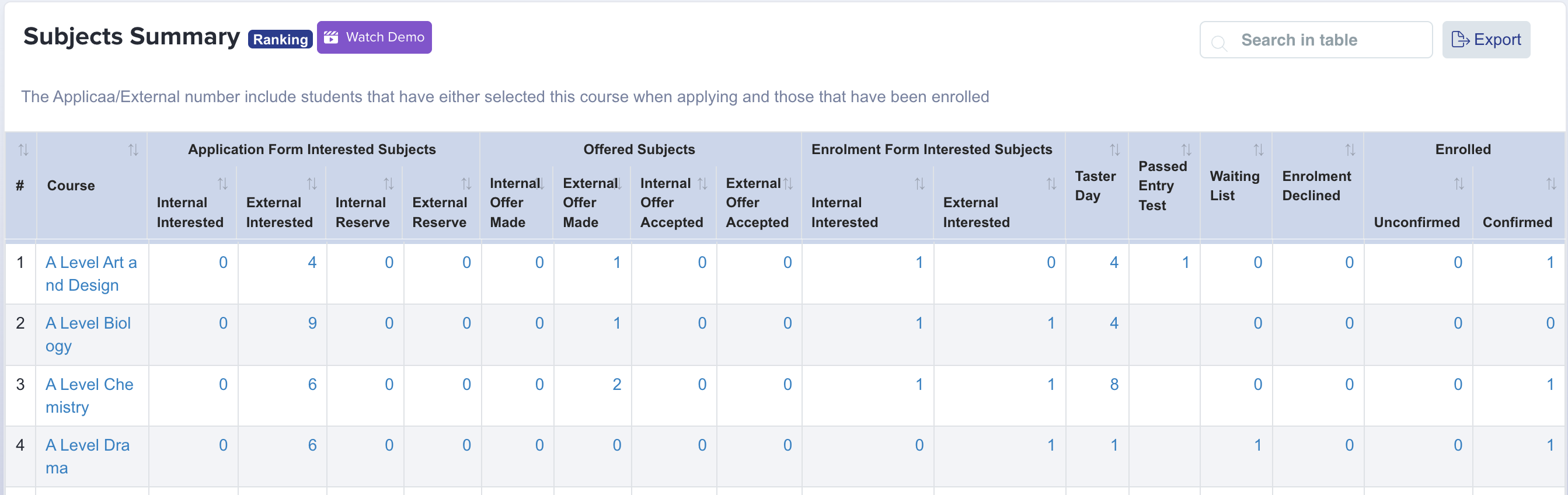
From the above, you will be able to see under each block (class), how many students are interested (students who have chosen this subject in their application form) as well as the number of enrolled students in each class (these are the ones that have gone through enrolment & had their details checked and have been enrolled onto these classes). You will also see the total enrolled number per subject within the "Enrolled" column.
You can also see the subject totals in your Subjects Summary on your main dashboard (click A+ in top left of screen, and scroll to the bottom of your dashboard).
What it does not do
There is no built-in report that groups enrolled students by their overall subject mix – for example “pure A level”, “pure vocational” or “a mix of both”. The enrolled counts above, and the Subject Analysis section of your Enrolment Report, always show numbers per subject rather than per student’s combination of subjects. To work out how many students fall into each group, cross-reference the per-subject enrolled lists yourself.
Recording a candidate number for an enrolled student
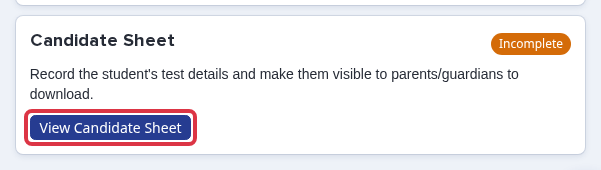
Once a student shows as enrolled, you can record their exam board candidate number on their profile. Open the student from the Enrolled tab as above, then on their profile find the Candidate Sheet card and select View Candidate Sheet.
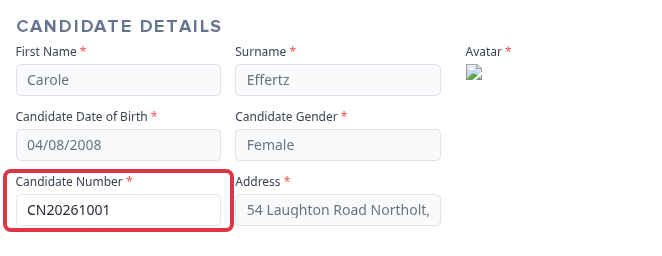
In the Candidate Details section of the sheet, enter the student’s number in the Candidate Number field and click Save.
- The same Candidate Sheet also records the student’s exam room, seat number, test dates and other exam-day details – all on the same form.
- Candidate numbers are staff-only: parents and students cannot edit this field from their own portal.
The Candidate Sheet card only appears once your school has the Candidate Sheet feature turned on. Ask Applicaa support to enable it if you don’t see it on a student’s profile.