
This guide will show you to how to link a student account with an existing parent account.
To easily go to the student profile, you can use the search bar on the top middle section of the platform beside the Knowledge Base Button. Accounts with the same name letters will be suggested when typing in the student's name. You should see whether an account is a student or a parent.
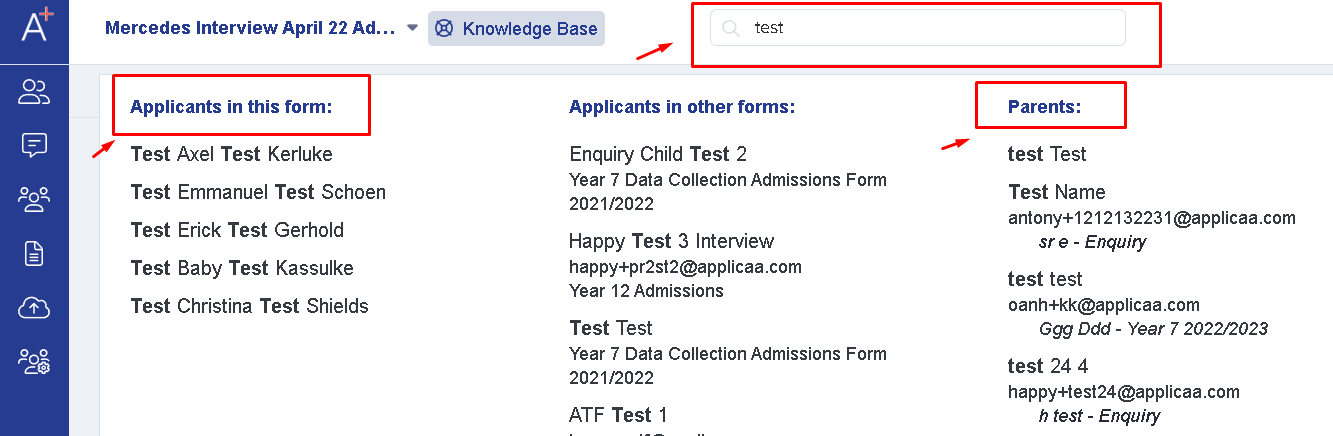
When you click on the name of the student, you will be directed to their profile. Look for the Family Tab.
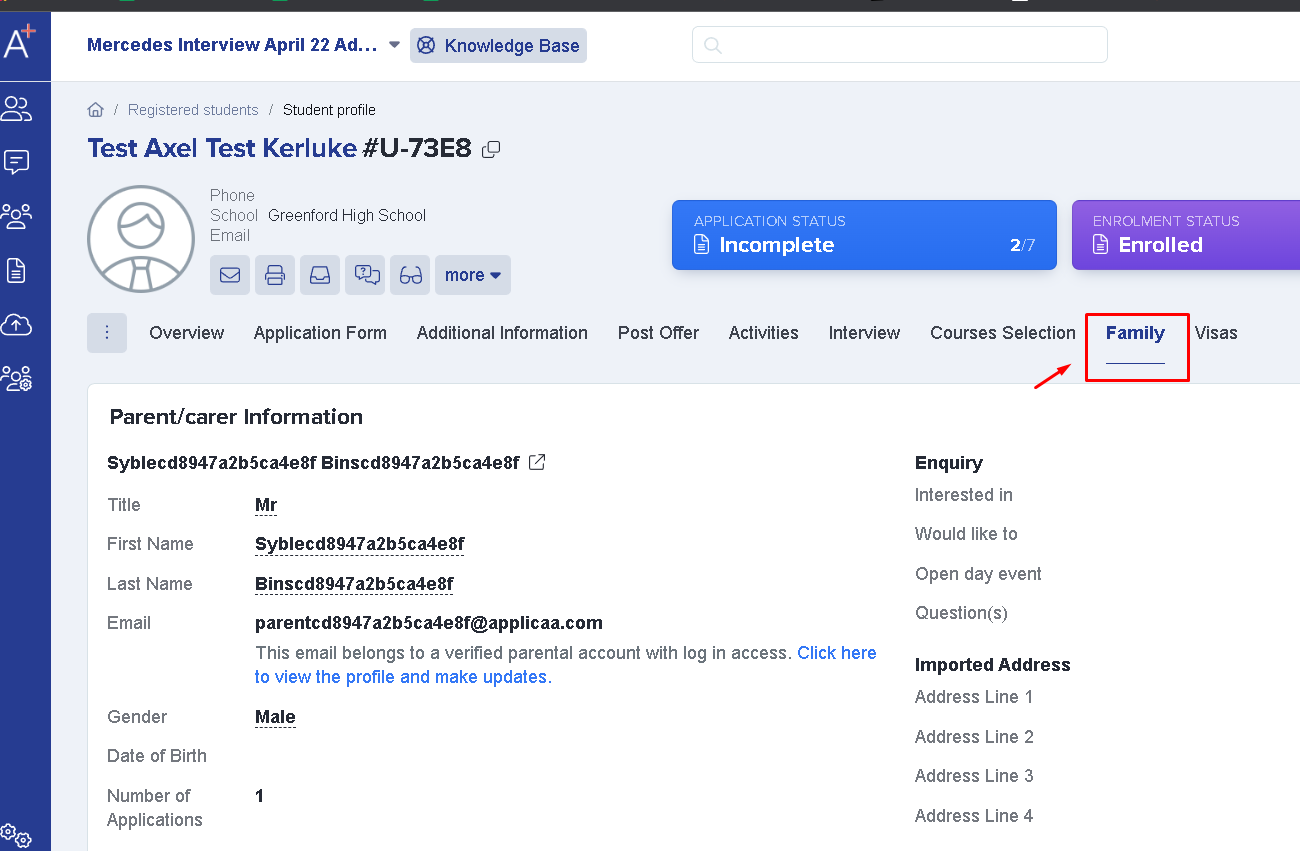
You will then see a field to enter and search for the name or the email address of the parent and then click on the "Save" button to successfully link the student's account to their parent.
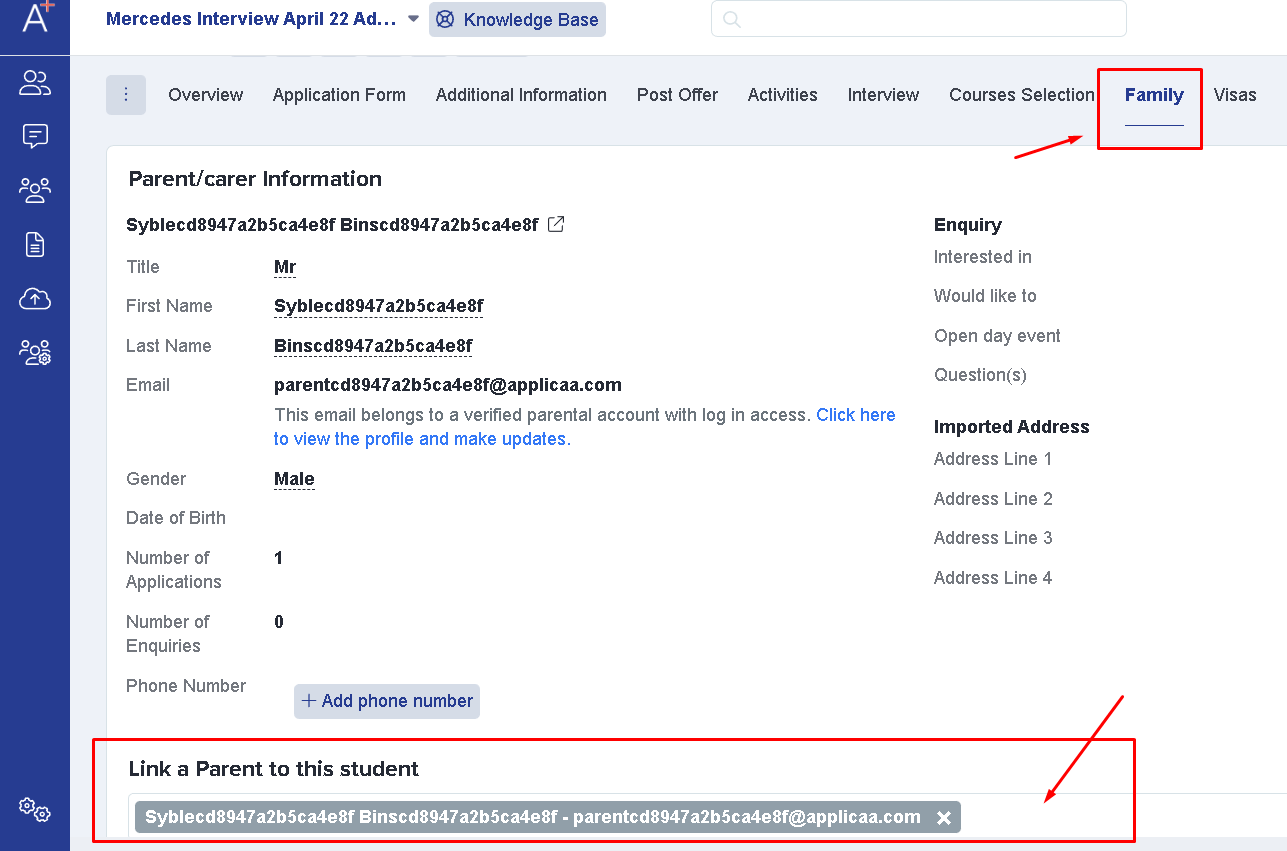
To unlink a parent, click the "Unlink Parent" button located on the right side of the parent's information, or visit the parent's profile to remove their account if necessary.
Fixing "This email is already taken by a … account and can't be linked as a parental account"
You may see this message when you link or save a parent whose email address is already registered to another account on the platform. Every parental (login-enabled) account must have its own unique email address, so when the address you enter already belongs to a different account the system cannot attach it to this student as a new parental account. The message names the type of account that is already using the email — for example "a contact account" or "a student account".
To resolve it, first type the email address into the search bar at the top of the platform. In most cases the account that already holds the email will appear in the results, and the result tells you whether it is a student or a parent.
If the email belongs to an existing parent, link that parent to the student from the Family tab shown above — search for them by name or email and click "Save" — instead of creating a new account. This reuses the account that already holds the email, and the message will no longer appear.
Sometimes the message appears even though you cannot find the account on any student's profile. This usually means the email belongs to a parent account that is not linked to any student. These accounts do not show on a student profile, but they are listed under "Parents & Enquiries" in the "Orphaned Parents" area.
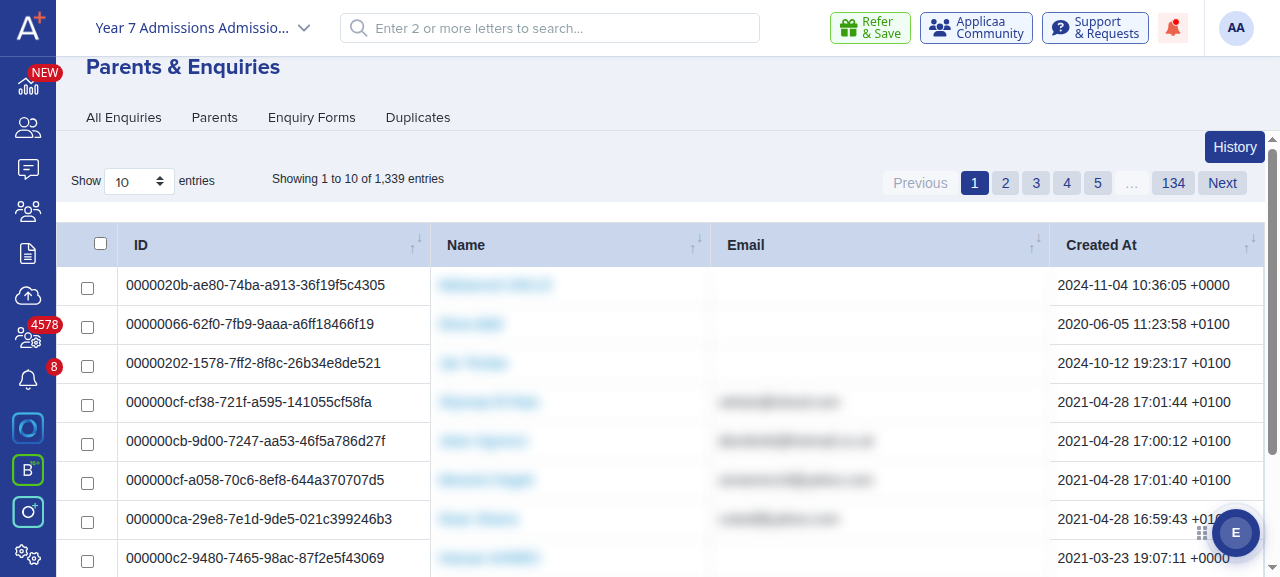
Review the unlinked accounts in this list. If one is a duplicate you no longer need, tick it and click "Delete Parents" to remove it, and the email address is then free to use for the parent. If the account is still needed, use a different email address for the parent instead.