
When Admissions+ exports a contact to your MIS, it stores the ID of the MIS record that contact was matched to. Every later export updates that same MIS record. If the contact was linked to the wrong record, the next export writes your applicant's parent details onto a different person. "Contact Mismatch Checking" finds this before any data leaves Admissions+, and lets you correct the link.
This check runs on exports of students and contacts to Bromcom, Arbor, Progresso and iSAMS.
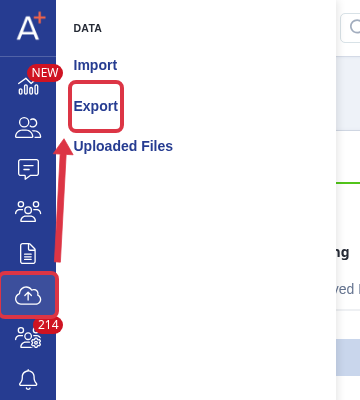
Open the application form you are exporting from, then go to "Data" > "Export".
Open your export and continue to step 5, "Students/Contacts Matching". Admissions+ reads back every MIS record it already holds an ID for, compares it with the Admissions+ contact, and lists each contact that no longer looks like the same person under "Unresolved Matches".
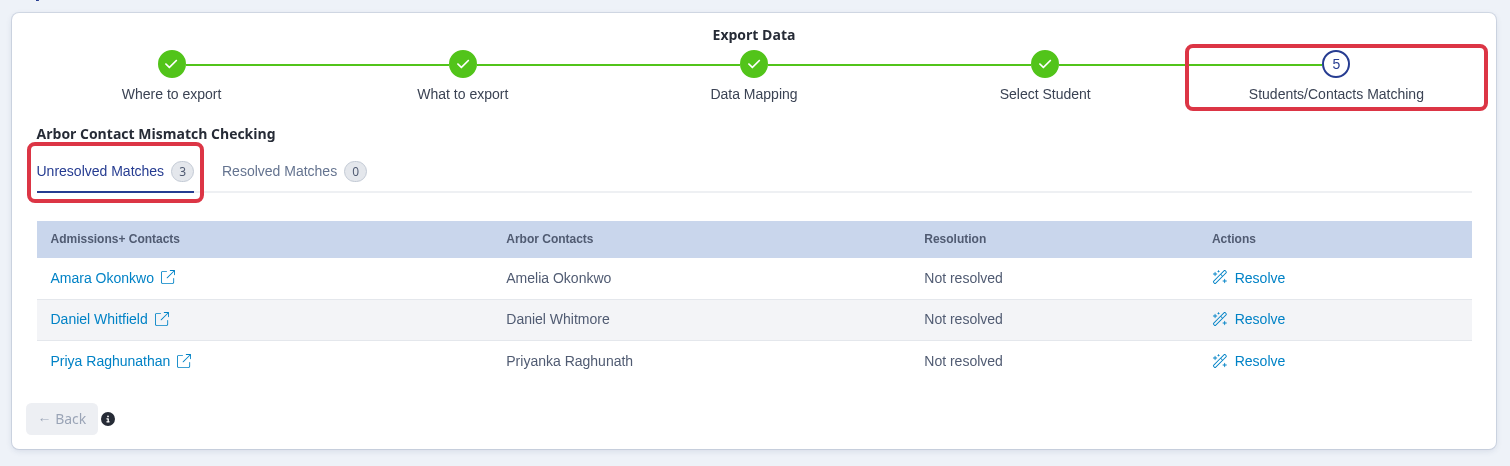
Select "Resolve" next to a contact to compare the two records.

The comparison shows the Admissions+ contact beside the MIS contact it is linked to, and shades every field that is different. Select "These are different people" when the MIS record belongs to someone else, or "This is the same person" when the parent only changed their own details. Then select "Confirm & Next".
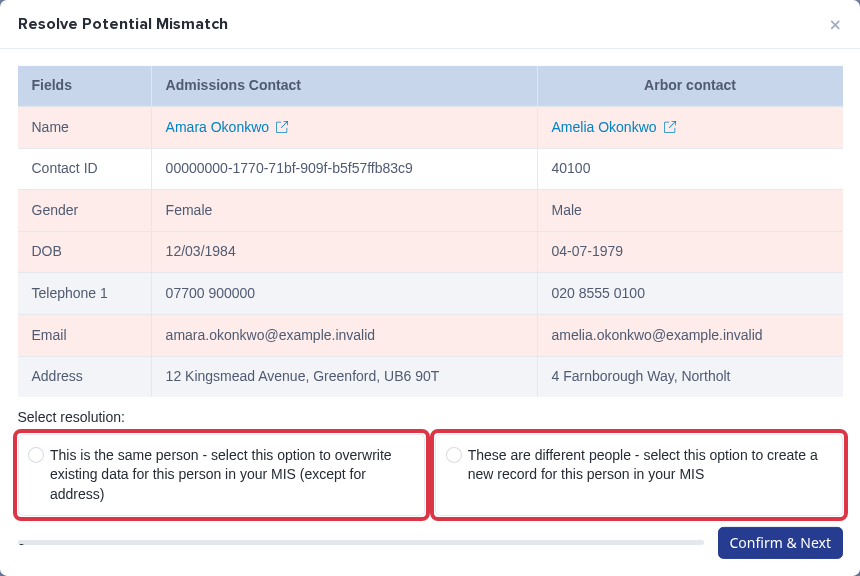
- "These are different people" creates a new record for the parent in your MIS. The other person keeps their own details.
- "This is the same person" overwrites that MIS record with the details from Admissions+.
- Address changes do not export. Update an address directly in your MIS.
- The "Resolved Matches" tab holds every decision you have made. Open it to check a decision before you continue.
- When no contact is flagged, Admissions+ shows "No potential mis-match contacts" and you continue with "Next".
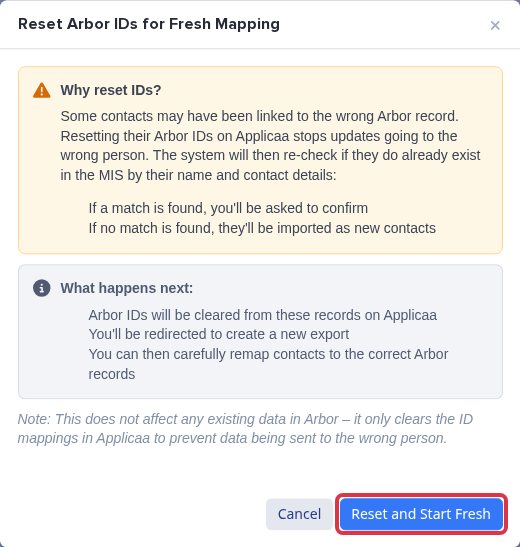
When more than 10 contacts are flagged, Admissions+ holds the export instead of listing them. That many differences usually means a group of contacts carries the wrong MIS IDs. Select the reset button, which is named after your MIS, for example "Reset Arbor IDs and Start Fresh Export".

Read the confirmation, then select "Reset and Start Fresh". Admissions+ clears the stored MIS IDs from these records in Admissions+ only. It changes nothing in your MIS. Admissions+ then sends you to a new export, where it looks for each contact again by name and contact details, asks you to confirm each match it finds, and creates the rest as new contacts.
Resolve every flagged contact before you run the export. A contact that is still unresolved holds the export at this step.
Not sure which option to choose for a contact? Ask Emma in the app, or contact our support team through the in-app help with the names of the two records.