
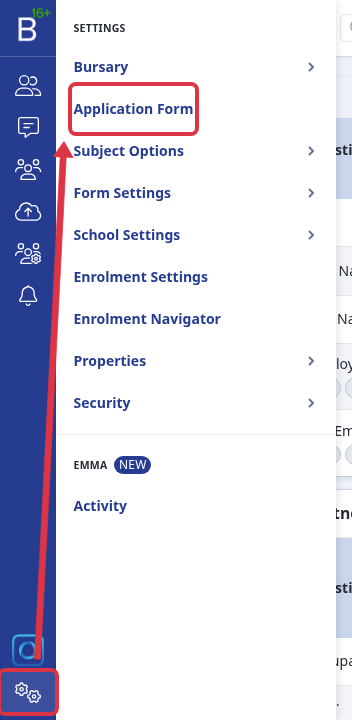
You will find some of these are already set up in the Household Information step of your form but you can create these yourself in any section of your form (settings > application form)
EXAMPLE: TOGGLEABLE QUESTION
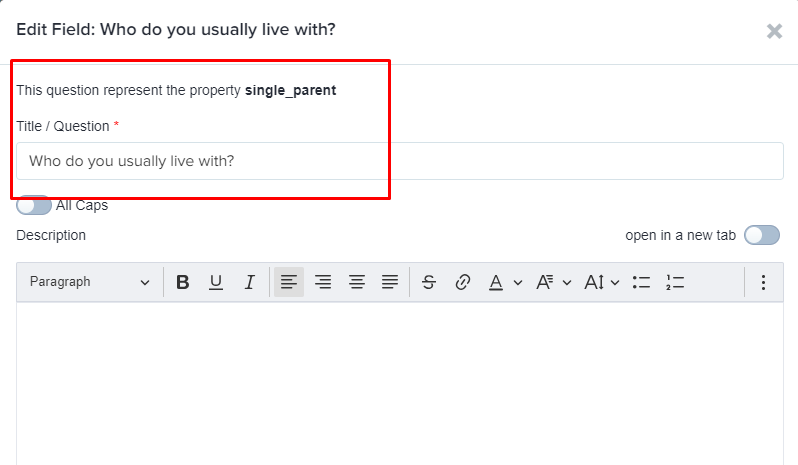
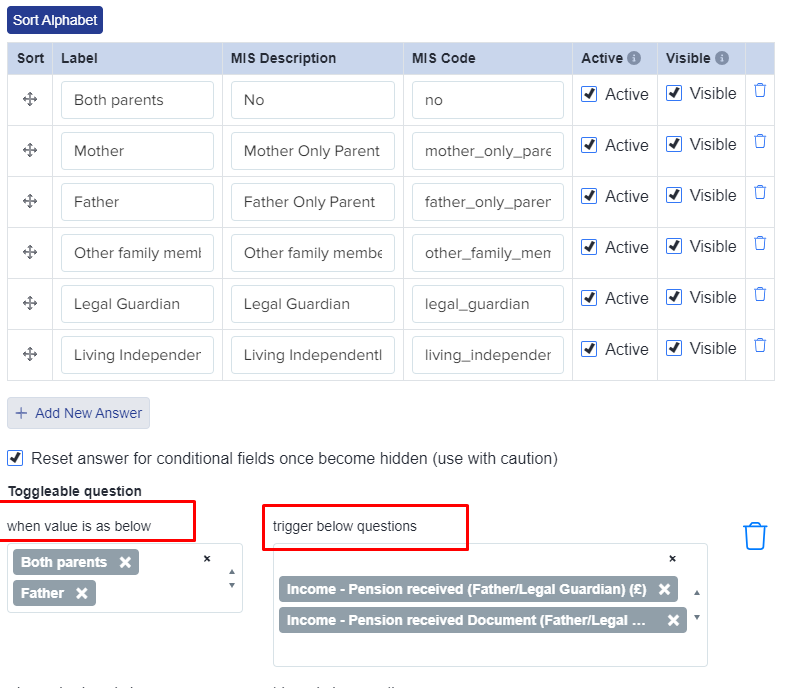
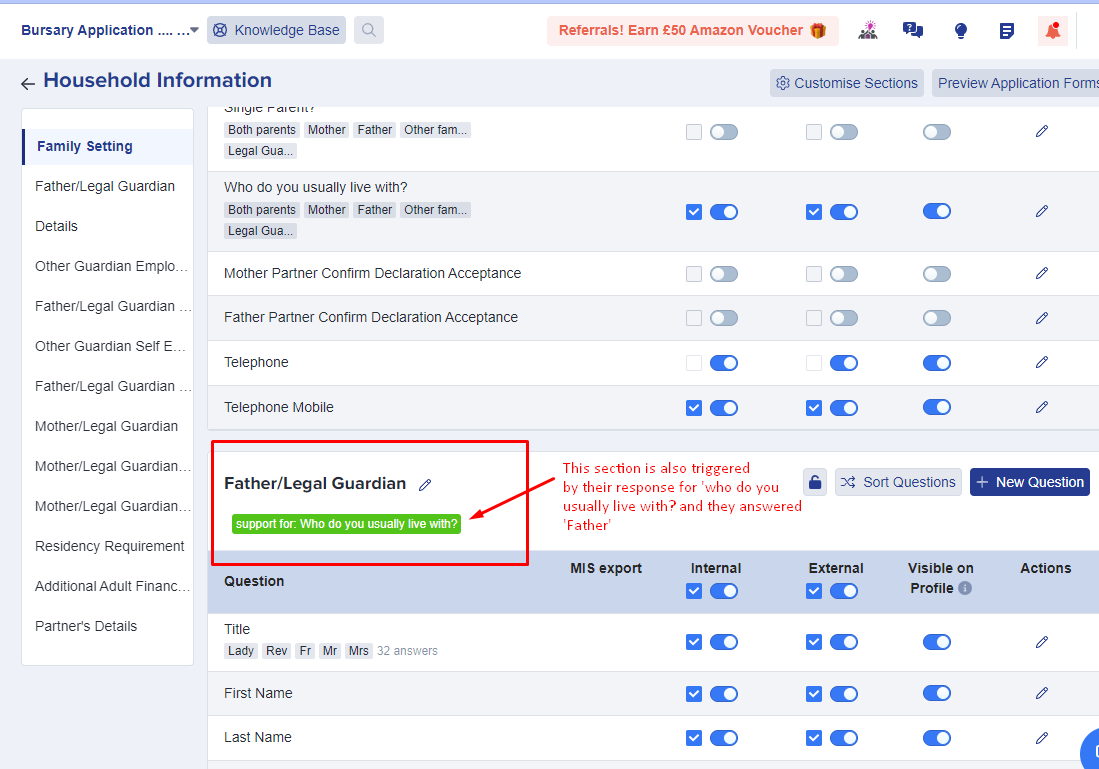
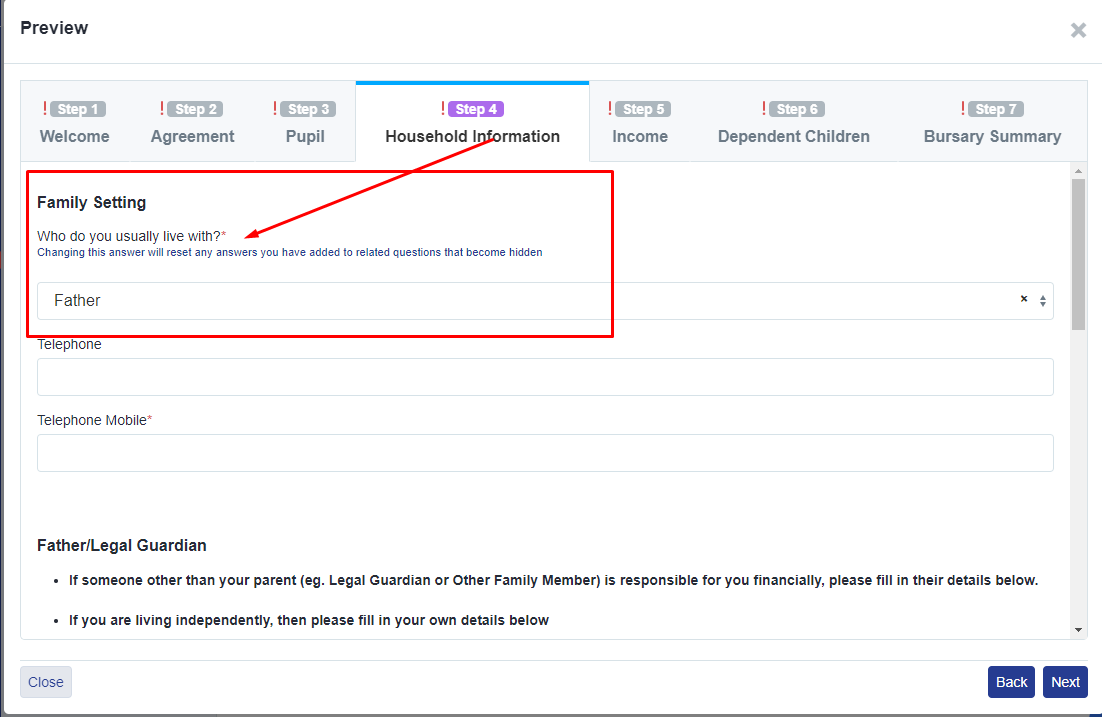
In this example, when an applicant answers Father to this question - 'Who do you usually live with?' a follow-up question is triggered, asking them the income details of their Father/Legal Guardian which will show on the next step.
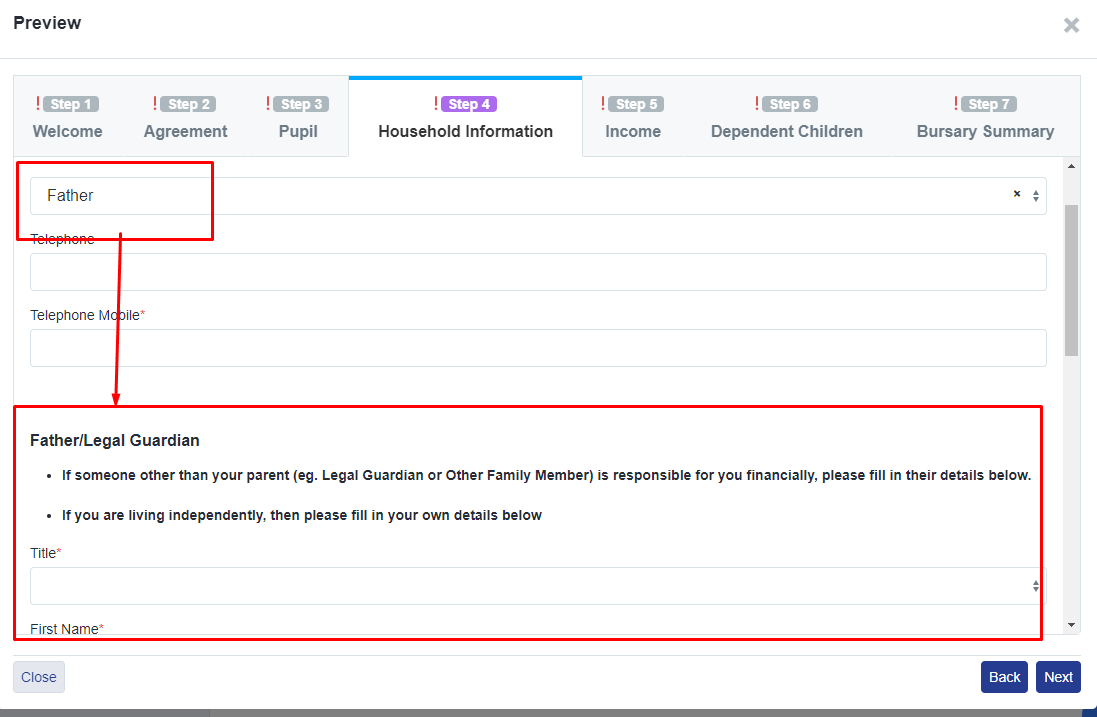
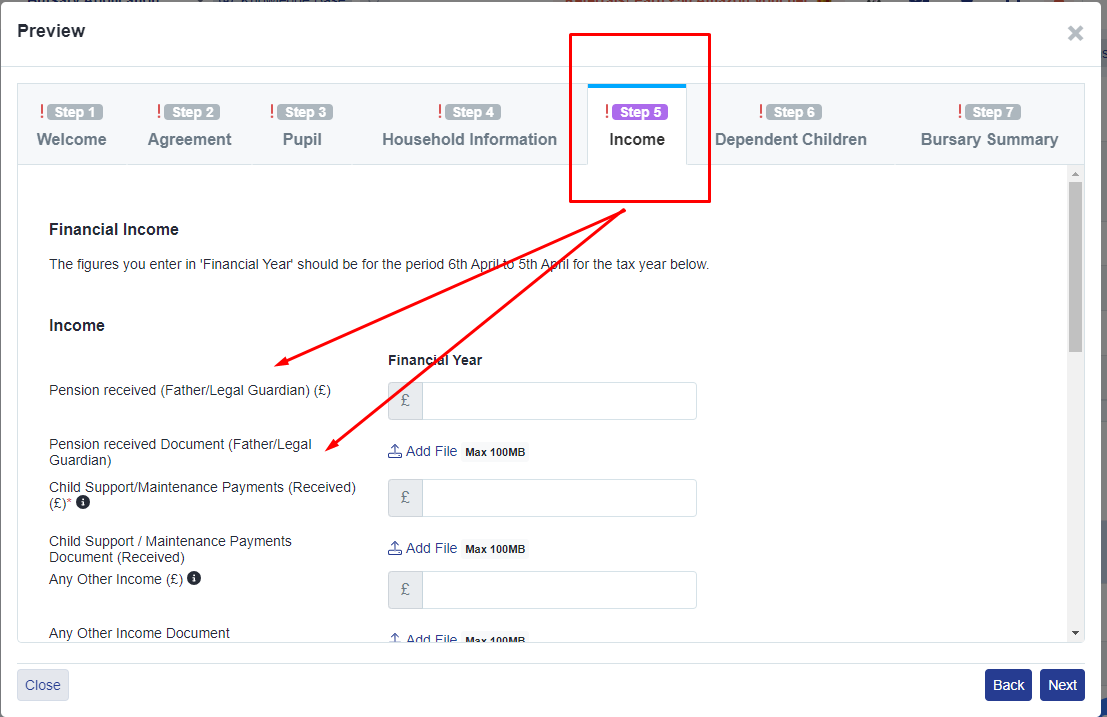
STEPS FOR SETTING YOUR OWN TOGGLEABLE QUESTION
To make your own follow-up or conditional question, these are the steps.
1. Create your initial question (this will need to be a question with pre-set answers for the applicant to choose from) - either a single or multi select.
2. Create your follow-up question.
3. Click to edit the initial question, and scroll to click the "add a new field condition" button
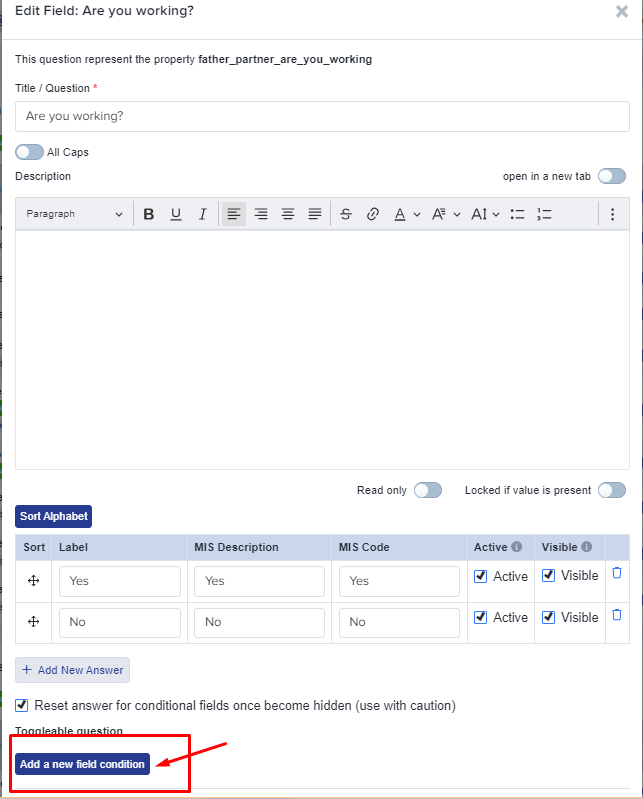
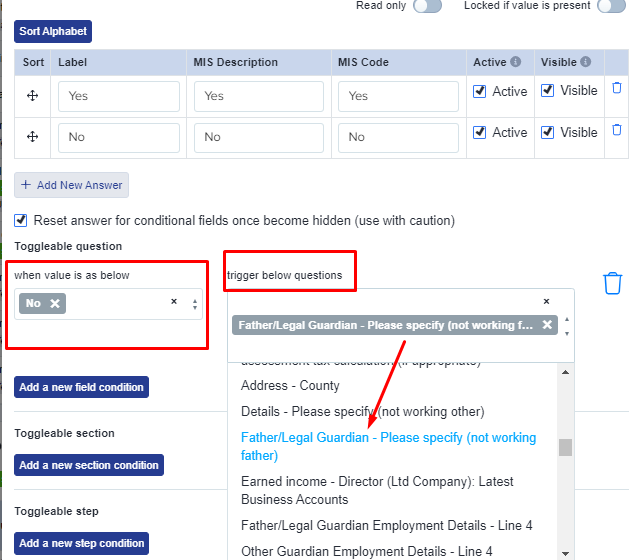
4. Select at least one value (click in the box to continue adding more choices) and then select the triggered question (the question you created as a follow-on) and click "save".
5. Questions which are successfully linked will show with a green banner, to highlight that they are a support question and you can check the functionality using your "preview application forms" button on the top right hand side of the page.

TOGGLEABLE SECTIONS
Toggleable Sections work in the same way; you can trigger a whole section of questions to appear, based on a prior answer in another section.

For example, if the student answered "Yes" to the initial question below, then it would trigger a section (a set of a few questions) instead of a single question.
To do this, go back to the initial question and click on "Add a new section condition". On the "When Value is below" Select "yes" and then select the section that you want to be triggered on the "trigger below sections" field. Once added, don't forget to press, Save.
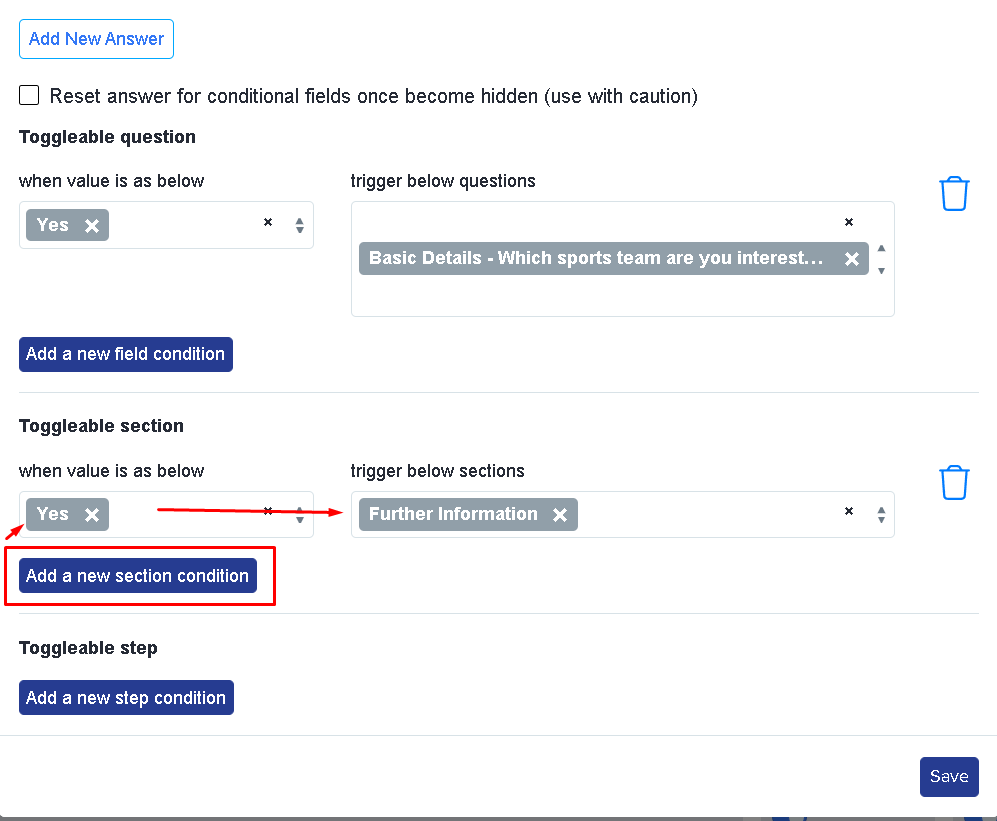
This will then enable the "further information" once the student answers "yes".
TOGGLEABLE STEPS
Toggleable Steps afford you more options. You can choose whether an answer enables OR disables a whole step. This can be useful if you have applicants who need to answer additional information, or should be able to bypass steps which are not needed.
For example, for students who are in Free school Meals or In care, often they are automatically eligible for a bursary band therefore, schools don't need to ask further about their financial information.
To make a toggleable step, look for the question/field which asks about free school meals or In care question then click on the pencil icon to edit and scroll down to Toggleable step section. (These questions are usually found in the pupil step)
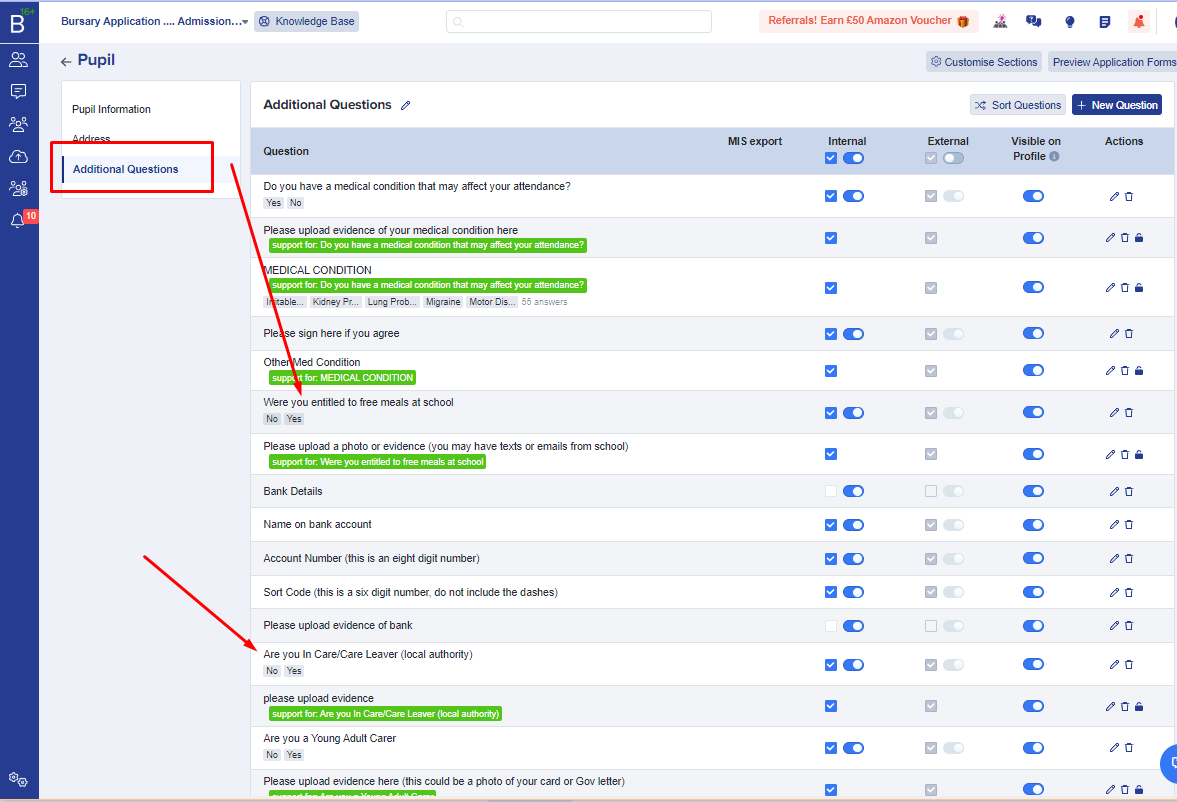
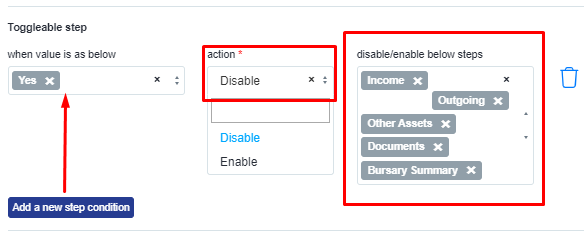
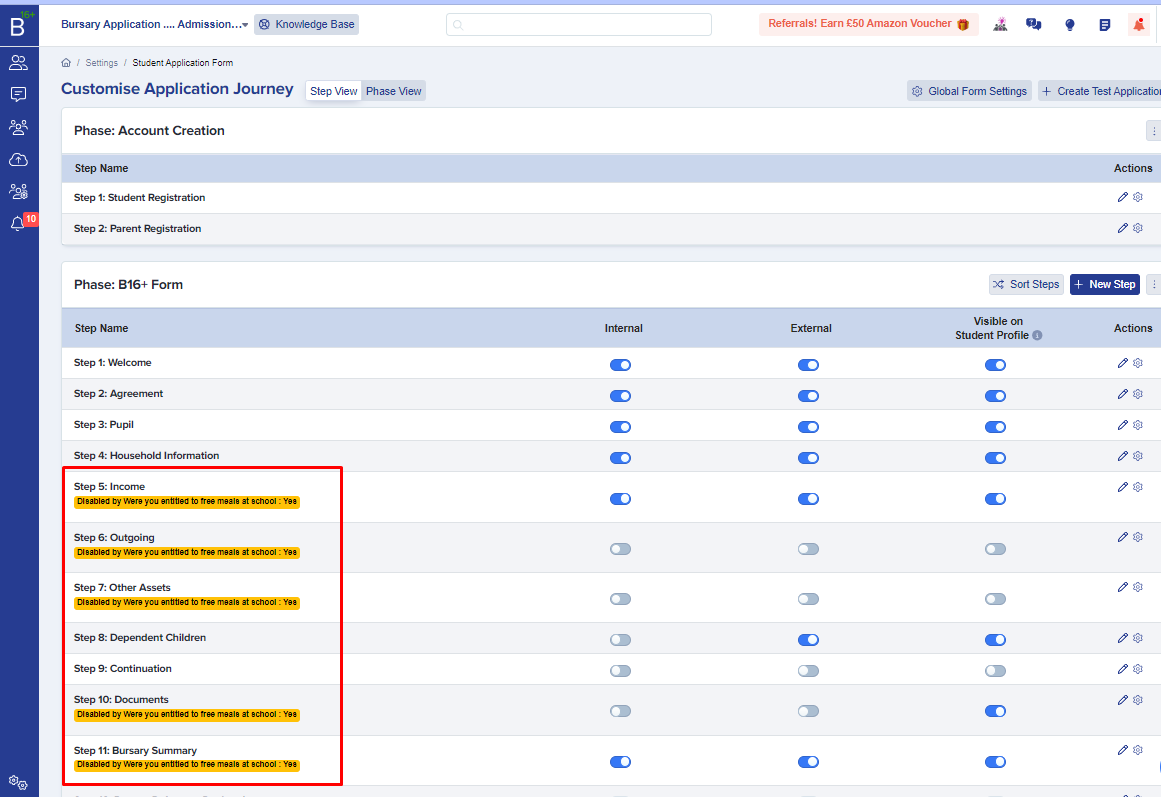
You can check a step has been linked to a prior answer as it will show with a yellow banner, like so:
This also works for a whole parent or guardian step, not only a single question. Wire the question that asks whether an applicant lives with one or both parents (for example "Single Parent?" on the "Family Setting" form) as the trigger, and the Father/Partner or Mother/Partner step as the step it turns off. This stops a non-resident parent being asked for anything on that step, including their income and supporting documents, as soon as the application marks them as not part of the household.
WHEN THE INITIAL QUESTION LETS APPLICANTS TICK MORE THAN ONE ANSWER
Some initial questions are multi-select, so an applicant can tick more than one answer (for example, a question asking which modes of transport they use to get to school). A toggleable question, section and step each react to more than one ticked answer differently, so check which one applies to you.
A toggleable question or a toggleable section appears as soon as any one of the applicant's ticked answers matches one of the values you selected on the condition. The applicant does not need every ticked answer to match.
A toggleable step only turns on or off when every ticked answer the applicant gave is one of the values you selected on that step. If the applicant ticks even one answer you did not add as a trigger value, the step keeps its default state.
For example, to let an applicant skip the income step as soon as they tick more than one mode of transport on a multi-select transport question, add every mode of transport that should qualify as a trigger value on that step, not only one. Leaving a qualifying answer off the list stops the step from toggling for an applicant who ticks it alongside the others.
MAKING A DOCUMENT UPLOAD QUESTION CONDITIONAL ON AN INCOME ANSWER
A toggleable question can also show or hide a document upload question, not only another text or choice question. Use this to stop asking a parent or guardian for an income amount and a supporting document, such as a payslip, when they are not employed.
Go to Settings > Application Form, open the step that holds the question asking whether the parent is employed (for example "Employed?" on the Father/Partner or Mother/Partner form), and click the pencil icon next to it.
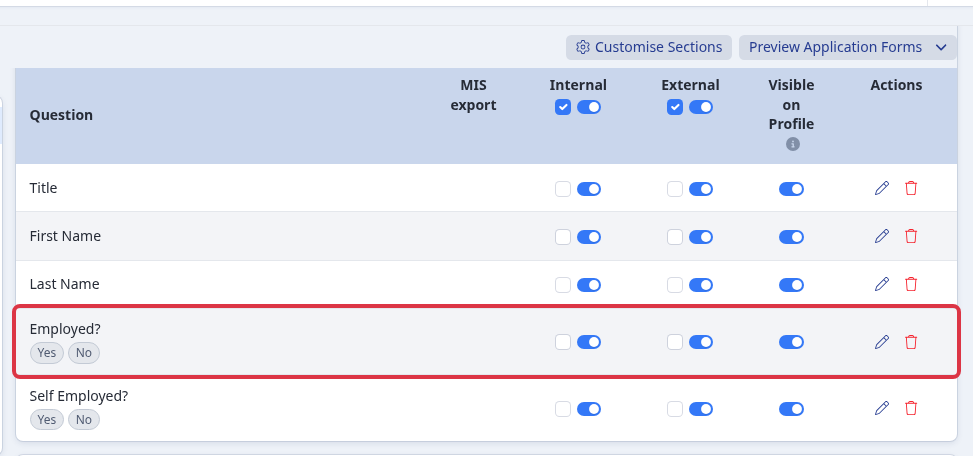
Click "Add a new field condition". Under "when value is as below" select "Yes", and under "trigger below questions" select the income amount question (for example "Income - Earned Income") and the document upload question that supports it (for example a payslip question under "Please supply originals of the following"). The triggered questions do not need to sit on the same step as the "Employed?" question.
Tick "Reset answer for conditional fields once become hidden (use with caution)", then click Save. With this ticked, if an applicant already answered the income or document question and then changes their answer so the parent is no longer employed, the system clears the now-hidden question's saved answer instead of leaving it in place.
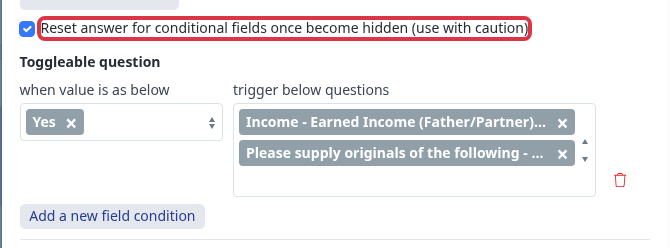
Hiding a question this way also removes its "required" status for as long as it stays hidden, so the applicant is not blocked from submitting the step over a question that no longer applies to them.
Without the "Reset answer" tick, a question that a toggle hides keeps whatever value an applicant already saved in it, and that value still counts towards the bursary award. Tick "Reset answer" whenever a hidden income or document question should stop counting towards the award as soon as it is hidden.
CONDITIONAL STUDENT VALUES
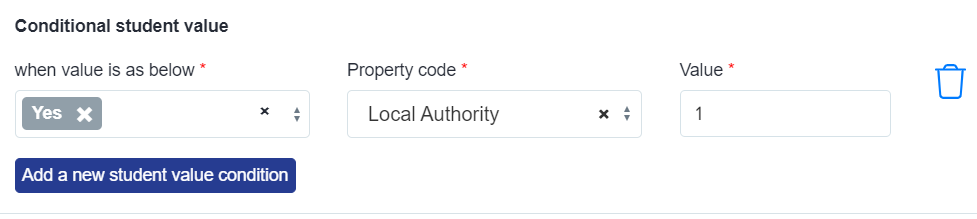
Conditional Student Values allow you to assign a value to an applicant who answers in a particular way; this is useful if you rank your applicants in order and makes applicants easy to identify by a value assigned to them.
For any help with toggleable/conditional questions, please contact your Customer Success Manager if you're in your first cycle, otherwise call our Support Team on 0203 667 0764.