
When you add a Qualification linked to ApplicaaOne, you choose a "Qualification Type" and then a "Subject Area." The Subject Area list is not fixed - it changes to match the Qualification Type you pick, so the subject you expect only shows up once you have the right type selected.
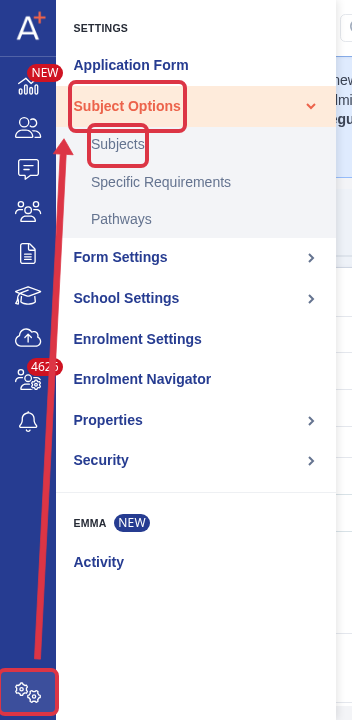
Go to Settings in the left sidebar, open Subject Options, then select Subjects.
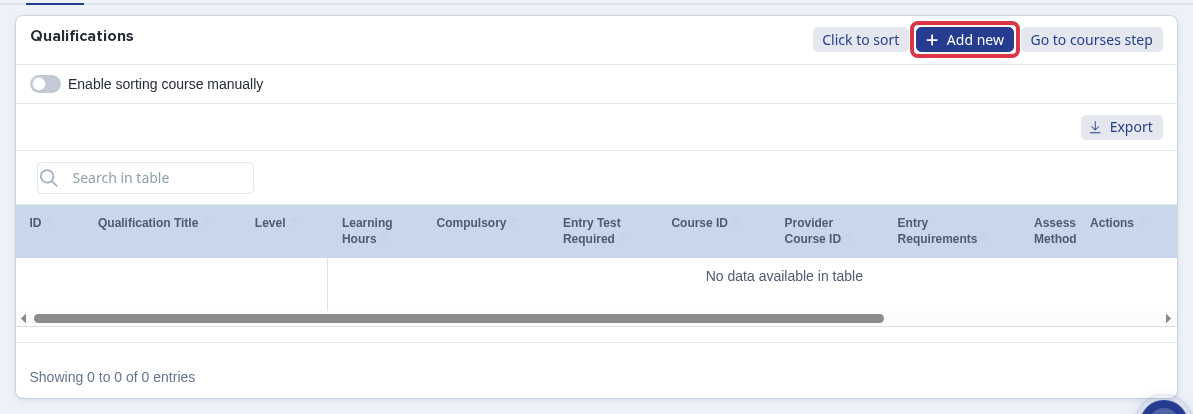
On the Subjects page, click "Add new" to open the New Course form.
"Course title" is a free-text field - type whatever name you want students to see. "Qualification Type" and "Subject Area" are different: they only appear when ApplicaaOne course matching is turned on for the form, and together they classify the course for ApplicaaOne/UCAS Progress reporting. Subject Area starts empty and disabled until you choose a Qualification Type.

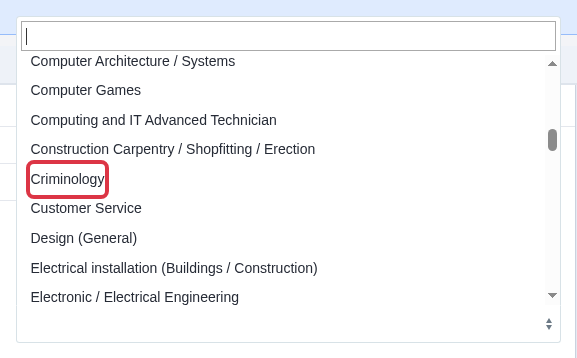
Pick the "Qualification Type" that matches the course - for example "Vocational." Admissions+ then loads a new set of options into "Subject Area" for that type. Choosing "Vocational" adds subjects such as "Criminology" that are not available under every Qualification Type.
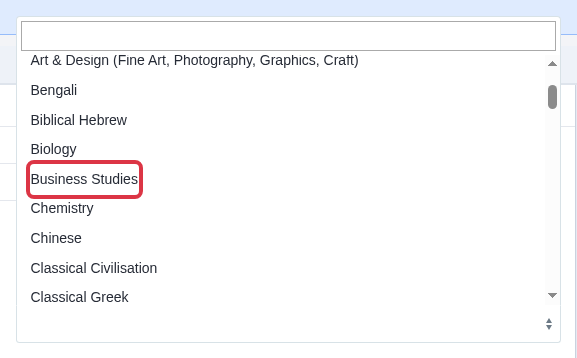
Each Qualification Type has its own fixed list of Subject Area names, so the exact course name you typed in "Course title" will not always have a matching Subject Area entry. Under "A Level," for example, the closest match to a "Business" course is "Business Studies"- there is no separate "Business" option. Pick the closest standard subject rather than trying to match your course title word for word.
- "Qualification Type" and "Subject Area" only show on the New Course / Edit Course form when ApplicaaOne course matching is enabled for the application form.
- Changing "Qualification Type" always reloads "Subject Area" with a new list and clears any option that is no longer valid.
- If "Qualification Type" is set to "Other," "Subject Area" stays disabled - "Other" has no subject list.
What it does not do
- "Subject Area" is not a free-text field. You cannot type a custom subject name - you can only pick from the list Admissions+ loads for the selected Qualification Type.
- Schools cannot add, remove or rename the options in a Subject Area list themselves; the lists are fixed in Admissions+ for ApplicaaOne/UCAS Progress reporting.
- The quick "Add new" pop-up used from some screens offers a shorter Qualification Type list ("A Level," "Vocational," "Technical," "V Level," "EPQ," "Other") than the full New Course page. If the type you need is not in that shorter list, use the full "Add new" page from the Subjects area instead.
Questions staff ask
I can't find the subject I want in Subject Area - is it missing?
Check the Qualification Type first. Subject Area always reflects whatever Qualification Type is currently selected, so the subject may simply live under a different type - try "Vocational" or "Access to HE" if an academic-sounding Qualification Type does not have it.
My course is called something slightly different to any Subject Area option - which do I pick?
Pick whichever listed subject is the closest match to what the course teaches. The "Course title" field is still free text and can say anything you like; "Subject Area" only needs to be the closest standard category for reporting.