
Some households have higher income than your school's bursary criteria but they have a lot of children to spend the money on. When a student is applying for a bursary, they can add dependents (eg other children living in the household) which will deduct an amount from their total household income.
This way, the student can be eligible for the bursary or can be allocated to a higher band.
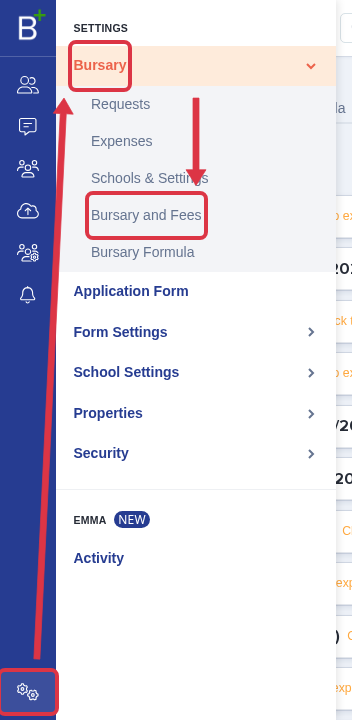
To use the Child Allowance Band, go to "Bursary and Fees" and expand the "Child Allowance" card. You will see some sample bands which you can edit or delete so you can add your own.
Clicking on 'New Child Allowance Band' or edit will show you this page where you can fill in your criteria.
Enter the application year where this band will apply (typically Years 12 & 13)
Then enter the number of children from least to maximum (Number of child more than & Number of child up to)
Then lastly, put the allowance to be deducted if they add a dependent.

The child allowance bands work in a cumulative manner - for example, 3 children would generate a £300 deduction from the total household income, in the example below.
The amounts to be deducted interact with one another, rather than being standalone - the Child Allowance amount is per dependent child. So, whilst each row says £100 (in the example below), that means £100 per child.
So on this sample, the amounts showing below will add up to £100 if the student has added 1 dependent, £200 if the student has added 2 dependents or it will add up to £300 if the student has added 3 dependents.

Count-based vs. age-based bands
Above the Child Allowance Band table, use the "Count-based" and "Age-based" buttons to choose how a band matches a dependent child. In count-based mode (the default), a band matches by the child's position in the family, using "From child number" and "To child number" - this is the mode in the examples above. In age-based mode, a band matches by the child's age instead, using "From child age" and "To child age".
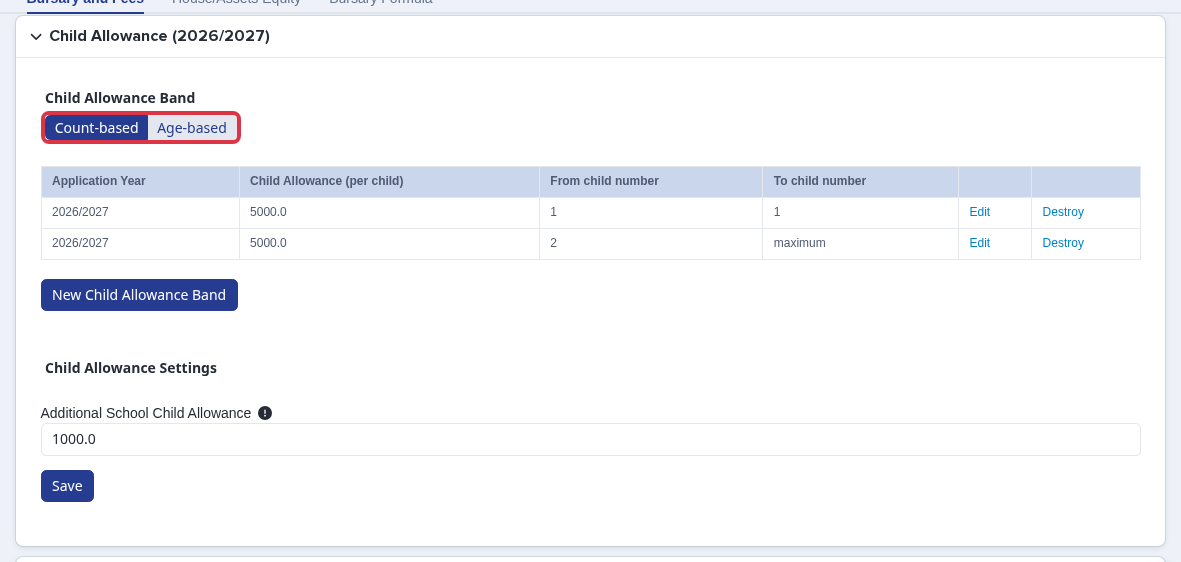
Switching to "Age-based" mode needs a date of birth recorded for every dependent child, so each child can be placed in the right age band. After you select the other mode, an "Apply Changes" banner appears above the table.

Select "Apply Changes" to confirm the switch. Bursary calculations for current and future year students are then recalculated, except for applications marked Awarded, Withdrawn or Closed. If an application is missing a dependent child's date of birth, you can continue anyway and add the missing dates afterwards from "Manage Incomplete Applications" - until then, that application shows as "Calculation Blocked".
Additional School Child Allowance
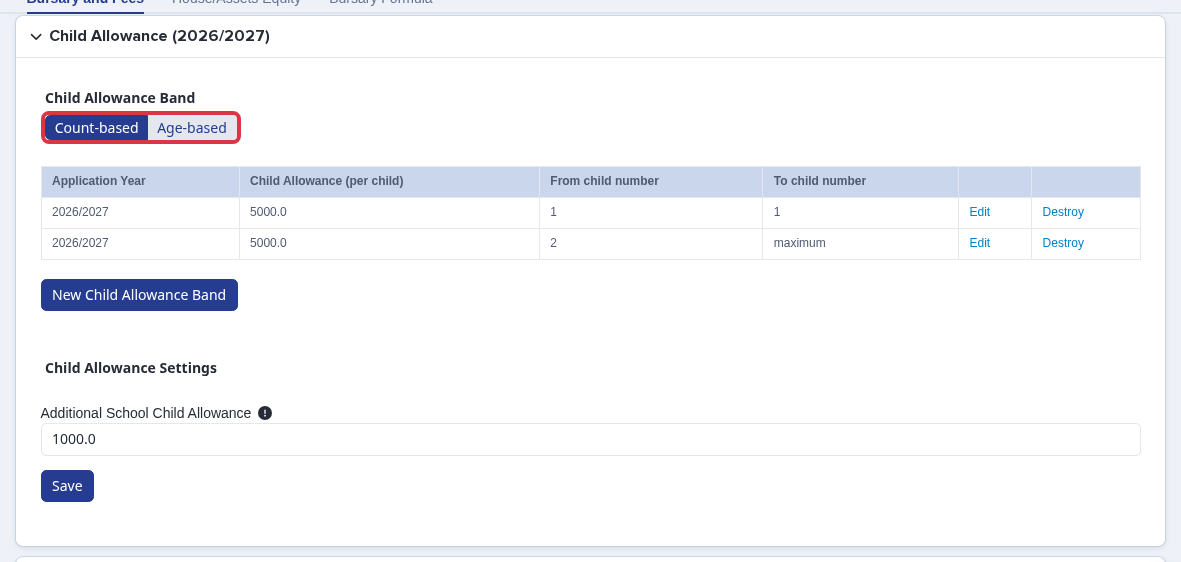
Below the Child Allowance Band table, in "Child Allowance Settings", "Additional School Child Allowance" is a single flat amount that is added as a further deduction per dependent child, on top of whatever the bands above work out. Set it the same way, from the same card, and select "Save".
What it does not do
- Child Allowance Band is not an income threshold. The "From"/"To" numbers (or ages) describe dependent children, never a household income figure. To set up an award band keyed to the family's household income or total resources instead, see "How to Add or Set up School Bursary Bands".
- Child Allowance Band is not the same as Household Allowance. Household Allowance is a separate, flat per-household deduction based on family status (for example single-parent or widowed), set up in the "Household Allowance" section further down the same "Bursary and Fees" page. Child Allowance Band and Additional School Child Allowance both apply per dependent child instead of per household.