
After students have completed and submitted their Bursary form application and and they have been awarded the Bursary, students will now have the option to submit requests from the student homepage.
As an admin, you may receive notifications once a student has submitted a Bursary request.
To enable this, go to your "Requests" Tab from the Dashboard

Then, navigate to the right hand side where you can see the email notifications. This is where you can either enable or disable it. You may also set your preferred number of request approvers on the Number of authorisations per request on the above field.

Once you have enabled the notification, the staff who receive the email are the ones whose role has the Approve permission ticked for "Student Requests". Having only "View", "Create", "Edit" or "Delete" on a role does not add that person to the notification list, even though the role can still see or manage requests.
To check or change who this is, go to Settings from the sidebar.
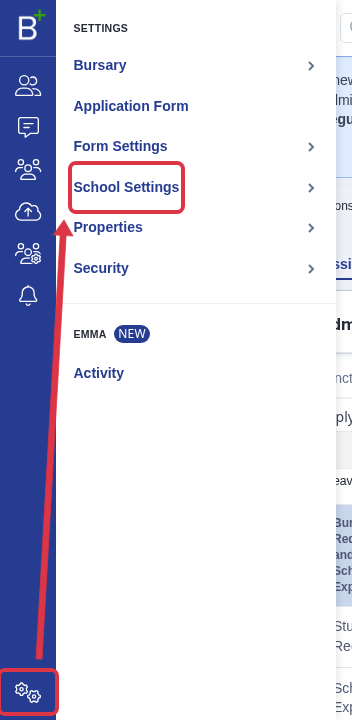
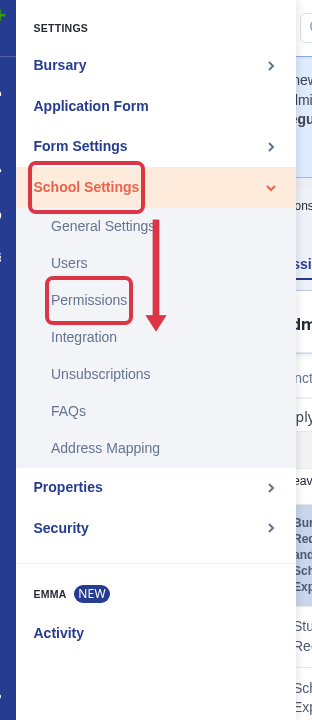
Open School Settings, then select Permissions.
Pick the role from the list on the left, open it for editing with the pencil icon, and select the Bursary Requests tab. Tick Approve on the "Student Requests" row to add that role to the notification list, or untick it to remove the role, then select Save Changes.
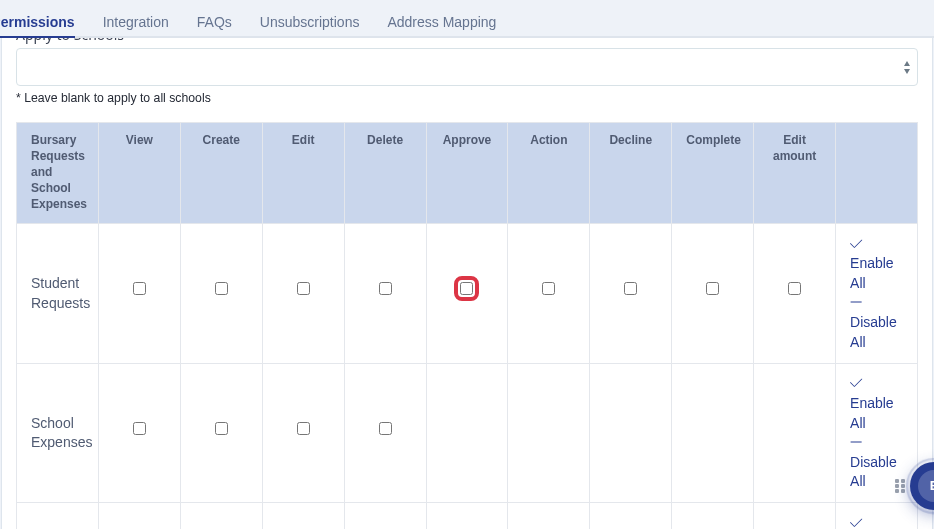
If your platform manages more than one school, use the Apply to Schools field at the top of the same tab to restrict the role to specific schools. A student's request notification only reaches staff whose role either has no school selected there, or includes the student's own school. Leave the field blank to apply the role to every school.