
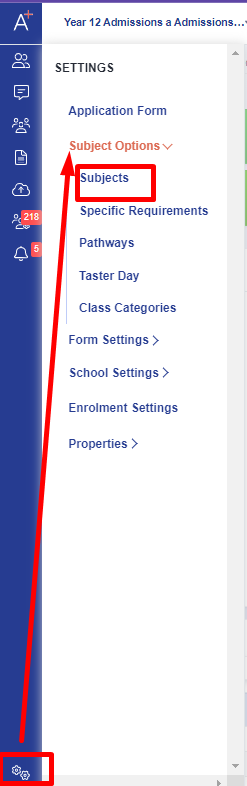
First, kindly go to Settings > Subject options > then select Subjects.
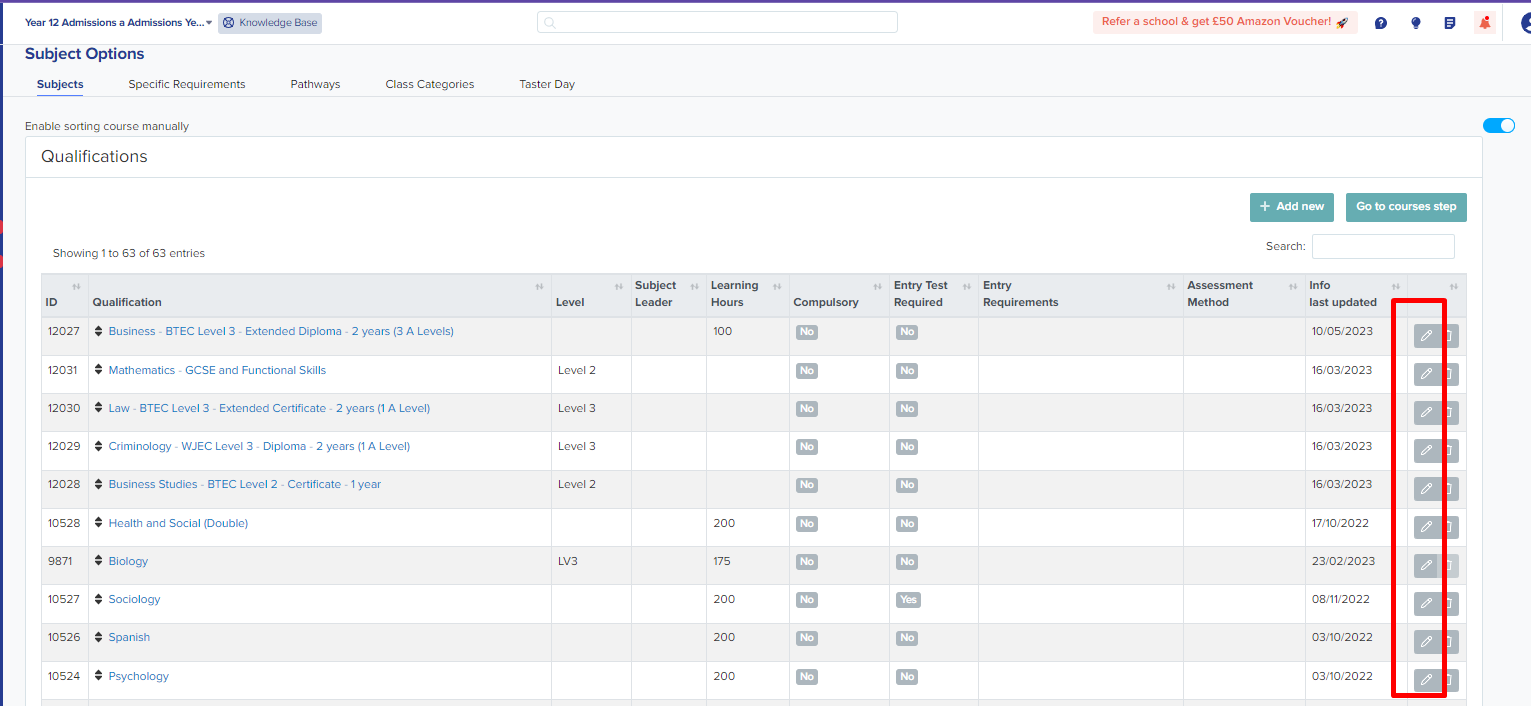
Once you are there, kindly click the pencil icon of whichever course you would like to add course information.
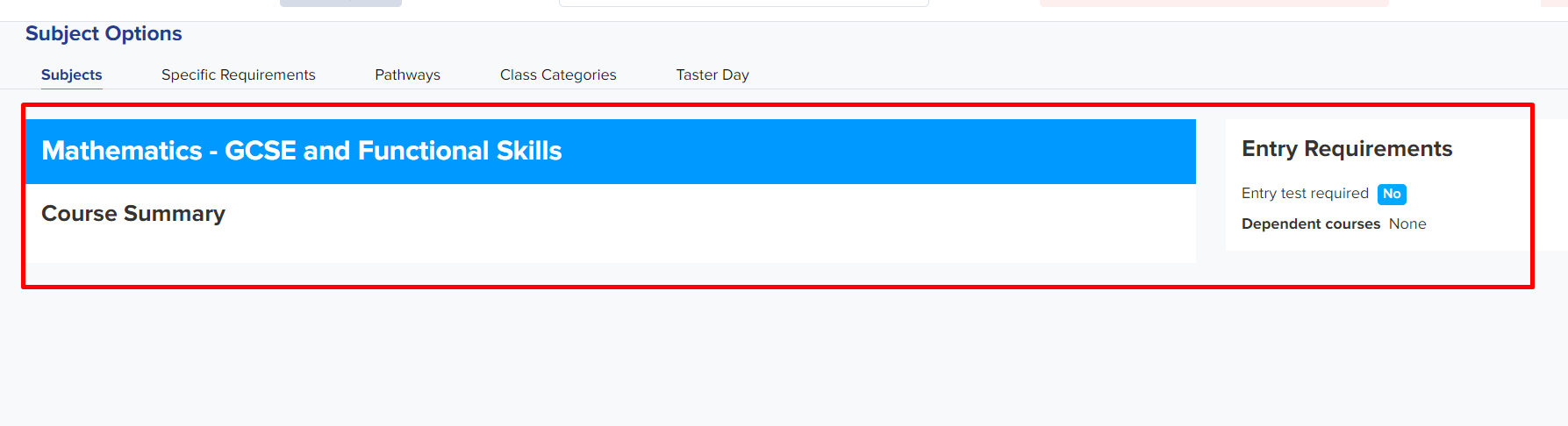
And once you have opened a subject, you will then see different fields for 'Course Summary' 'Course URL' (which can be from your school website) and as well as the 'Requirement Description'.
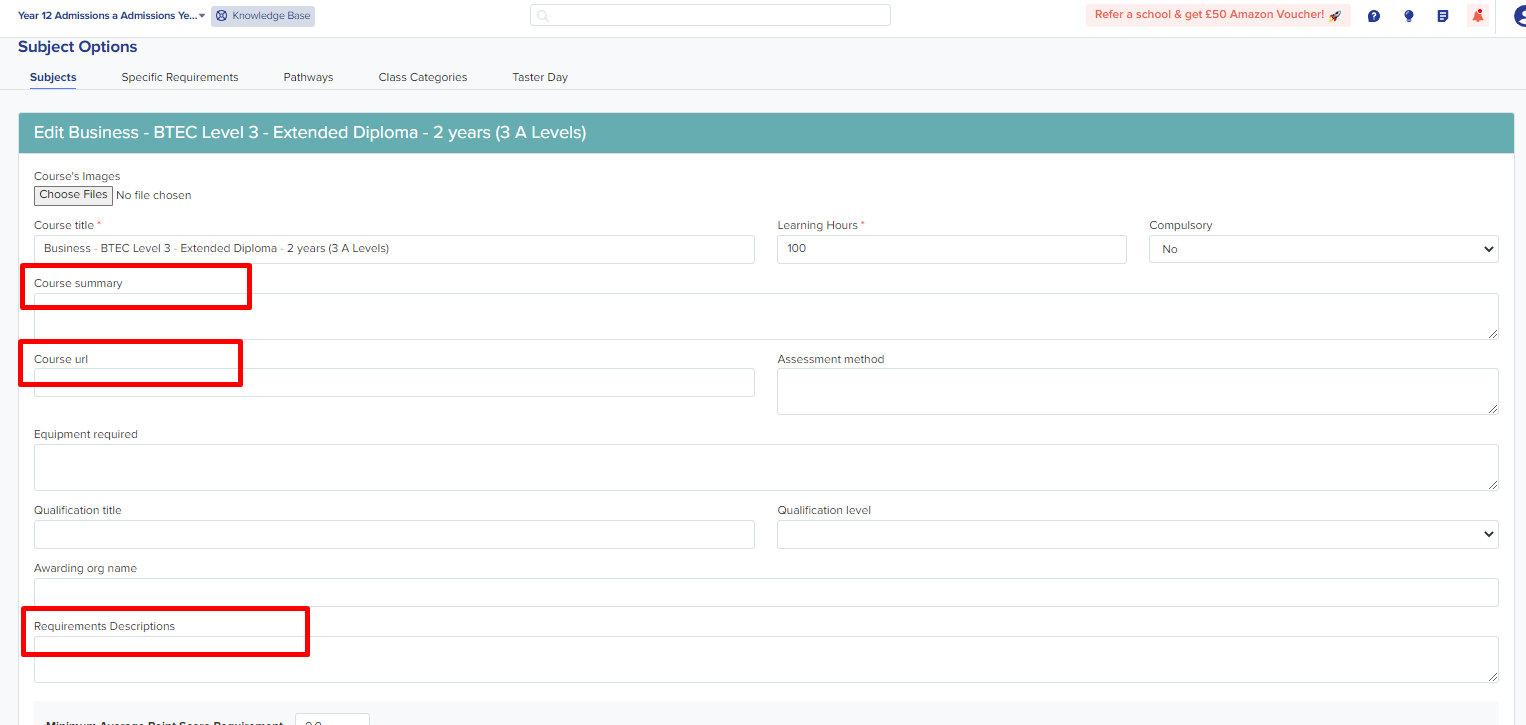
- Course URL - If you add a link to your website to this field, students will be redirected to that page to read the information you provide.
-
Course Summary and Requirements Description - You can put any brief description of the courses and entry requirements as well if there's no available URL for the subjects.
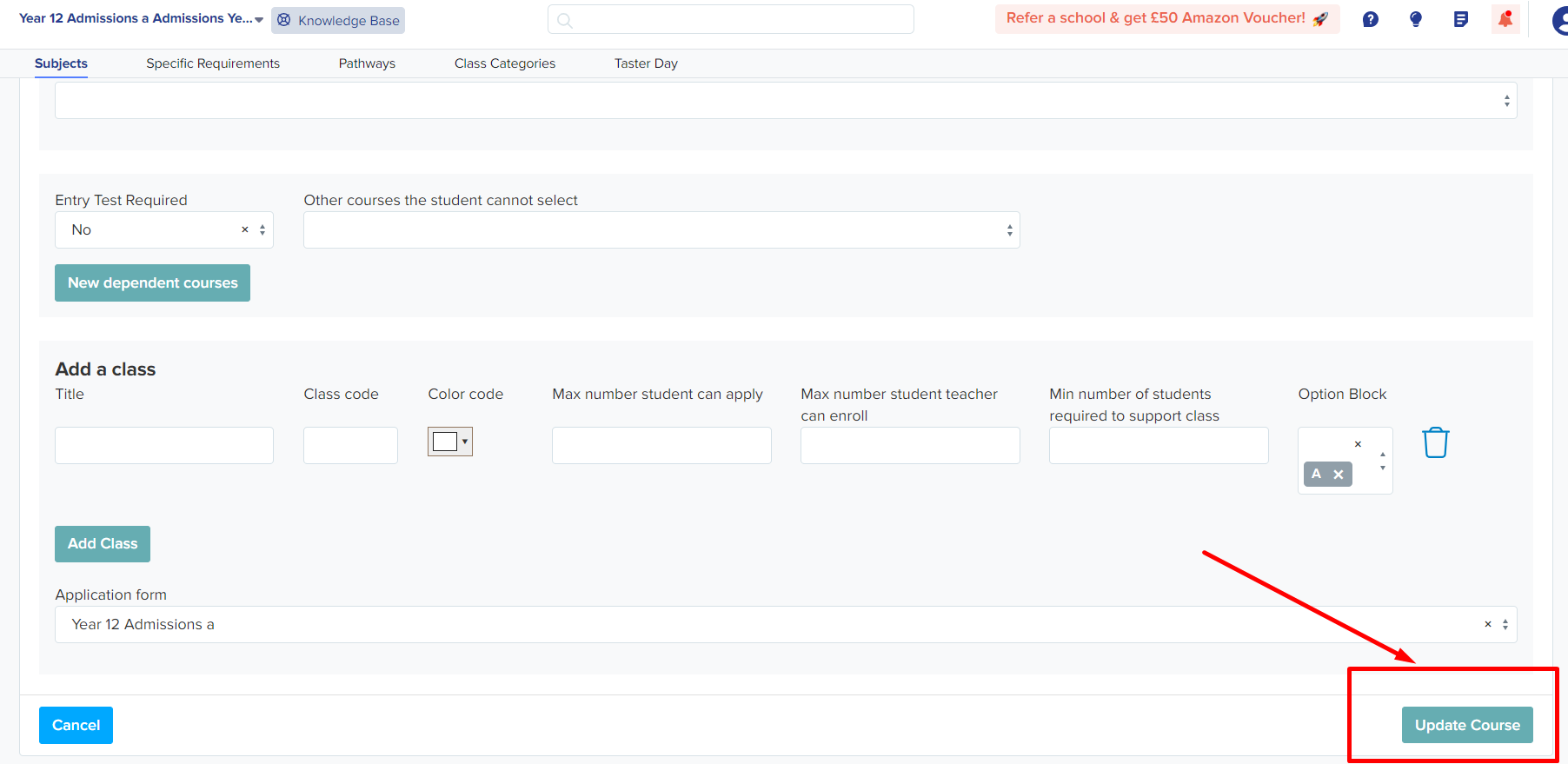
Once done, you may scroll to the bottom part and click 'Update Course' button.
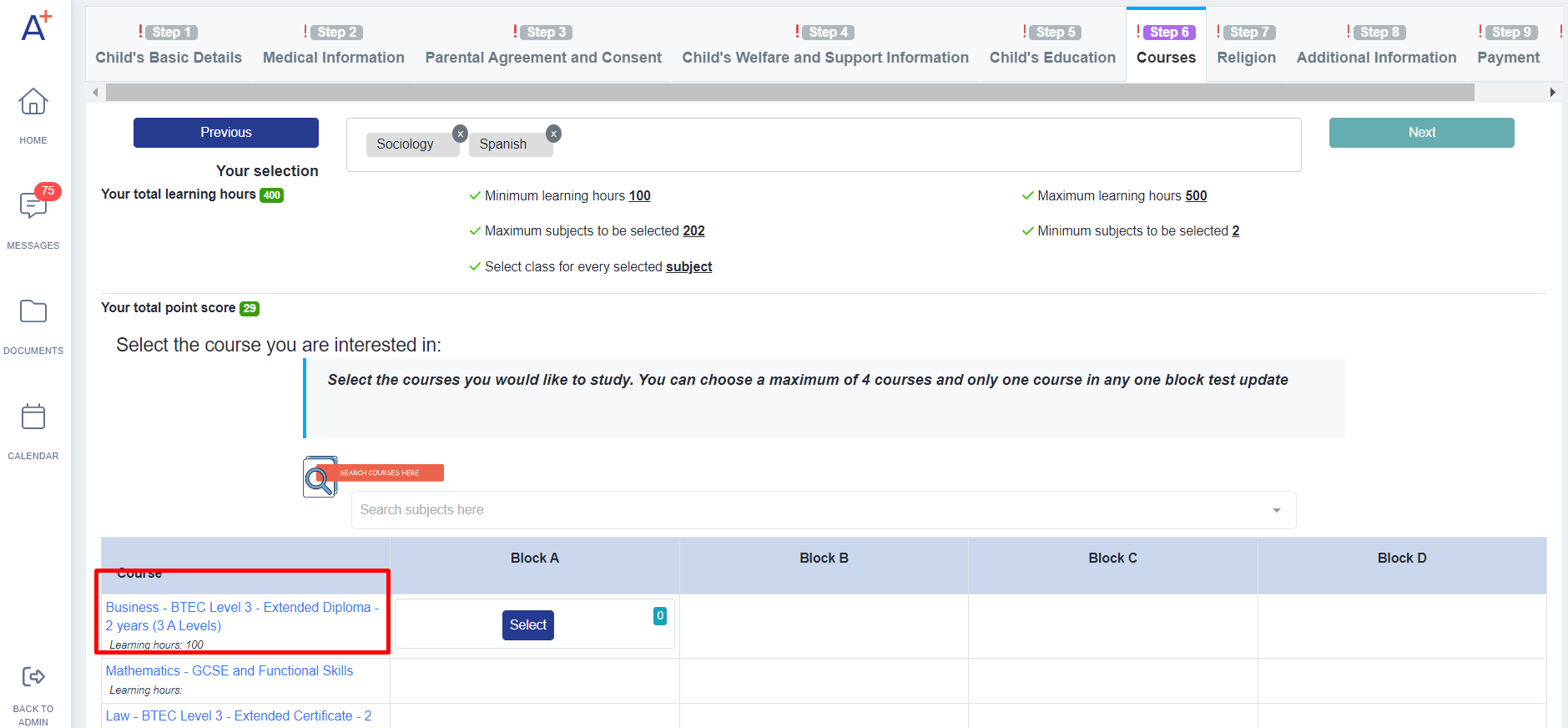
For the students to see that information, the students will have to click the course title from the courses step of the application form. If the student clicks the course title, they will be redirected to your school website. Otherwise, if there is no Course URL available then they will see the course summary instead.
Should you require any assistance, please contact your designated Customer Success Manager or contact our support line ( 0203 667 0764 )