
Overview
Settings & Compliance is the expanded settings area for Communications. It has a strong focus on GDPR compliance, consent management, and audit visibility across all communication activity.
It is organised into the following sections:
- General
- Consent & Compliance
- Unsubscription & Preferences
- Template Defaults
- Permissions & Safeguards
- SMS Settings
- Audit
Why this was built
Schools need to demonstrate GDPR compliance, but the previous communications settings were limited. The unsubscribe model was binary - recipients either received everything or nothing - and there was no centralised way to manage consent categories, opt-back-in requests, or an audit trail of changes.
This update introduces granular, GDPR-friendly controls and visibility across all of the above.
General
The General section is where you configure baseline communication settings:
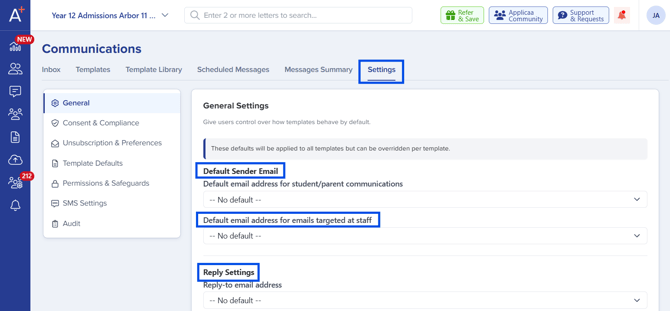
- Default sender email addresses- the default From address used for outbound communications.
- Reply-to email addresses- the default address where replies should land.
- Inbox connections- manage the inboxes connected to Admissions+ - including the inbox setup demonstrated in the Inbox guide.
|
See also Step-by-step instructions for connecting an inbox are in the Inbox Guide. |
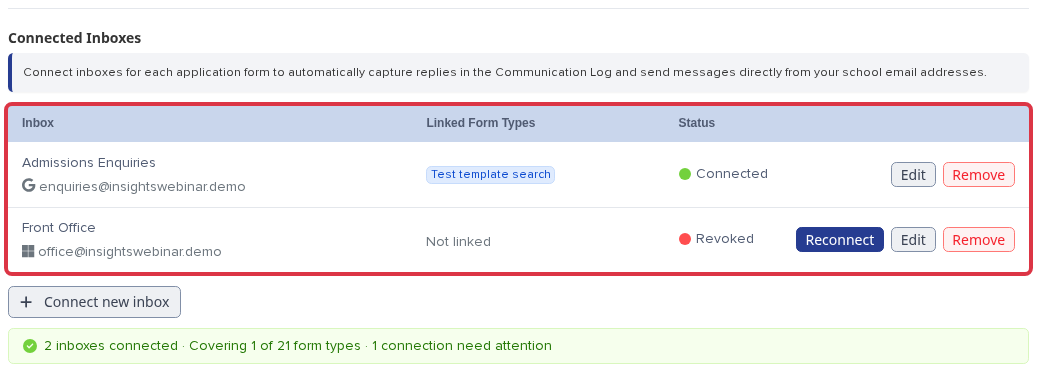
Connected inboxes
The Inbox connections table lists every mailbox connected to Admissions+, with its name, email address, the application form(s) it's linked to under Linked Form Types, and its status - Connected, Revoked, or Not linked if no form is linked yet. Select Reconnect on a Revoked inbox (for example, after its mailbox password changed) to sign in again and restore it.
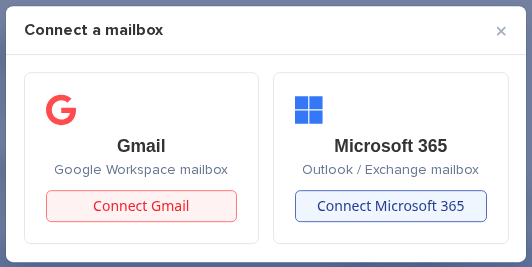
Use Connect new inbox to link a Gmail or Microsoft 365 mailbox. Follow the prompts to sign in and grant access; the mailbox then appears in the table, and replies to messages sent from it land automatically in the Communication Log.
Select Edit on a connected inbox to rename it or change which application form(s) it feeds. Removing an inbox is destructive - it permanently deletes the inbox and all its synced threads, notes, and messages, and this cannot be undone.
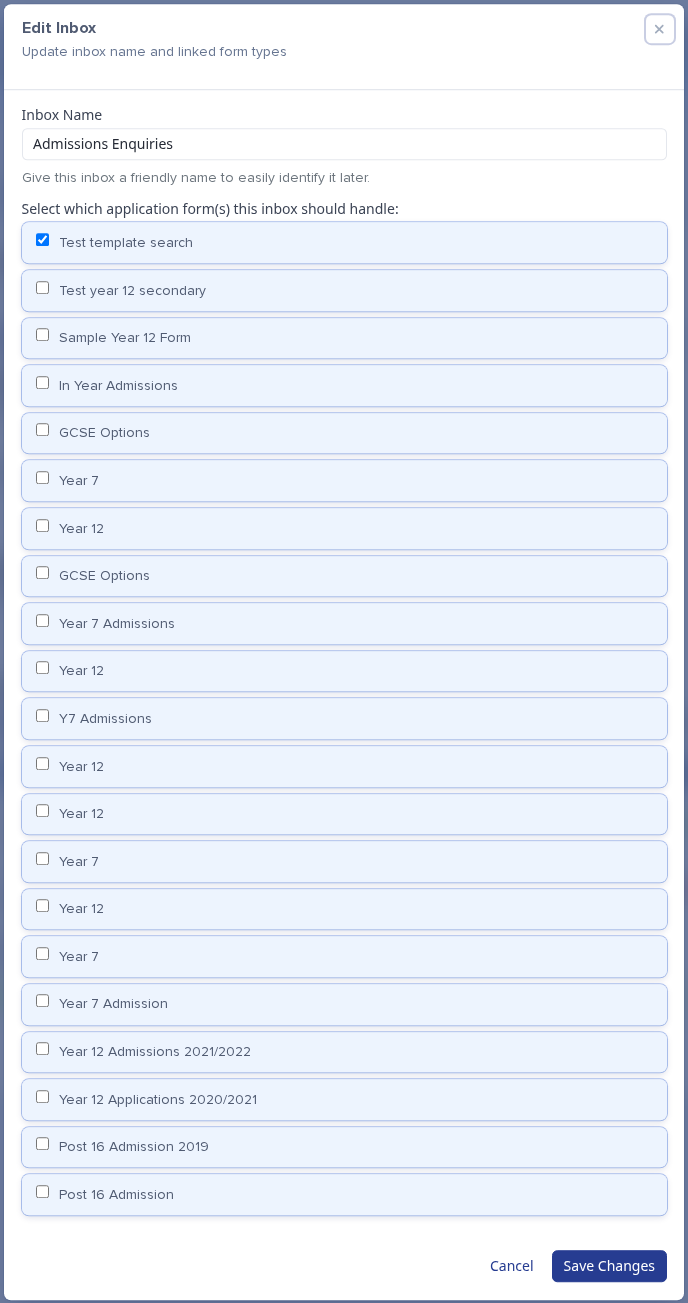
An application form can only be linked to one connected inbox at a time. If you try to link a form that's already linked elsewhere, Admissions+ shows "Already linked to" that inbox's email address and won't let you select it - unlink it from the other inbox first.
Only a tenant admin can manage inbox connections. If your school does not see this section, ask your Applicaa contact to enable it.
Consent & Compliance
This section is where schools define which communication types require marketing consent. When staff create a template, they choose a Communication Purpose, which determines its consent requirements and unsubscribe behaviour automatically.
Communication Purpose Definitions
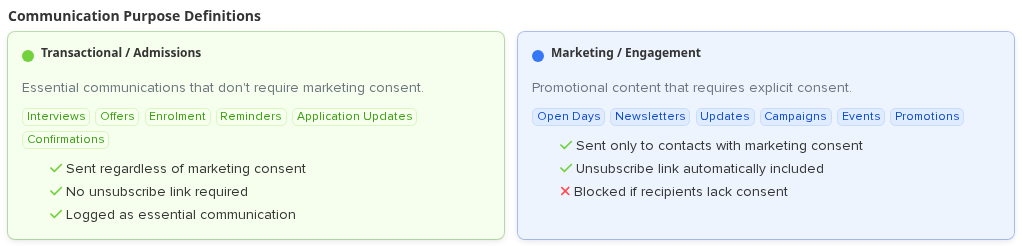
There are two Communication Purpose types:
- Transactional / Admissions- essential communications (interviews, offers, enrolment, reminders, application updates, confirmations). Sent regardless of marketing consent, with no unsubscribe link required, and logged as essential.
- Marketing / Engagement- promotional content (open days, newsletters, updates, campaigns, events, promotions) that requires explicit consent. It's sent only to contacts with marketing consent, automatically includes an unsubscribe link, and is blocked if recipients lack consent.
Marketing categories
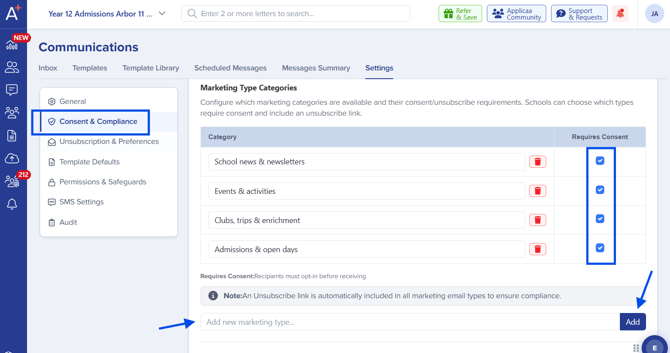
Schools can create additional marketing categories using the Add button. Typical categories include:
- Events & Activities
- School News
- Fundraising
- Alumni Updates
- …and any other categories that match how your school communicates.
These categories link directly to the Communication Purpose field on Marketing templates, so recipients can give or withdraw consent at category level rather than all-or-nothing.
Behaviour when consent is missing
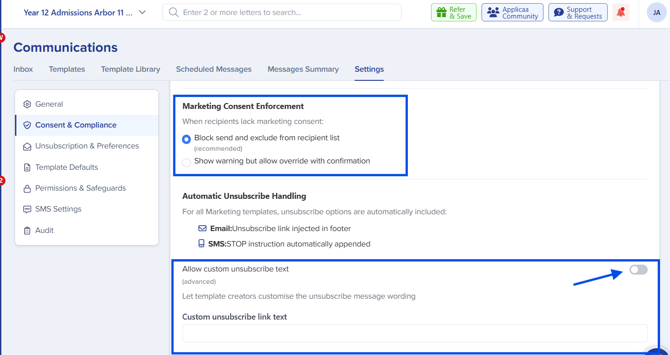
When a recipient does not have the required marketing consent, you can choose how Admissions+ should behave:
- Block the send completely- remove the recipient from the recipient list automatically.
- Show a warning but allow staff to override- with explicit confirmation by the staff user.
Custom unsubscribe text
A toggle allows you to customise the unsubscribe message shown to recipients, so you can match your school’s tone and branding.
Automatic unsubscribe handling
For every Marketing template, Admissions+ adds unsubscribe handling automatically - no setup needed per template:
- Email- an unsubscribe link is injected into the footer.
- SMS- a STOP instruction is automatically appended.

Opt-back-in requests
Opt-back-in is a particularly useful new feature. It lets you send a request to recipients who have previously unsubscribed, asking whether they would like to opt back in.
This is especially useful when:
- A parent or applicant has verbally asked the school to start receiving communications again.
- You want to refresh consent for a specific category.
You can customise the content of the opt-back-in email so the request is on-brand and clear.
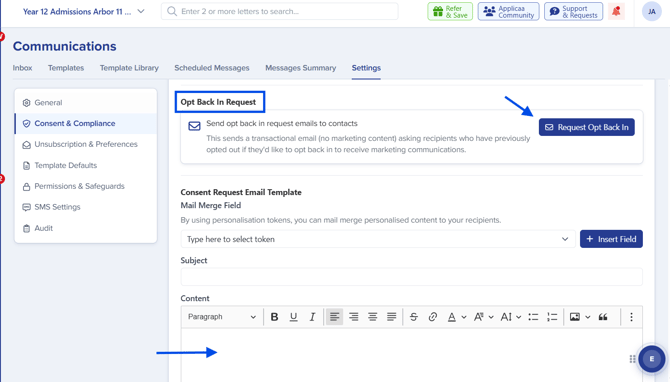
The Consent Request Email card is separate from the opt-back-in email - it's the template sent when Admissions+ first asks a recipient for marketing consent. Select Edit in builder to change its content.

The Opt Back In Request card shows the current count of recipients who have opted out and have a valid email address. Select Request Opt Back In, then confirm Send in the popup to email that entire group - you can't pick individual recipients here. The opt-back-in email itself sends as a transactional message, so it reaches recipients even though they've opted out, and it links through to their Preferences Centre so they can resubscribe.
Only a tenant admin can send an opt-back-in request.
Unsubscription & Preferences
This section expands further on consent management. Here you can:
- Choose where unsubscribe links appear- Email, SMS, or both.
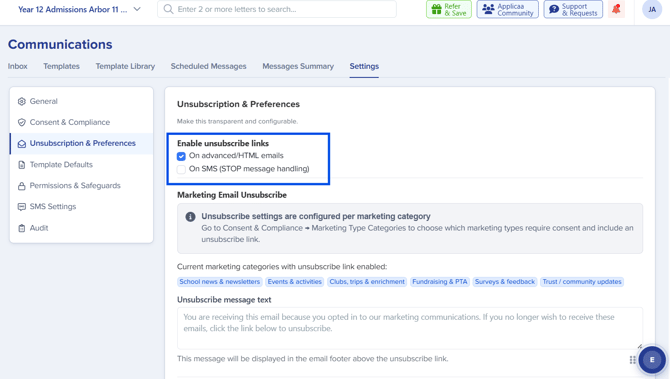
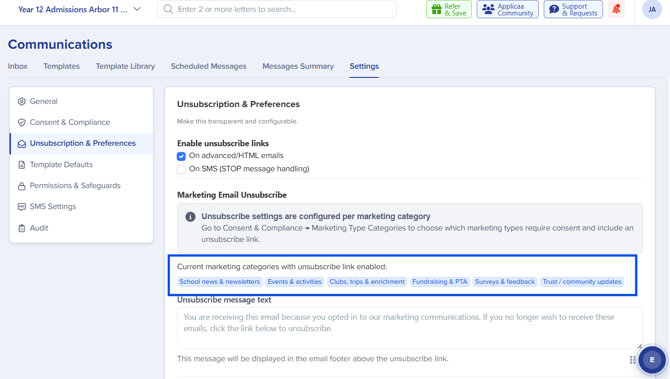
- View a summary of which marketing communication types have unsubscribe enabled- so you can confirm your setup at a glance.
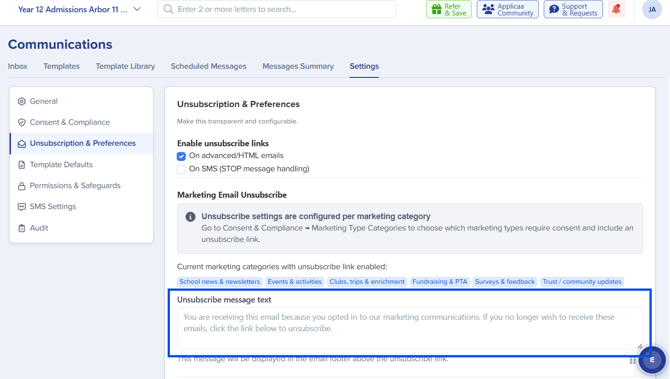
- Configure unsubscribe messaging- tailor the messaging used during the unsubscribe flow.
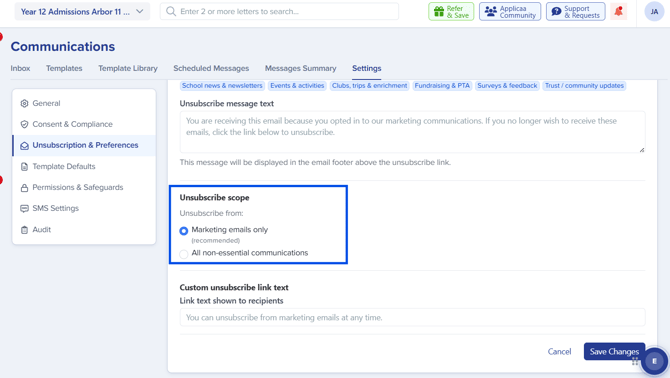
- Define unsubscribe scope- control whether unsubscribing applies at a category level or more broadly.
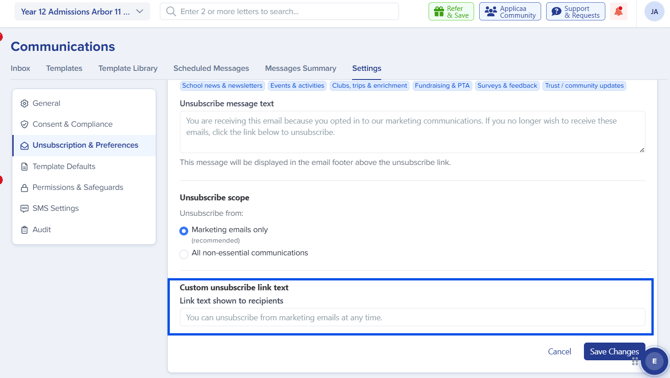
- Customise the unsubscribe link text itself- change the wording recipients see (e.g. "Unsubscribe", "Manage preferences").
Unsubscribe scope
Choose how far an unsubscribe reaches:
- Marketing emails only (default) - the recipient stops receiving Marketing communications but still receives Transactional ones.
- All non-essential communications- the recipient stops receiving everything except essential Transactional messages about their account, application, and payments.
The Preferences Centre
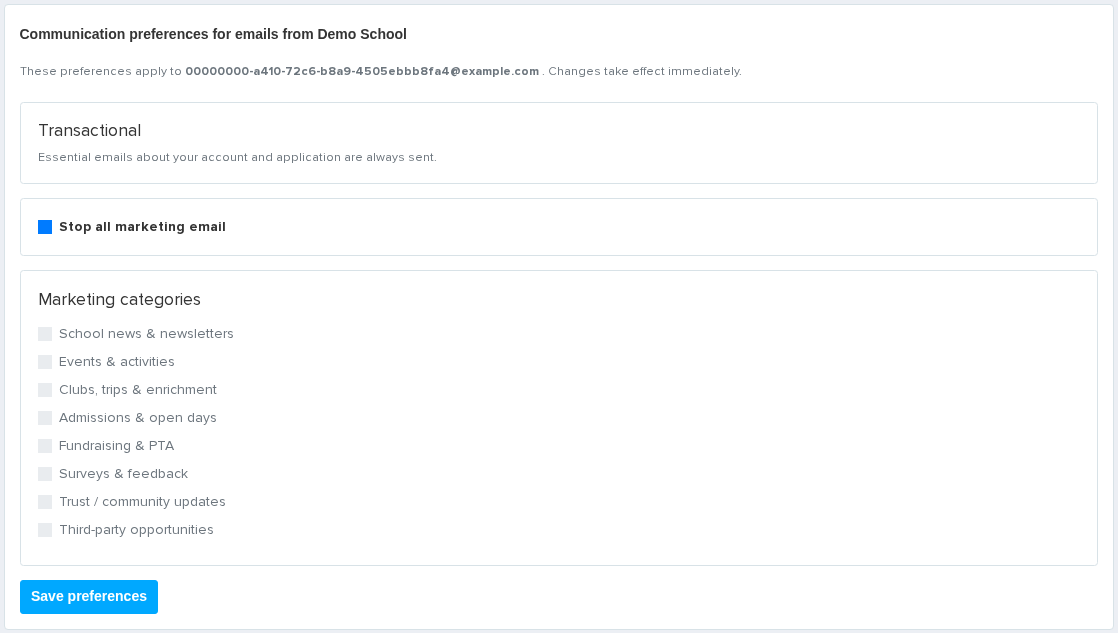
Every unsubscribe and "manage preferences" link takes the recipient to their own Preferences Centre page. No sign-in is required - the link identifies the recipient, and it stays valid for reuse. The page shows:
- A Transactional card, explaining that essential emails are always sent.
- A toggle to stop all marketing (or all non-essential, depending on your scope setting) email.
- A Marketing categories card, where the recipient can opt in or out of each category individually.
Template Defaults
Under Template Defaults, you can configure branding elements globally so they apply consistently across all templates. These include:
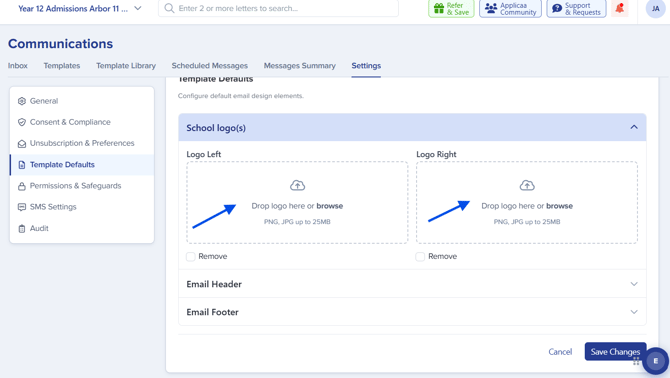
- School logos
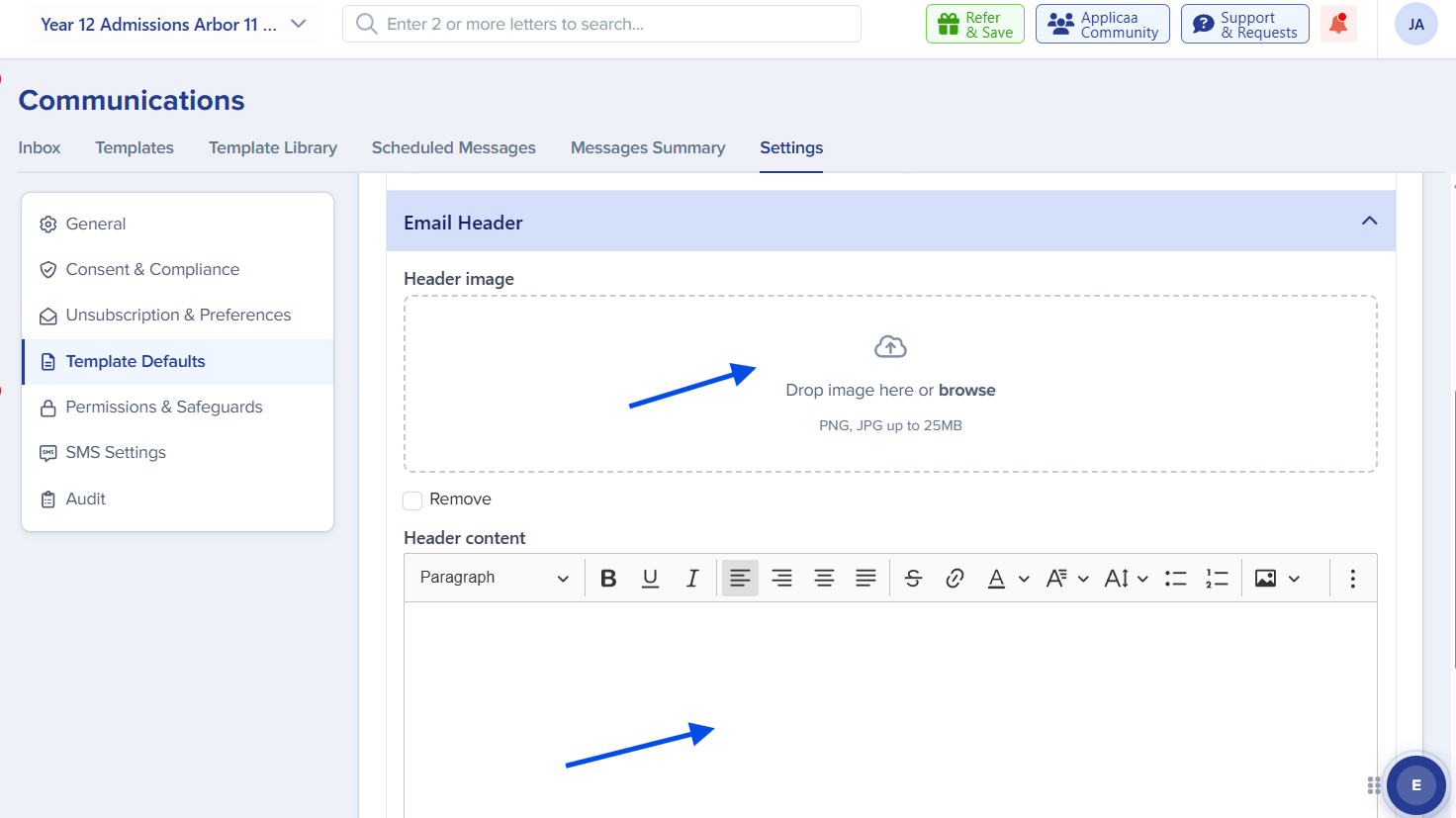
- Email headers
- Email footers
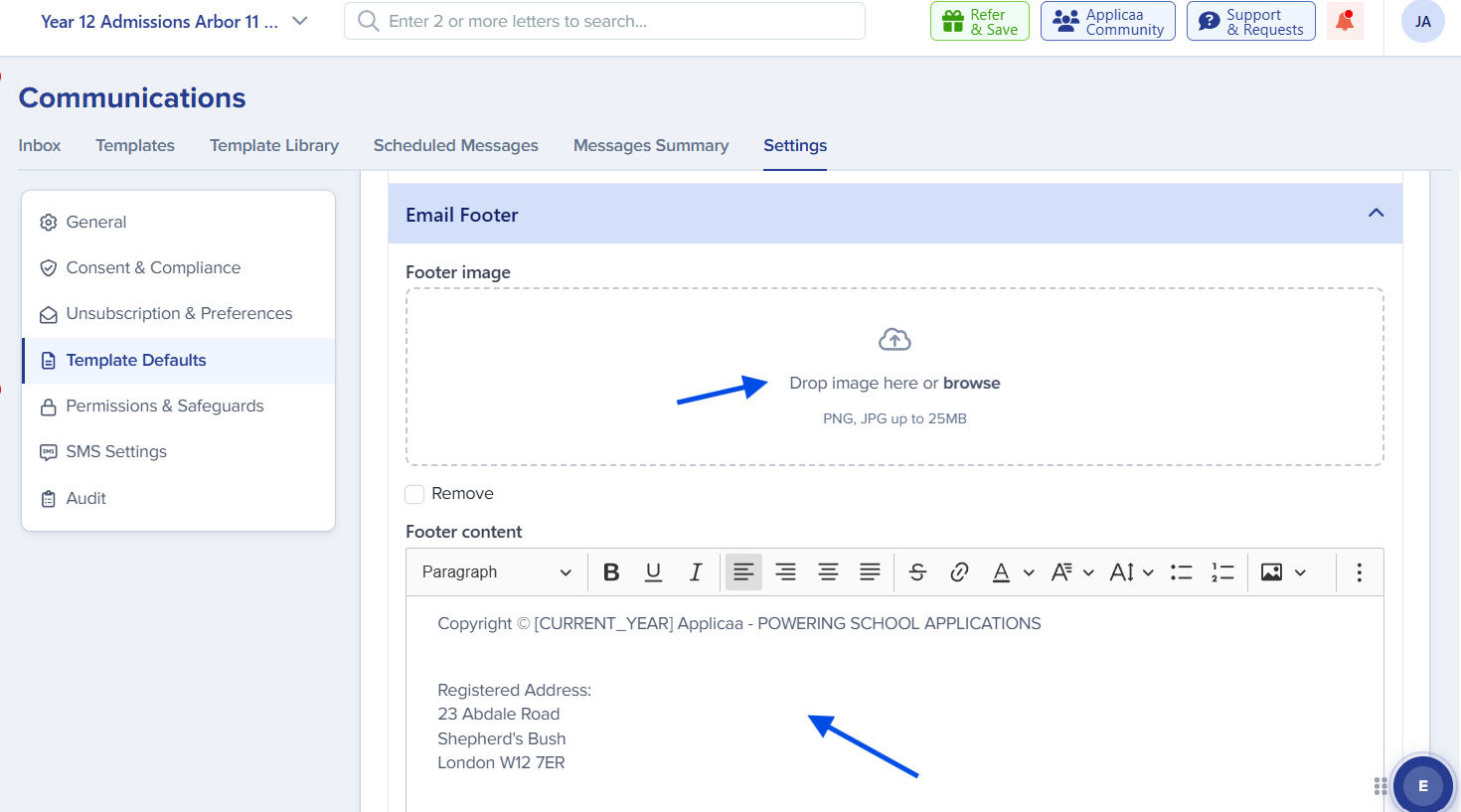
Logos and header images accept PNG or JPG files up to 25MB. Each has a Remove checkbox if you want to clear it without uploading a replacement. Turning off the header or footer toggle hides it without deleting the content you've entered, so you can turn it back on later.
Template defaults apply automatically to new templates you build in the template builder - they don't retroactively change templates that already exist. Once configured, these assets apply consistently across new communications, and every change here is recorded in the Audit section.
Permissions & Safeguards
Permissions & Safeguards lets you control communication permissions more securely. For example, you can:
- Define which user roles are allowed to send emails.
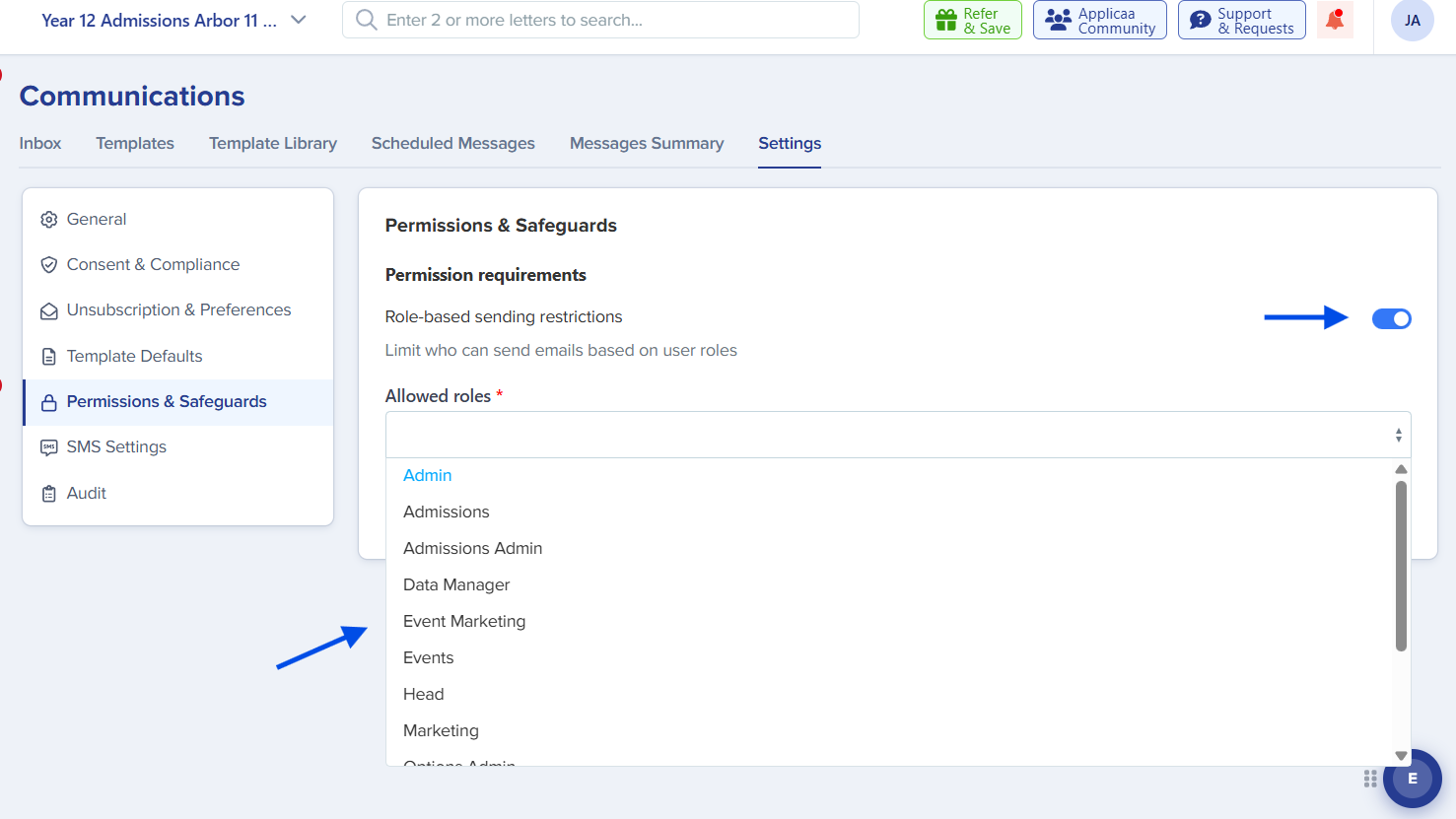
Turn on Role-based sending restrictions to limit who can send communications, then choose the allowed roles in the select below it. You must choose at least one allowed role before saving, or Admissions+ shows a warning and blocks the save.
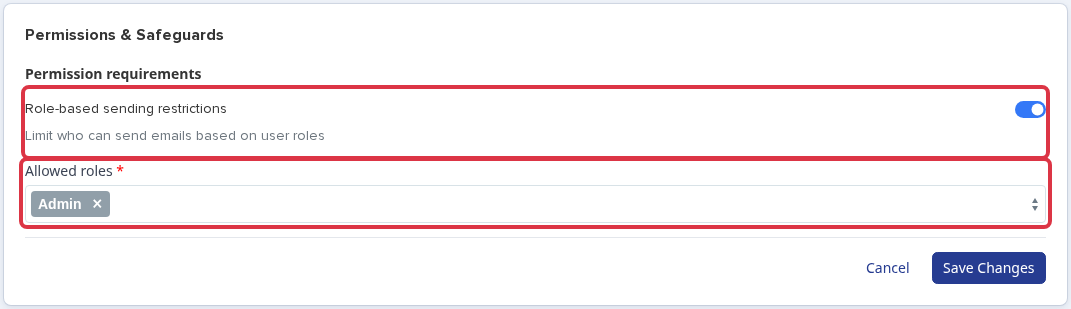
Super Admin and MAT Admin can always send communications, even if they aren't in the allowed-roles list - this stops a school from accidentally locking out its own admins. When the restriction is off, every staff member with access to Communications can send. The restriction applies wherever staff send from Communications: composing an email, sending a template, a scheduled message, a test email, or a CTF/file request email. Anyone outside the allowed roles who tries to send sees "You do not have permission to send emails." instead of a send screen. Every change you make here is recorded in the Audit section.
These controls help prevent accidental sends from staff who shouldn’t have communication-sending rights and reinforce data-protection responsibilities across the team.
SMS Settings
A dedicated SMS Settings section lets you configure:
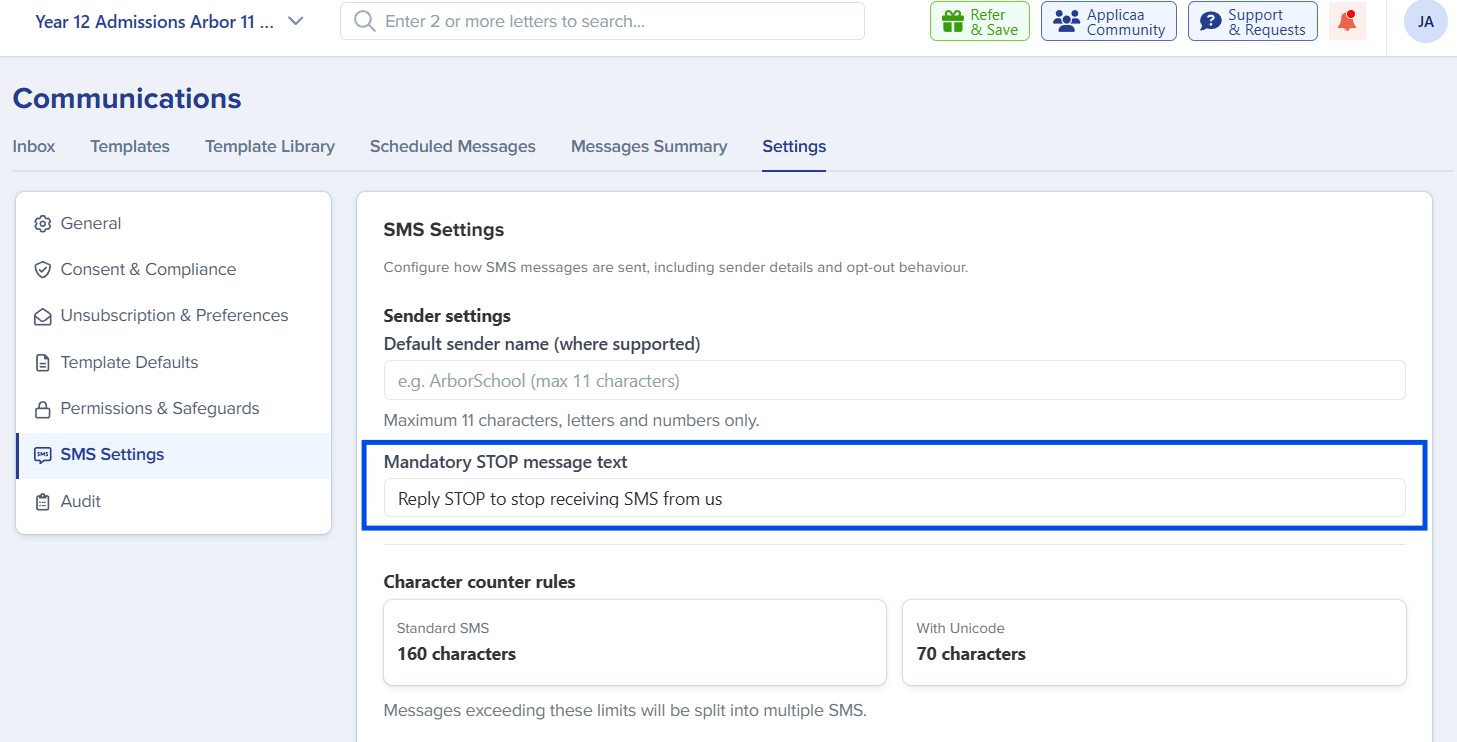
- Default SMS sender name- the name recipients see as the SMS sender. It can be up to 11 characters, letters and numbers only - Admissions+ strips any other character automatically. An individual template can override this default with its own sender name.
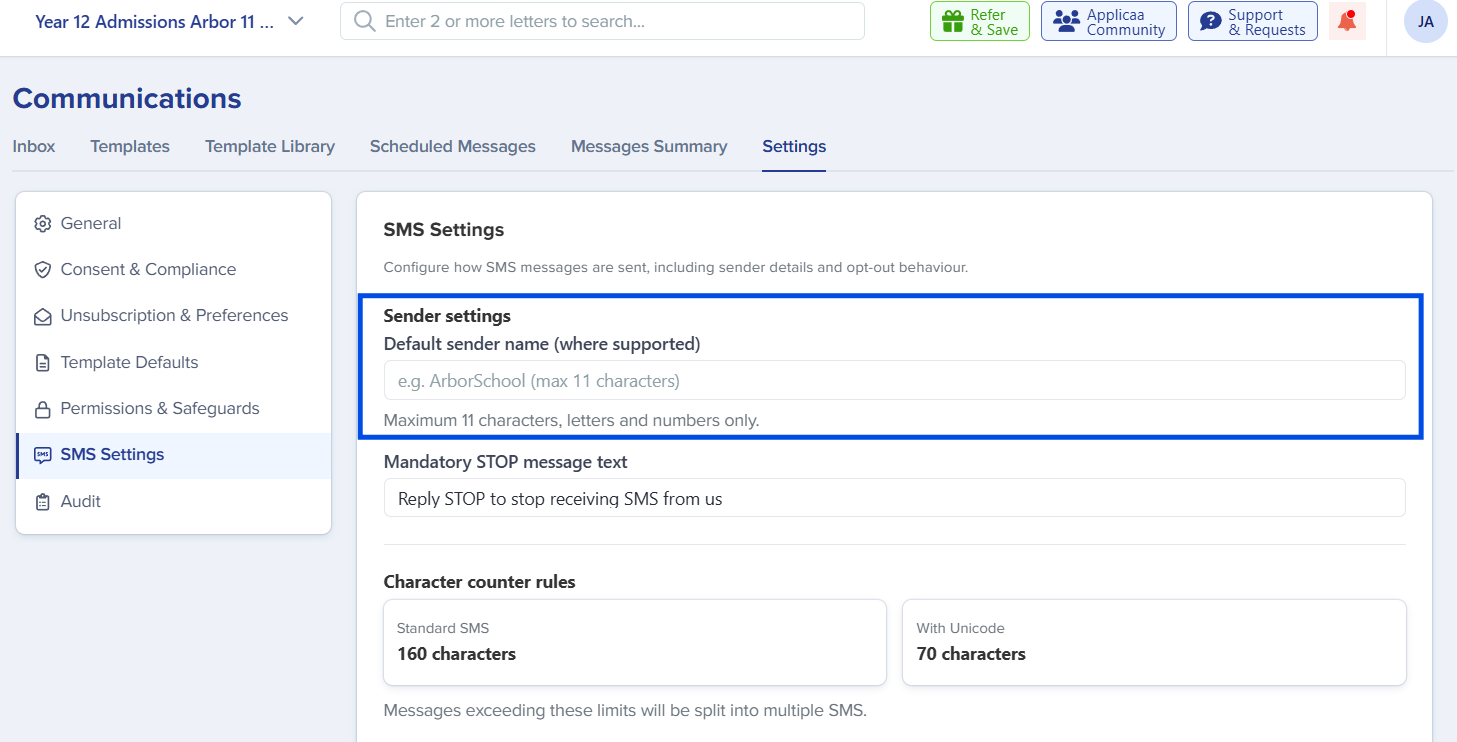
- Mandatory STOP messaging- a prefilled, editable message that must include an opt-out instruction. Admissions+ appends it to outgoing SMS messages automatically, so you don't need to add it to each template.
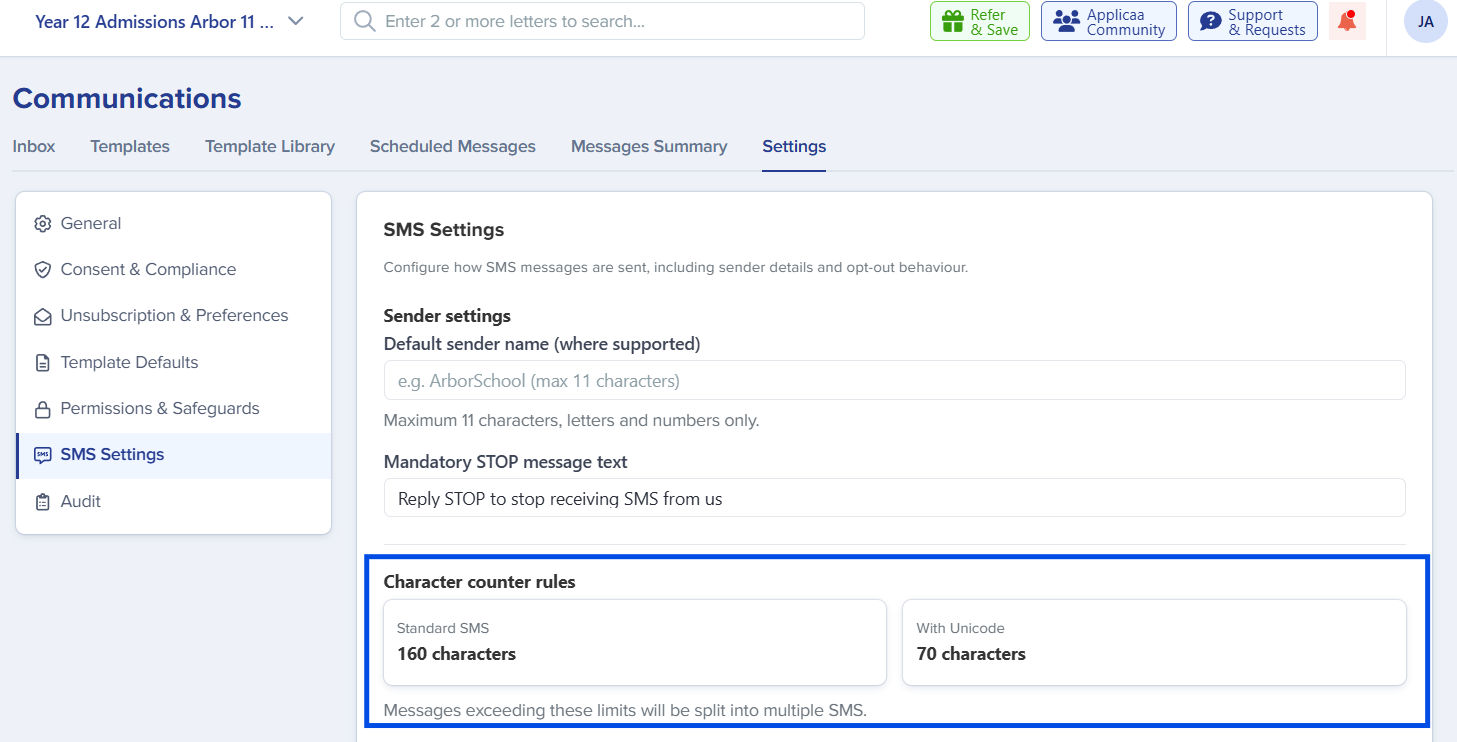
- SMS character count rules- a standard SMS holds 160 characters; a message using any unicode character (emoji, accented letters) holds 70. Messages longer than that limit are automatically split into multiple segments.
SMS Settings applies whichever SMS provider your school uses. Only a tenant admin can change these settings.
Audit
The Audit section provides visibility into changes made to communication settings, including:
- Settings activity
- Recent changes
- Configuration history
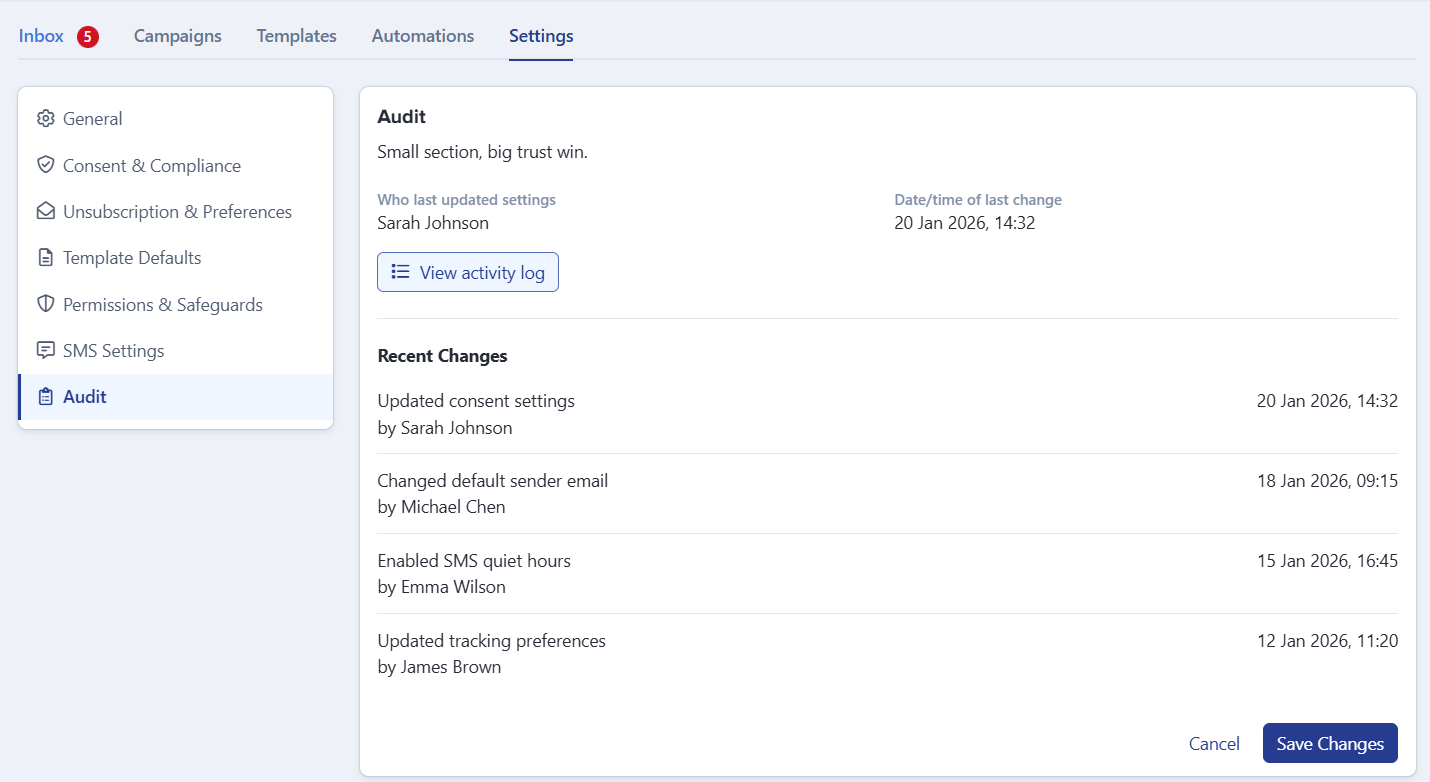
The Audit tab itself shows who last updated settings and when, and a Recent Changes list below it. Select View activity log to see the full history - each entry names the setting panel that changed, who changed it, and when. Select Back to Settings to return.

This gives schools a much clearer audit trail of communication-related changes and actions, which is especially valuable for GDPR and internal governance.
Recommended setup checklist
We recommend working through the following checklist when first adopting Settings & Compliance:
- Set your default sender and reply-to email addresses, and connect any inboxes you want to manage inside Admissions+, in General.
- In Consent & Compliance, define your marketing categories and decide how to behave when consent is missing.
- Configure your unsubscribe scope, channels, messaging, and link text in Unsubscription & Preferences.
- Upload your school logo and define default headers and footers in Template Defaults.
- Turn on role-based sending restrictions and choose allowed roles in Permissions & Safeguards, if you want to limit who can send.
- Configure your SMS sender name and mandatory STOP messaging in SMS Settings.
- Walk through the Audit view so your team knows where to look for change history.
Frequently asked questions
Will unsubscribing now block important admissions emails?
No. Unsubscribing applies to Marketing communications. Transactional communications (such as offers and key admissions updates) continue to be delivered, because they use a different Communication Purpose.
Can recipients re-subscribe after unsubscribing?
Yes - use the new Opt Back In Request functionality in Consent & Compliance to send a request to previously unsubscribed recipients, asking if they’d like to opt back in.
How granular can our marketing categories be?
You can create as many categories as you need (e.g. Events & Activities, School News, Fundraising, Alumni Updates). These link to the Communication Purpose set on each Marketing template.
Can I see who changed a particular setting?
Yes. Select View activity log in the Audit section to see who changed which setting and when.
Where do I manage inbox connections?
Inbox connections are managed in the General section of Settings & Compliance. The Inbox guide covers the connection workflow in detail.
Does an opt-back-in request go to every opted-out contact, or can I pick specific people?
It goes to every currently opted-out recipient who has a valid email address - you can't select individual recipients for this send.
Who can change permissions, SMS settings, or template defaults?
Only a tenant admin (Admin, Super Admin, or MAT Admin) can change settings in Settings & Compliance.
A note from us
We hope this guide makes it easy to get your Settings & Compliance configuration right. GDPR, consent, and audit visibility are important responsibilities, and we’ve worked hard to give your team the granular controls needed to manage them confidently - without getting in the way of day-to-day admissions work.
If you have questions, feedback, or run into anything that doesn’t quite work the way you expected, please get in touch with your Applicaa contact. We always love hearing from the schools and colleges we work with.
Related articles
- New Communications Guide- the wider Communications area: templates, scheduled messages, and campaigns.
- Inbox Guide- step-by-step instructions for connecting and using a mailbox.