
When a colleague leaves, a staff member who can manage users can give their replacement an Admissions+ account. Create the account, select the access it needs, and send the welcome email.
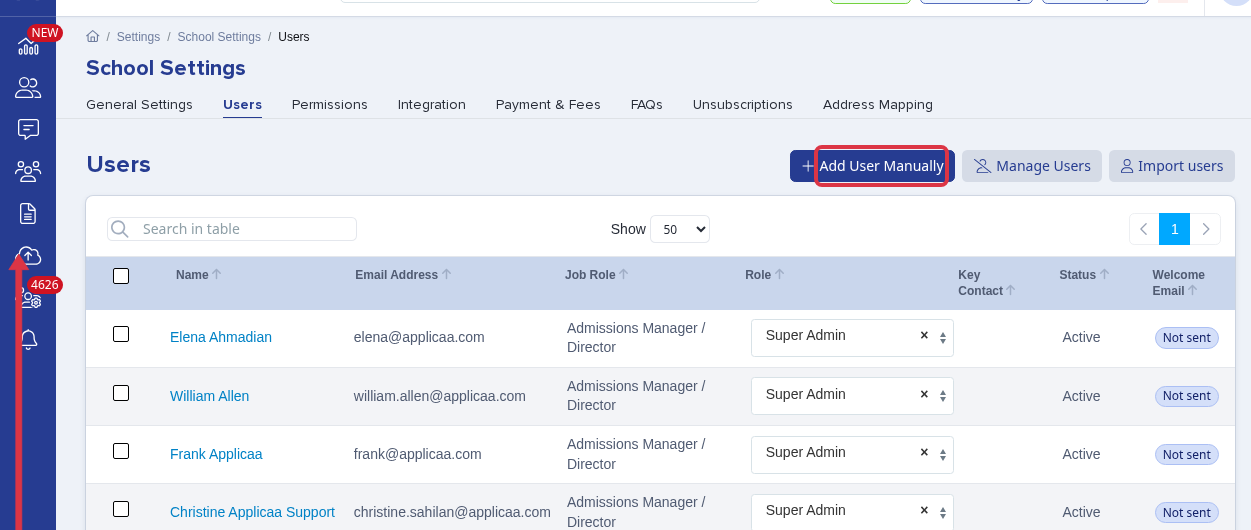
Go to "Settings" > "School Settings" > "Users" and select "Add User Manually".
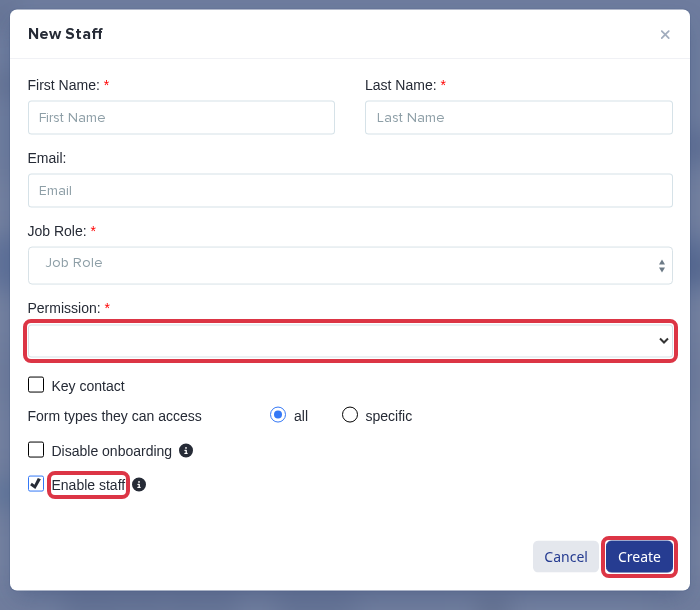
Enter the replacement staff member's details. Select the required "Permission", select "Enable staff", then select "Create".
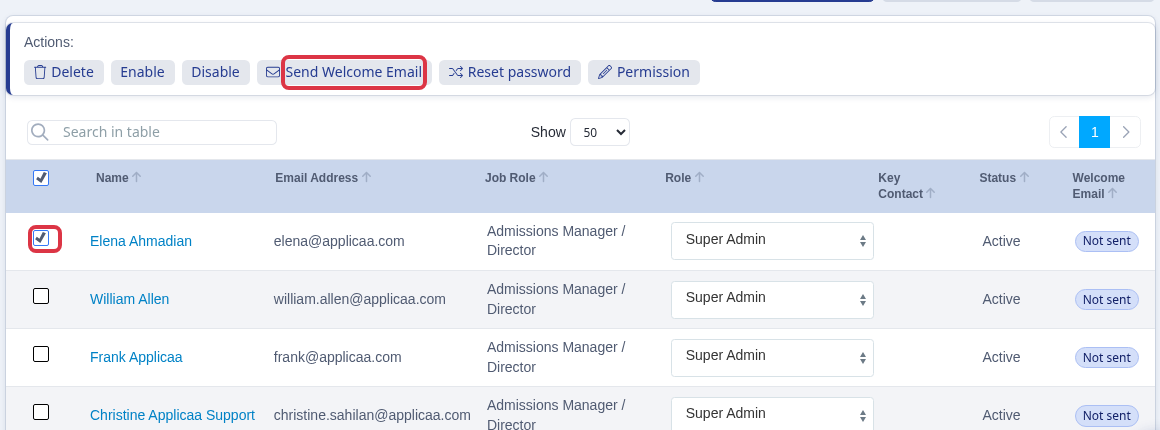
In the "Users" table, select the new staff member and select "Send Welcome Email". The email includes their sign-in details.
- Keep "Enable staff" selected so the new staff member can sign in.
- Select a permission that gives the access the new staff member needs.
Use Emma if you need help with Admissions+ access.