
To manually add a guest to an event, follow the steps below:
- Navigate to Communications and Events from the left-hand side menu on your Dashboard Area.
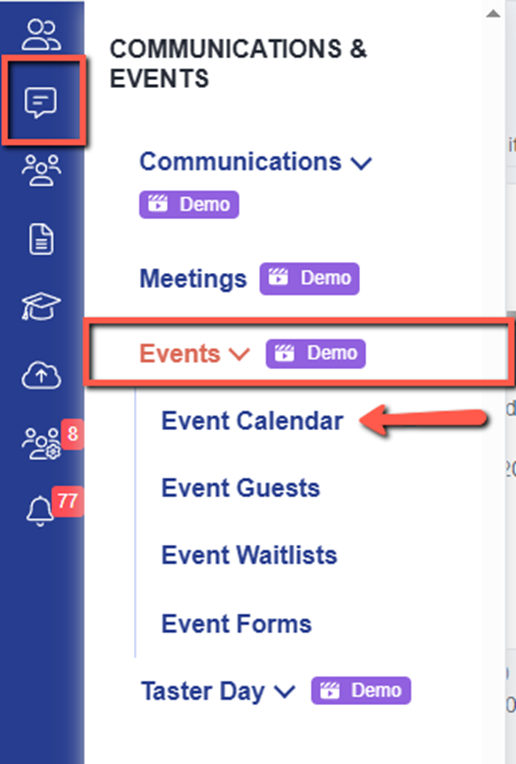
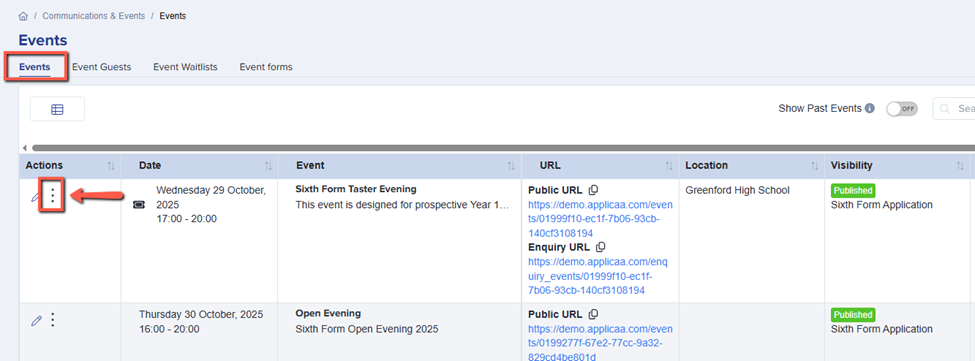
- Go to the Events Calendar section - here, you’ll see a list of all your created events, whether published or unpublished.
- Find the specific event where you’d like to add a guest.
- Click the Kebab Menu (three-dot icon) next to the event name.
- From the dropdown options, select Add Guest.
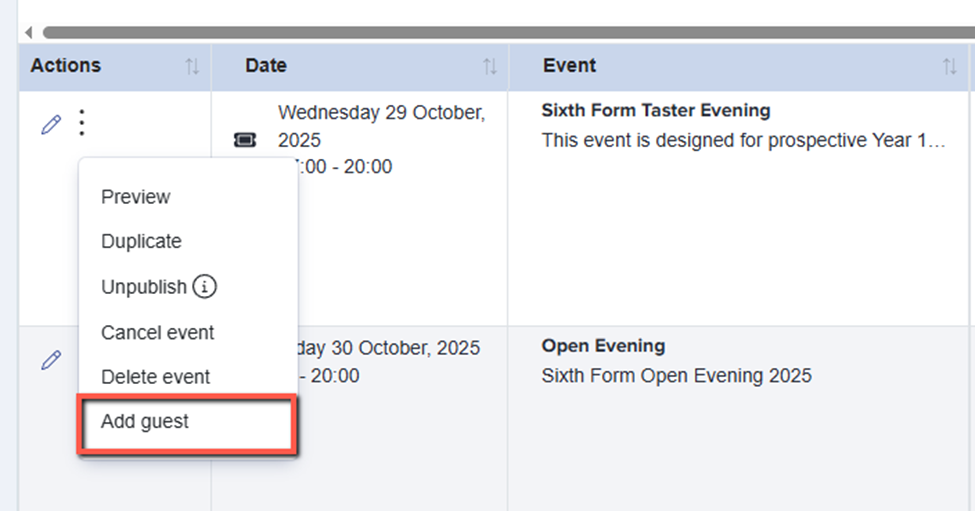
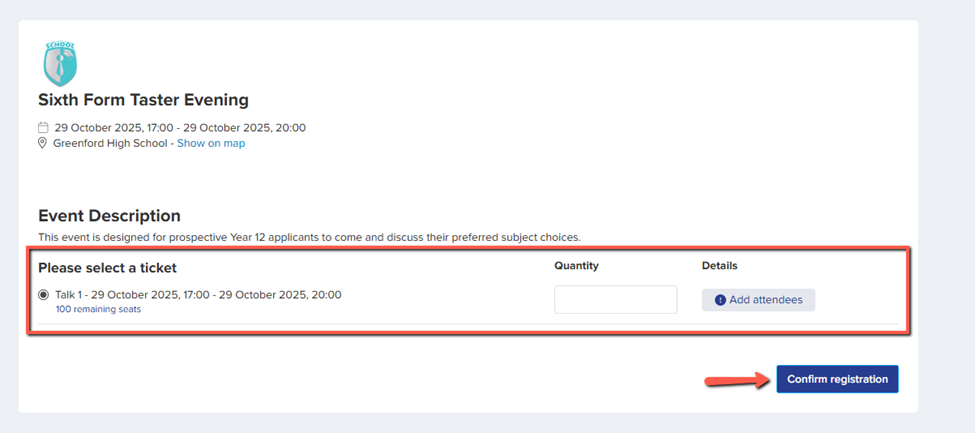
Clicking the “Add Guest” option will open a new tab displaying the registration page for the selected event.
Here, you can select the ticket type, specify the quantity, and enter the attendee information. Once all details are completed, click Confirm Registration to manually add the guest to the event.
Can you charge a guest for an event ticket?
No. A ticket in Applicaa controls availability, not price. When you add or edit a ticket on an event, you set the Ticket name, the start and end date and time, the Available quantity, and the minimum and maximum quantity per booking. There is no price field, so a guest never pays to register for an event.
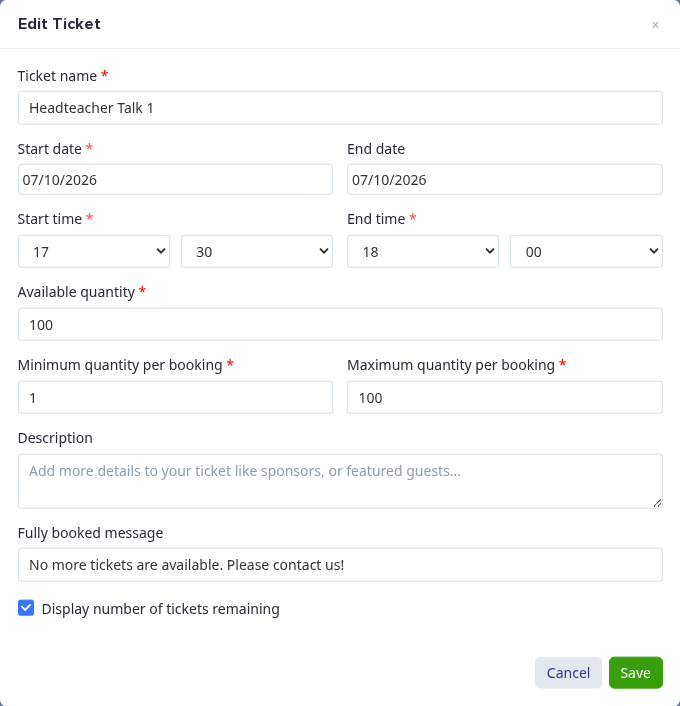
This also applies to an extra such as a parking space. You can add a separate ticket to count how many guests need one, but Applicaa does not collect money for it.
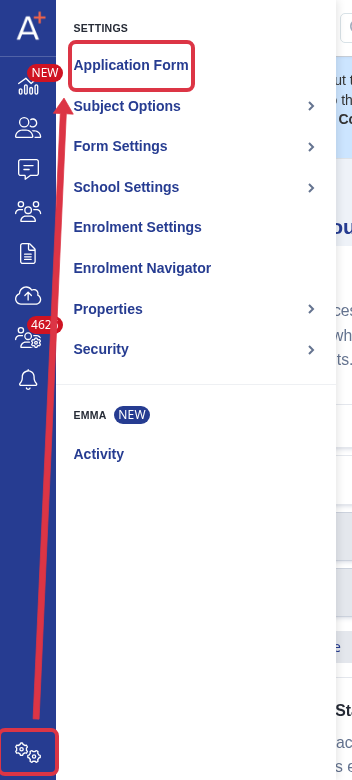
Applicaa does collect payments, but in the application form. Open the Settings menu at the bottom of the left-hand menu and select Application Form.
Open the phase that your applicants complete, usually 2. Application Form, then select the Payment step.
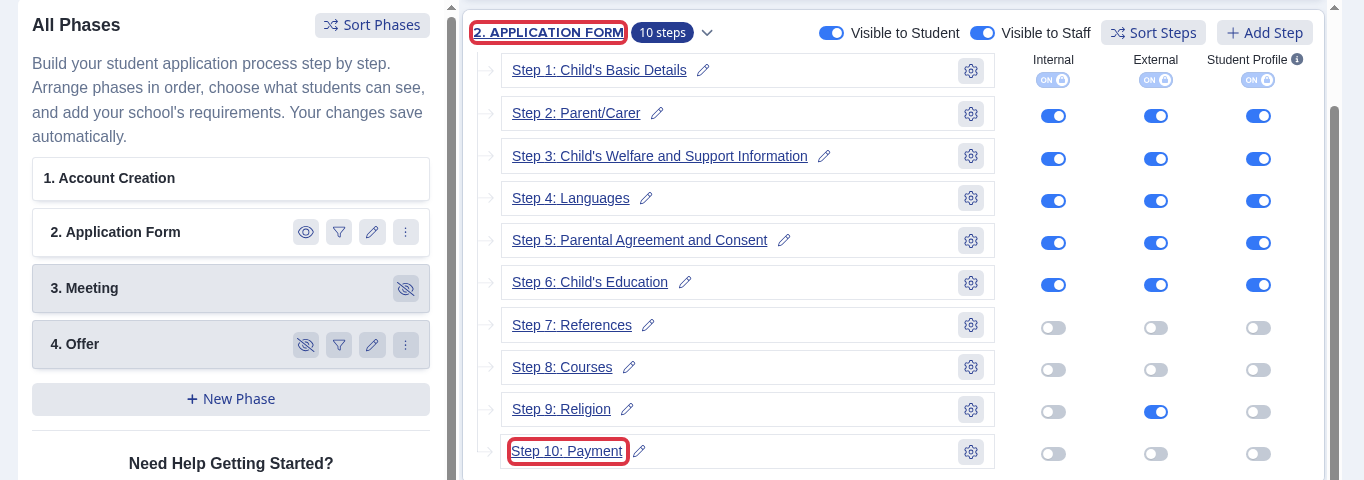
On the step, set Enable for to on for internal applicants, external applicants, or both. Your applicants then pay the fees that you attach to the step.

Every application form has this Payment step, and a fee can apply to any year group from Nursery to Year 13. Payments are not limited to a Sixth Form application form.