
Use the application form editor to find questions and sections, arrange them in their allowed order, and remove eligible custom content. This helps when you need to replace a question or remove a section or manually created step.
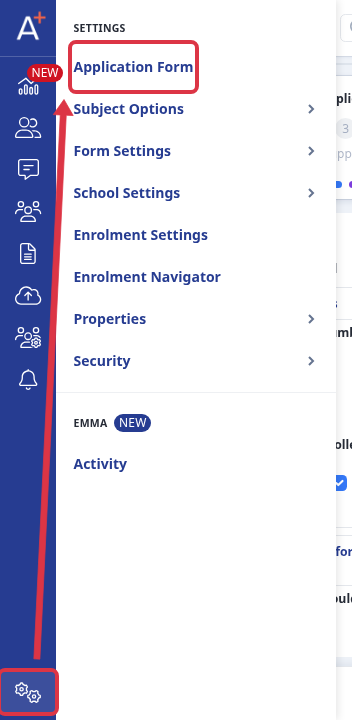
Go to "Settings" on the left rail and select "Application Form". Open the form you need to change.
In "Manage Journey", open the phase and step that contain the question. Each section has a question table. Use the table to find a question such as "Current School". Select "Sort Questions" to change the order inside that section. Select "New Question" to create a replacement question with the required type.
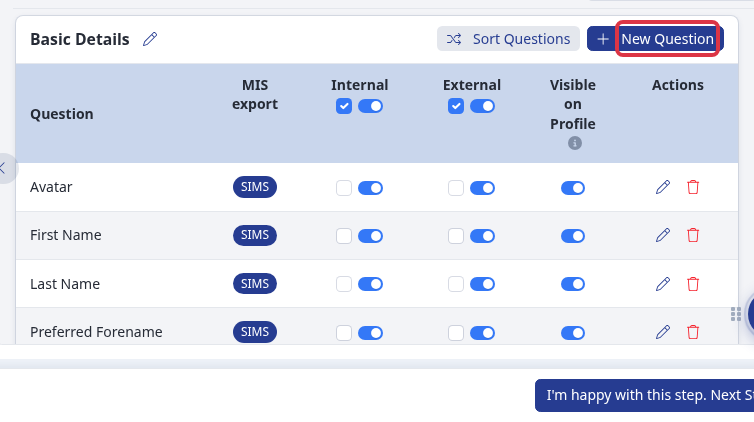
You cannot change a question from text to Yes/No in the form editor after you create it. Create the replacement question, check it in the form, then remove the old question if it is no longer needed.
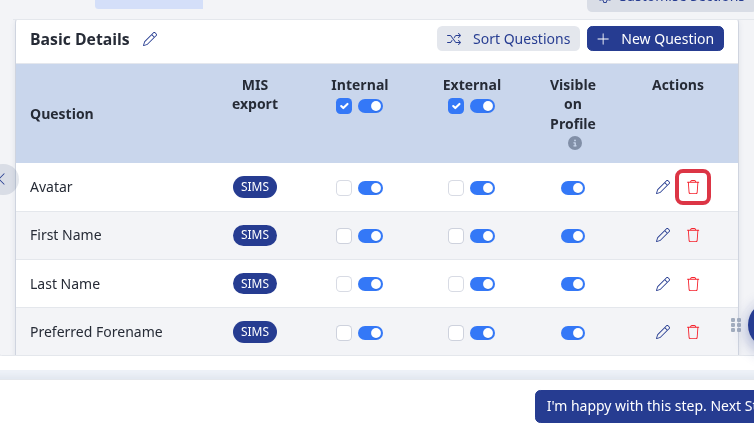
To remove an eligible question, select its trash icon and confirm "Are you sure? You won't be able to revert this!". If a question has no trash icon, you cannot delete it from this form.
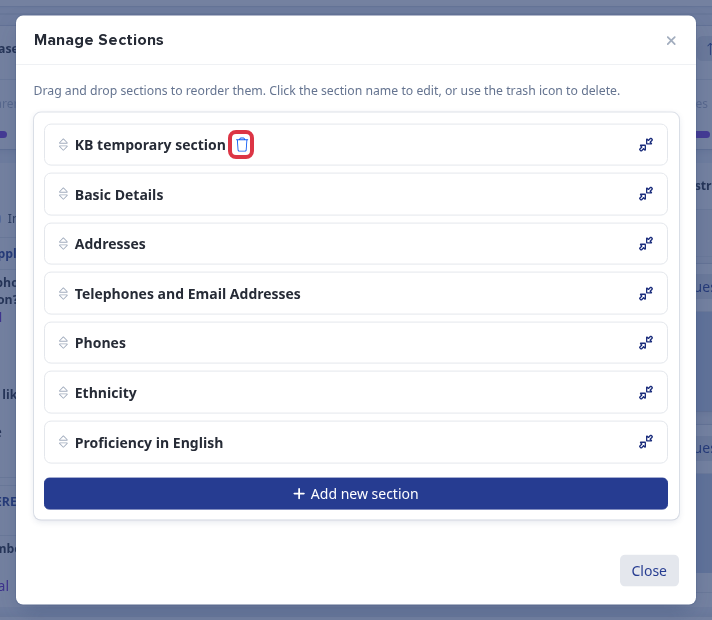
Select "Customise Sections" to manage the sections in the current step. Drag a section card to place it in the required order. Select the trash icon to remove an eligible custom section, then confirm "Are you sure?".
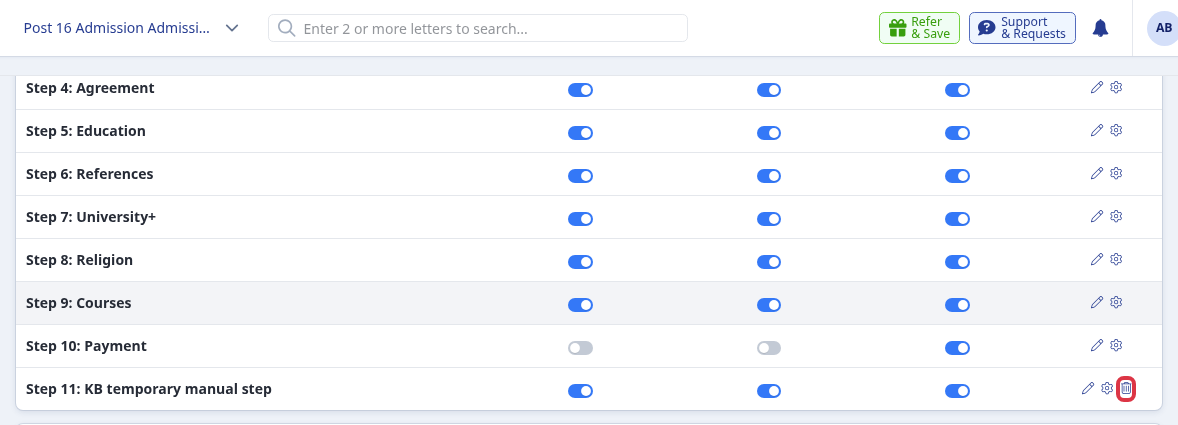
To remove an eligible manually created step, select "Switch to old view". Find the step, select its trash icon, and confirm "Are you sure?". The delete icon appears only for eligible manually created steps.
What it does not do
- You cannot move a question to another section.
- You cannot move a section to another step or phase.
- You can order questions only inside their current section and sections only inside their current step.
- The editor does not arrange questions or sections in alphabetical order.
- Built-in steps do not show the delete icon.