
Go to your Settings>Form Settings>Landing page
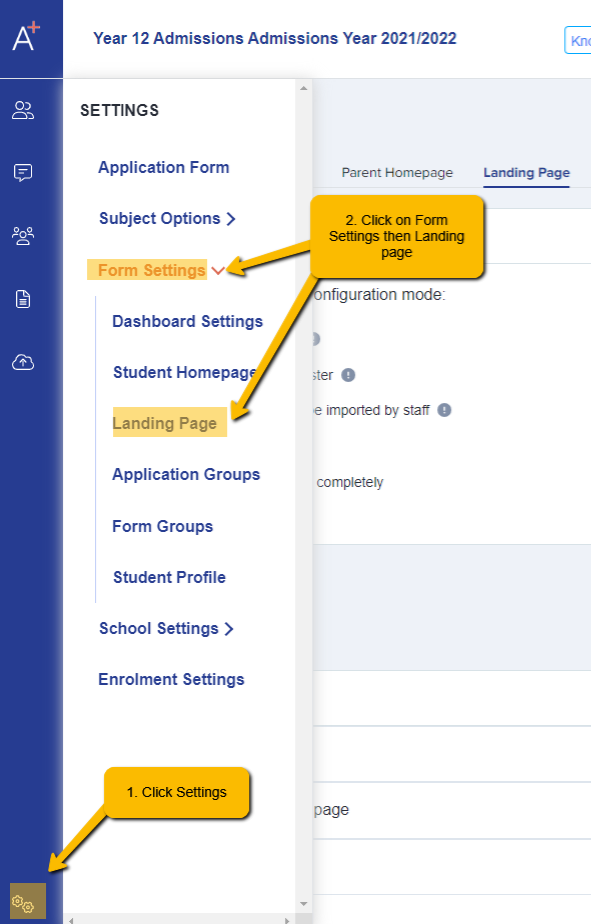
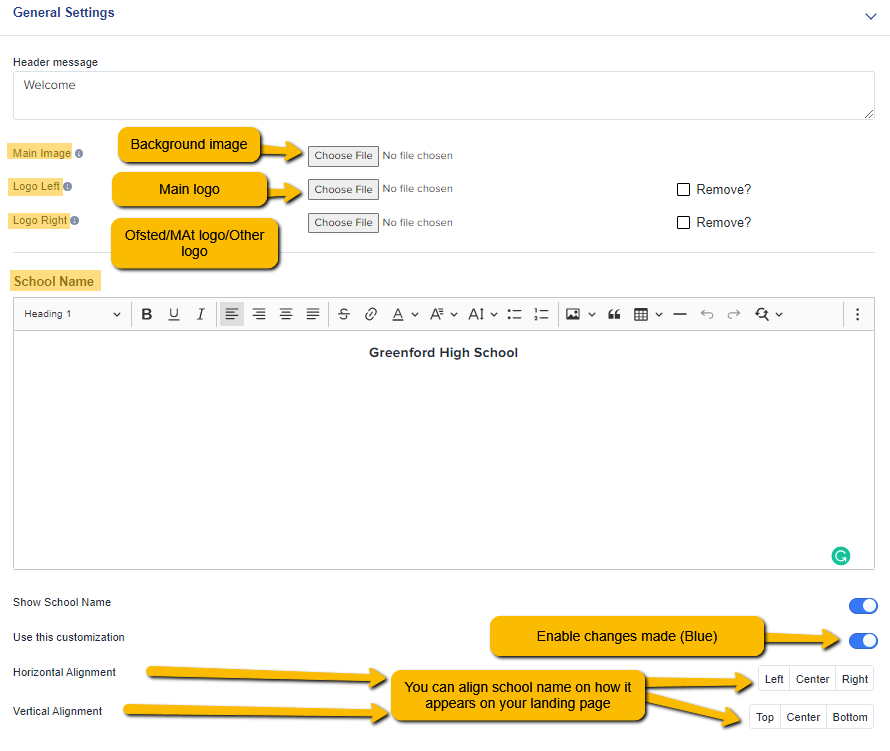
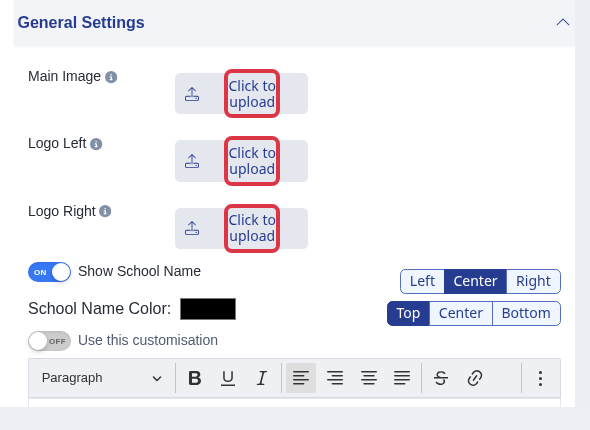
Scroll down until you reach the last section ' General Settings'. Click across 'Main Image' the 'Choose file' to upload new Background Photo. To add a logo on the top left corner of your Landing Page, click the 'Choose File' on the 'Logo Left' and the same with the 'Logo Right' if you have a MAT Logo or Ofsted , you can add it here. You can also edit your 'School Name'.
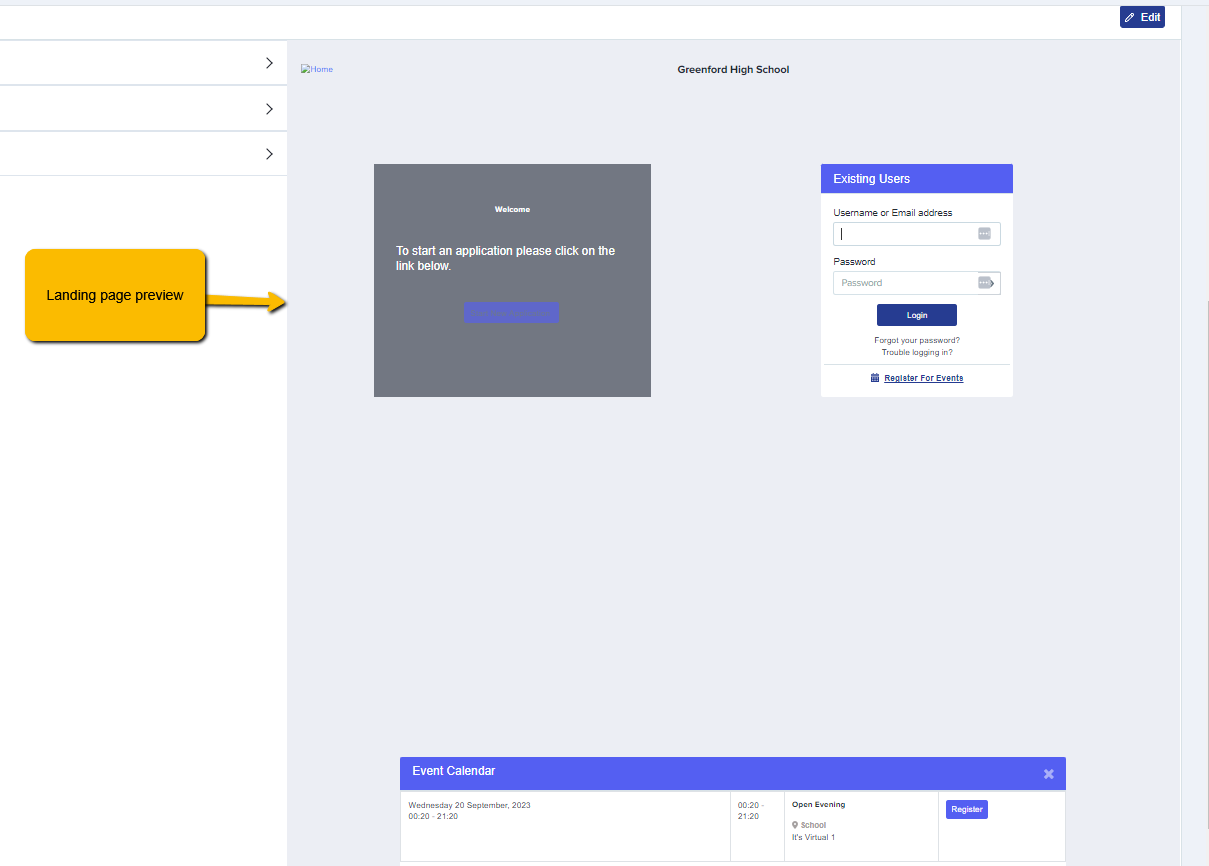
You can see the changes made when you refresh your page on the right side of the screen.
Or, you can copy and paste the URL on another browser or Incognito to check the changes.
Current landing page image settings
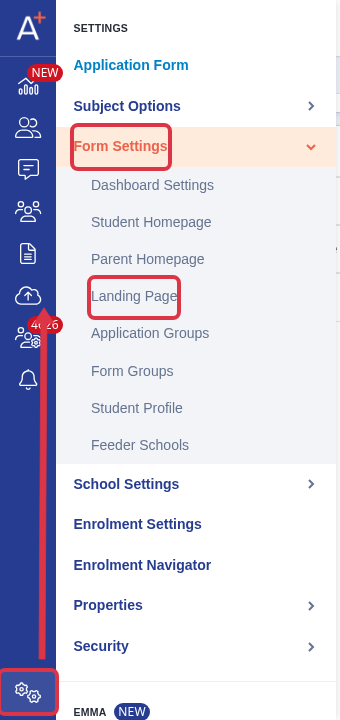
Go to Settings > Form Settings > Landing Page.
On the Landing Page card, select "Edit", then open "General Settings".
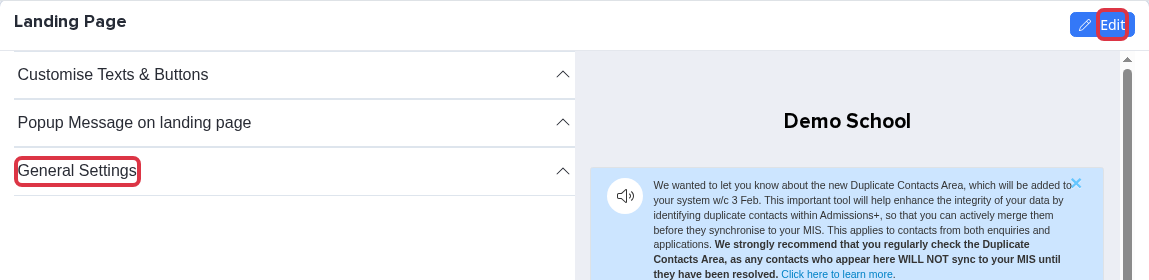
For the background photo, select "Click to upload" next to "Main Image" and choose your image. Use "Logo Left" or "Logo Right" for each logo that you need.
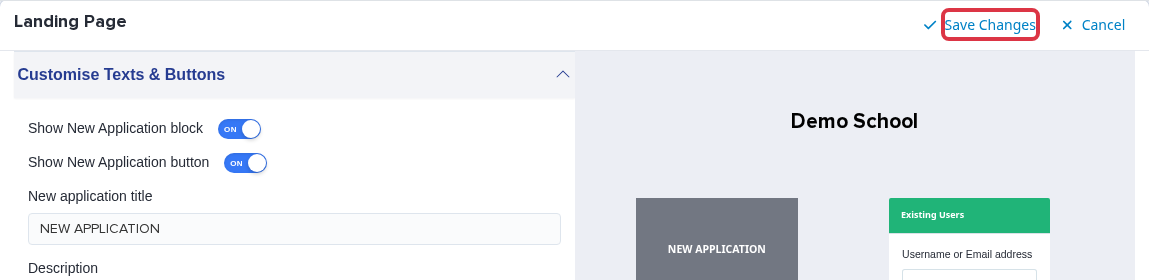
Select "Save Changes".
The Main Image accepts JPG, JPEG, and PNG files. The application keeps each image edge within 2,000 pixels. There is no fixed image width or height.
What it does not do
The Main Image field only accepts a photo file (JPG, JPEG or PNG). There is no colour picker on this panel, so you cannot replace the background photo with a plain colour from here.
If your school wants a plain colour background instead of a photo, contact Applicaa support to ask what is possible for your account.