
This article guides you through the process of adding a new child to an existing parent account.
To add an additional child to a parent account, first locate the relevant parent profile. You can do this by either navigating to the Parent & Enquiries tab or by using the search bar to find their name or email address.
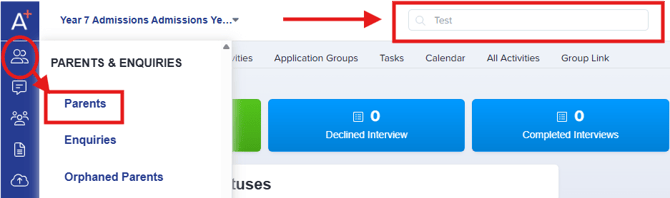
Adding twins or siblings? Every child a parent has is added from that same parent's existing profile - never by re-registering the parent. If you instead try to create the second child as a brand-new student and type the parent's email again, you will see "This email has already been taken", because that email already belongs to the parent's account. See Adding twins or siblings at the end of this article for the correct steps.
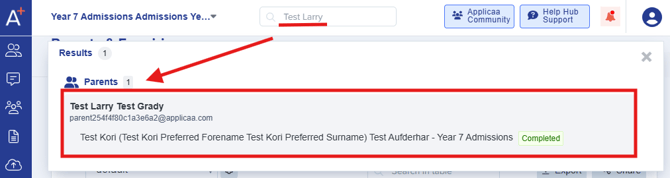
From the search results, click on the parent’s name to open their profile and add another student.
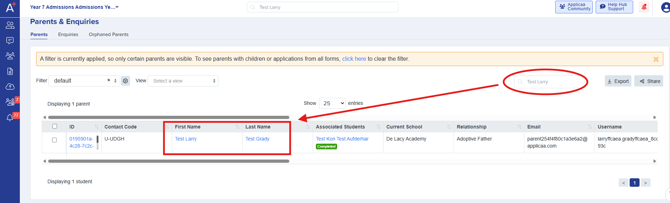
Alternatively, locate the parent within the Parent & Enquiries table, then click on their name to access their profile.
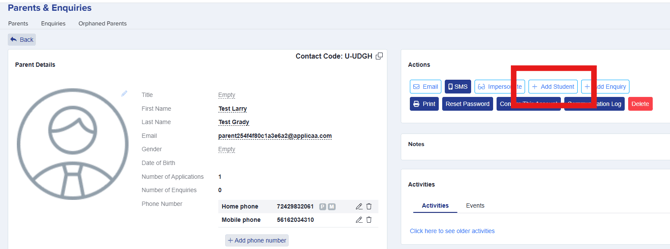
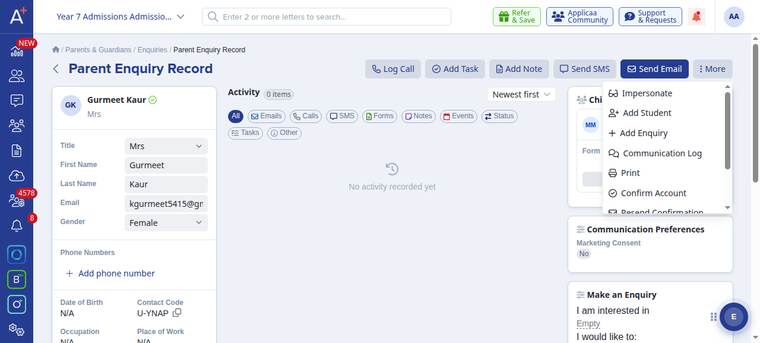
Once you are on the parent profile click on +Add student and it'll then allow you to create a student profile from there.
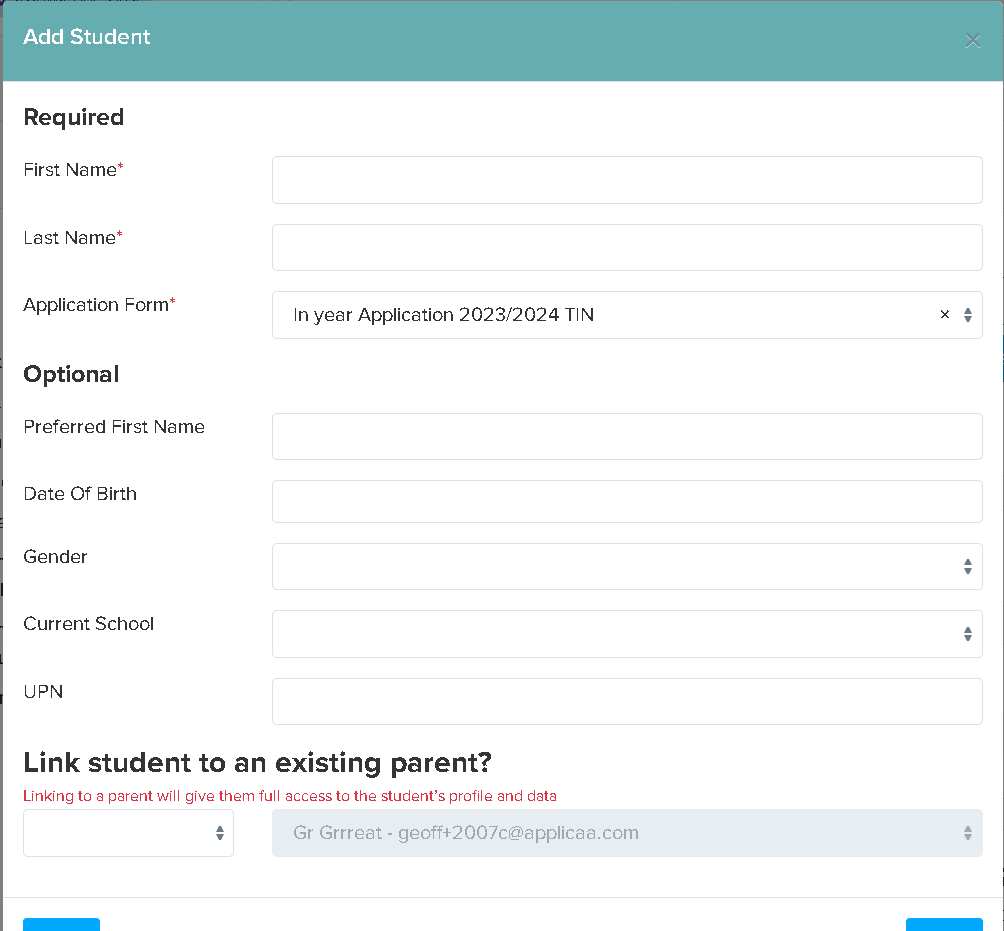
This will open a tab where you can enter the details for the new student:
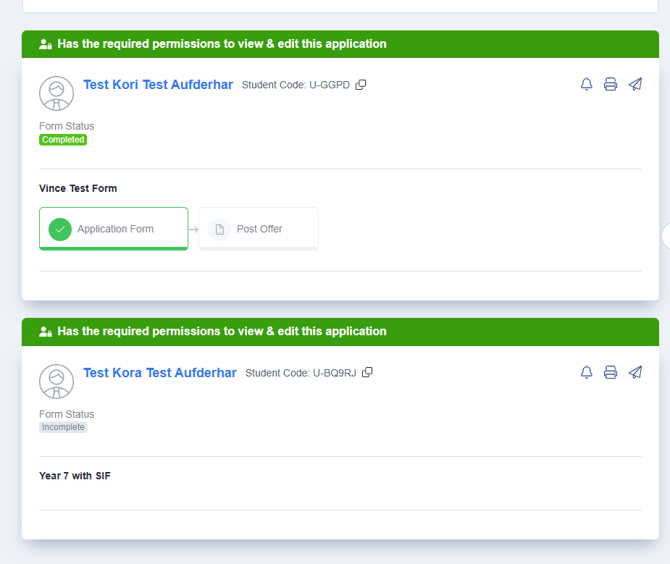
Once the new student is created, they will be linked to the parent profile. After the page is refreshed, you’ll be able to see the student listed under the parent’s account.
If the student already has an existing account created through another process, you can easily link it to the parent’s account. You may follow this guide: How to link a student to a parent
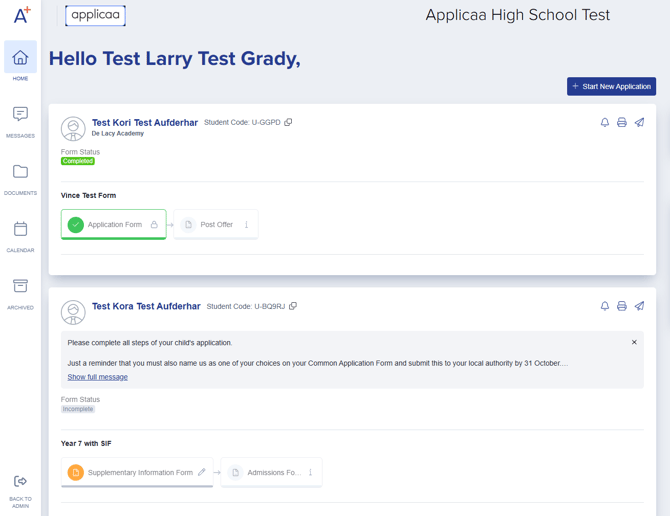
Once the parent logs into their account, they will see both child profiles listed. They can then continue to complete the necessary forms for each child.
Adding twins or siblings: "This email has already been taken"
Twins and siblings share one parent account, so they also share a single parent email address. That email is only registered once - when you create the first child. To add each additional child you open the parent's existing profile rather than starting a brand-new student from scratch.
If you try to add the second child by creating a new student and typing the parent's email again, the system stops you with "This email has already been taken". This message is expected: it prevents a duplicate parent account being created for an email address that is already in use. It is not a fault with the parent's record.
To add the sibling correctly, open the existing parent's profile, click More, then choose Add Student.
The Add Student form asks only for the child's own details - First Name, Last Name and Application Form. It does not ask for the parent's email again, so there is nothing to be rejected as a duplicate.
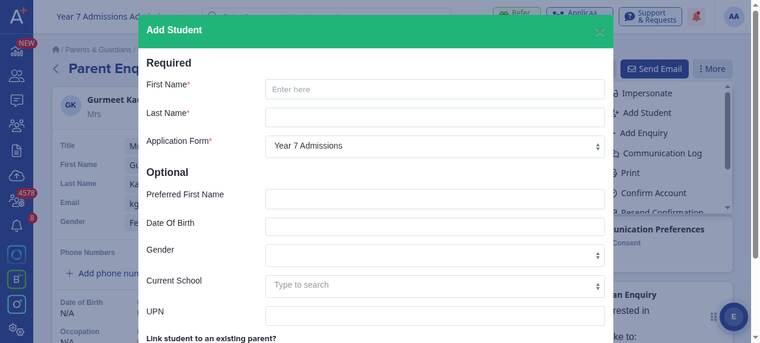
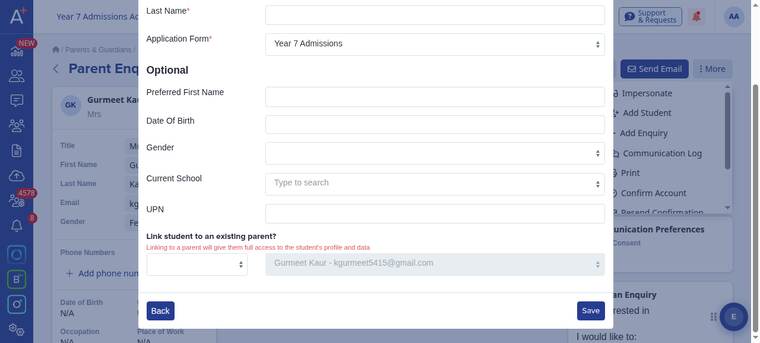
At the bottom of the form, under "Link student to an existing parent?", the parent is already selected for you. Choose the relationship (for example, Mother or Father) and click Save. The new child is linked to the same parent, and when the parent logs in they will see both children listed under their one account.
Start a new application from an existing Parent/Carer account
A parent uses the same Parent/Carer account for all their children. They do not create another parent account for a new admission cycle.
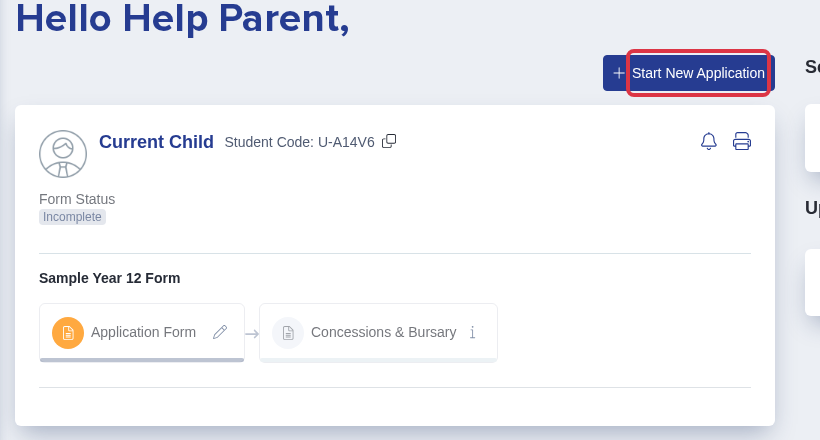
After the parent signs in, select "Start New Application" on the homepage.
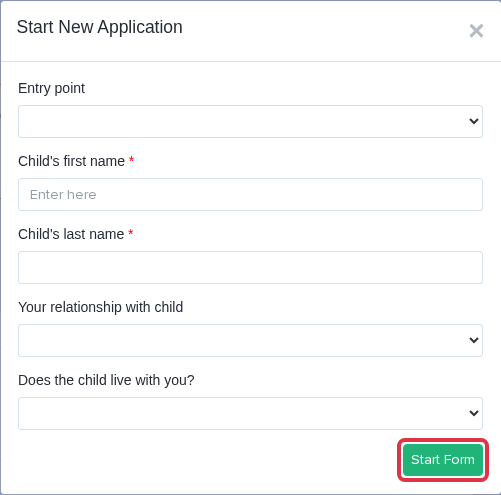
Select the entry point, enter the new child’s name, choose the relationship and address answer, then select "Start Form".
The new child has a separate application. The parent can view each linked child’s application from the same account.
For duplicate student profiles, use How to Manage Duplicate Accounts.