
From your main dashboard, click the "subjects summary" tab. This will take you to the bottom of your dashboard, to view a table of your subjects and a breakdown of which applicants have opted for each course.
You can click on the name of a subject to see a full list of students who have selected it, or any of the numbers on that row to view specific groups.
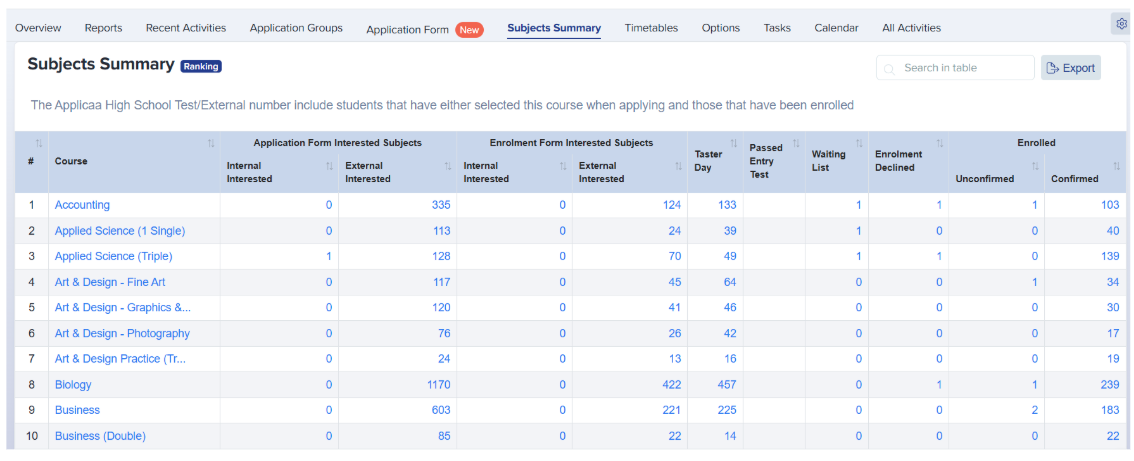
Application Form Interested Subjects - broken down into internal and external numbers, this area shows the subjects chosen by the applicant on the courses step of the application form.
Enrolment Form Interested Subjects - broken down into internal and external numbers, this area shows the subjects chosen by the applicant on the courses step of the enrolment form.
Taster Day - shows the number of applicants who have opted in for each subject on your taster day(s) as an overall value. Visit the Submissions and Timetables area to view a breakdown per Taster Day - read more here.
Passed Entry Test - enables you to track any subjects which require applicants to pass an entry test, so you can record those who pass and fail. Read more about entry tests here.
Waiting List - shows any students who are added to the waiting list for that subject as part of your enrolment process. Read more about the waiting list function here.
Enrolment Declined - shows you any students who have been declined from the waiting list for a specific subject.
Enrolled - broken down into unconfirmed and confirmed numbers, based on your enrolment settings. If a student is already enrolled elsewhere, you can reserve their place on a course whilst they make a decision whether to un-enrol elsewhere to enable them to be enrolled with you instead (they would show as "unconfirmed" - their place is being held). Those who enrol with you and are not already enrolled elsewhere will show as "confirmed" when you submit their enrolment.
You can also export the subject summary into a spreadsheet.
Report offer status by subject and admissions cycle
The Subjects Summary reports subject counts for one application form. It does not combine data from different schools or application forms.
Open the application form for the admissions cycle that you want, then select Subjects Summary.
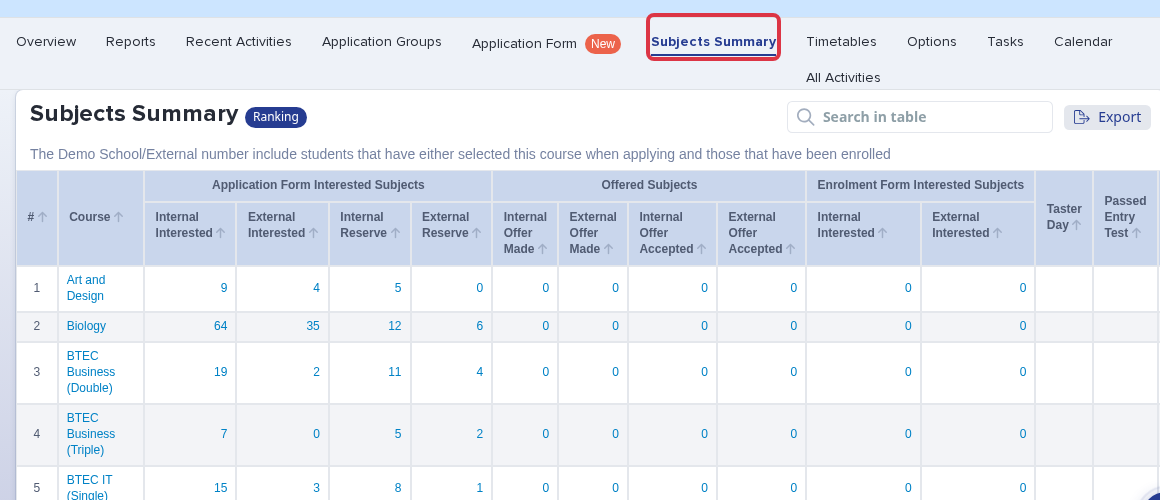
Offered Subjects - broken down into internal and external numbers, this area shows the Offer Made and Offer Accepted counts for each subject.
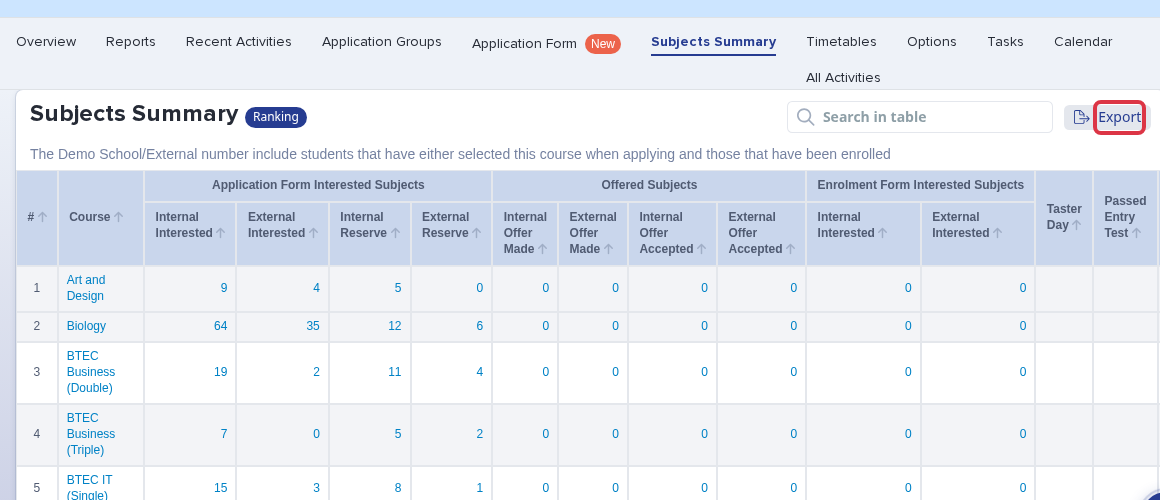
Select Export above the table to download the subject summary.
- Use one application form for each admissions cycle. Repeat the export for another cycle.
- The Overview tiles give the Registered Students, Applications Completed, Offer Made, Offers Accepted, and Declined totals for that form.
- The Subjects Summary export gives subject totals. It does not give one combined row for each student's choices and offer status.
- Term of Entry is not a Subjects Summary filter. Open the application form for the cycle that you want.
To check the offer status of one student, read How to check offer status of the students.