
This guide and webinar will walk you through transferring student and class data into Arbor.
PDF Guide
Please note: before you can transfer enrolled classes to your MIS (Year 12), you must first ensure you have transferred the students' data into your MIS - they have to exist in your MIS first, before their class allocations can then be transferred.
Step by step: exporting students
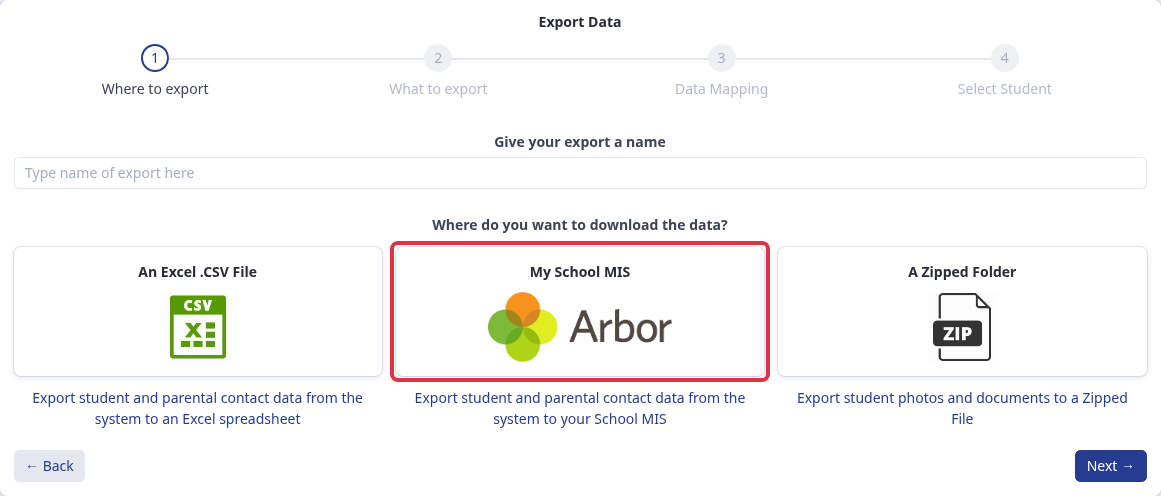
Go to "Data" > "Export Data" and start a new export. On the "Where to export" step, choose "My School MIS".
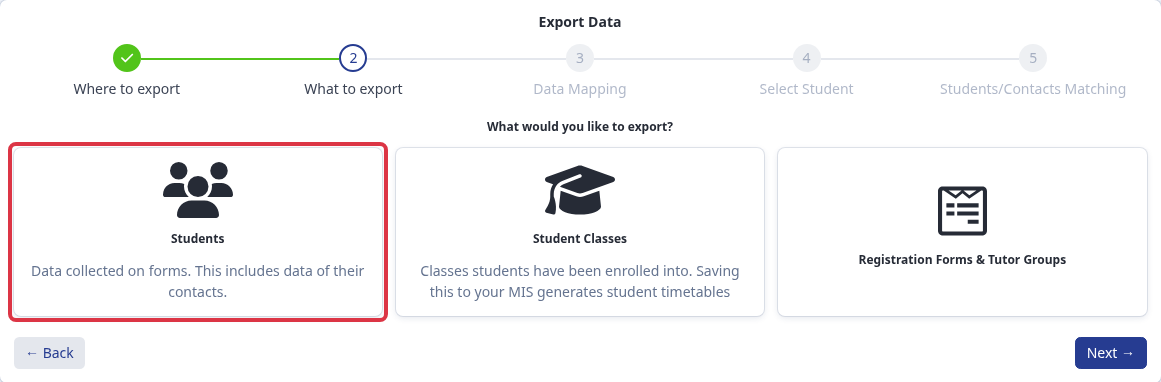
On "What to export", choose "Students".
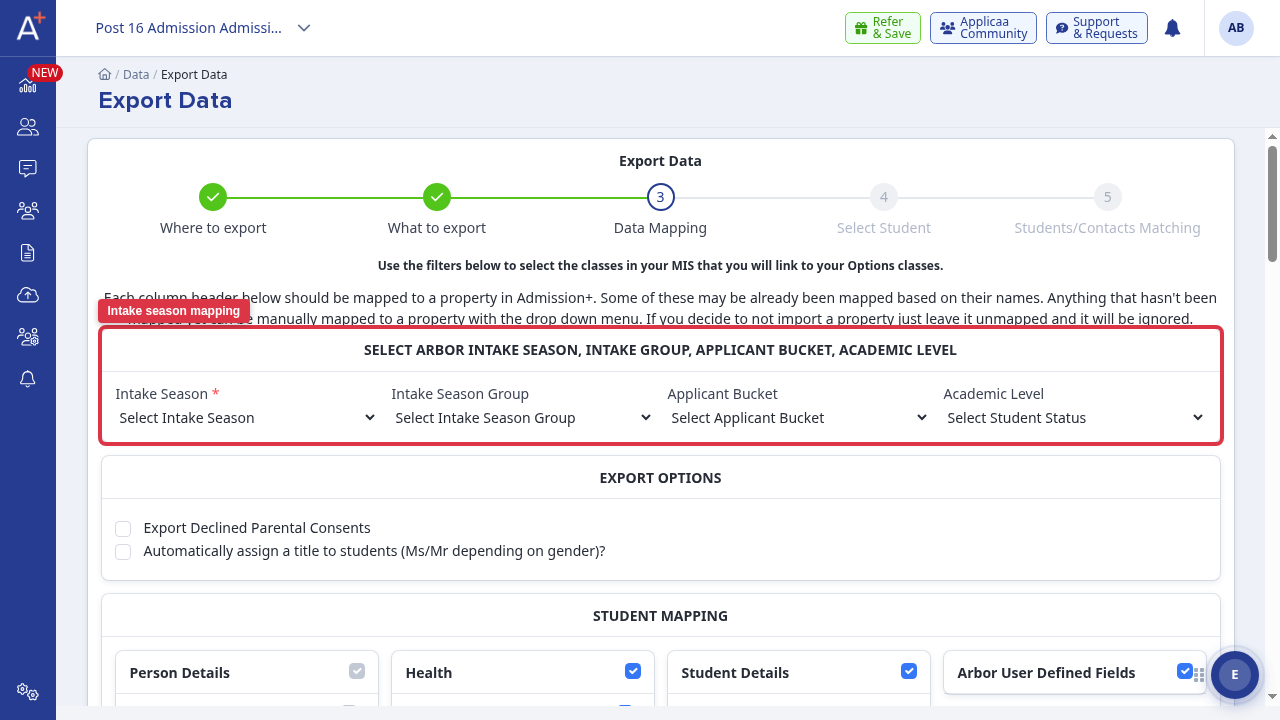
On "Data Mapping", choose the Arbor "Intake Season" you're transferring into. Once you pick a season, the "Intake Season Group", "Applicant Bucket" and "Academic Level" dropdowns fill in automatically with the options that season has in Arbor.
On "Select Student", use the search and filter panel to narrow the list, then tick the students you want to export.
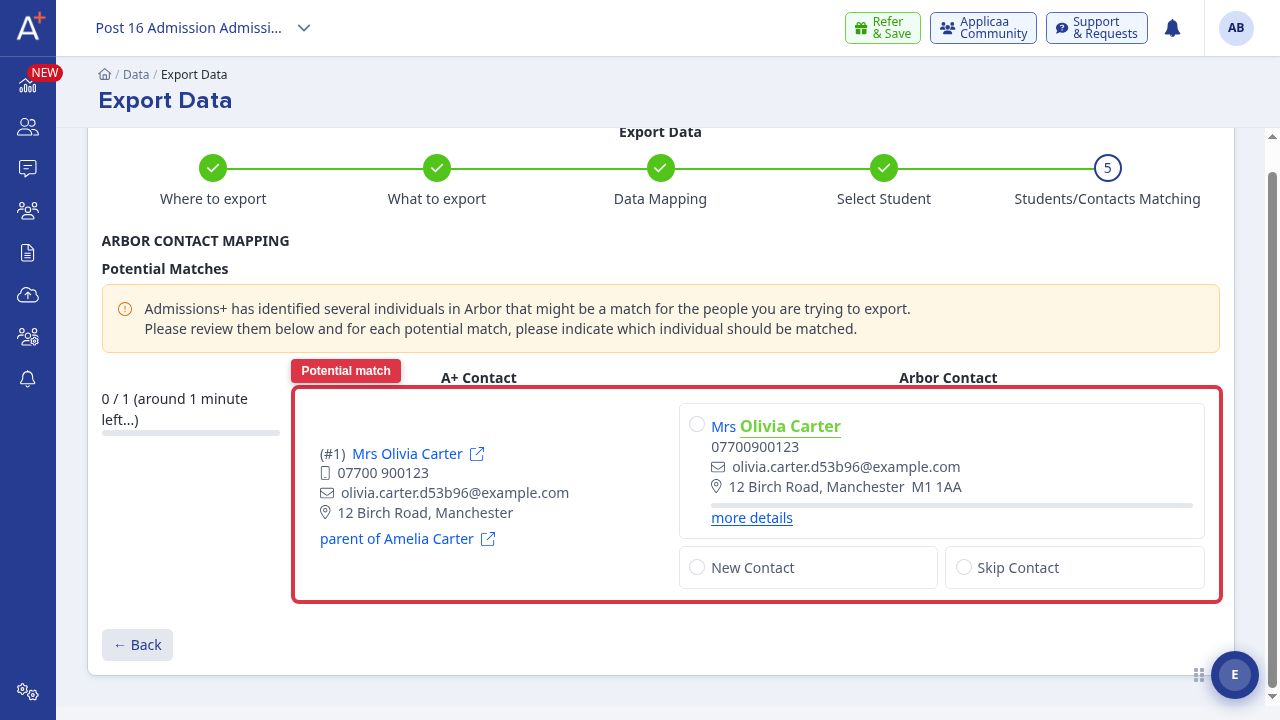
If Admissions+ finds an existing Arbor contact who might be the same person as one of your students' contacts, you'll see the "Arbor Contact Mapping" screen. Review each potential match and choose the matching Arbor contact, "New Contact", or "Skip Contact". This screen lists every match found; there's no bulk "match all" action, so each one needs a decision.
Finish the wizard to run the export.
Step by step: exporting classes
Students must already be exported to Arbor (with an Arbor ID) before their classes can be exported. Start a new export, choose "My School MIS", then choose "Student Classes" on "What to export".
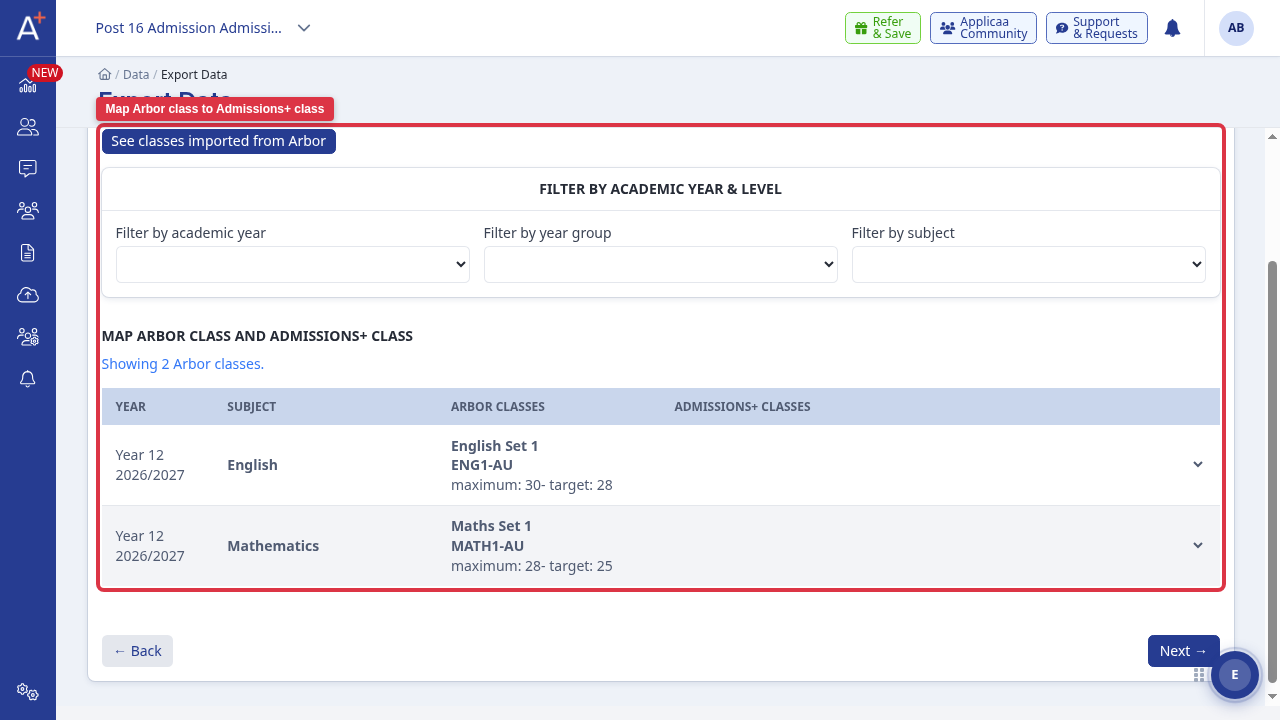
On "Data Mapping", match each Admissions+ class to its Arbor class ("Academic Unit") using the dropdown next to it. The table only shows classes already linked to an Arbor Academic Unit by default; use "See all Arbor classes" to find and map a class that hasn't been linked yet.
What gets collected
- Student and contact details, including each contact's phone numbers, email, and address.
- Which contact is the primary guardian for each student.
- Student demographic fields, including ethnicity, nationality and religion, when they're filled in on the application form.
Troubleshooting
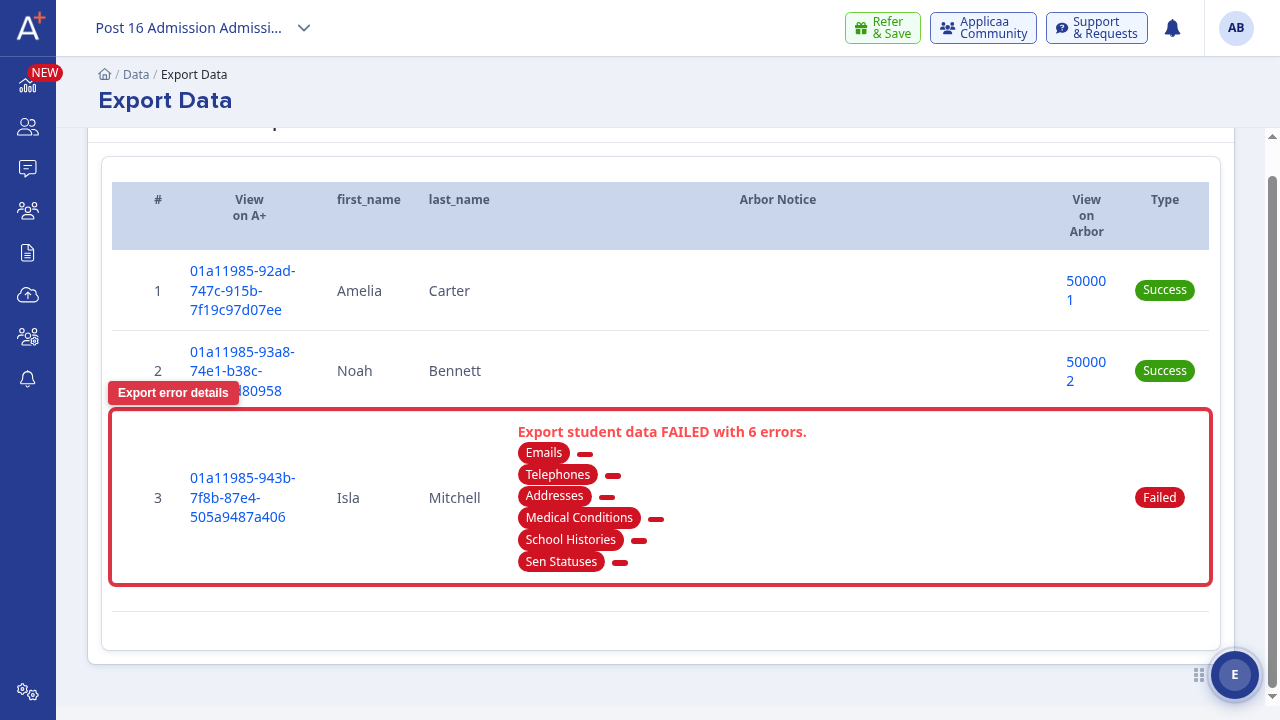
If an export fails for a student, the export report lists which parts of their record failed (for example "Emails", "Addresses", "Medical Conditions") next to a "Failed" status, alongside the students that succeeded.
A class missing from the "Data Mapping" table is almost always because it hasn't been linked to an Arbor class yet - use "See all Arbor classes" to find and map it. A subject or class with 0 students exported usually means its students haven't been exported to Arbor as students yet, or aren't enrolled in that class in Admissions+. A student already exported to Arbor is not skipped on a later export - being "already in Arbor" is not a reason to see 0 students for a class.
If the intake season you need isn't in the "Intake Season" dropdown, it hasn't been created in Arbor yet - the list comes live from your Arbor account, not from Admissions+. Create or activate the season in Arbor first. If you pick a season and "Intake Season Group" or "Applicant Bucket" stay empty, that season doesn't have any groups or buckets set up in Arbor for it yet.
Arbor exports don't have a separate "enrolled students only" option on "What to export" - use the search and filter panel on the "Select Student" step to narrow the list by enrolment status (or any other filter) before selecting who to export.
What happens if you export again
Re-exporting students updates the same Arbor records rather than creating duplicates, and a student who's already been exported is included and updated again, not skipped.
Re-exporting a class sends an enrolment request for every student currently enrolled in it, every time - not only the new ones, and it doesn't track which students it already sent. It also doesn't remove, in Arbor, a student who's no longer enrolled in Admissions+; remove them from the class in Arbor directly if needed.
Why it behaves this way
On an Arbor-connected application form, the Guardians step in "Application Form" settings shows a "Primary Contact" toggle for "Parent / Guardian Contacts" rather than "Primary and Secondary Contacts" - Arbor only has a single primary-guardian concept, so Admissions+ only asks for one.
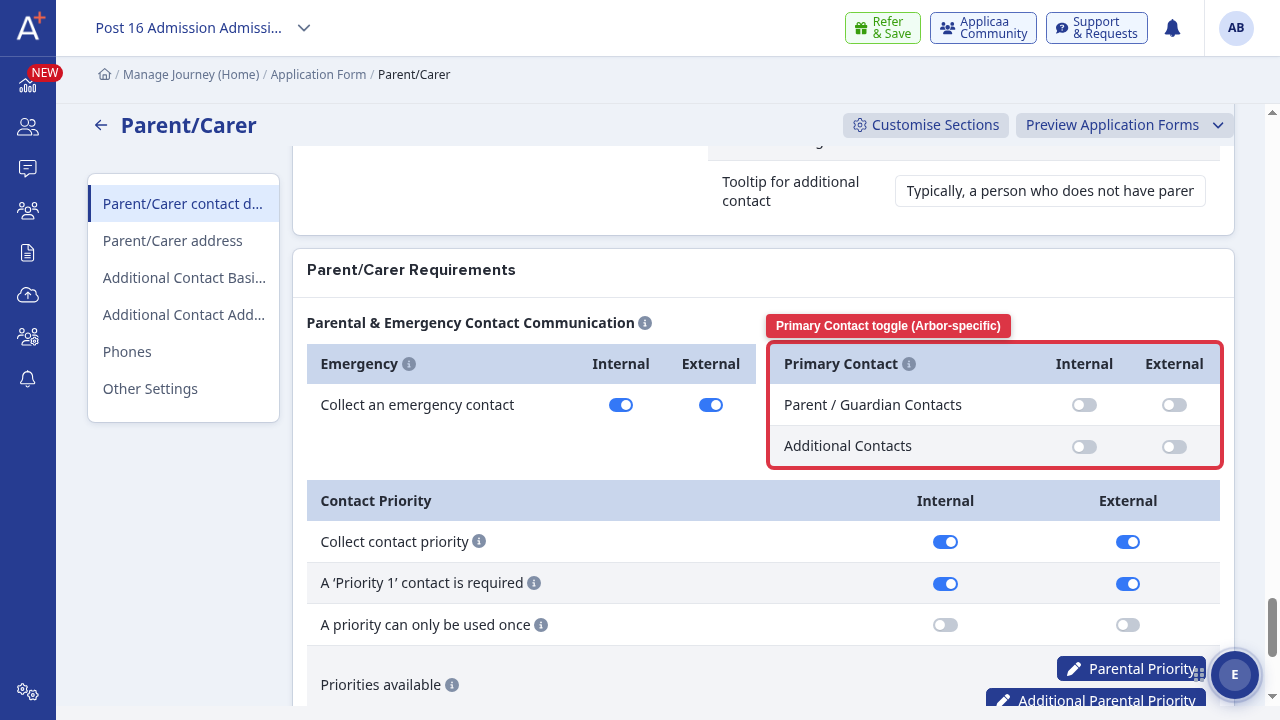
Admissions+ only sends the primary-guardian flag to Arbor when this toggle is turned on (for the contact's Internal or External type, whichever applies). If it's off, the primary guardian information is never sent on export, which is why it can look like it "didn't migrate" - turn the toggle on before exporting if you need it sent.
When the toggle is on and a contact isn't marked primary in Admissions+ but Arbor already has them marked primary, Arbor's existing primary guardian is kept rather than cleared.