
Use Candidate Sheets to create one PDF file for several candidates. The file contains one Candidate Sheet page for each selected candidate. It does not create one grid or list page that shows several candidates together.
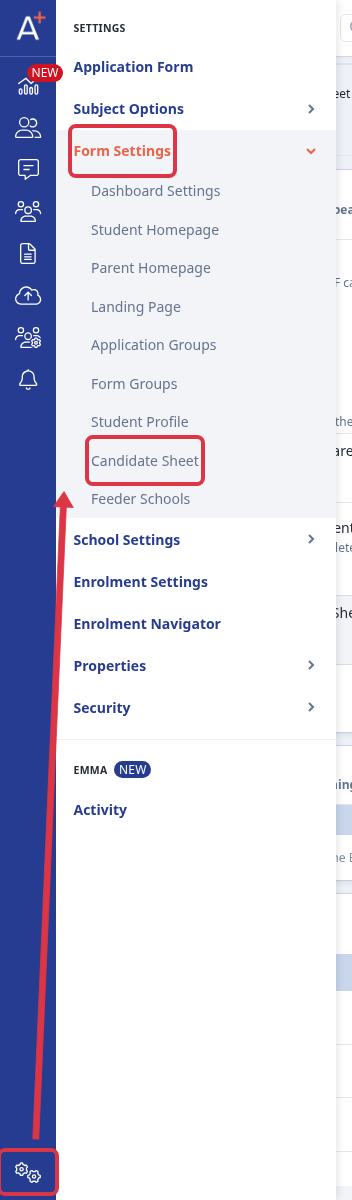
Go to Settings > Form Settings > Candidate Sheet.
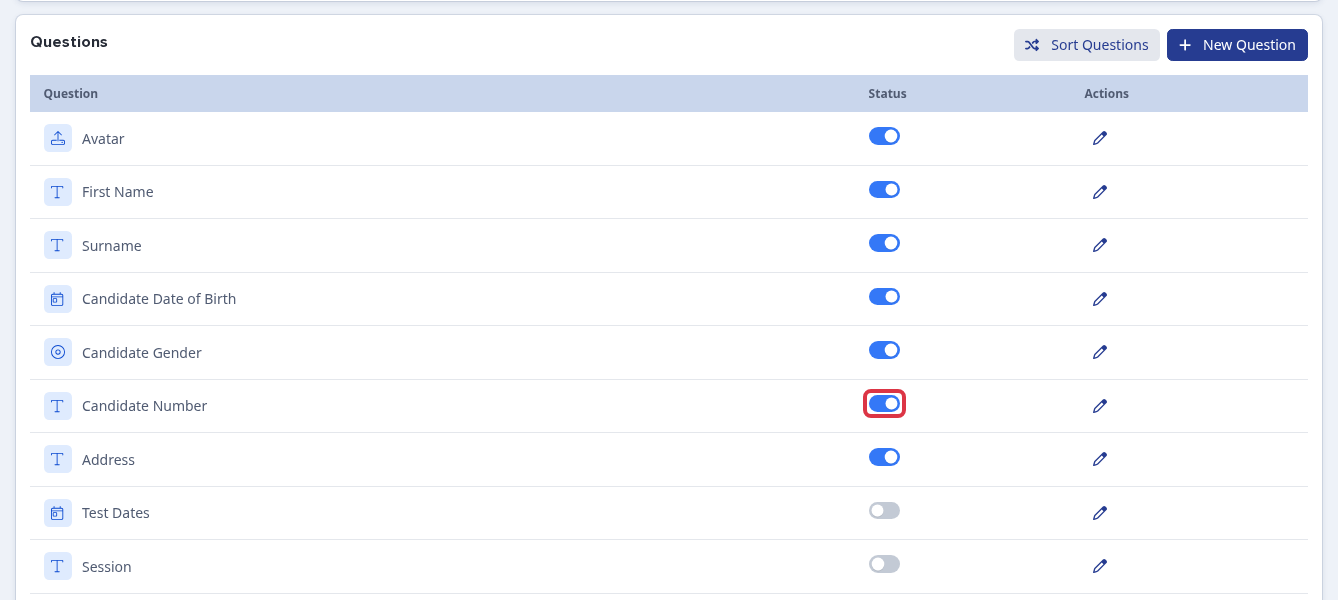
In Questions, keep Avatar, First Name, Surname, Candidate Date of Birth, and Candidate Number switched on. The Avatar uses the candidate profile photo. Switch off fields that you do not want on each sheet.
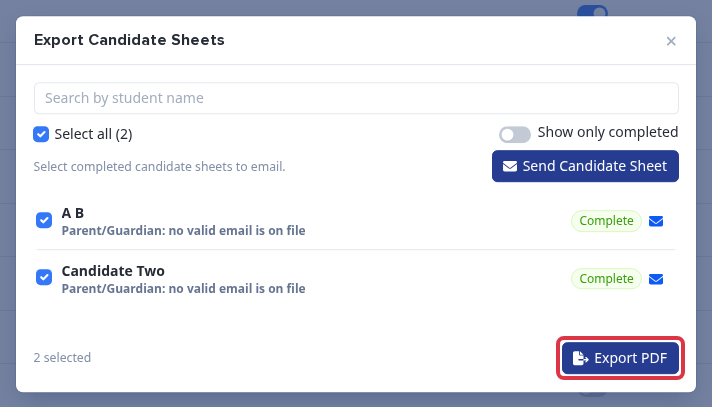
On the Candidate Sheet page, select Export PDF.

Select the complete Candidate Sheets that you want to include, then select Export PDF. The export creates the merged candidate-sheets.pdf file.
- Each candidate has a separate PDF page in the merged file.
- Only complete Candidate Sheets can be exported. An incomplete selected candidate is excluded.
- If no selected Candidate Sheet is complete, you see: No Complete Candidate Sheets in the selection.
- If another Candidate Sheet export is still running, you see: A Candidate Sheet export is already running for this form. Wait for it to finish.
Feature availability
Candidate Sheets are available when Applicaa enables Candidate Sheets for your school. The feature does not use a system-type restriction. The setup is available for Exams+ and for Entrance Test forms in Admissions+.