
Once you are on the Dashboard you should be able to see a dashboard card that says "Bursary".

Once you've clicked the tile it will give you a list of students that applied for a bursary on your system. (you may filter them from there but it will, by default, show you all of the bursary applications regardless of what bursary status they currently sit in).

If the dashboard card isn't available you may activate it by going to Settings > Form Settings > Dashboard Settings.

Then it will show you a list of default dashboards and just activate the "bursary" dashboard.

Once enabled it will allow you to select it from the Dashboard along with the other tiles.
Find and manage your awarded learners
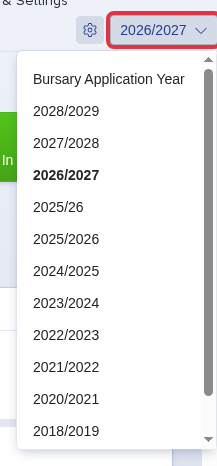
On the dashboard, select the correct Bursary Application Year. The dashboard and the awarded list use this year, so a learner from another year does not show.
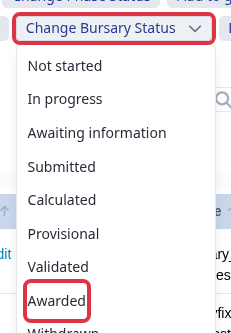
Select the learners, open Change Bursary Status, and select Awarded. The update dialog then lets you send an email, or update the learners without an email.
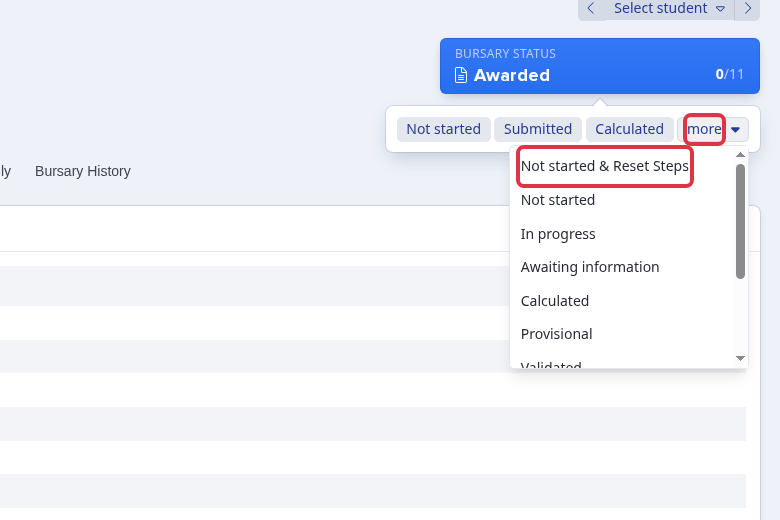
An applicant can be told to complete the bursary phase again and upload more evidence. Open the bursary status menu of that applicant, select More, then select Not started & Reset Steps.
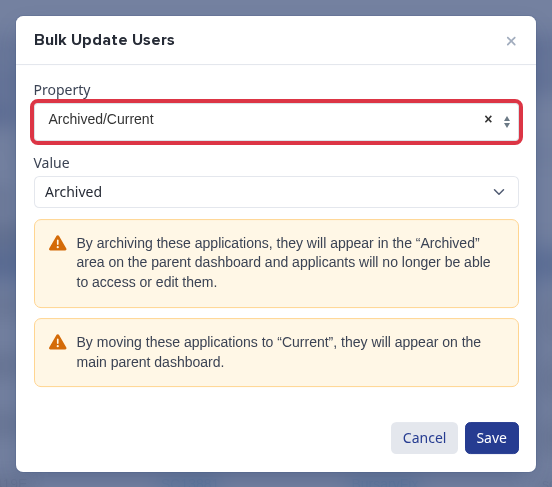
For a learner who left the school, select the application, choose Bulk Update, then set Archived/Current to Archived. The application then leaves the main parent dashboard, and the learner cannot open it or edit it.
- A status change does not create a bursary allocation.
- Awarded permits a learner to make bursary requests.
- Not started alone changes the status. Not started & Reset Steps also resets the bursary phase.
- Use Archived for a learner who left. Do not use a bursary decision status only to record that departure.
Export an awarded learner list
Use the selected Bursary Application Year before you open the awarded learner list. The year controls which bursary applications show in the list.
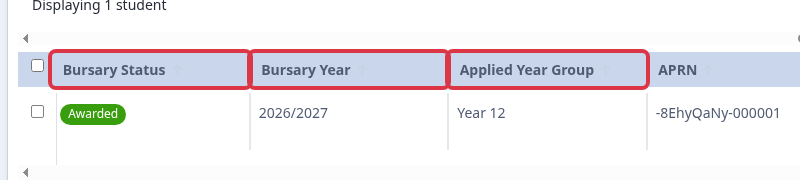
Check the Bursary Status, Bursary Year, and Applied Year Group columns. These values let you confirm that the list contains awarded learners for the required bursary year and learner year group.
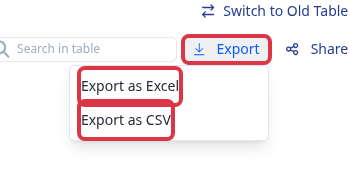
Select Export, then select Export as Excel or Export as CSV. The system downloads the list that you checked.
For a list that also shows each learner's allocation, include Bursary Band Allocation Value in the student export. Export this field with Bursary Year and Applied Year Group.
Questions staff ask
Does setting a learner to Awarded automatically set every allocation to £750? No. The status change does not set an allocation. The allocation value comes from the learner's matching bursary band, unless staff overwrite that value. A learner receives £750 only when the matching band or an overwrite has that value.