
If a student's point score (APS) looks wrong, the number itself is almost never the problem - it is one of the three settings that feed it. This guide explains how Admissions+ works out a point score, and how to correct it yourself.
What the point score is built from
Every point score is calculated from three things you control on the Education step:
- Which qualifications count- only the qualification types you have ticked are included.
- What each grade is worth- your school's own grade-to-points conversion table.
- How many grades count- either every grade, or a set number of the highest grades.
Some qualifications count as more than one grade, because they are bigger than a single GCSE. A BTEC Extended Certificate counts as two grades, a BTEC Diploma counts as four, and Combined Science counts as two. This is why a student with five entries on screen can have more than five grades in their calculation.
Where to find the settings
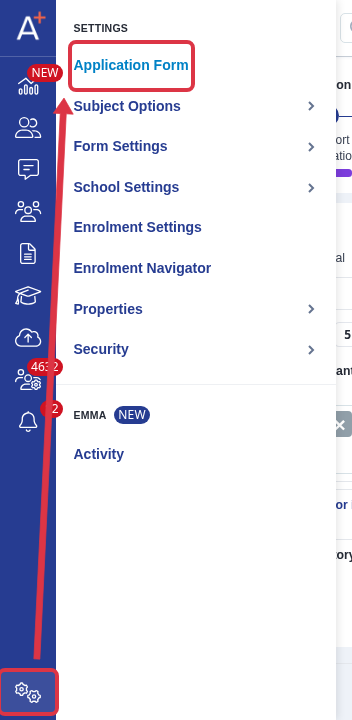
Go to Settings and select Application Form.
In an Education step that you are editing, select Assessment Configuration.
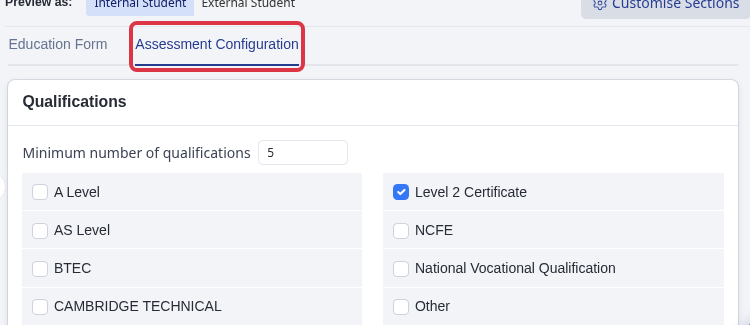
The Assessment Configuration tab appears only for an Education step after you select I want to make more changes. If the tab is missing, open the Education step instead of another step.
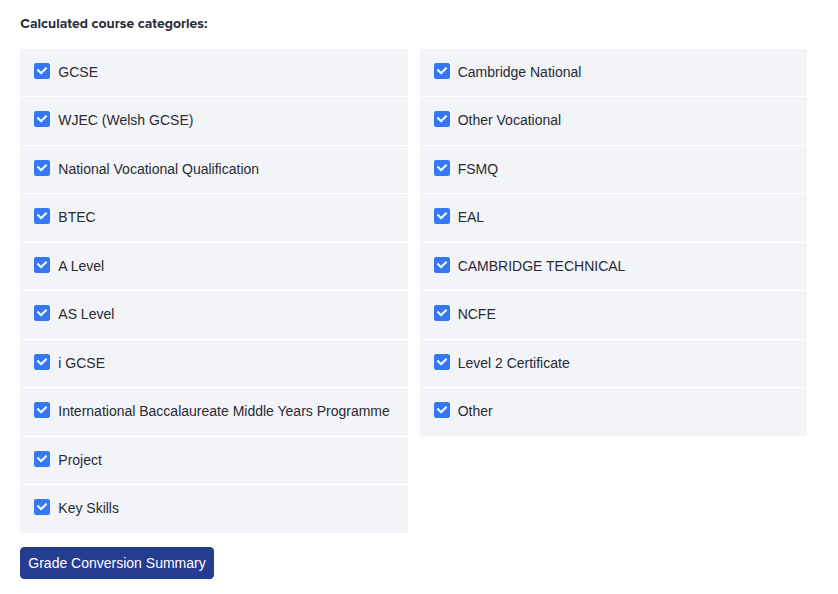
Scroll to Calculated course categories: and check the list. Only the qualification types ticked here are counted towards the point score - if a student's BTECs or vocational qualifications are missing from their score, this is the first place to look.
Check what each grade is worth
Select Grade Conversion Summary to open your school's conversion table. Each row maps an Origin Grade (the grade as it is recorded on the student's record) to a Converted Grade (the points it is worth).
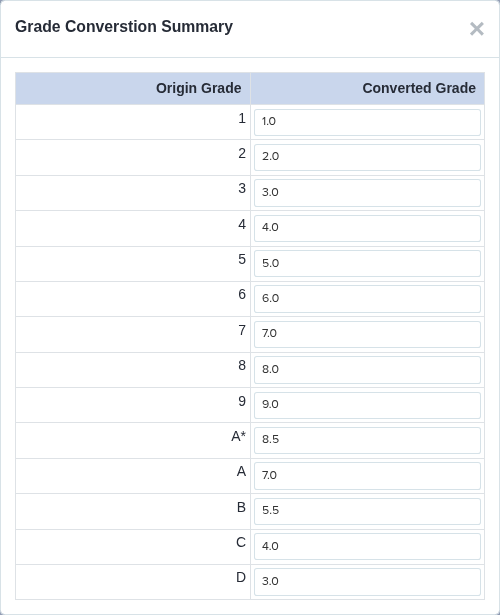
This is the most common cause of a point score that looks too low. A grade that does not appear in this table is worth zero points, and it is still counted as one of the student's grades - so it pulls the average down instead of being ignored. Check that the exact grade recorded on the student appears here, including grades such as L2D*, Distinction* and MM.
To change a value, type the new number into the Converted Grade box and click away from it. The change saves on its own - a Grade conversion updated! message confirms it - and every student holding that grade is recalculated straight away.
Check how the score is worked out
Scroll to the Point Score Conversions section. Here you choose whether to Calculate Point Score (Average/Total) using: From all grades or From a set number of highest Grades, and set the Number of highest Grades to use. Point Score Display (ON for total, OFF for average) controls whether staff see a total or an average. Use Qualifications that must be included in point score calculation if certain subjects - such as English or Maths - must always be counted.
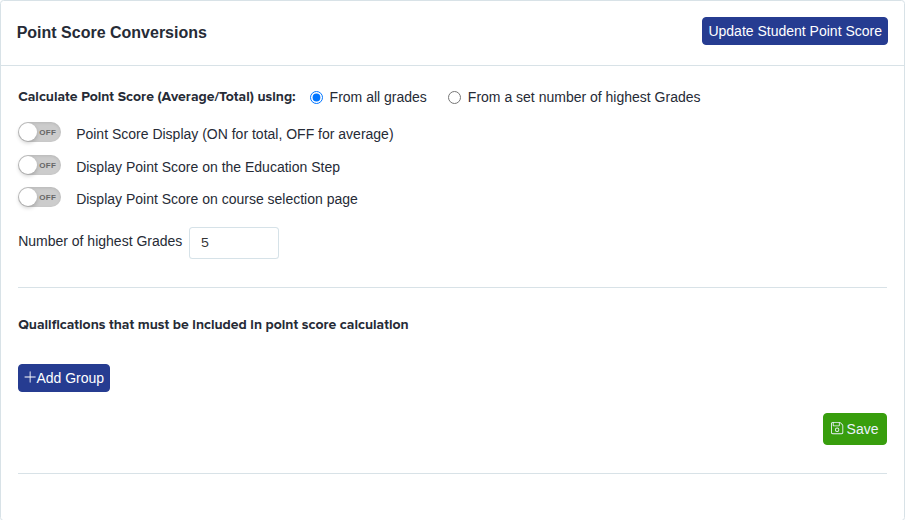
Select Save when you have finished, then select Update Student Point Score to recalculate every student on this application form. Recalculation runs in the background and can take a few minutes on a large cohort.
Predicted and achieved grades
APS does not have an achieved-grades-only setting. It includes predicted and achieved grades from the qualification categories selected in Calculated course categories.
In Point Score Conversions, From all grades includes every qualifying grade record. From a set number of highest Grades only limits the number of highest grades. It does not exclude predicted grades.
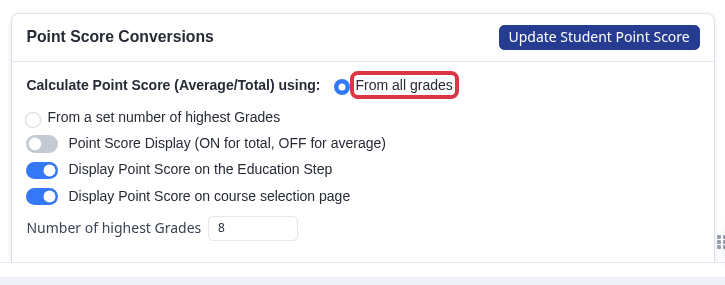
Changing a grade from predicted to achieved does not change APS. Removing predicted grades is a grade-data change, not an APS setting. Ask Support & Requests if you need a bulk data change.
Things worth knowing
- The conversion table belongs to your school, so changing a value affects every student on your system, not just the one you are looking at.
- Changing the calculation settings does not update existing students on its own - always finish with Update Student Point Score.
- If the score is wrong for one student only, the grade on their record is usually the cause, not these settings. Check the grade recorded against them first.
- The qualification catalogue - which qualification titles exist, what level they sit at, and how many grades each one counts as - is maintained centrally by Applicaa. If a qualification is counting the wrong number of times, or is missing altogether, contact us and we will update it for you.
Still not adding up?
Ask Emma, the assistant in the bottom-right of your Admissions+ screen - she can look at your settings with you. You can also raise it through Support & Requests at the top of any page, telling us the student and the score you expected.