
Navigate to Data > Export > Start an Export


Give your export a name, and select "A Zipped Folder" as the export type.

Click "next" and you will be prompted to choose whether you wish to export Attached Documents or Photos.

Select an option and click "next" to select the export options and formatting.

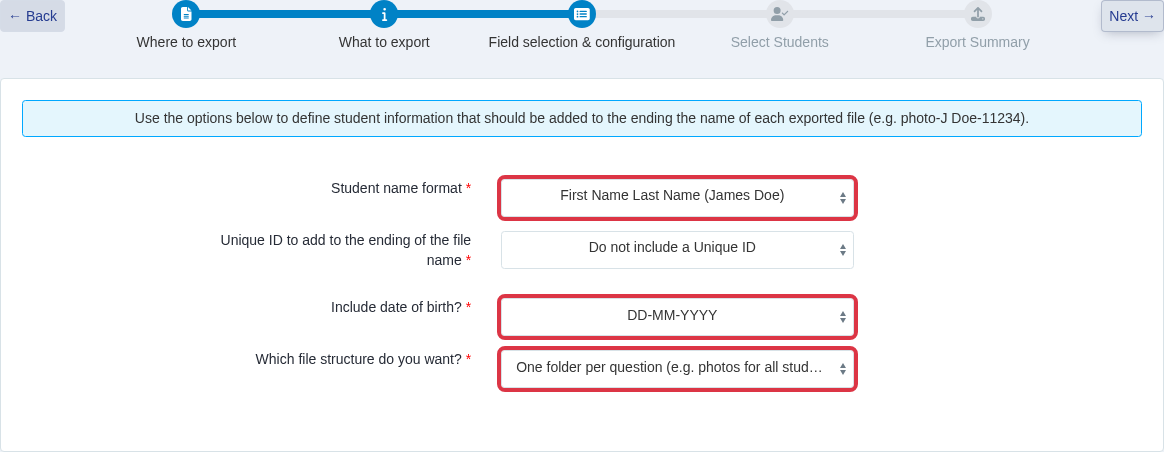
The file structure can either be one folder per applicant, or one folder per question (eg all ID photos in the same folder).
Name the exported photo files
Under Field selection & configuration you also control the name of each photo file.
- Select a Student name format for the name of the file.
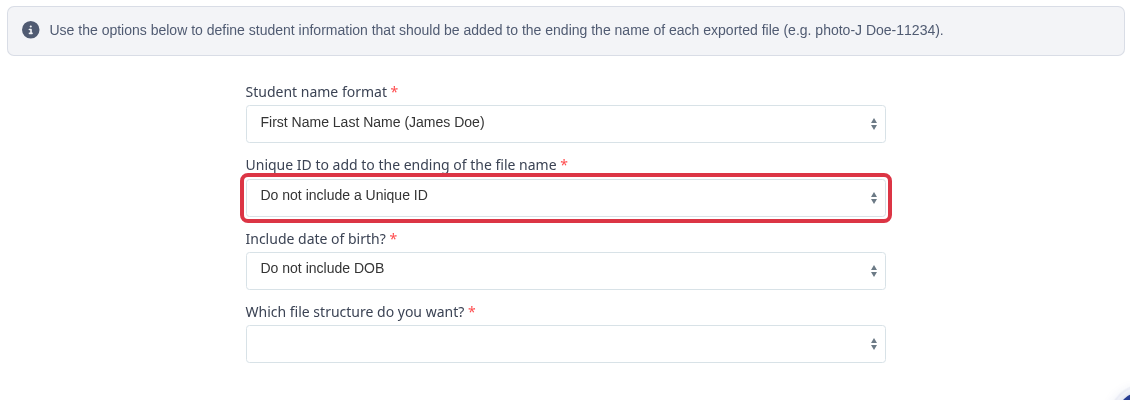
- Select an ID under Unique ID to add to the ending of the file name to add it after the student name.
- Select a date under Include date of birth? to add the date of birth to the name of the file.
The Unique ID field defaults to Do not include a Unique ID. Open it to see the other choices.
The choices are a connected MIS student reference (when a school information system is connected), ULN, UPN, Applicaa Student Code, or Custom Property.
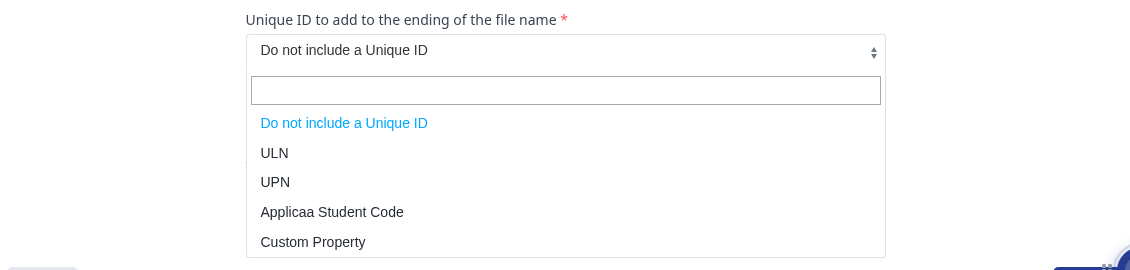
Pick Custom Property to add any of the application form's own text, string, or number fields to the file name instead - for example a candidate number the school has set up as a custom field. A Select Custom Property field appears so you can choose that field.

The photo export contains the profile photo of each student. A passport document is separate from the profile photo. If the ZIP folder has an unexpected image, replace the profile photo of the student, then export again.
Choose "next" and then select the students you wish to export the data for. You can "select all" or filter them, for example just to extract the files of applicants whose applications are complete.


Click "next" and your export will begin.
Which files the zipped export includes
The export lists file-upload questions and files from the Documents area. It uses the application form that is currently open.
- For an academic-year request, open the form for that year.
- A birth certificate, FSM certificate, or receipt appears only when the form collects it through a file-upload question.
- Select every listed file question to include every available upload for the selected students.
- A complete application form uses the PDF export instead of this zipped export.
Combining attachments into one PDF
The zipped export always keeps each upload as its own file - it never merges several attachments into one PDF. To bulk-print information for many applicants as a single PDF document, use the separate PDF export instead (see How to Bulk Export Student Information as a PDF). That PDF export embeds each student's profile photo and signature as images, but it does not embed a generic uploaded document such as a proof of identity or proof of address file - those appear as an "Uploaded File" link in the PDF instead. Use this zipped export when you need the documents themselves.
Select the required file questions. Then choose the file-name options and the folder structure.


The export has no fixed completion time. Data > Export shows its progress. When the Status is Completed, select the download icon.

You can then click to download the file.

What it does not do
This export does not produce one combined document showing several students' photos together with their name, date of birth, and candidate number labelled on it. Each student's photo stays its own file; the name, date of birth, and unique ID you choose are added to that file's name, not drawn onto the image. There is also no "Candidate Number" entry in the Unique ID list - add one only if your application form collects it as a custom property, then select that property under Custom Property.