
Note - only students who have an enrolment status of 'Pending' will be able to access the enrolment form. The usual way to update student enrolment status is via the Enrolment Real Time area as they move through the steps.
If you would like help with enrolling students please call us: 0203 667 0764
To change status manually -
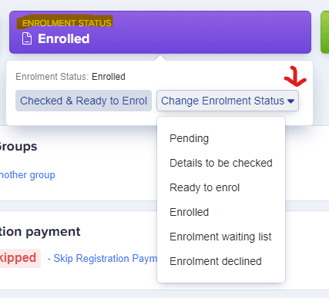
You can change the student's enrolment status individually by going in to their profile (search their name on your dashboard). At the top of their profile, click on 'Enrolment Status' and select the status you'd like to give to the student.
You can also update the enrolment status in bulk. If you've added them to a group, simply go to that group, click on the group title or the number if you'd like to update specifically for just internal or external. For this example, we will use the enrolled students.
Select all the students or just select a handful by ticking the boxes beside the ID number
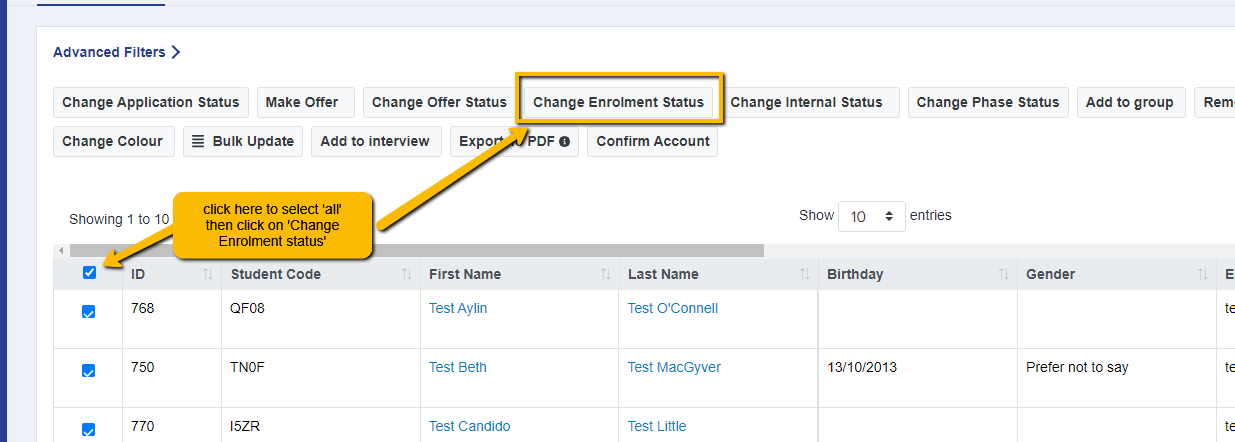
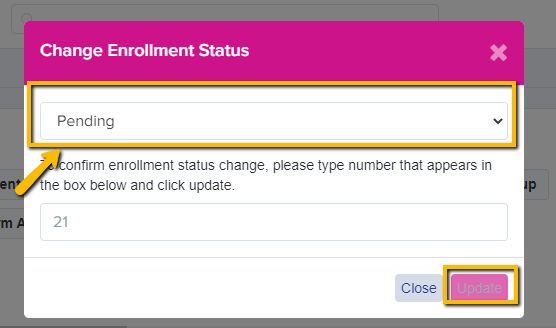
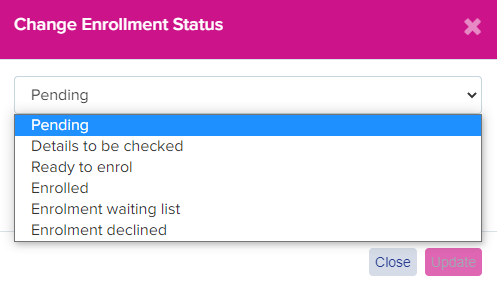
Click on the box to reveal the dropdown options for enrolment statuses. Make sure to confirm by typing the number that appears in the second box then click update to save the changes.
What each status means, and why counts differ
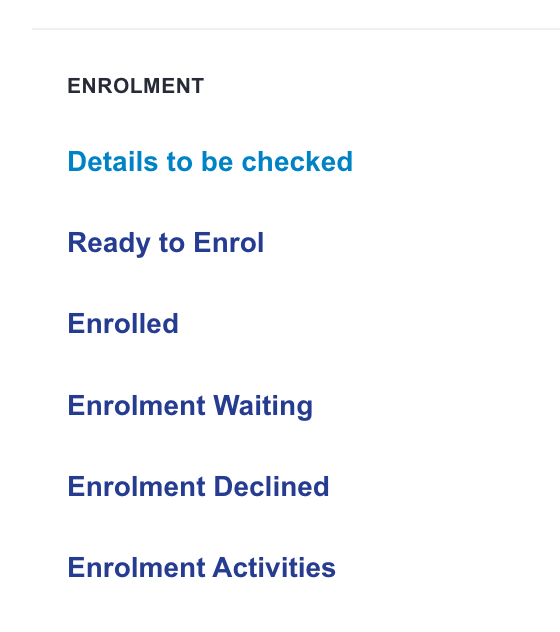
Every student holds exactly one enrolment status at a time, and each status has its own screen under "Enrolment" in the left-hand menu. Moving a student on removes them from the screen they were on, so the five lists never overlap.
| Status | What it means | Where you'll find the student |
|---|---|---|
| Pending | The student has not submitted their Enrolment Form yet. Only students on "Pending" can open the Enrolment Form. | Not on any enrolment screen yet - they sit in your Pending count. |
| Details to be checked | The student has submitted their Enrolment Form and their details are waiting for a member of staff to confirm. | Details to be checked |
| Ready to enrol | Details are confirmed and the student is ready for their subjects to be finalised on enrolment day. | Ready to Enrol |
| Enrolled | The student is enrolled with you and their subjects are confirmed. | Enrolled |
| Enrolment waiting list | The student is being held on the waiting list while you wait on places or results. | Enrolment Waiting |
| Enrolment declined | The student is not going ahead with their place. | Enrolment Declined |
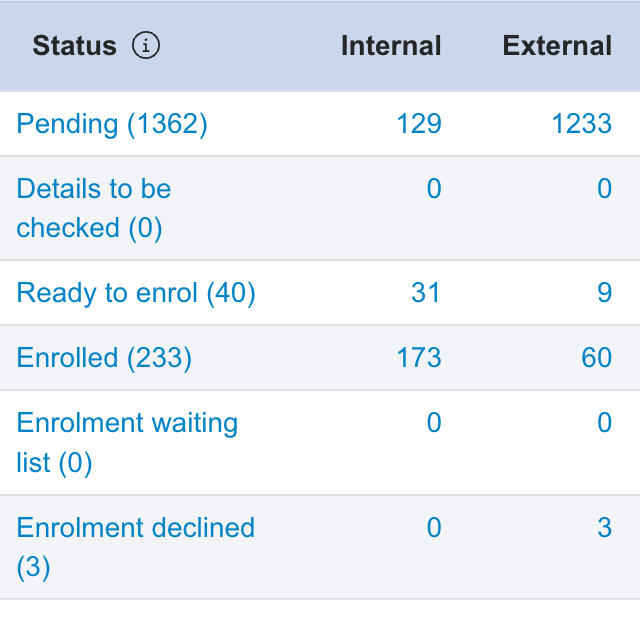
To see the live figure for every status in one place, open your application form and select the "Enrolments" tab. It lists each status with its total, split into internal and external students.
Why the numbers don't always reconcile
If a total looks wrong, it is almost always one of the following.
- A student is only ever on one screen. The five enrolment screens are filters on a single status, so they only add up to your full cohort once every student has been moved through. Students still on "Pending" are not on any of them.
- Enrolled students leave your completed applications count. Once a student's status becomes "Enrolled" they are no longer counted as a completed application, so that figure falls as enrolment progresses. This is expected.
- You are reading the internal or external column, not the total. The "Enrolments" tab splits every status into internal and external students, so a figure that looks short is often just one of the two columns.
- "Details to be checked" shows Application Form answers. It displays the details the student gave on the Application Form phase. Answers given on the Enrolment Form are held against the Enrolment Form phase instead, so they will not appear here - see Enrolment Troubleshooting.
- Submitting the Enrolment Form moves the student for you. When a student submits it, their application status is set to "Completed" and their enrolment status moves to "Details to be checked" automatically, so a status can change without a member of staff touching it.
- The status is an Admissions+ status, so it does not change your MIS. A student showing as "Enrolled" here will not appear as enrolled in your MIS until you run the separate transfer or export step to your MIS - see How to import student and contact data into your MIS from Admissions+. The two systems are updated separately.
If your figures still don't reconcile after checking the above, ask Emma in the bottom corner of your screen - she can look at your specific numbers, and will pass you to the team if she can't resolve it.