
You can change the questions shown in an application form, add a question, and change a question's wording. Use the form that is active for the admissions year you are preparing.
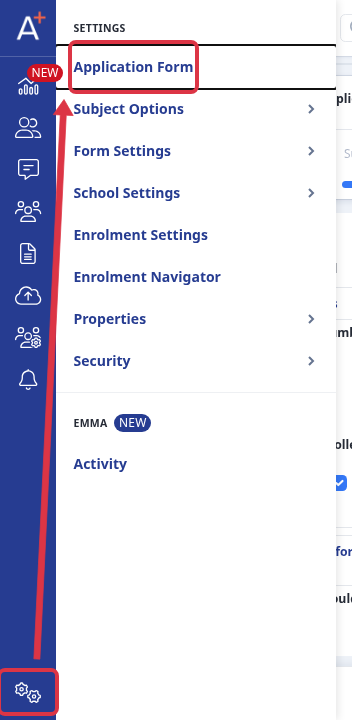
Go to "Settings" on the left rail, then select "Application Form".
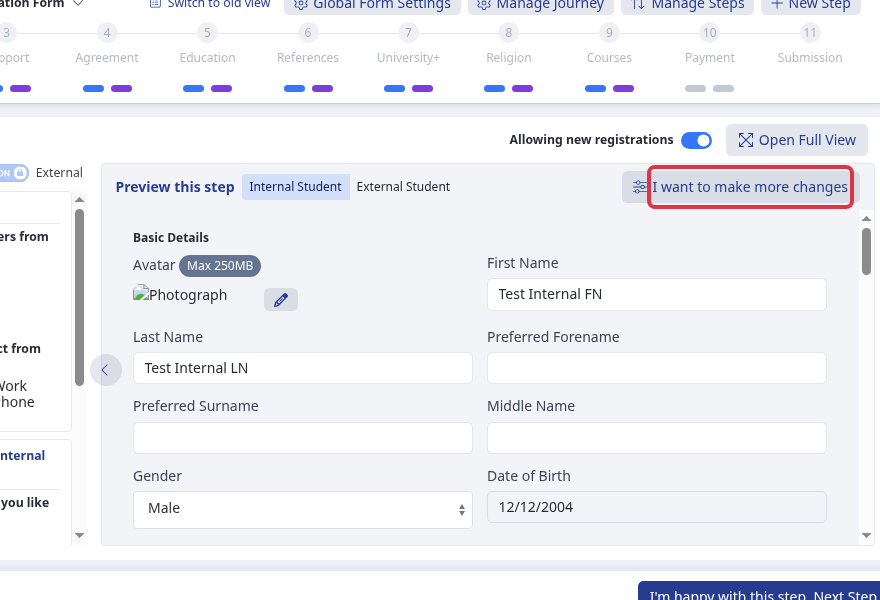
Open the phase and step that contains the question. Select "I want to make more changes" to open the question editor.
Choose what applicants see
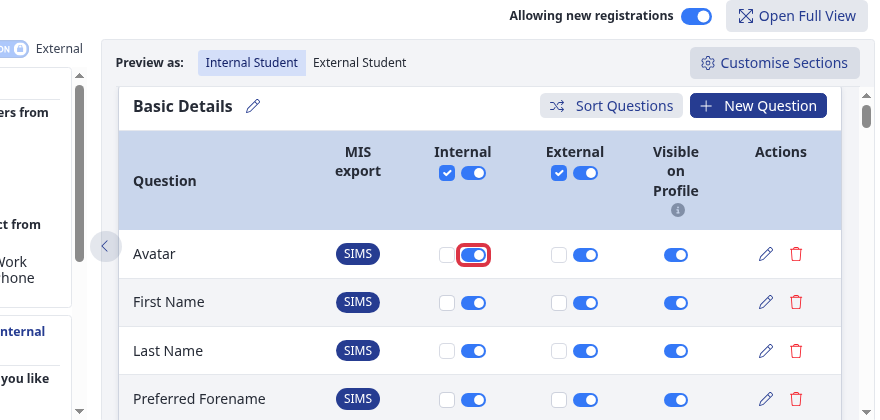
Use the "Visible on form" switch in the Internal or External column to show or hide an existing question for that applicant group.
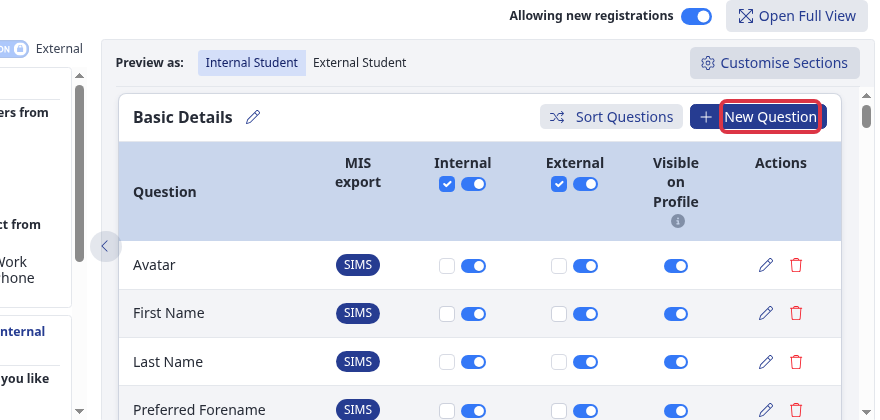
To add a question to this section, select "New Question" and choose the question type that you need.
Change a question's wording
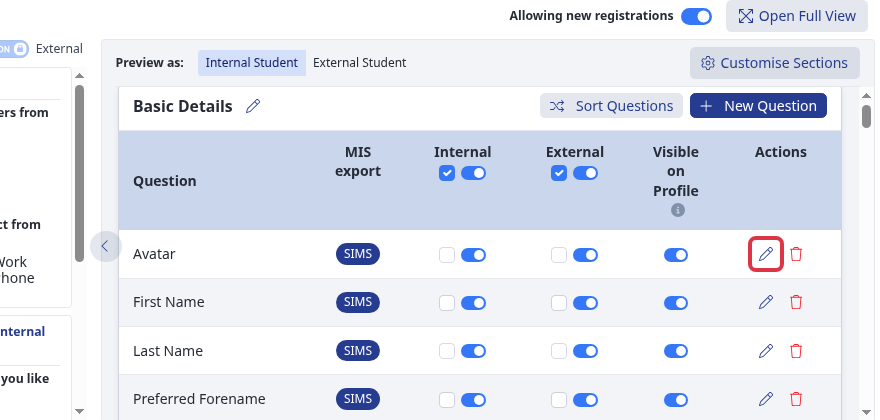
Select the pencil icon, "Edit question", on the row for the question that you want to change.
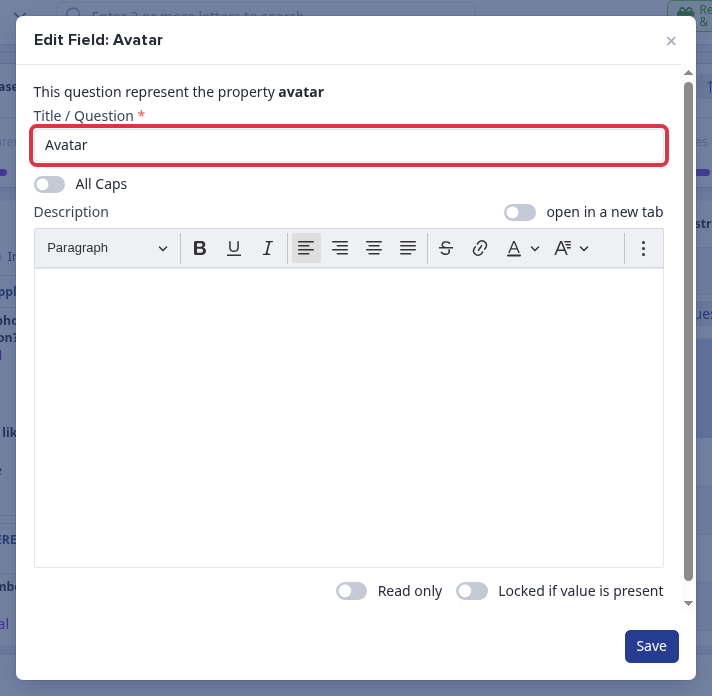
Enter the new text in "Title / Question". This is the wording that applicants see. When the question has a Description field, use it to add extra guidance.
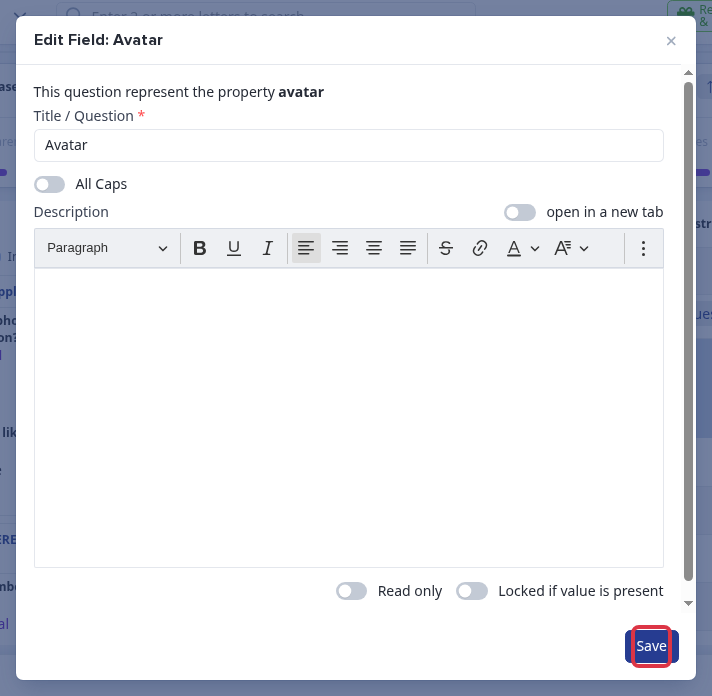
Select "Save". The question editor closes and the system shows "Updated".
- Use the Internal and External columns separately when each applicant group needs different questions.
- A blank question title cannot save. The error message is "Custom name can't be blank".
What it does not do
Changing "Title / Question" changes the wording shown to applicants. It does not change the question's underlying field or its saved data.
Questions staff ask
How do I amend a question that asks whether an applicant is already at our school?
Open the step that contains that question, select its pencil icon, and replace the text in "Title / Question".
How do I change the "Apply Here" tab on the landing page?
The landing-page text and buttons are separate from Application Form questions. Use the landing-page guide below.