
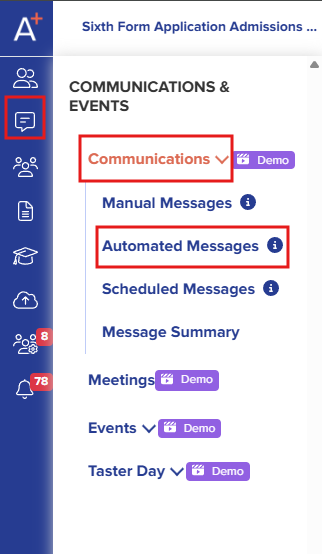
Please navigate to Communications & Events > Communications > Automated Messages. From there, you will see all the templates available on your platform.
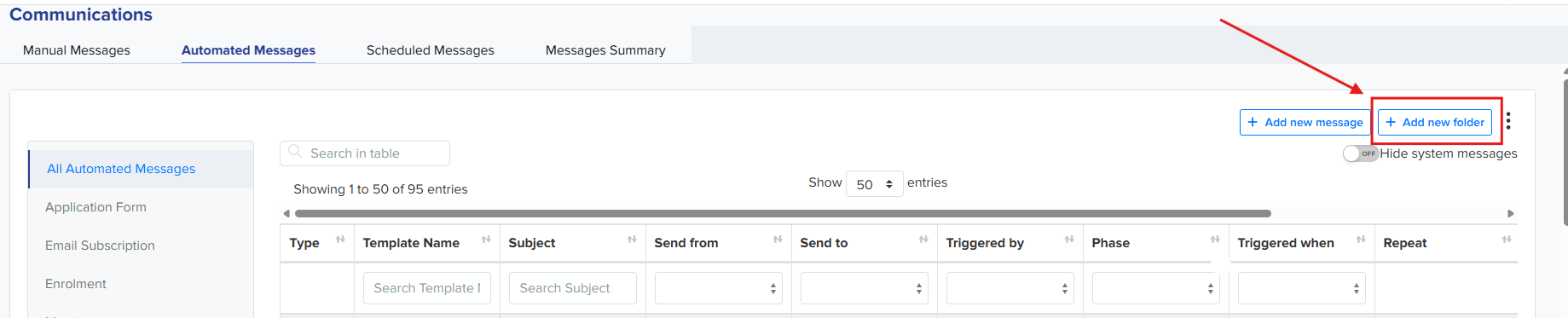
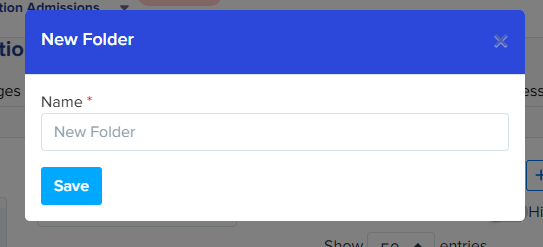
Click the Add New Folder button, located in the upper right-hand corner. A prompt will appear, allowing you to enter the folder's name.
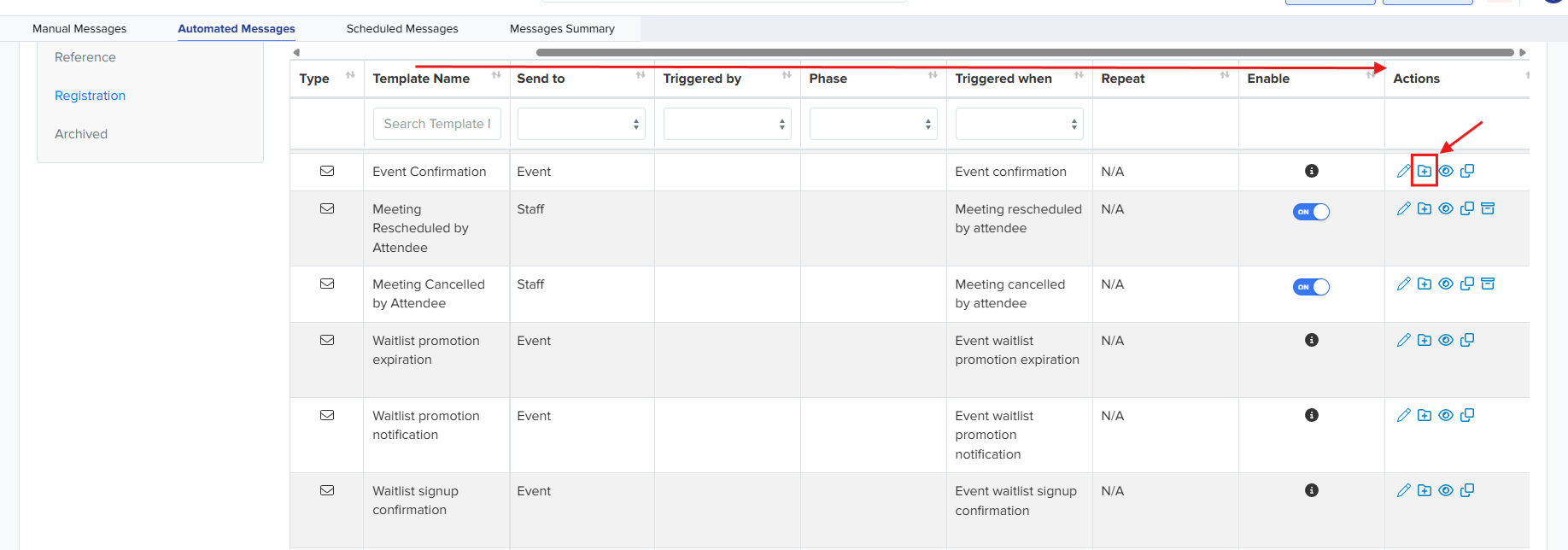
Once the folder has been created, scroll through the list of automated emails to the right until you locate the Actions column. In that column, click the folder icon with a plus sign (which allows you to move the template).
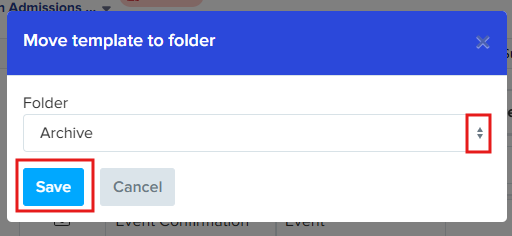
Use the dropdown menu in the prompt to select the desired folder, and then click Save to confirm the template's new location.
How to move a template back out of a folder
Should you decide to move a template back to the main area or change it's folder, first navigate to its current folder, which you'll find at the top of your email templates list.
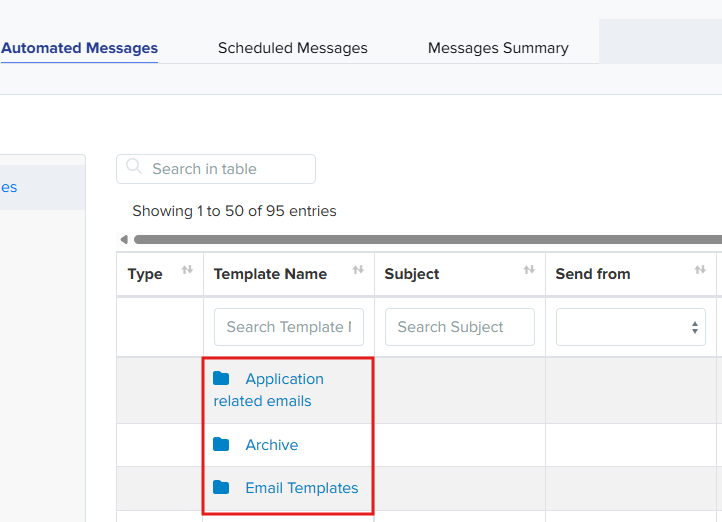
Locate the email template in the list, scroll right to the Actions column, and click the folder icon with a plus sign.

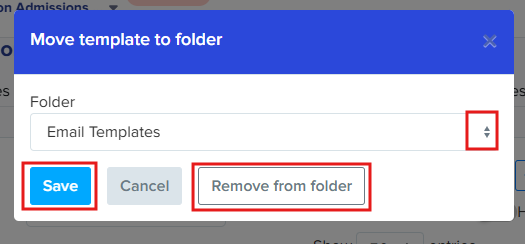
A prompt will appear, allowing you to either select a different folder from the dropdown menu or click the Remove from folder button to place it back in the main area.
Why a template doesn't show up when you email event guests
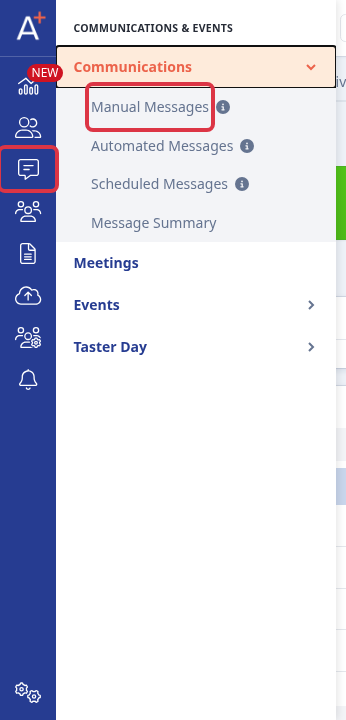
Every template has a Target Audience (Student, Parent, Referee or Event), set next to its Communication Type when you create or edit it. Go to Communications & Events > Communications > Manual Messages.
Click + Add new message, then on the Set Up step keep the Communication Type as "Email" and set the Target Audience. To use the template when you email the people registered for an event, set Target Audience to "Event".
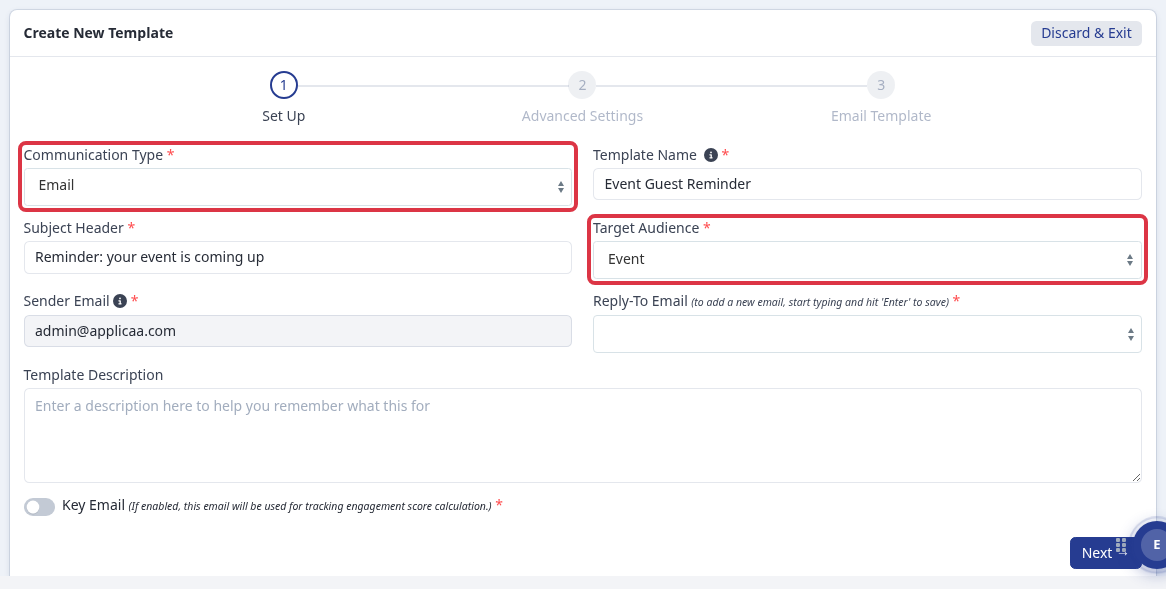
When you later select guests on an event and choose to email them, the "Import from template" list only shows templates whose Communication Type is "Email" and whose Target Audience is "Event". A template built for Students or Parents still works everywhere else, but it does not appear in that event-guest email list until its Target Audience is changed to "Event". For the full walkthrough of setting up an event email, including mail merge tokens, see "How to Create Email Templates for Events" under Related articles below.
What it does not do
The template editor does not save a draft automatically. If you close the "New Communication Template" or "Edit Communication Template" window, or navigate away, before clicking the final Save/Create button, your unsaved changes are lost. There is no recovery option for unsaved template work, so save your progress regularly while editing a long template.