
Use Meetings to find slots that a staff member can use, check whether a slot has an attendee, let applicants select a date, and export the meeting-slot table.
Go to Communications & Events > Meetings.
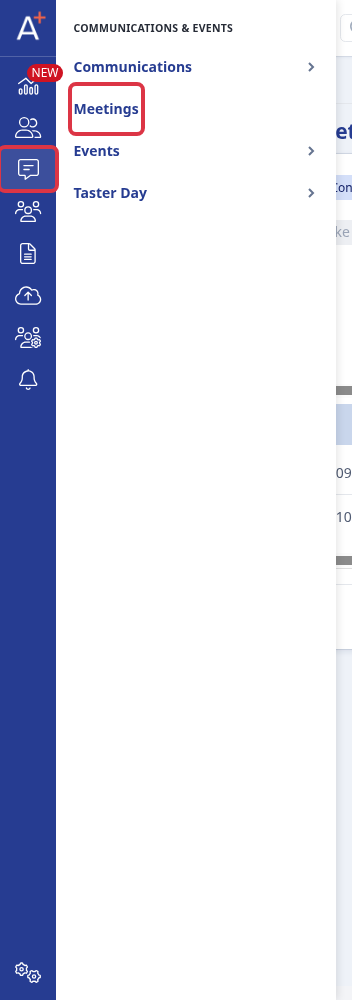
Select the meeting that you need. Select Configure Meeting Settings when you need to change how invitees book a slot.

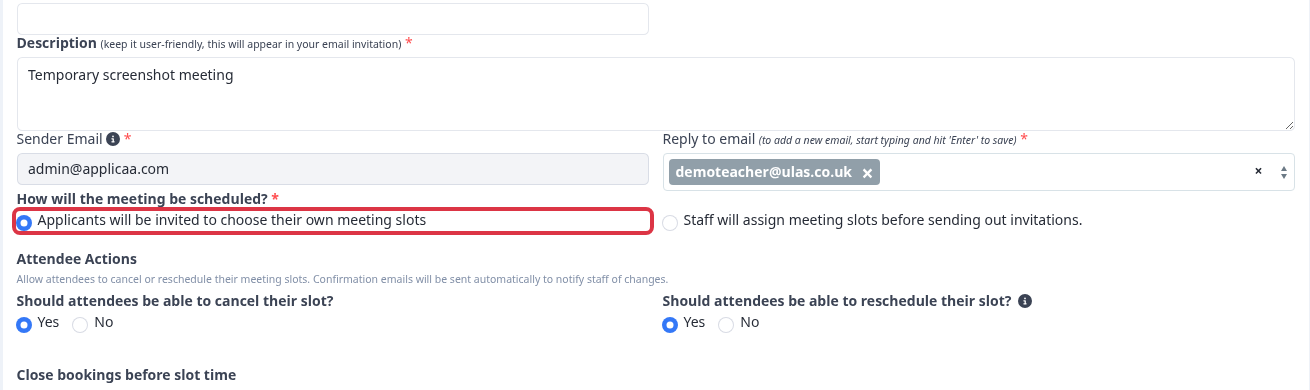
Under How will the meeting be scheduled?, select Applicants will be invited to choose their own meeting slots when parents or applicants must select a date and time. Select Staff will assign meeting slots before sending out invitations when staff allocate every slot.
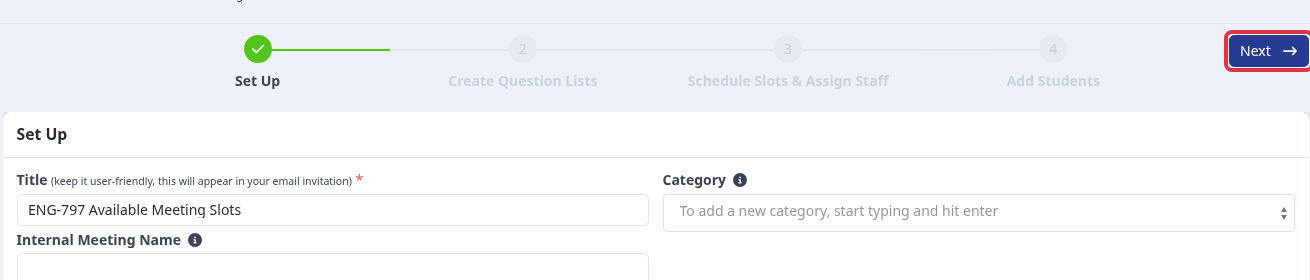
Select Next to save this part of the meeting setup and continue.
In the meeting slot table, open Filter Meetings, select a person under Staff member, then select Apply. Select your own name to see the slots assigned to you.
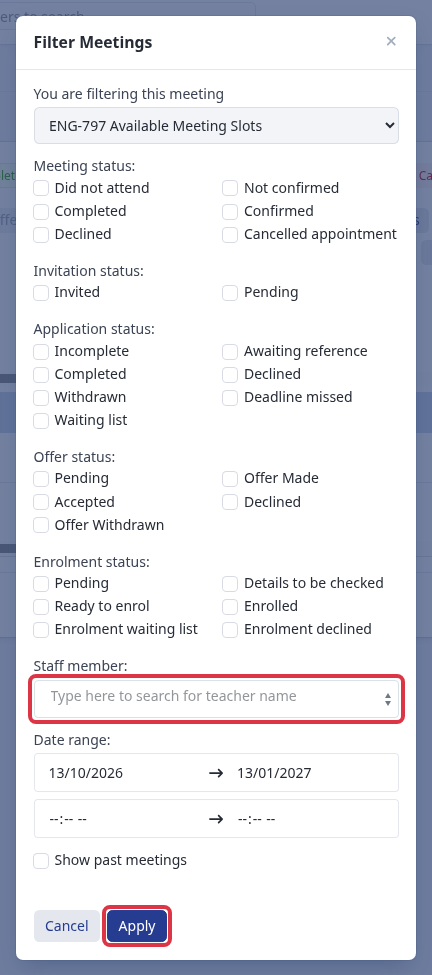
Review the filtered rows. An empty First Name and Last Name means that the slot has no attendee. There is no separate list of meetings that you attended.
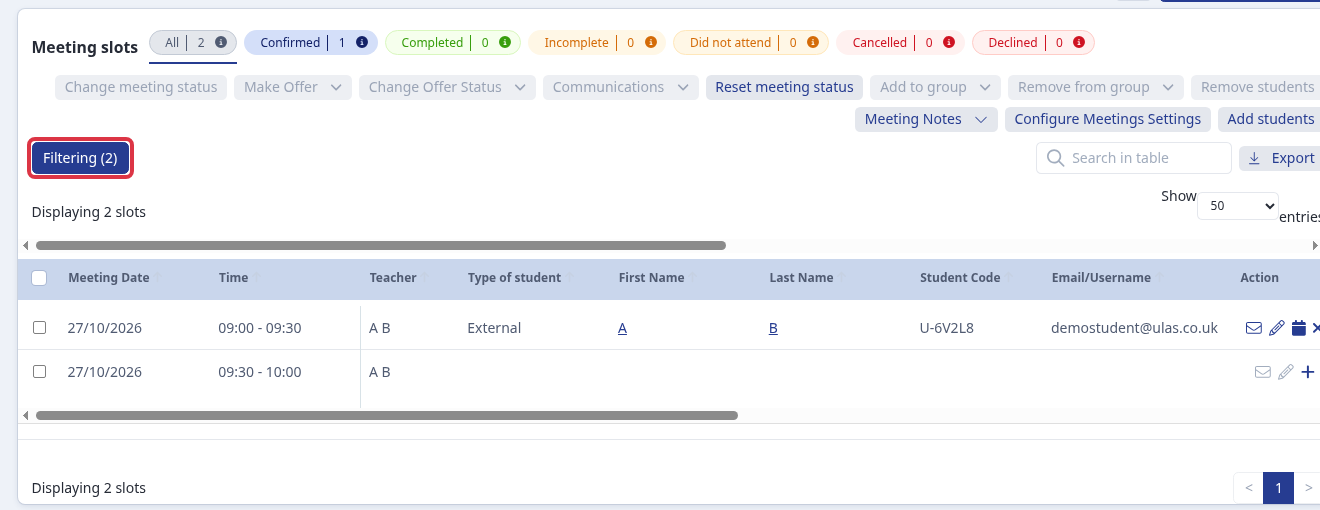
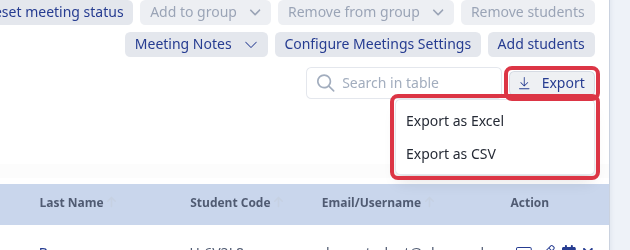
Select Export, then select Export as Excel or Export as CSV. The export contains selected rows when you select rows. Otherwise, it contains the current filtered results.
Questions staff ask
Why cannot parents select a meeting date?
The meeting uses the staff-assigned booking option. Select the applicant booking option before you send invitations.
Why does my export not contain all invited people?
Clear or change the table filters before you export. Select the rows that you need when you want an export of only those people.