
The menu path to "Send Test" depends on whether your school's Communications area has the newer "Templates" screen turned on. Check which path applies to you below.
If your school has the "Templates" area
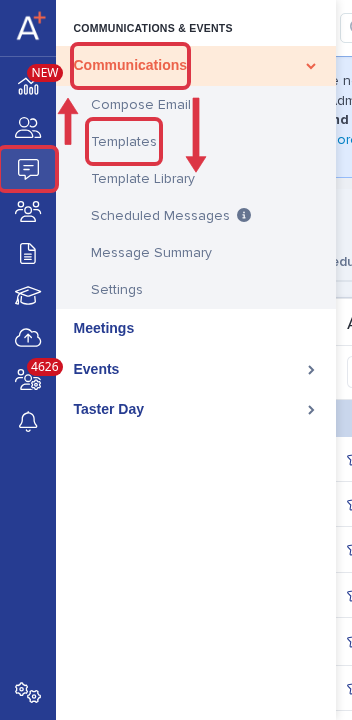
Go to Communications & Events > Communications > Templates.
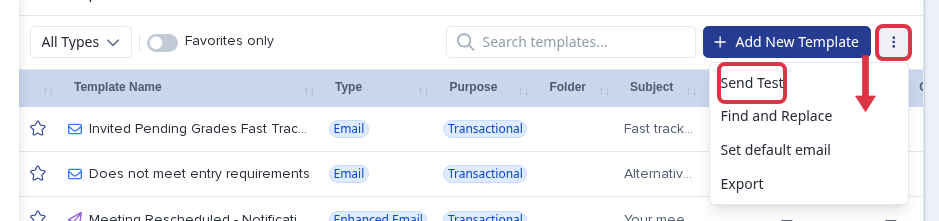
On the "Templates" page, click the "⋮" icon next to "Add New Template" in the row you want to test, then select "Send Test."
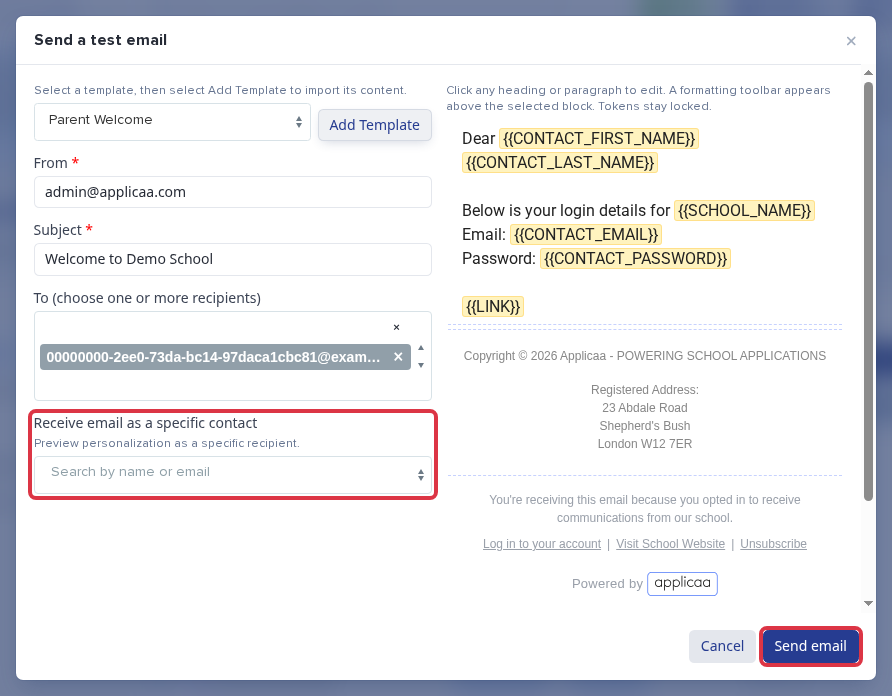
In the "Send a test email" pop-up, fill out the fields:
- Template: Choose the template you want to test from the dropdown, then click "Add Template" to load its content. This fills in the "Subject" field and the preview on the right.
- From: The address the test email is sent from.
- Subject: The headline for the content of the email. You can edit any heading or paragraph directly in the preview on the right.
- To (choose one or more recipients): The person or people you want to receive the test. This could be you and/or a colleague.
- Receive email as a specific contact: Search for a parent or student to preview the email as if they received it. We use this to check that the mail merge tokens pull the correct information. The contact you choose is not notified that their details were used for testing.
Once you have filled in the fields above, click "Send email."
If your school still has "Manual Messages" and "Automated Messages"
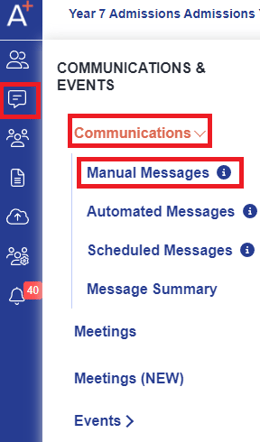
Go to Communications & Events > Communications > Manual Messages or Automated Messages.
Click on the kebab menu icon on the right hand-side and select Send Test.
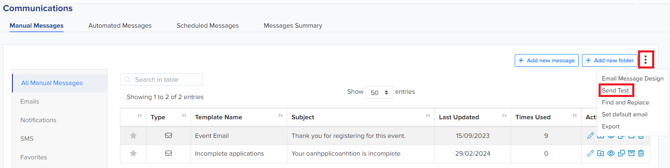
From the pop up, fill out the required fields for the following:
- From: This is the address where your message is delivered from.
- Template: This is a pre-customised email layout that you can be used to create an email. You will need to select the template you want to test and the click "Add Template". Once you add the template the Subject and Content fields will be pre-populated.
- Subject: This is the headline for the content of an email.
- Content: This is where you can build and edit content of your email
- To: This is the person you want to receive the test. This could be you and / or a colleague.
- Receive email as specific contact: This is to receive the email as a parent / student. We use this to ensure that the tokens are working correctly and pulling the correct information that the school wants. The person you select is not notified that their details have been used for any testing.
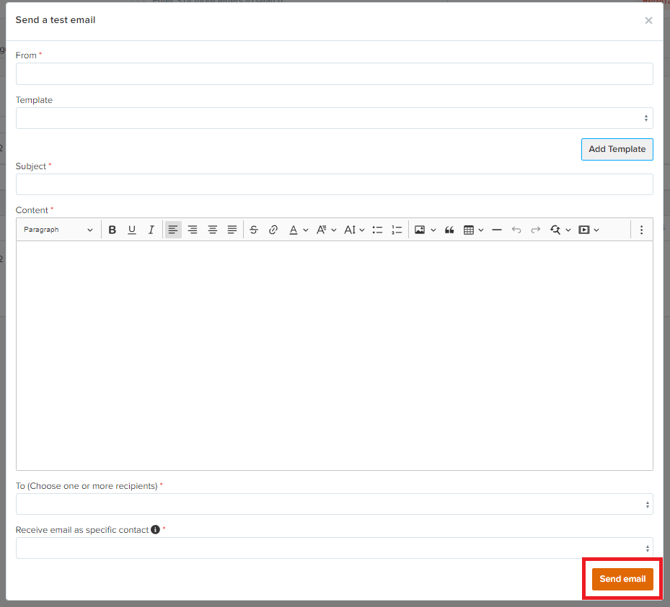
Once you have completed the fields above, click 'Send email'.
What happens next
You will receive the email, populated with the mail merge tokens relating to the person you chose from the "Receive email as a specific contact" list.