
Use this guide to check how a Bromcom student export creates sibling IDs and to include a school-defined field such as Kinship Care.
Export sibling IDs
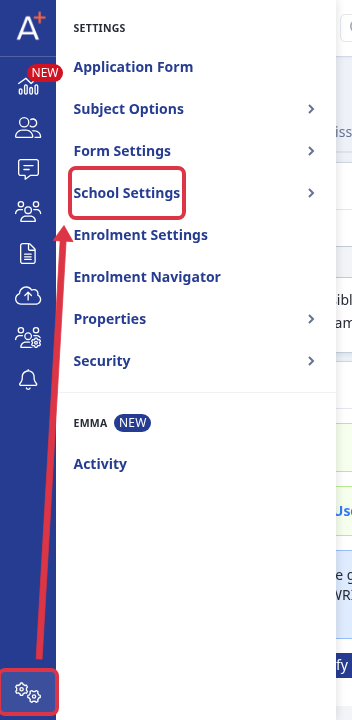
Go to "Settings" > "School Settings" > "Integration" to check that your Bromcom integration is available.
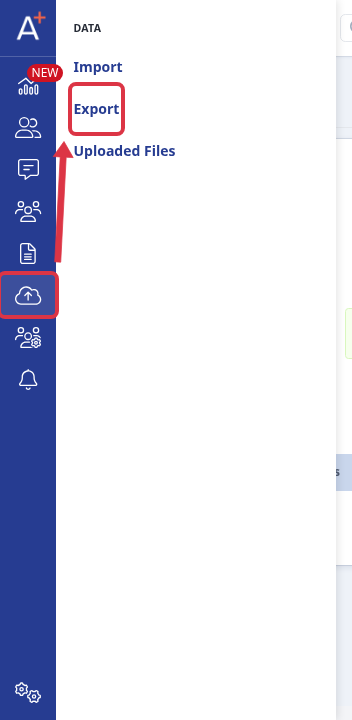
Go to "Data" > "Export" to start or open a student export.
Select "My School MIS" and choose Bromcom.

On "Data Mapping", leave "Sibling I Ds" selected in "Student Other Details".
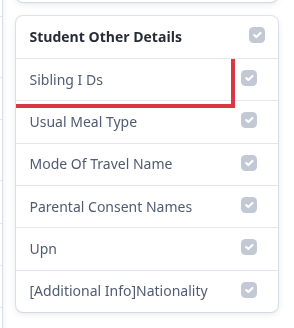
Admissions+ creates the sibling IDs from students who share a Mother or Father contact. It also includes matching students that Bromcom already reports for those parent contacts. You do not map a separate Admissions+ sibling field.
Add a Kinship Care field
Ask your Bromcom administrator to create the Kinship Care User Defined Field in Bromcom first. Admissions+ has no built-in Kinship Care census field.
On "Settings" > "School Settings" > "Integration", select "Import UDFs". The page shows "UDFs successfully imported!" when the import finishes.
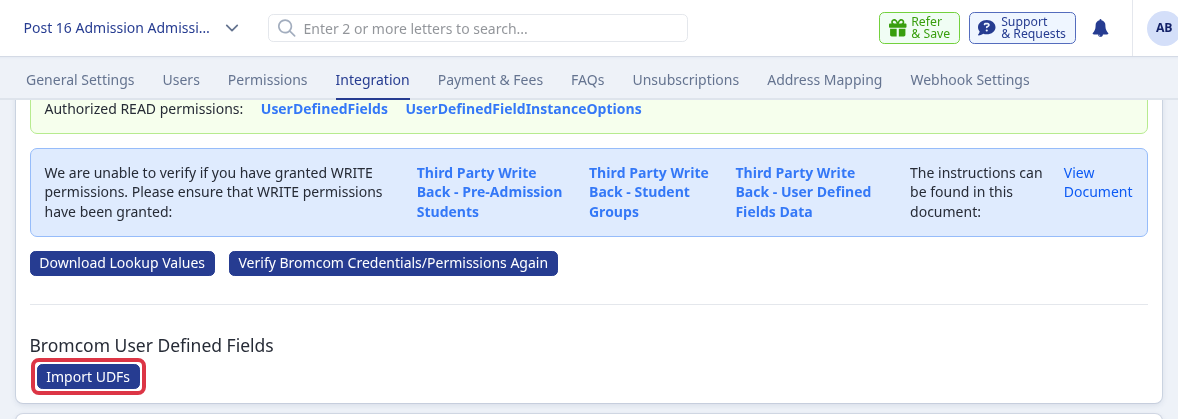
The import creates Bromcom User Defined Field properties in Admissions+. Add the imported property as a Student custom field on the application form that you export.
On the export "Data Mapping" screen, select "Bromcom User Defined Fields" and select the Kinship Care custom field.
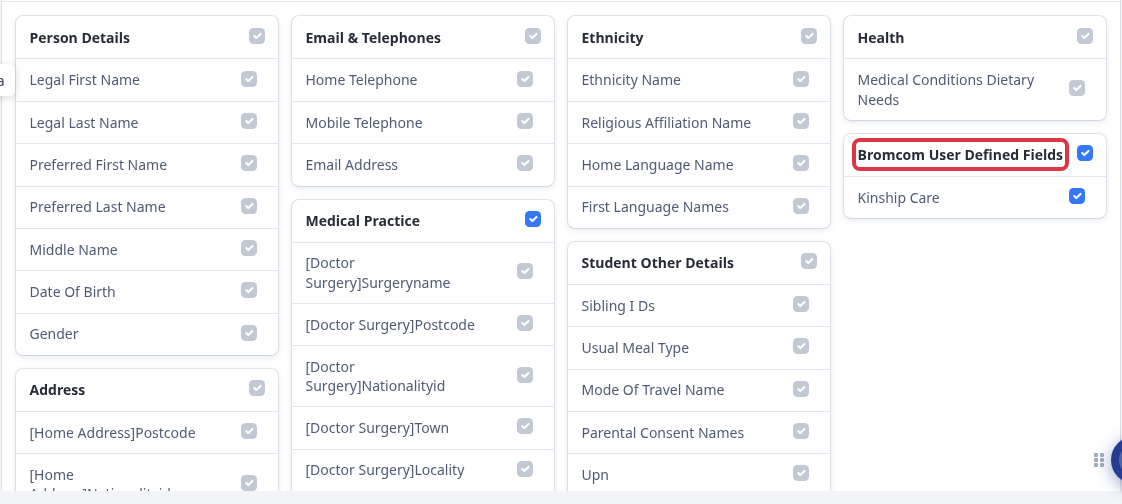
Continue the export workflow after you select the field.
What it does not do
- It does not create a Kinship Care field in Bromcom.
- It does not use former or current sibling entries. It uses student records that share a Mother or Father contact.
Questions staff ask
Can you make it imported as sibling data?
The Bromcom student export creates sibling IDs automatically. Keep "Sibling I Ds" selected when you map the export.
Can I export Kinship Care?
Yes, when your Bromcom administrator creates it as a User Defined Field, you import it, add it to the application form, and select it in the export mapping.