
CONTENTS:
- Overview and Offer Statuses
- Updating Offer Status Individually
- Updating Offer Status in Bulk
- Re-offering a Student Who Declined
- Can You Add Your Own Offer Status?
Overview
Staff users have the ability to manage a student’s offer status on their behalf. This feature is useful when:
-
A student has confirmed their decision offline or via another communication channel.
-
The school needs to withdraw or correct an offer.
-
Bulk updates are required after a deadline or batch review.
Available Offer Statuses:
-
Pending – The application is awaiting a decision or review.
-
Offer Made – An offer has been formally made to the student but not yet accepted or declined.
-
Accepted – when the student has agreed to the offer.
-
Declined – when the student has rejected the offer.
-
Withdrawn – when the school needs to withdraw the offer previously made.
Updating Offer Status Individually
To update an offer status for a single student, you will have to go to the student profile which you can access by searching for their name.

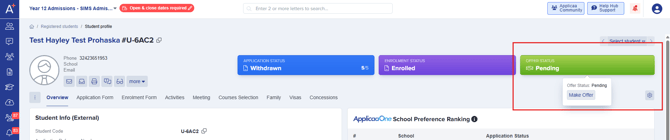
Within the Student profile, you will find the Offer Status tab on the top right of the screen.
If the students Offer Status is Pending, the only option you have is to "Make Offer".
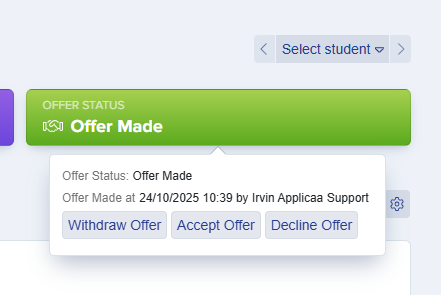
For students who already has an offer which under the "Offer Made" status, you can change or update it to either Accepted, Declined, or Withdrawn.
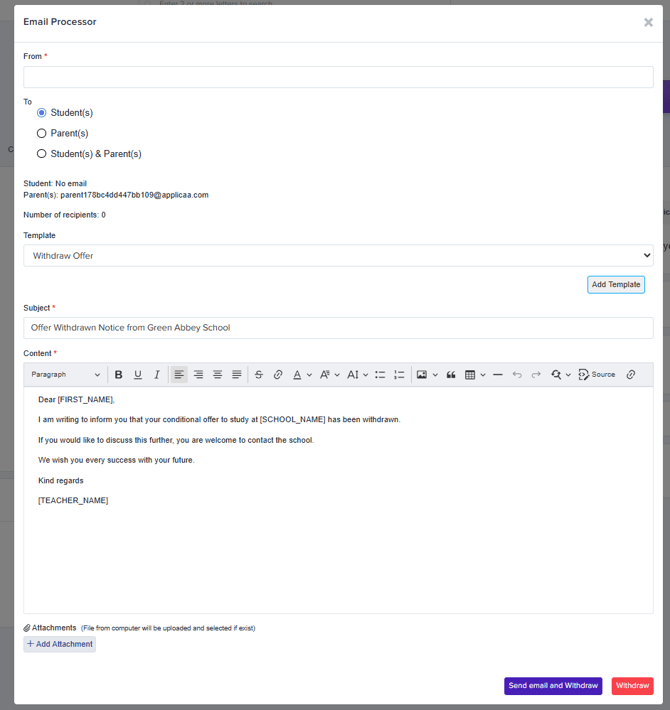
If you change the student's status to "Withdraw Offer" an email processor page will pop up giving you an option to inform the student and/or their parents regarding reason for withdrawal via an email.
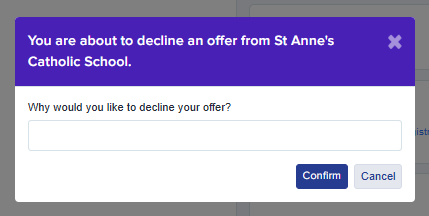
When you change the offer status to "Decline Offer" on behalf of the student, it will then ask you the reason for declining the offer for record tracking.
Updating Offer Status in Bulk
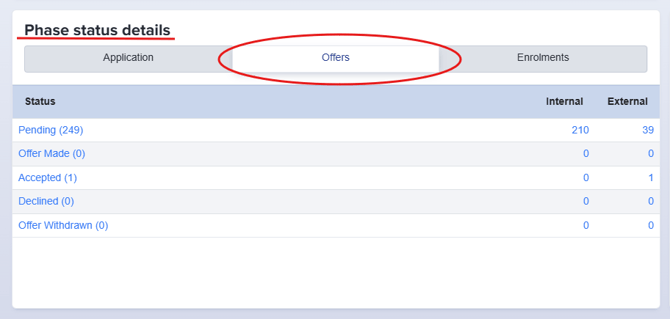
To update offer statuses for several students at once, start by navigating to the "Phase status details" table on your dashboard. Here, you'll see each offer status along with the number of students assigned to each. This view makes it easy to identify and select groups of students whose statuses you wish to update in bulk.
To select students for a bulk update, use the checkboxes on the left side of the table to choose individual students, multiple students, or select all students at once.
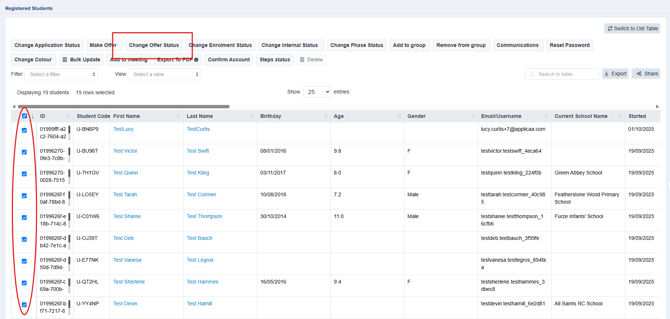
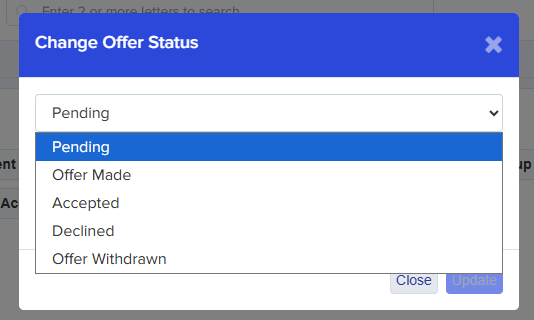
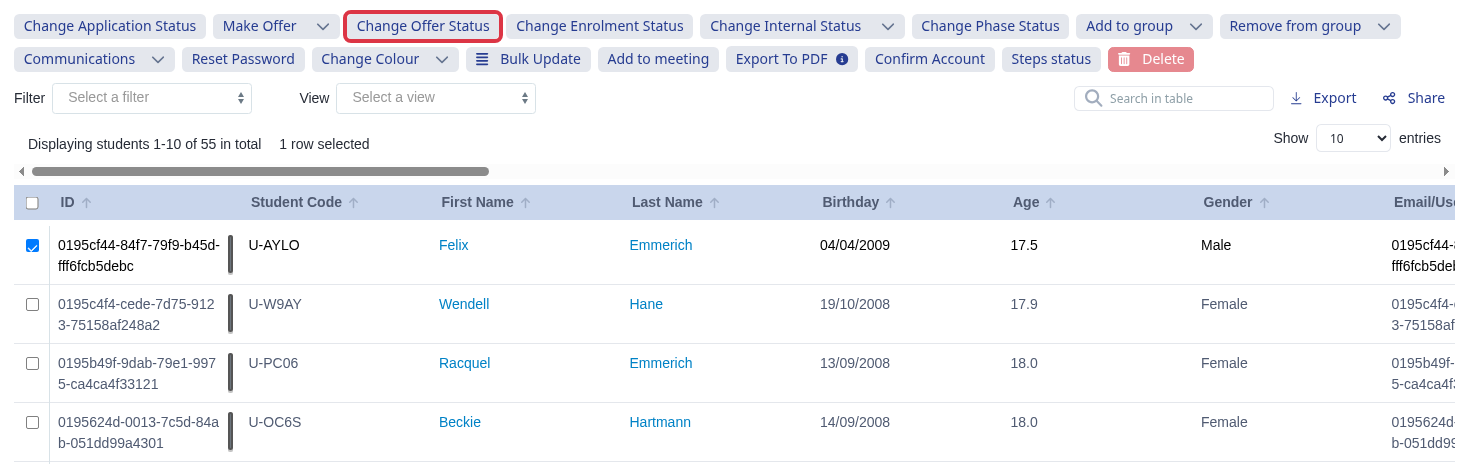
Once a selection has been made the "Change Offer Status" button will appear on the top of the table. After clicking the button, it will show you the different status options that you can select.
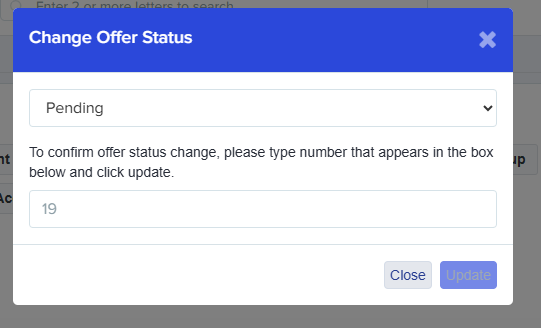
To confirm your changes, simply enter the number of students whose status you are updating, then click the Update button to apply the changes.
Re-offering a Student Who Declined
A declined offer is not the end of the process. You can put the offer back to "Offer Made", and the student can then accept or decline it again. The "Make Offer" button does not work on an offer that is already declined, so use one of the two routes below.
The quickest route is the student list. Open the list of students with the "Declined" offer status from the "Phase status details" table on your dashboard, tick the student, then click "Change Offer Status".
Select "Offer Made", type the number that the window shows in the box, then click "Update".
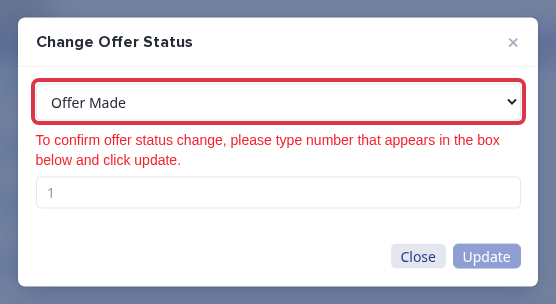
The offer goes back to "Offer Made" and the declined date is removed. The Offer phase opens again for the student, so the student can accept or decline the offer from their own profile. This route sends no new offer email.
Use the second route when the student must receive the offer email again. Open the student profile and click the "Offer Status" tile. A declined offer gives you "Withdraw Offer", "Accept Offer" and "Decline Offer" only.
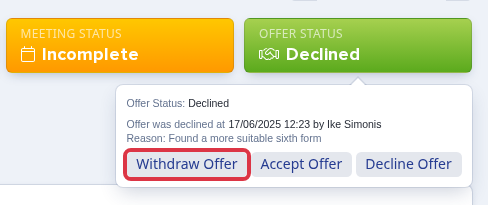
Withdraw the offer as the section above describes. The email page that opens lets you withdraw the offer with an email or without one.
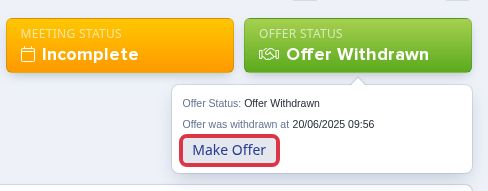
The "Make Offer" button comes back as soon as the offer status is "Offer Withdrawn". Click it to send the offer email again.
-
The offer date becomes the date of your change, and the profile shows who made the new offer.
-
You can re-offer more than one student at a time. Tick each student before you click "Change Offer Status".
Can You Add Your Own Offer Status?
No. The offer statuses in this guide are part of Admissions+, and the "Change Offer Status" window shows only those statuses. A school cannot add an offer status of its own.
-
To follow an outcome of your own, add the students to an application group, then filter the student list by that group.
-
Tell us which status your school needs. Ask Emma in the platform, or write to the helpdesk, and we add your request to our product list.