
In certain cases, you may need to grant a student eligibility for a specific Bursary Fund, even if they haven't met the required criteria. Alternatively, there are situations where students will be automatically qualified for one band, and you'll need to allocate them manually to a different band. ( You can do this as long as you're happy that you could show an auditor why you have changed the amount).
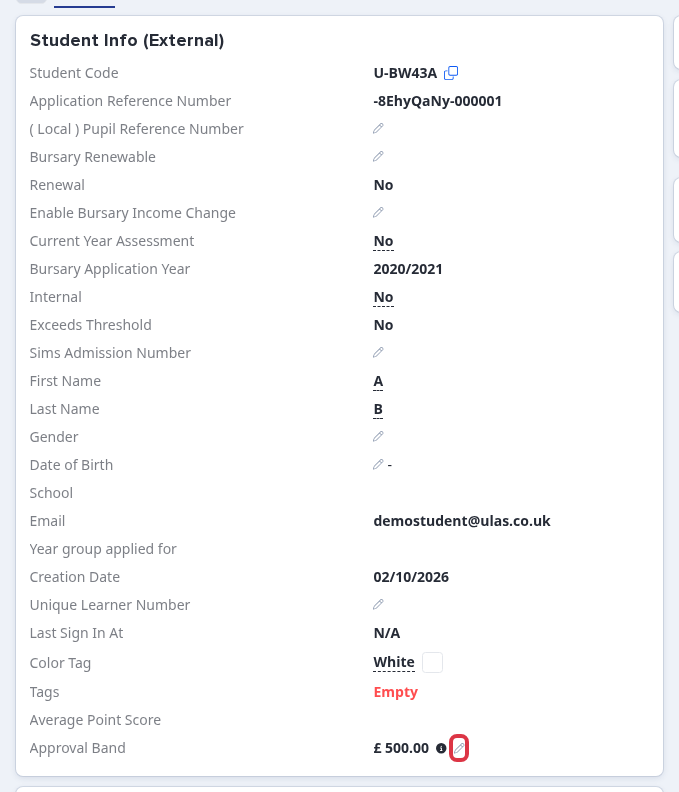
To make this change, go to the student profile > under Overview tab look for the 'Approval Band' field.
Note: Ensure that the student's bursary status is already displayed as 'Awarded.'

Upon clicking the pencil icon, a pop-up preview will appear.


*Overwrite Band Value - This should be the new value you wish to assign to the student, and it's necessary to provide a reason for auditing purposes. Please note that this is a manual input field, so you can enter any amount into it.

Now, when you navigate to the Finance tab within the student profile, you'll notice an i button next to the allocated amount, which provides an explanation or reason.

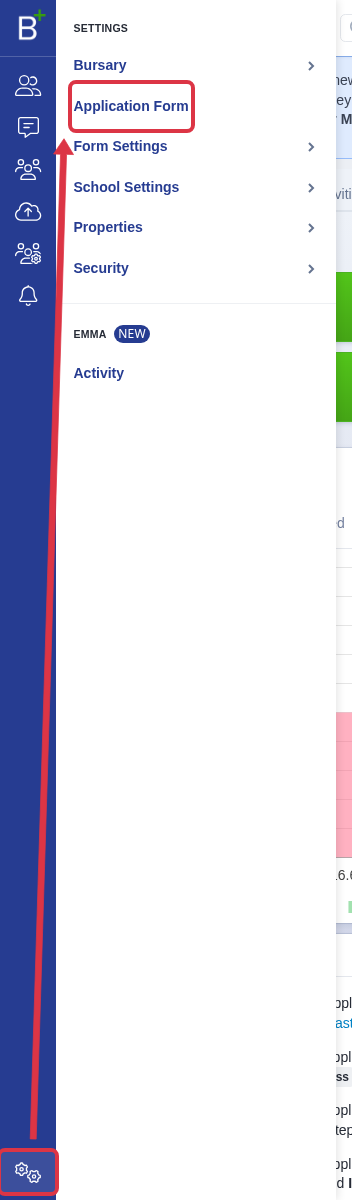
"Finance" is the display name of the "Bursary Request" phase on the student profile - it is not an option under Form Settings > Student Profile. If "Finance" is missing from a student's profile, open the gear icon in the sidebar and select "Application Form".
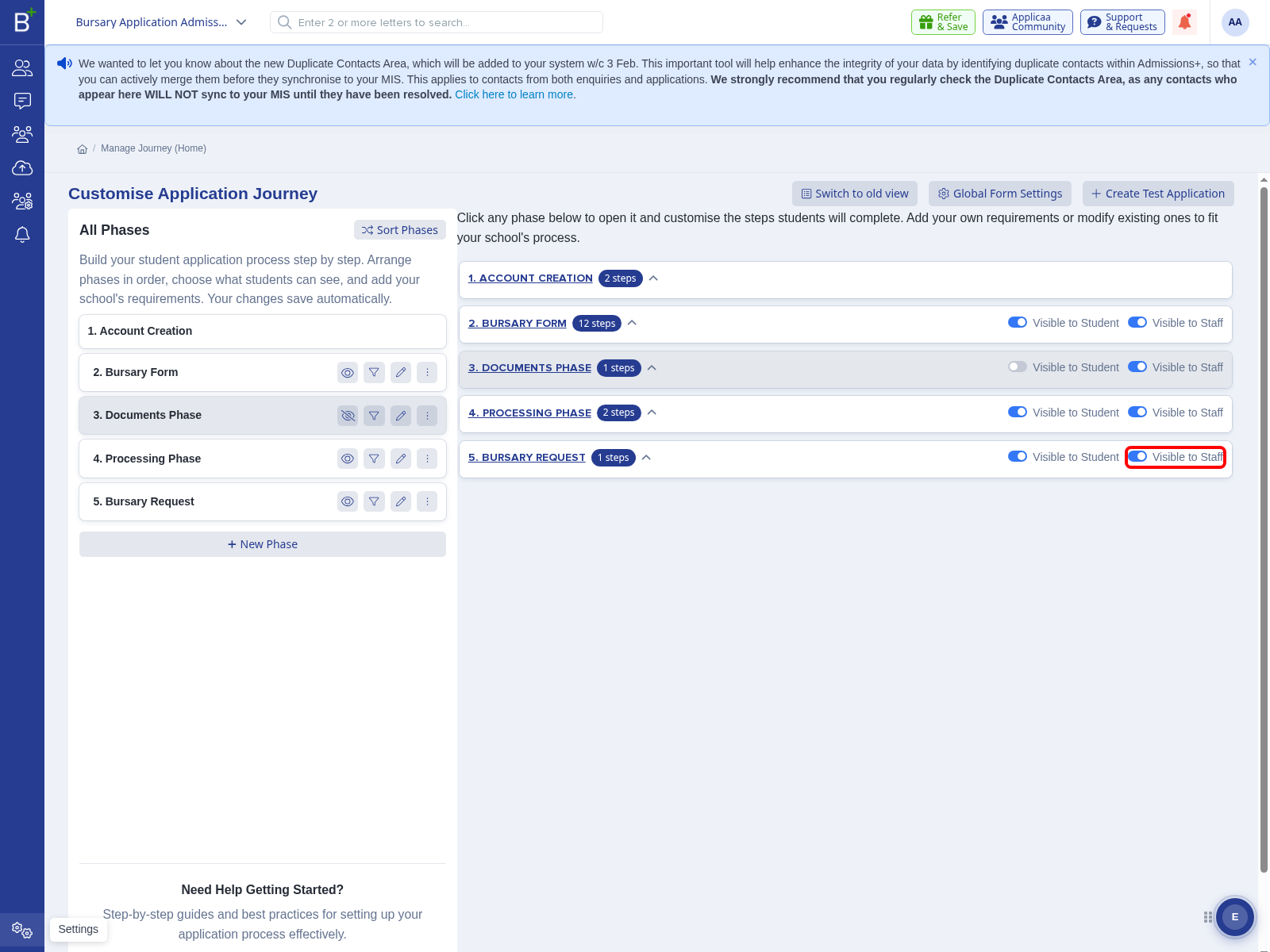
On the "Customise Application Journey" page, find "Bursary Request" in the "All Phases" list and turn on its "Visible to Staff" toggle.
Another way of changing the band is by going into the Concessions and Bursary tab (labelled "Concessions" in the tab bar) via student profile > Bursary Summary section; Within this section, you'll find the Bursary Information, and you can make changes to the approval band by clicking the pencil icon.

Finally, you can determine whether a band has been modified by checking whether the 'Approval band' field has an accompanying i icon in the Overview tab. Hovering on the i will show you the reason for the change.

*Sample screenshot of a student's unaltered approval band.

The above is a work-around for extenuating circumstances and we recommend retaining evidence of why you have made this change, in case you are audited at a later date.
Removing an overwritten band
Go to the student profile, find "Approval Band" on the "Overview" tab, and select the "Overwrite band" pencil. Only a Super Admin can see this control.
The "Overwrite Band" window has required "Overwrite Band Value" and "Reason" fields. It has no control to remove an existing overwrite.
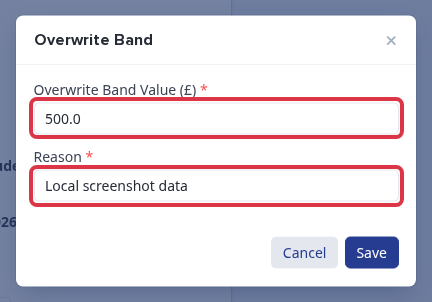
If you clear "Overwrite Band Value" and select "Save", the platform shows "Band value cannot be blank". If you clear "Reason", it shows "Reason cannot be blank". The overwrite remains in place.

You cannot remove a bursary band overwrite yourself. Ask Emma in Admissions+ or contact the helpdesk for help with a removal.
Moving a student between bursary funds
To move a student from one bursary fund to another - for example from "Vulnerable Bursary" to "Discretionary" - change their "Bursary School" answer on the student profile. Go to the student's profile, open the "Concessions and Bursary" tab, and select the "Welcome" step.
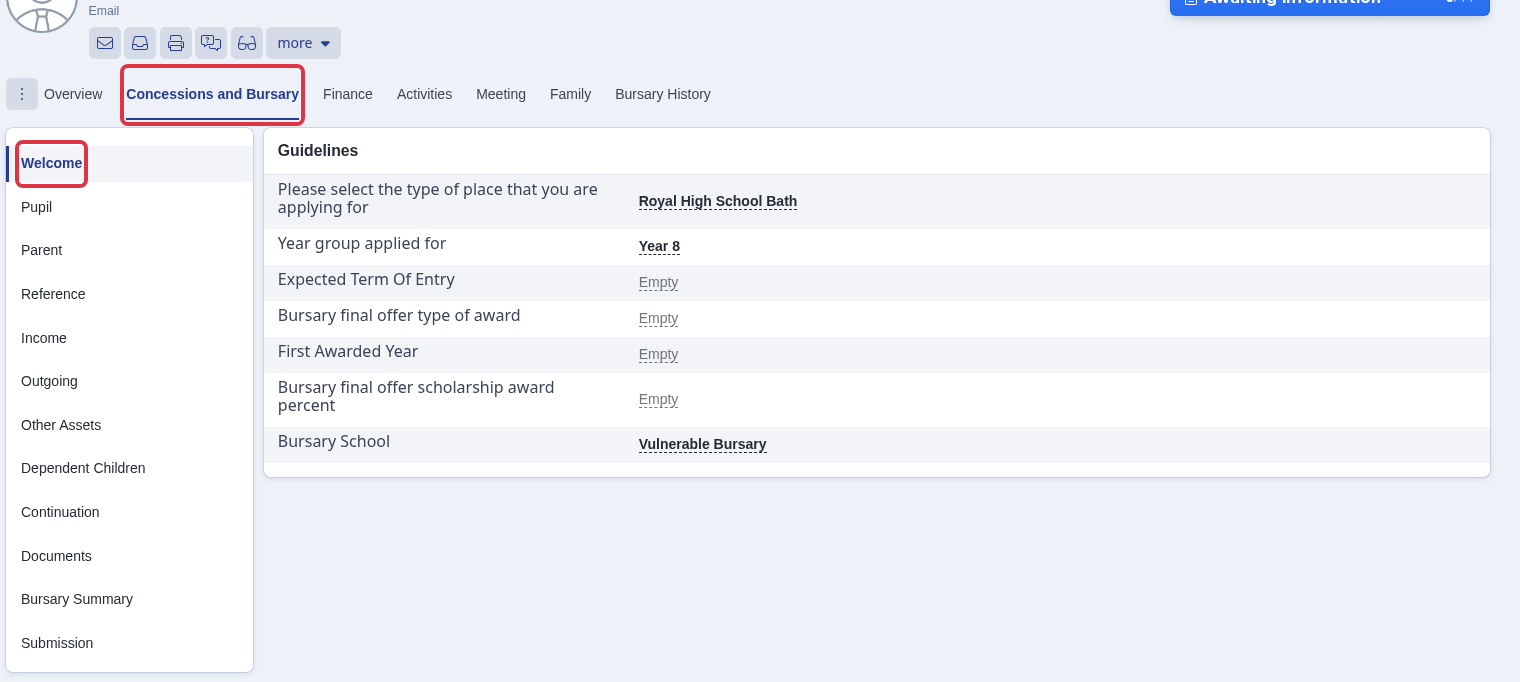
In the "Guidelines" card, click the "Bursary School" field and choose the new fund from the dropdown.
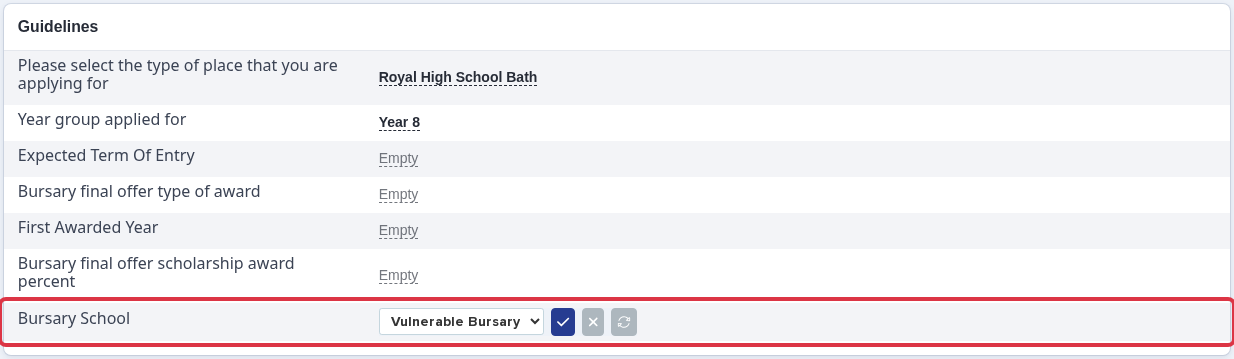
- The dropdown only lists the bursary funds already set up for the school. Staff cannot create a new fund from here - only a Super Admin can add, edit or delete bursary funds, under "Bursary" > "Schools & Settings".
- After moving a student to a different fund, check their "Approval Band" on the Overview tab. Use the "Overwrite Band Value" action above if the amount needs correcting for the new fund.