
MIS export failed? Start here
If your export of students and contacts to SIMS, Arbor or Bromcom has failed, start on this page. The checks below are in the order that resolves the most exports, and each one links to the full guide.
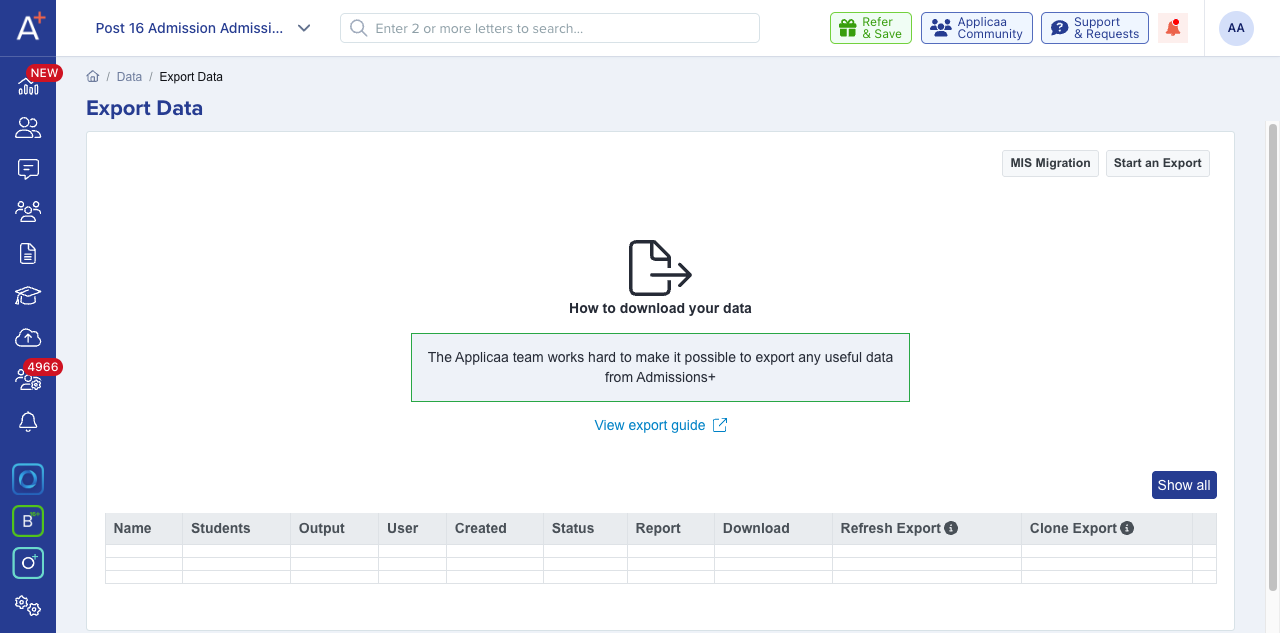
Open the application form you are exporting from and go to "Data" > "Export Data". Every export in the list shows its own "Status", and a failed export gives you a "View Errors" button with the exact error recorded against each student.
1. Check your MIS credentials and API user. If the whole export fails at once rather than for individual students, this is almost always the cause. Admissions+ shows an invalid credentials message and points you at your Integration page. Bromcom schools also need specific permissions granted to the Admissions+ API user, and Admissions+ names the missing permission on the export screen.
2. Run the pre-export checks. Incomplete forms, missing mandatory data and unresolved applicants stop records transferring cleanly.
3. Clear duplicates and unresolved contact matches. Students flagged as possible duplicates cannot be exported until they are dismissed or merged, and contacts waiting on a matching decision hold up the run. The contact matching process is explained in full further down this page.
4. Follow the transfer guide for your MIS. Each guide covers the export steps and the errors specific to that system.
- Data Transfer - SIMS
- Data Transfer - Arbor
- Data Transfer - Bromcom
- How to import student and contact data into your MIS from Admissions+
Using SIMS? Two further checks resolve most SIMS sync problems - confirming your sync is set up correctly, and confirming the application statuses that are eligible to sync.
Not sure which MIS you are integrated with? See Which school MIS does Admissions+ integrate with?
An export that does not finish, or an export that misses data
An export does not always fail. It can stay at In Progress. Find the affected export in the list and record its Status.
If the export still shows In Progress after one hour, ask Emma or the in-app support team for help. Give the export name, the status, the affected student, and any error text.
A SIMS export can finish and still miss tutor groups or timetable data. Report it in the same way. Include the item that is absent and the affected student.
Contact changes not reaching SIMS after a student is admitted
While an application is in progress, Admissions+ keeps a student’s contact details in sync with SIMS: an edit to a parent’s address, phone number or other mapped field is queued and sent to SIMS on Admissions+’s next scheduled sync.
Once you change a student’s status to Admitted in Admissions+, that student stops being offered for this automatic contact sync. Admissions+ does not send any further contact changes for that student to SIMS, even if you keep editing the contact afterwards - and because nothing is attempted, no error or warning appears for it either.
Moving an applicant from the SIMS pre-admissions group onto the school’s main SIMS roll is a SIMS-side action. After you admit a student in Admissions+, update that contact’s details directly in SIMS if they change again - Admissions+ does not pass the update through for you.
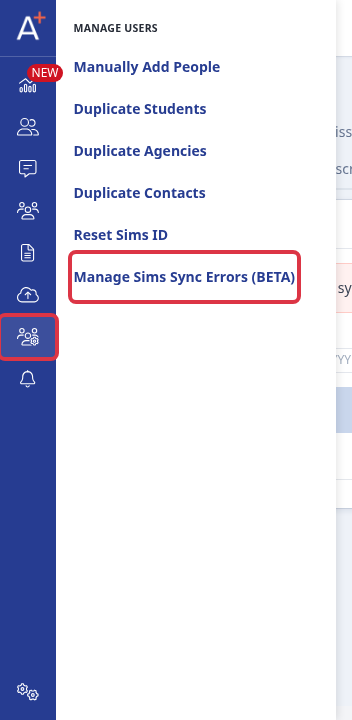
For students who are not yet Admitted, Admissions+ lists any contact or student record that failed to sync under "Manage Users" > "Manage Sims Sync Errors (BETA)".
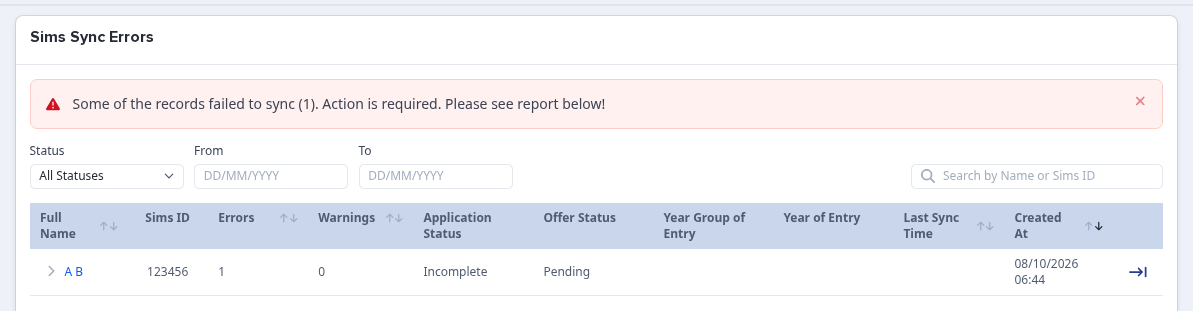
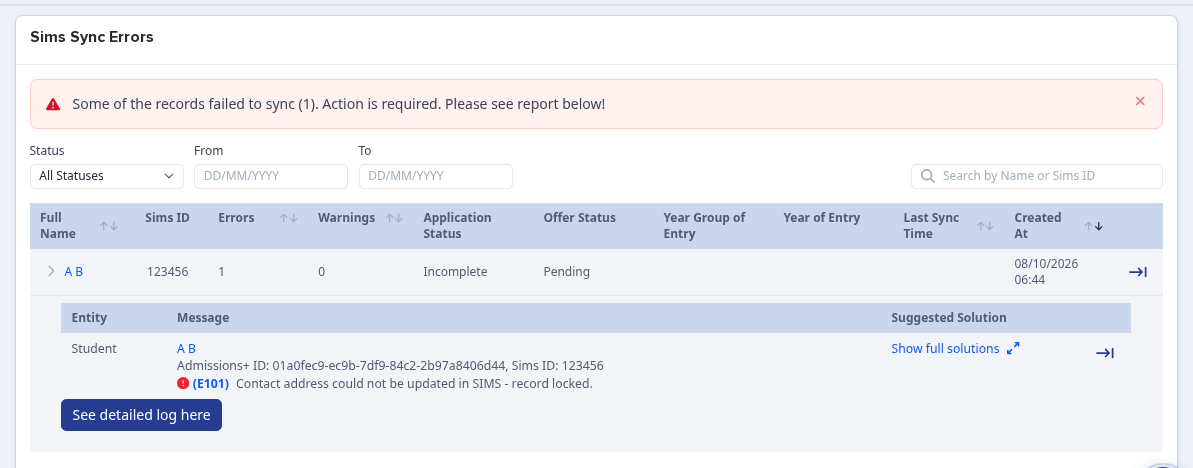
The report shows the error and warning count for each record. Expand a row to read the exact message and the suggested solution.
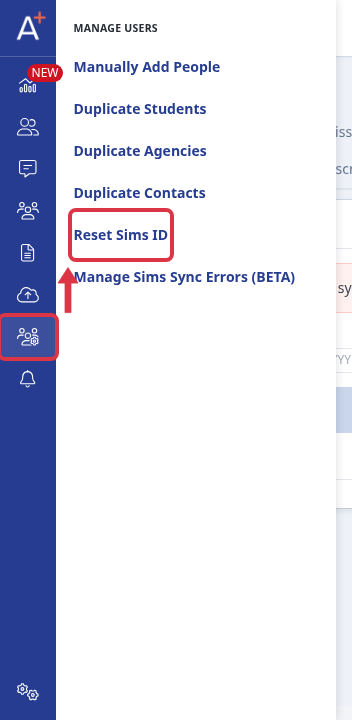
If a record is stuck because Admissions+ holds the wrong SIMS reference for it, go to "Manage Users" > "Reset Sims ID" and search by name or SIMS ID.
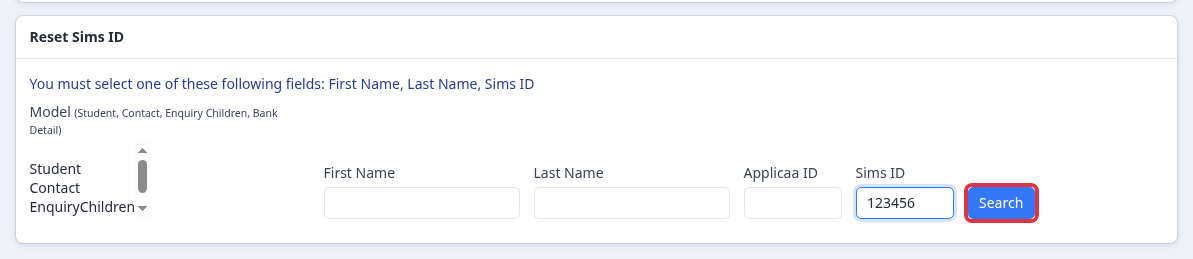
Reset Sims Status clears the record’s synced flags only, so Admissions+ sends its current details to the same SIMS record again on the next sync. Reset Sims ID clears every SIMS reference Admissions+ holds for the record, so Admissions+ treats it as unmatched and looks for a new match on the next export - use this only when the record is linked to the wrong person in SIMS. Neither option brings an Admitted student back into the automatic contact sync.
Check your MIS credentials and permissions
Go to Settings > School Settings > Integration.
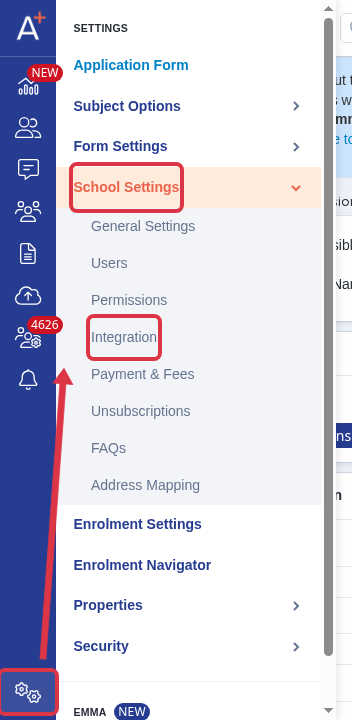
Select Verify [MIS] Credentials/Permissions. If the check reports invalid credentials, update the MIS account details and run the check again.

For Bromcom, a valid credential result confirms read access only. Give the Admissions+ API user the write permissions for pre-admission students, student groups, and user defined fields data.
For Bromcom, a student who is already on roll (admitted) is skipped on export rather than sent again - Admissions+ names the student and their Bromcom ID in "View Errors" and tells you to choose "Export as new student" for them at the student matching step if they need a new pre-admission record.
Still stuck after these checks? Ask Emma in the app, or contact our support team through the in-app help with the error text from "View Errors" - that error tells us exactly which record failed and why.
We aim to accurately match new data with existing records in the MIS where a contact already exists as a parent of a sibling already at the school. This is essential for maintaining clean data and for features like sibling linking, which depend on shared contacts.
Step-by-Step Matching Process
Across all MIS integrations (SIMS, Bromcom, Arbor, iSAMS, Ed:gen) we implement a fuzzy matching process before any contacts are exported from Applicaa to the MIS. This works as follows:
-
Initial Fuzzy Matching:
Before export the contact, we compare incoming contact data from Applicaa against existing contact records in the MIS using the following fields:
- First name
- Last name
- Title
- Address
- Phone number
- First name
-
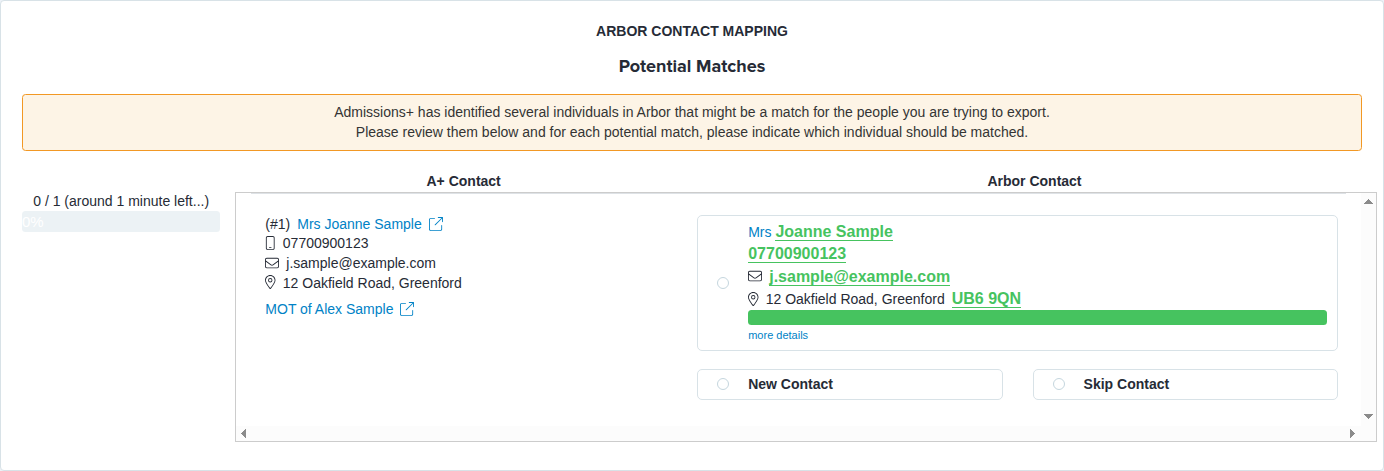
Review Potential Matches:
Schools are presented with potential matches, allowing them to confirm whether the incoming contact already exists or is a new individual.


-
Decision Options:
For each potential match you choose one of three options:
-
Match to an existing contact- select the radio button next to the suggested MIS contact. Admissions+ links your contact to that existing record in the MIS, so no duplicate is created and any sibling links are preserved.
-
New Contact- the person is not one of the suggested matches, so Admissions+ creates them as a brand-new contact record in the MIS.
-
Skip Contact- the parent or guardian is excluded from this export entirely. Admissions+ does not create, update or link them in the MIS on this run.
-
Match to an existing contact- select the radio button next to the suggested MIS contact. Admissions+ links your contact to that existing record in the MIS, so no duplicate is created and any sibling links are preserved.
During the decision making process we also display, next to each match:
- The siblings declared in Applicaa
- The students currently linked to the contact in the MIS
Showing this side-by-side helps schools make an informed decision about each contact.


What a match updates in the MIS
When you choose Match to an existing contact, Admissions+ uses the selected MIS contact. It updates the fields in your export mapping. The match does not update the address by itself.
- Address - an address change exports only when the export shows Enable Address Update and you select it. If it does not, update the address in your MIS.
- GP contact number - Arbor and SIMS support this field. Bromcom has no separate GP contact number mapping.
- Student mismatch - a student mismatch opens a separate resolution page. Confirm the same person to update the fields of the existing student, except the address. Confirm different people to create a new student record.
Review the names, phone numbers, emails and addresses before you confirm a match.
What does "Skip Contact" mean?
Choosing Skip Contact means that particular parent or guardian is left out of this export completely. Admissions+ does not send them to the MIS at all on this run - it will not create a new contact for them, it will not update any details, and it will not link them to a contact that already exists in the MIS.
If the contact is already present in your MIS (for example, an existing parent in Arbor or Bromcom), Skip Contact does not match against or reuse that existing record - it simply takes no action for that person. To reuse the contact already in your MIS, choose Match to an existing contact instead and select the suggested record.
Use Skip Contact when a parent or guardian should not be exported this time - for example a contact you do not want in the MIS, or one you will handle separately - while still exporting the rest of the student's contacts.

Why this Matters: Sibling Link
- In most MIS platforms, sibling relationships are created when multiple students share the same contact.
- By preventing duplicate contact creation, our process automatically preserves or creates sibling links within the MIS.
Important: We do not import sibling data into the MIS. Instead, we use sibling information purely to guide the matching process.
Still unsure which option to choose for a contact? Ask Emma in the app, or contact our support team through the in-app help - we can walk through the specific match with you.