
Use this process when a colleague leaves and a new staff member needs an Admissions+ account. A staff member with access to manage users can create the account and send its sign-in details.
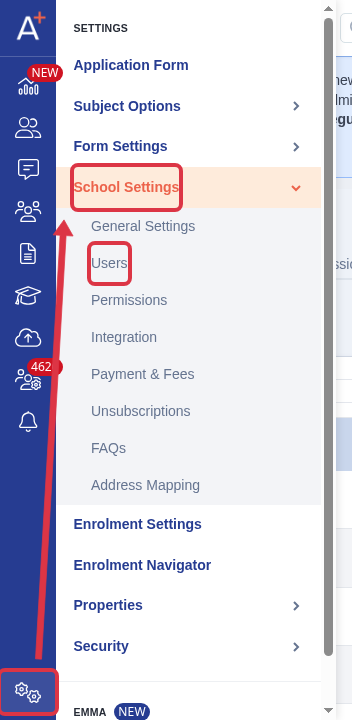
Go to "Settings" > "School Settings" > "Users".
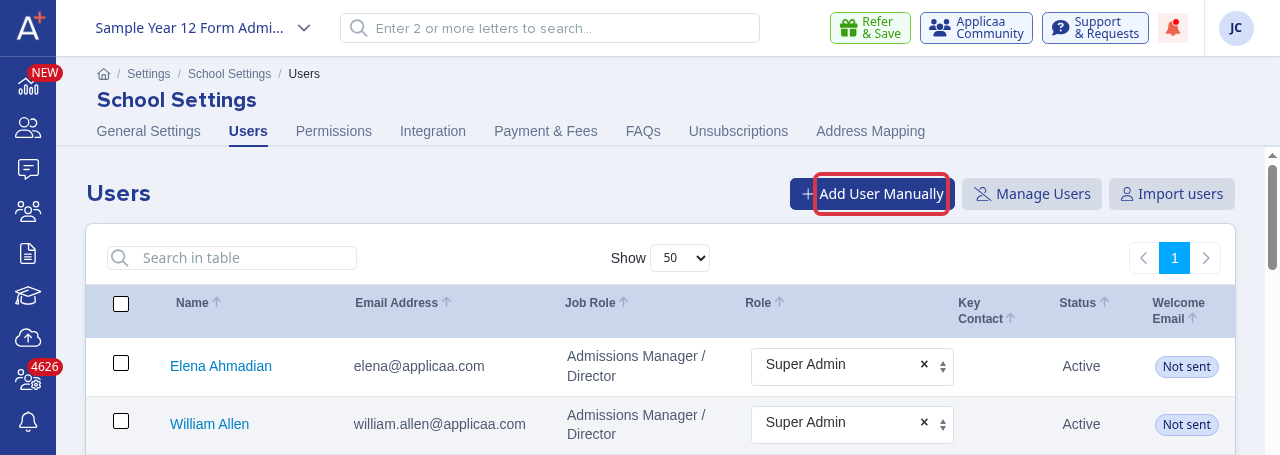
On the "Users" page, select "Add User Manually".
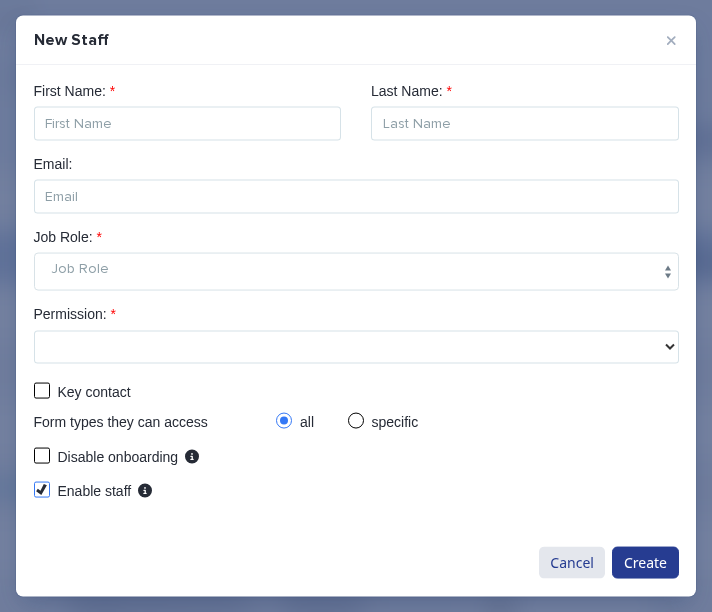
Enter the staff member's first name, last name, and work email. Select the job role and the "Permission" that gives the required access. Keep "Enable staff" selected so the staff member can sign in.
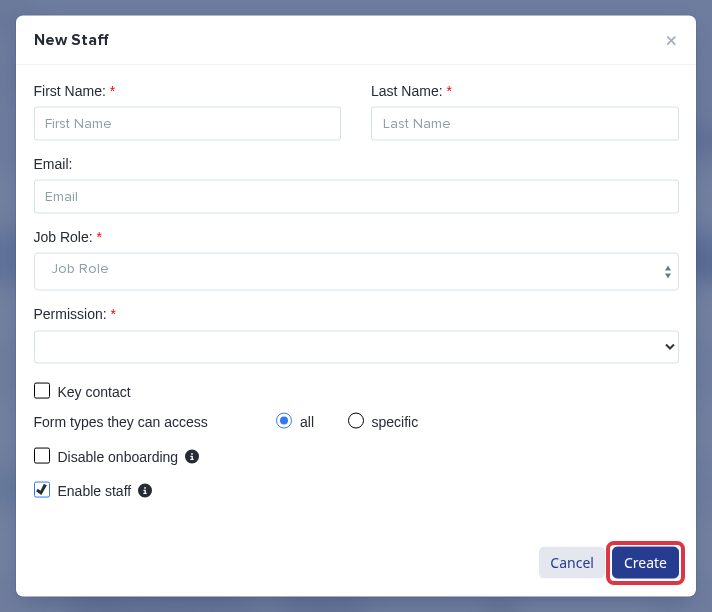
Select "Create". Admissions+ shows "Staff created successfully!" when it creates the account.
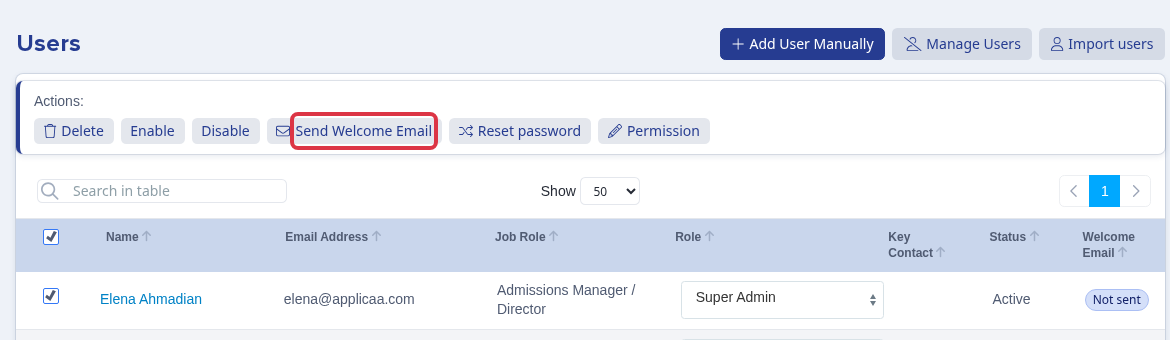
In the "Users" table, select the new staff member. Select "Send Welcome Email". Admissions+ shows "Email has been sent!" and sends the staff welcome email with the sign-in details.
What it does not do
- This process does not remove the former staff member or assign a new key contact.