
Emma, your AI Assistant, can create your events for you! Watch our webinar to see how to ask Emma to create your events.
First navigate to Communications and Events > Events and select the Events Calendar Tab.
Click on Add New Button.

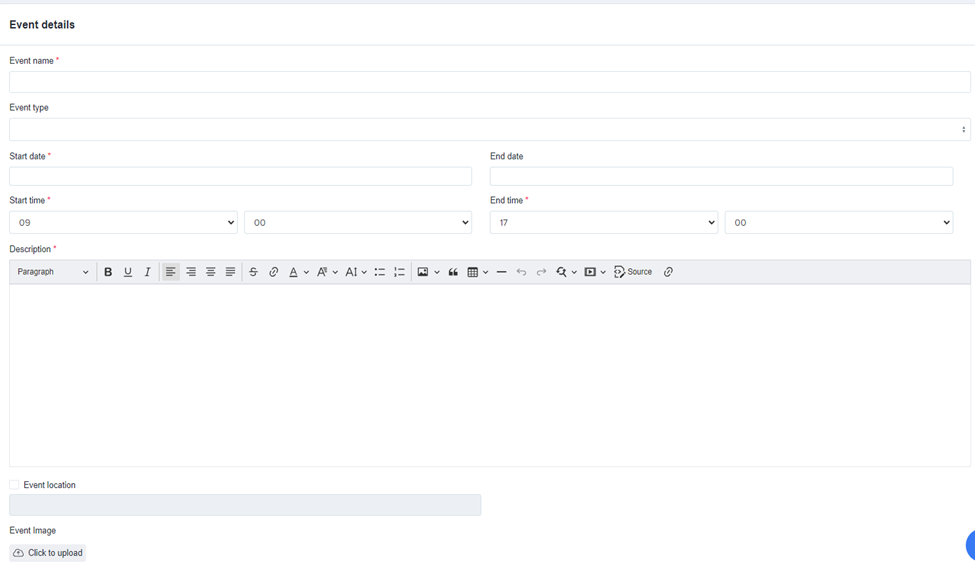
Set the Event Details (Event Name, Type, Start & End Date, Start & End Time, and required Description. Location is optional and you may add an image of an event if you wish.
TICKETS provide you with the ability to create an event and schedule multiple engaging sessions within it.
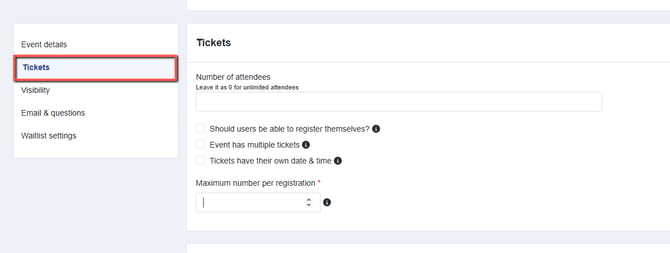
NUMBER OF ATTENDEES - refers to the maximum count of students or parents who can attend the event.
SHOULD USERS BE ABLE TO REGISTER THEMSELVES – tick this box to allow users to register themselves using the public URL of the event. Leave it unticked if the event just needs to be visible on the calendar and does not require anyone to book to attend.
EVENT HAS MULTIPLE TICKETS – ticking this box will allow you to create multiple sessions or options within the event
TICKETS HAVE THEIR OWN DATE & TIME – this tick box will allow you to create tickets with various dates and times within the range specified in the main event.
NUMBER OF ATTENDEES sets one combined limit across every ticket in the event, not a separate limit per ticket. When Event has multiple tickets is ticked, add up the Quantity of every ticket before you set this field: leave Number of attendees at 0 for no combined limit, or enter a number equal to or higher than the sum of every ticket's Quantity.
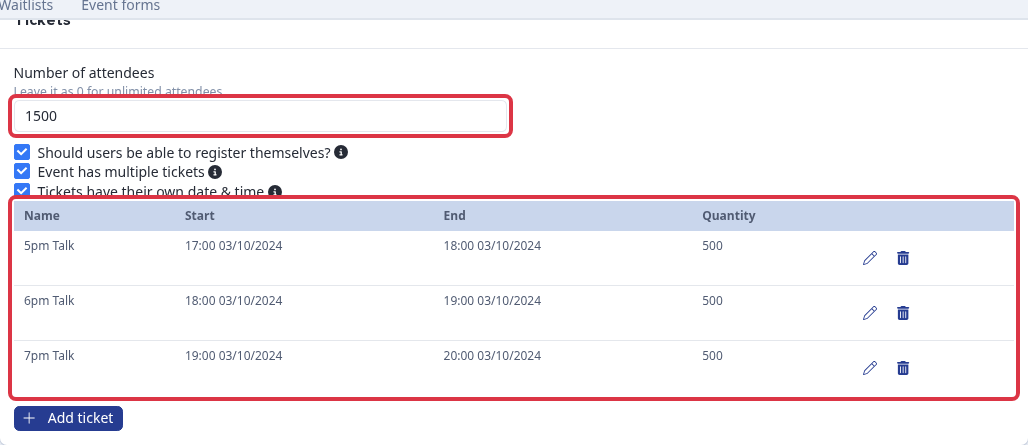
Saving the event with a lower number blocks it, with the message "The number of tickets you're adding exceeds the total quantity available for this event. Please decrease your ticket quantity or consider increasing the overall number of tickets allotted for the event."
Visibility settings allow you to define where an event is visible and how it is presented. You can control which areas of the system will display the event and you may choose different visibility settings per event, depending on the nature of it.
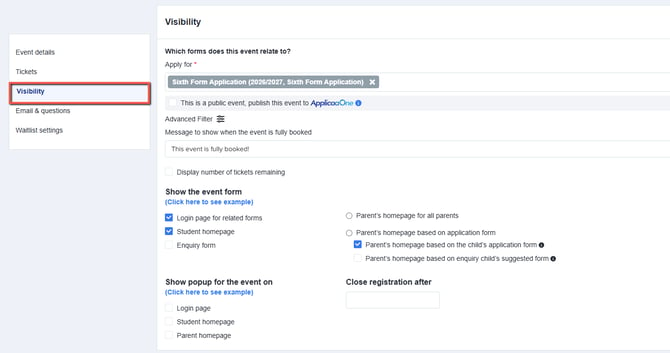
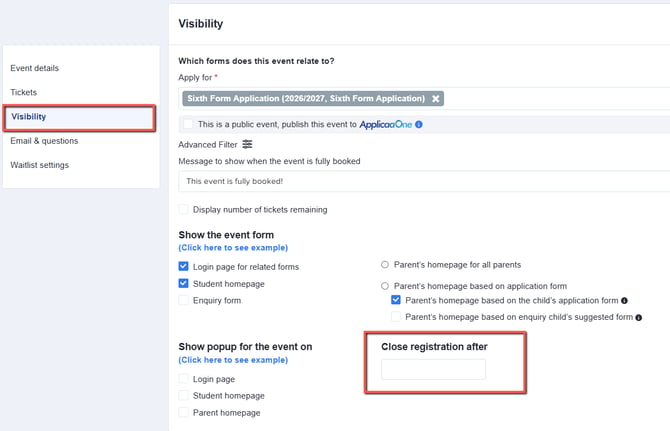
Close Registration After - allows you to automatically set a cut-off time for event registrations. Once the specified date and time are reached, the system will prevent any new registrations, ensuring you have full control over attendee numbers and deadlines without needing to manually close the event.
Additionally, the Advanced Filter function allows users to define who will be able to see the event based on various criteria.
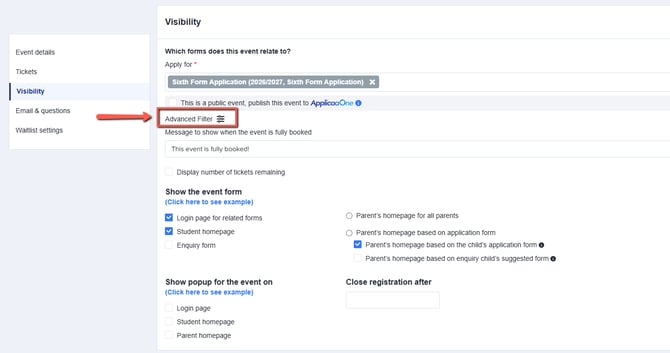
For more detailed guidance on how to use the Advanced Filter function, please refer to the full guide here.
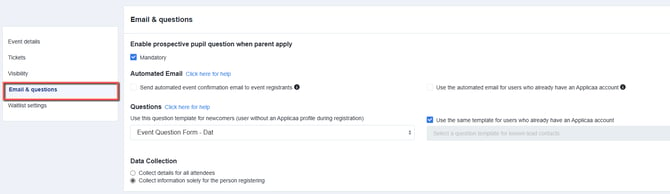
“Emails” - lets you automate confirmation messages for event registrants directly from the event form. Each email is based on an editable template with tokens for event details, QR codes, and “Add to Calendar” links, making it easy to customise and ensure attendees receive accurate information.
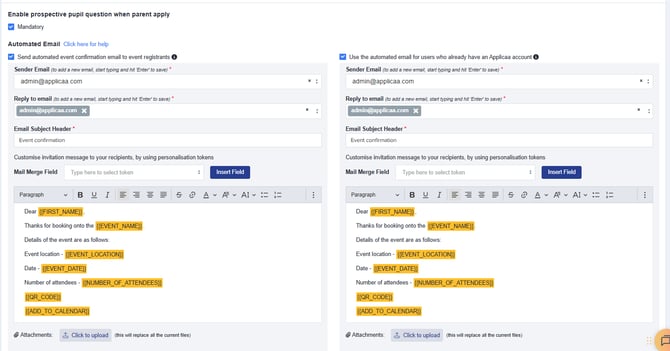
For more detailed guidance on how to set-up and customise email, please refer to the full guide here.
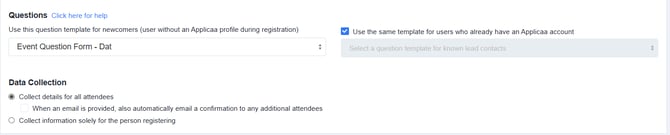
Questions feature lets you customise the registration process by choosing which questions to ask new registrants or those with existing Applicaa profiles. With Data Collection, you can decide whether to gather details from all attendees or only from the primary registrant.
Notify Staff of New Event Registrations
The “Notify Teacher about event register” automated message allows staff members to receive an email whenever a new registration is submitted for an event.
By default, this notification is inactive, but you can enable it by going to:
Communications and Events > Communications > Automated Messages and searching for “Notify Teacher about event register”.
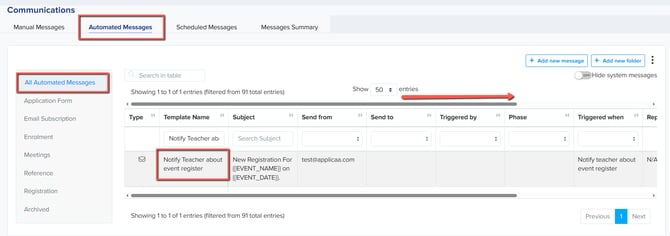
** if the template is not in full-screen view, use the scroll bar to move across and access all settings.
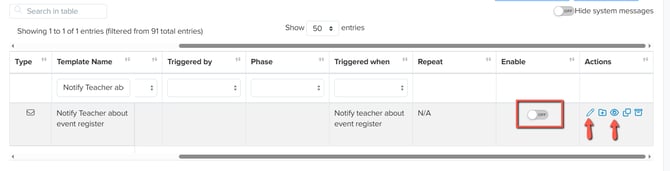
- Pencil Icon– Edit the template content.
- Eye Icon – Preview the email content.
- Toggle Switch – Enable or disable the template.
Choose staff who receive registration notifications
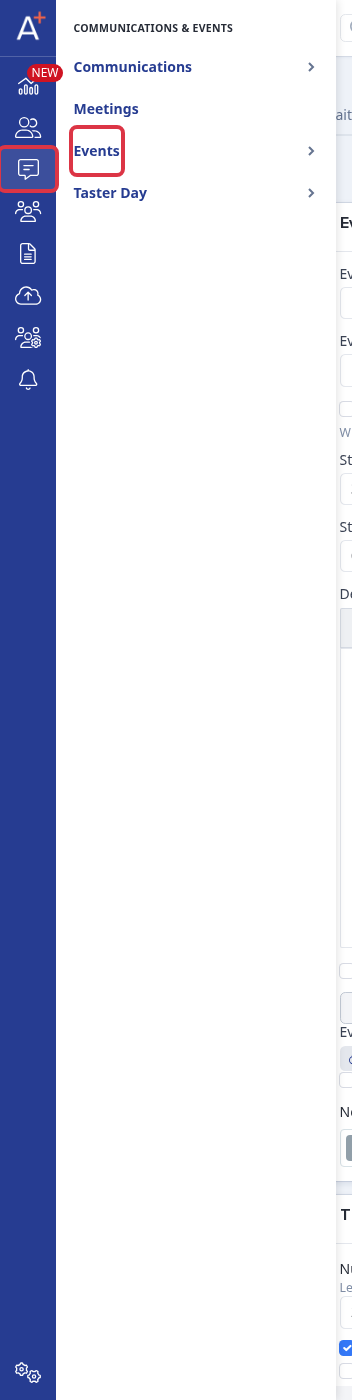
Go to Communications & Events > Events, select your event, then select its edit control.
In Event details, choose one or more staff email addresses in Notify staff when a registration is received.
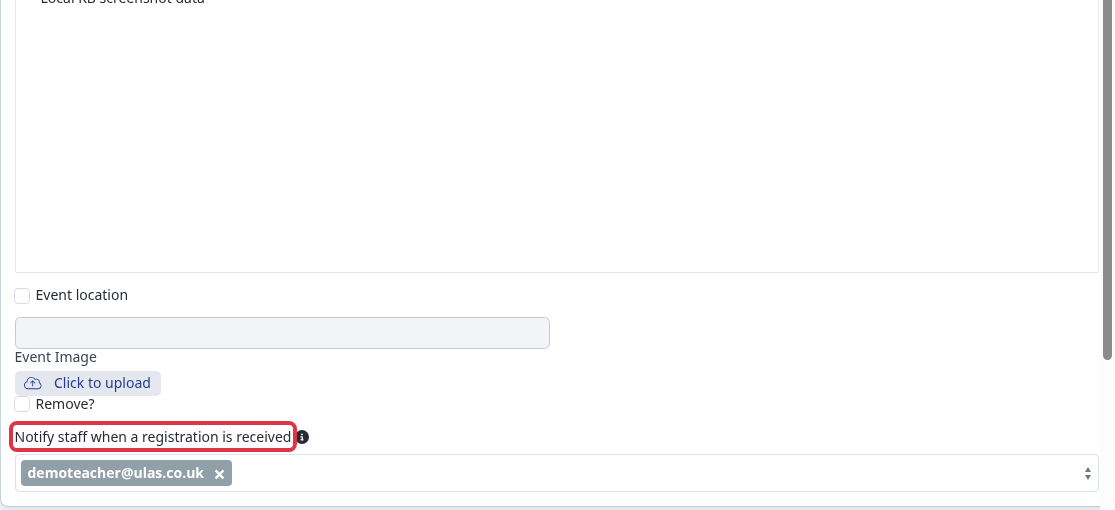
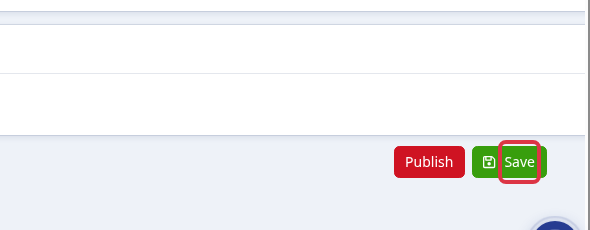
Click Save.
The system sends the message to the selected active school staff. If there are no selected active staff, it sends the message to the school contact email when it is valid and does not use an @applicaa.com address. If neither source provides a valid recipient, it does not send the message.
To stop this message for all event registrations, turn off Notify Teacher about event register in Automated Messages. The Toggle Switch shown above controls whether the automated message is active.
Waitlist Activation is turned off by default when creating a new event, but you can enable it to allow registrants to continue to register after an event is full, and be added to your waitlist for manual or automated management.

For more detailed guidance on how to use the Event Waitlist, please refer to the full guide here.
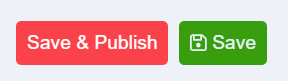
You can choose to Save & Publish or simply Save each event. The latter will save the event as an unpublished draft, which you can then publish when ready.
Questions staff ask
My tickets already have a Quantity (for example 500 per session) - do I still need to set Number of attendees?
Yes, if you want the event as a whole to have a cap. Number of attendees is the combined total across every ticket, so with three 500-seat sessions you either leave it at 0 for no combined limit or set it to 1500 or higher. A lower number, for example 500, blocks the event from saving because the combined ticket quantity already exceeds it.
If I close applications, can people still register for my events?
Yes. Closing applications only stops new students and parents from starting an application form; it has no effect on event registration. An event's registration is controlled only by its own Close Registration After date and by its ticket capacity, so people can keep registering for events even while applications are closed.