
You can change a student's email address from their profile in Admissions+. This also changes the email the student signs in with, so let them know once you've made the change.
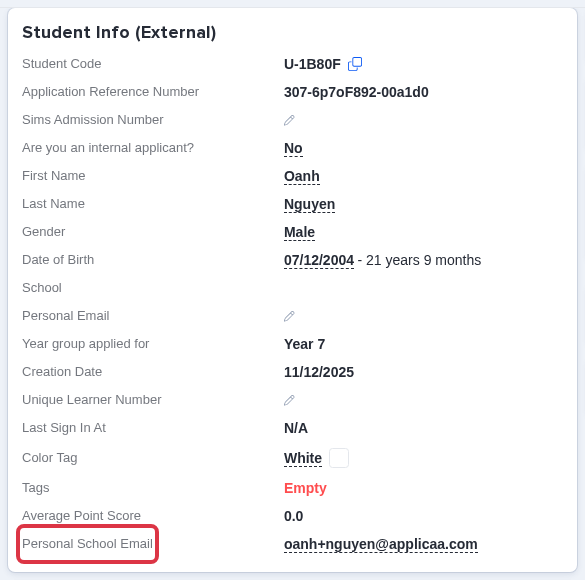
Search for the student from the search bar at the top of your dashboard and open their profile. The profile opens on the "Overview" tab, where the "Student Info" card lists the student's email. What you can do with it here depends on your school's profile setup: if the value shows a pencil icon (for example next to "Personal Email" or "School Email"), click it to edit right there. If it shows as plain text with no pencil, this card is for reference only - use the "Contact" card instead, covered next.
To edit from the "Contact" card, open the tab for the student's application - for example "Application Form", "Enrolment", or "In Year Admissions", named to match the phase your school uses. On the first step of that tab, the "Contact" card lists the student's email under a label such as "Student personal Email Address" or "School Email".
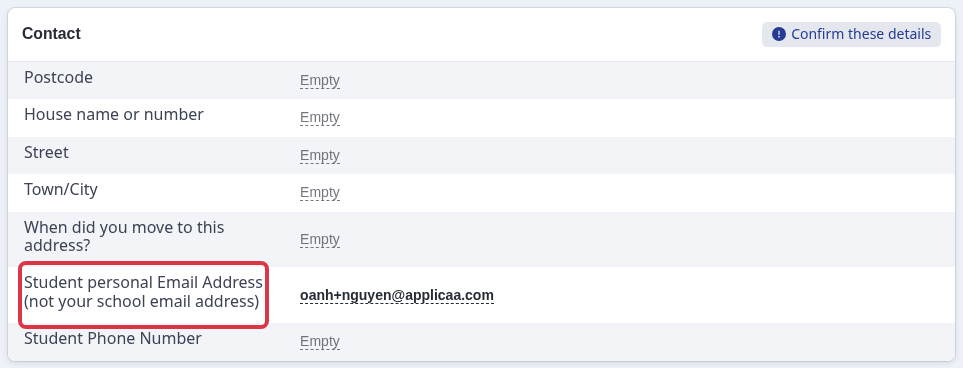
Click the email value. Type the new address, then click the blue check icon to save. Click the grey cross next to it to cancel without saving.

- Once you save the new address, it also becomes the student's username for signing in. Their password does not change.
- Saving does not send the student a confirmation email - the change applies immediately, so tell the student directly.
- If the address already belongs to another profile, or is not a valid email format, the field shows an error such as "Email has already been taken" or "Please enter a valid email address", and the change is not saved.
- You need the "Edit Student" permission to change a student's email. Ask your system administrator if the field does not respond to a click for you.
If the "Contact" card does not appear on a particular application's tab - for example on an In Year Admissions form - the "Telephones and Email Addresses" section has not been enabled on that step. Ask your Admissions+ administrator to enable it from Customise Application Form, or edit the email from another phase tab where the "Contact" card does show.
Questions staff ask
The email on the Overview tab only shows as plain text - how do I change it?
Use the "Contact" card on the application's own tab instead. It always carries the editable control, even on schools whose Overview card only shows the email for reference.
If you can't find the option for your school's setup, ask Emma from the help panel in Admissions+.