
To get started, go to Settings > Properties > Properties.
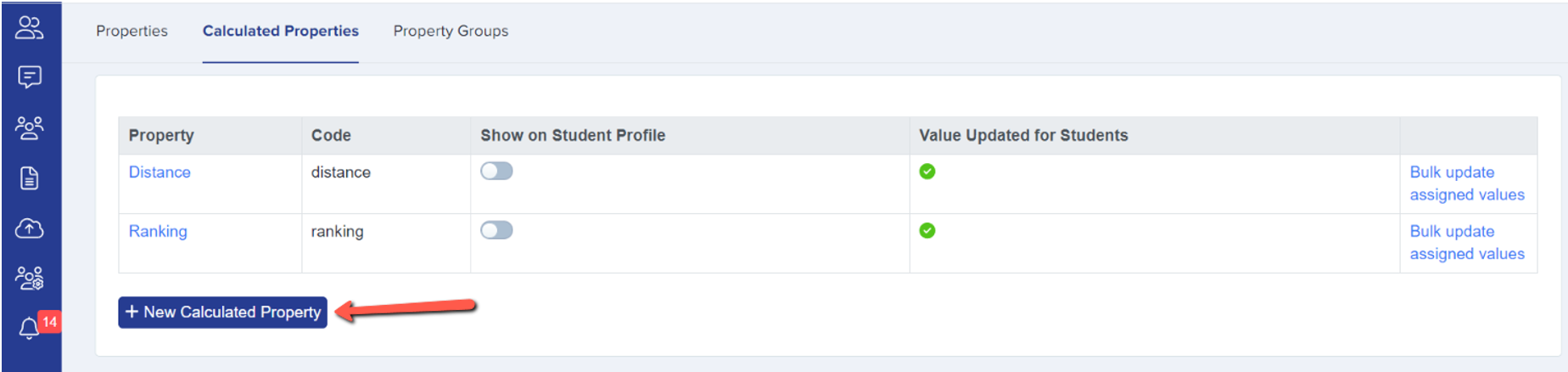
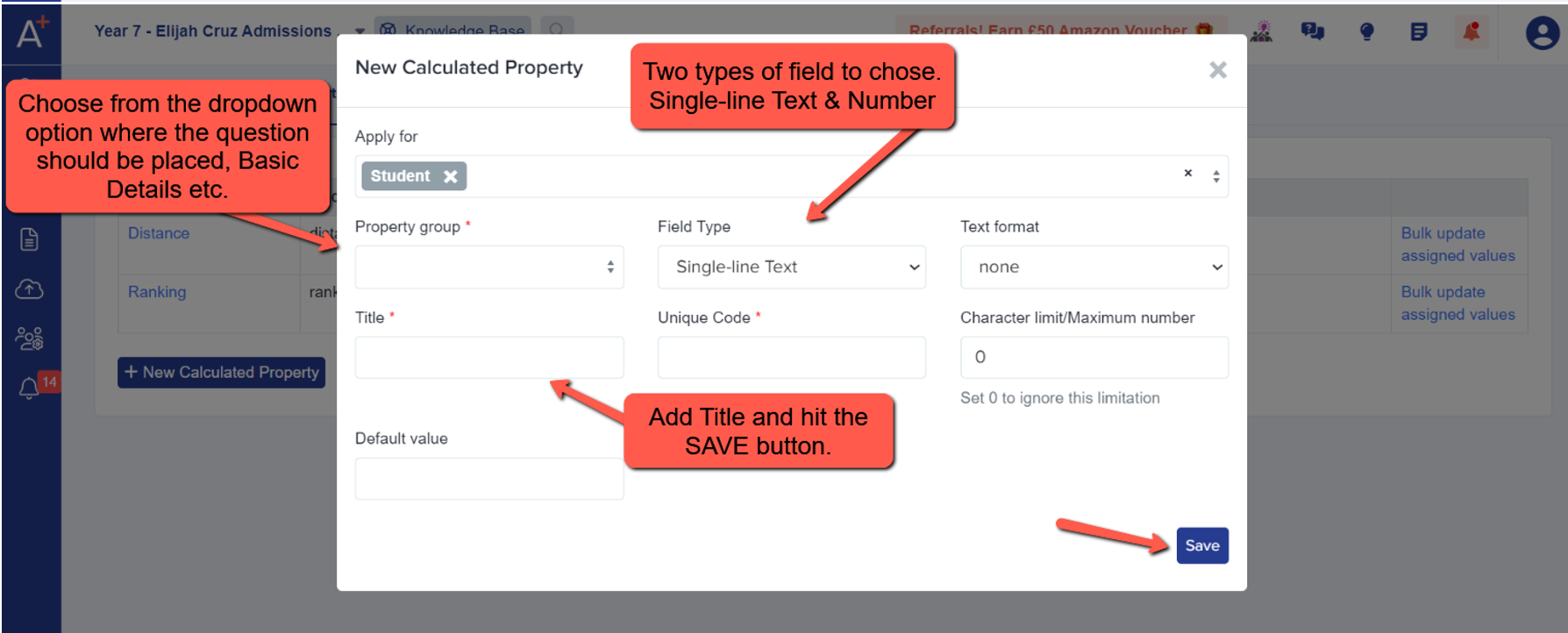
To proceed with creating calculated properties, click the '+New Calculated Property' button to begin.
Creating Condition Triggers: Once the calculated property has been created, it will take you to the page where you can set up condition triggers within the Calculation Property.
- Order of Calculation: This column assigns the value associated with the first filter (condition) that is True. If no filters find a match, the default value is assigned.
- IF Condition: The 'If' column becomes clearer when populated. It essentially represents the condition used to determine when to assign values. Reading the columns from left to right, it will be 'If <condition> Then assign value <assigned value>
- Assign Value: This field depends on the criteria you would like to set for each condition.
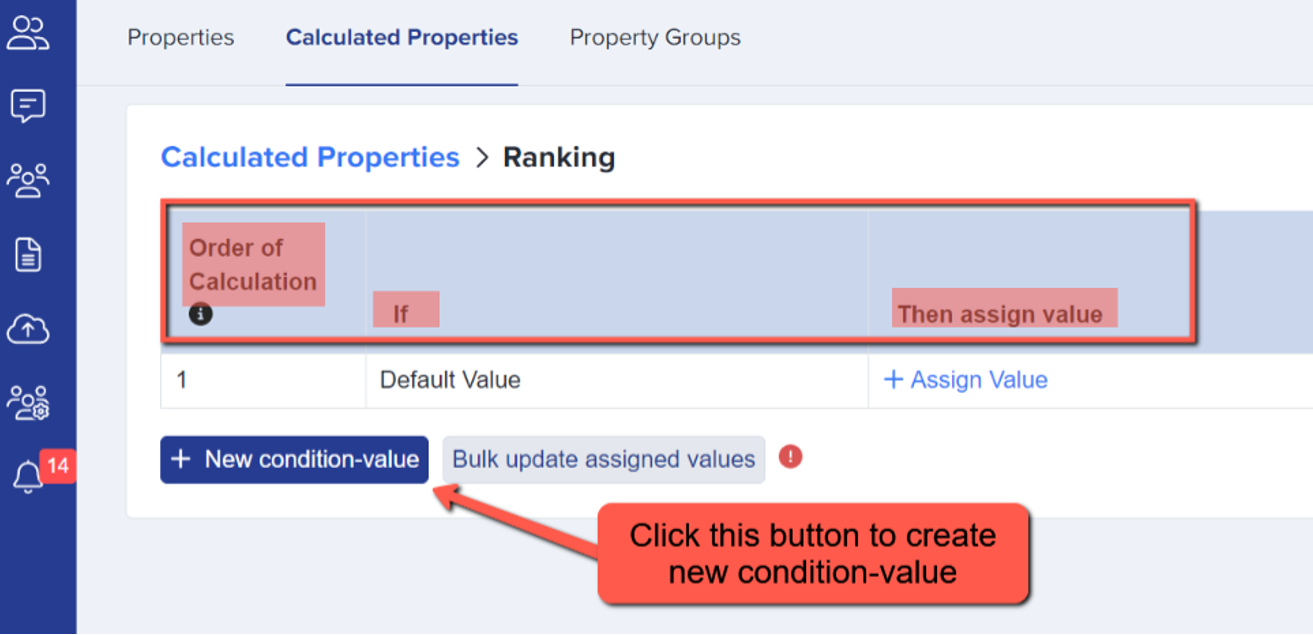
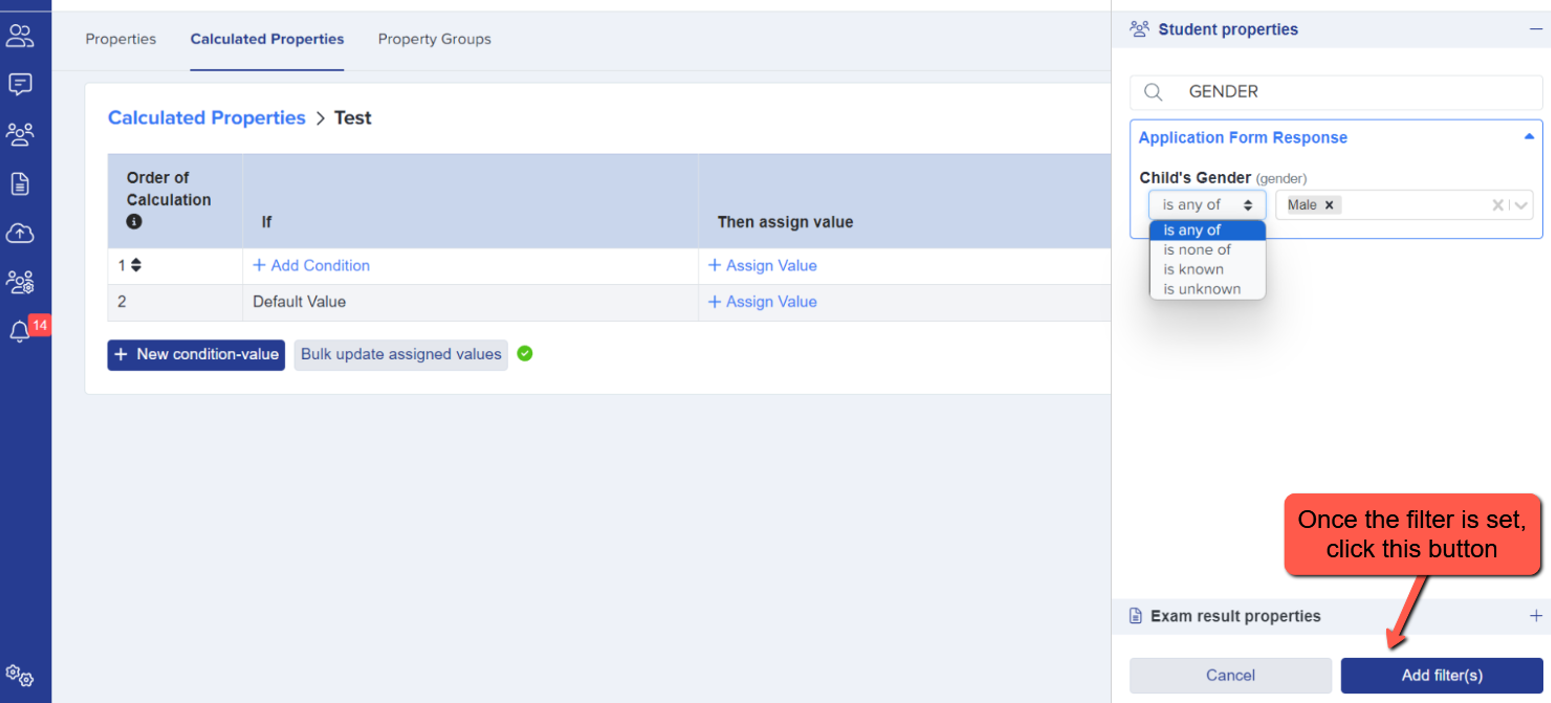
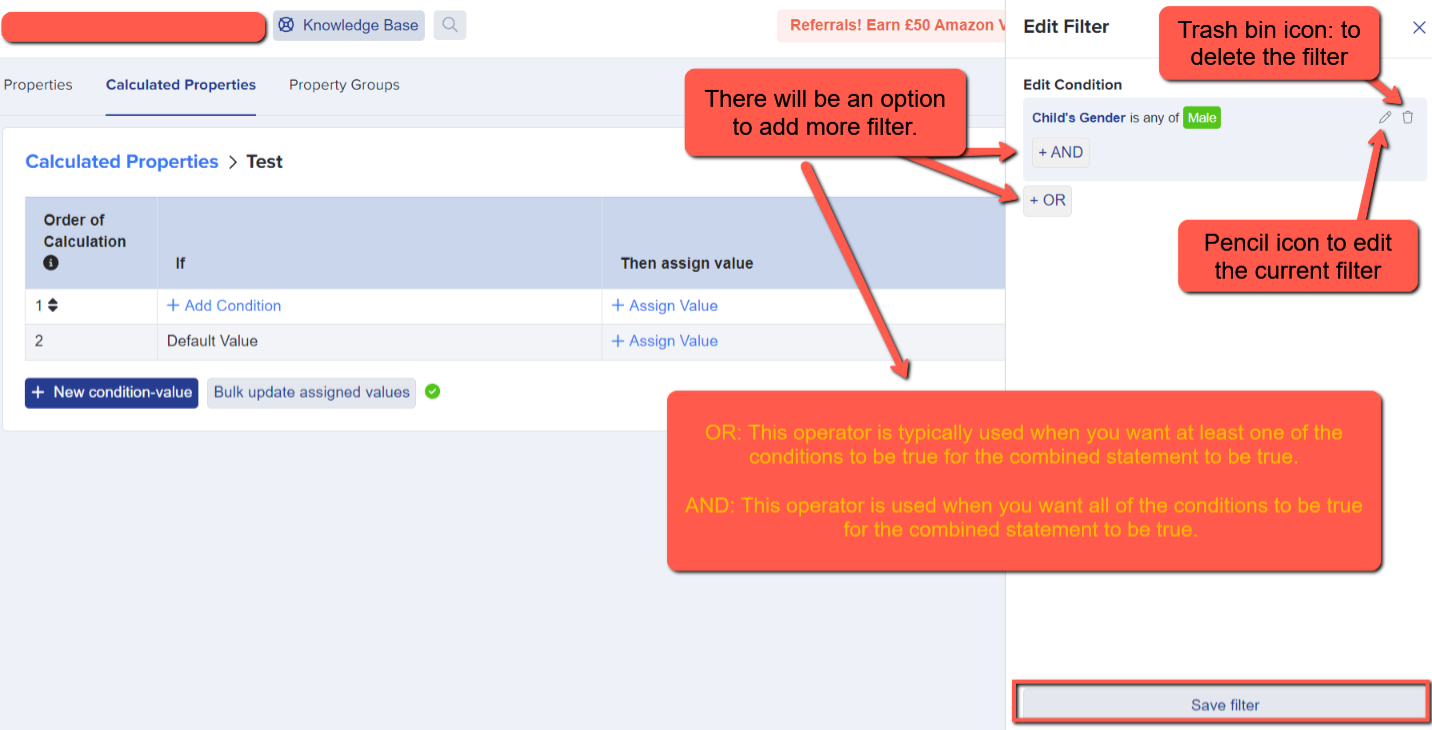
After clicking the button, you will be presented with the option to set the filter for the condition itself.
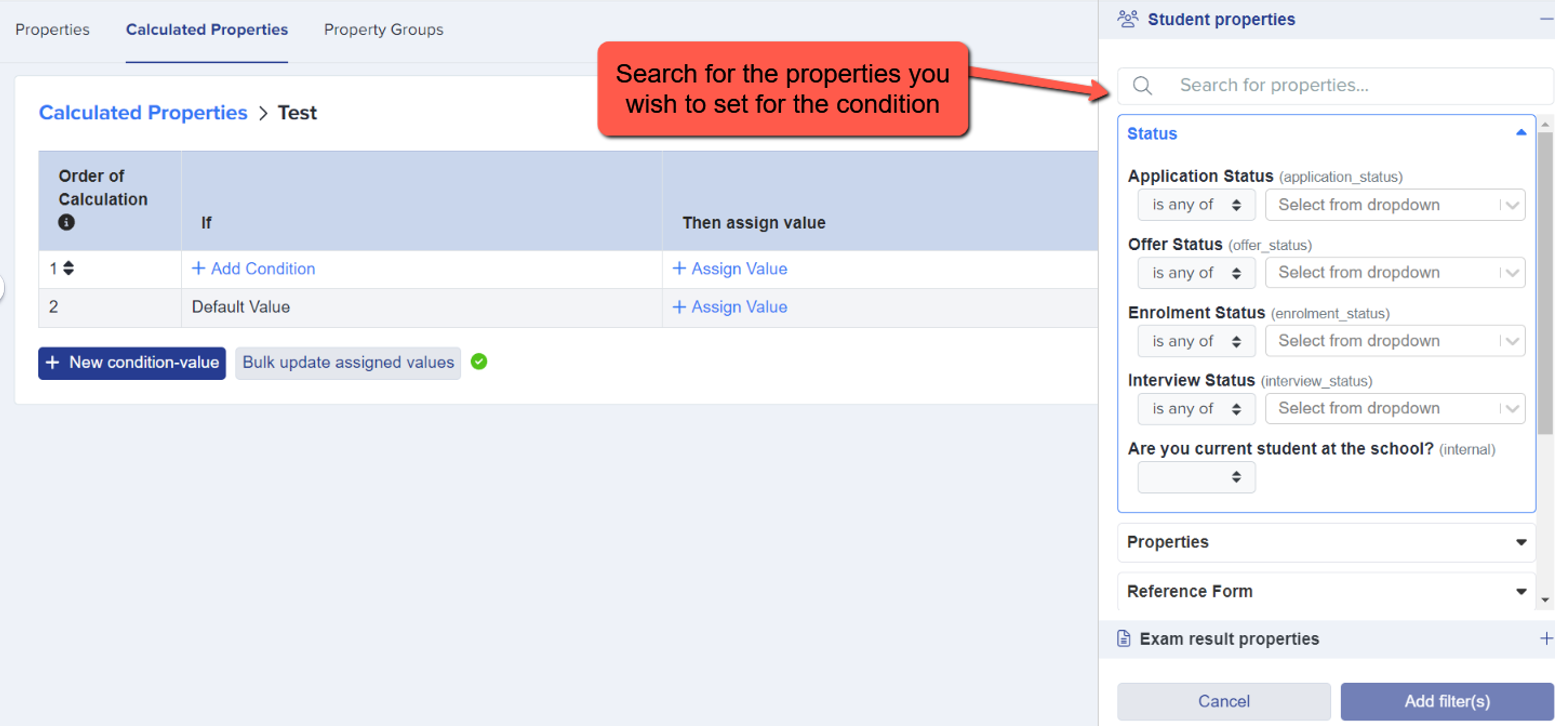
In this example, we will be using 'Gender,' as shown below.
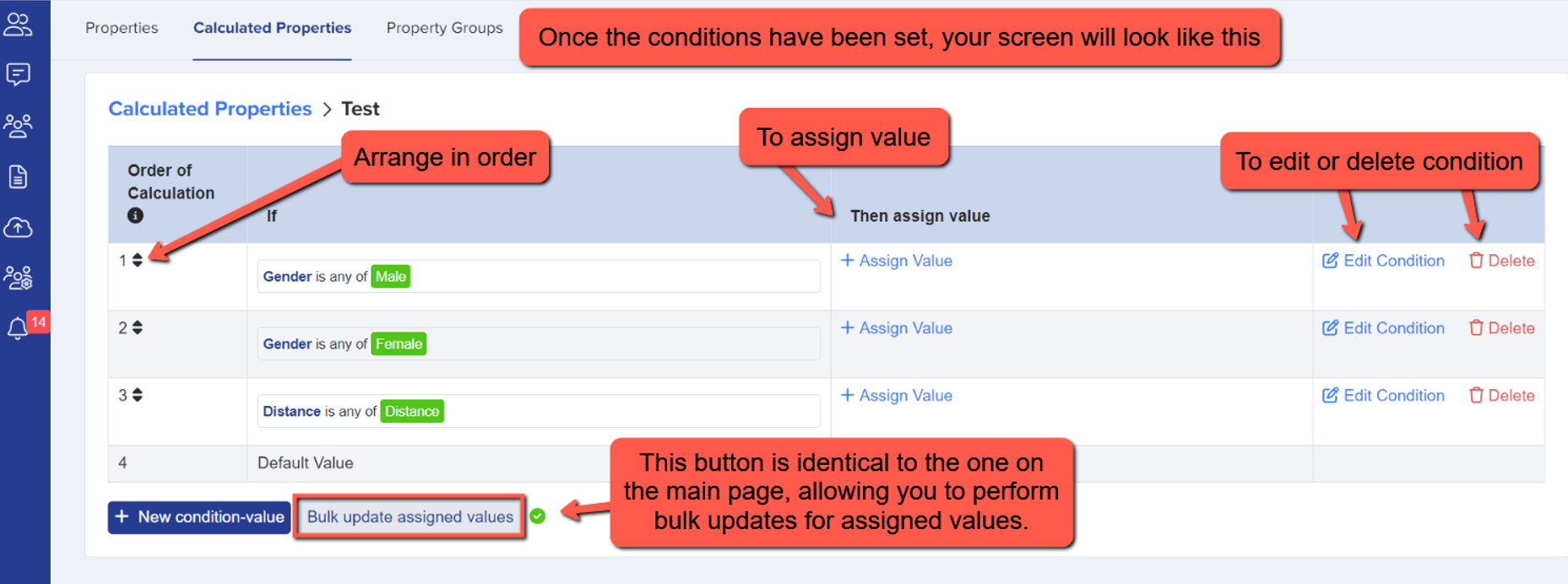
After you have successfully configured the conditions and assigned values, simply click on 'Calculated Properties' to return to the main page area.
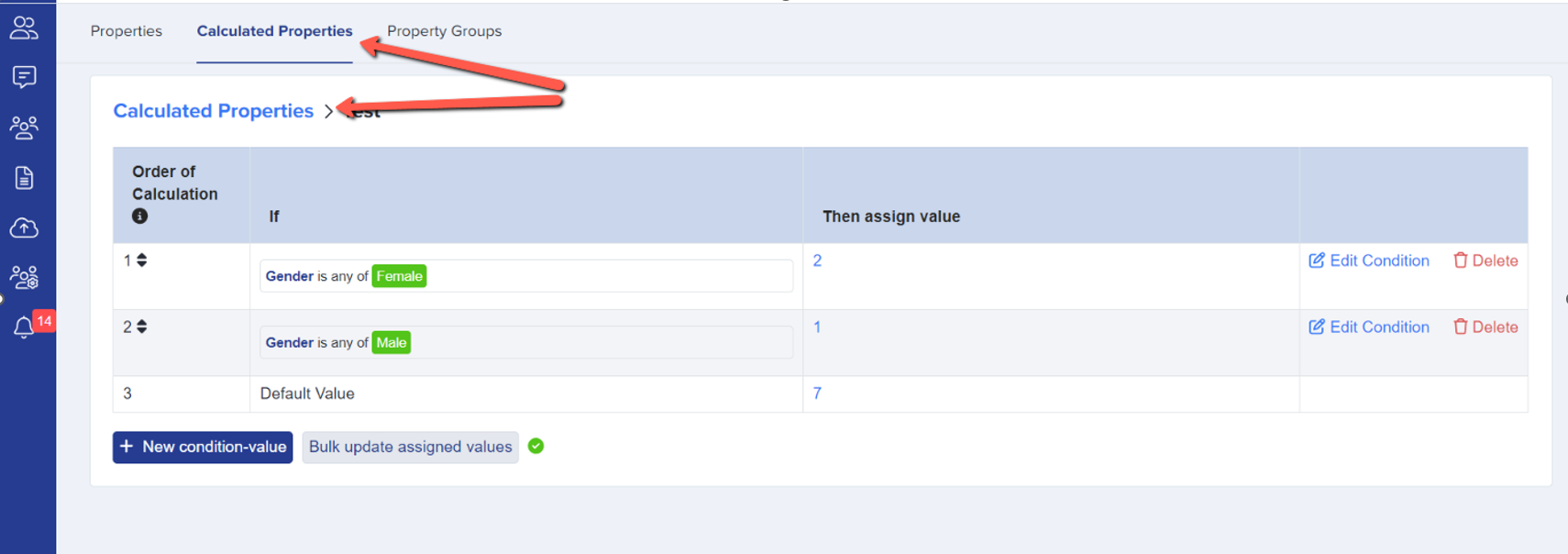
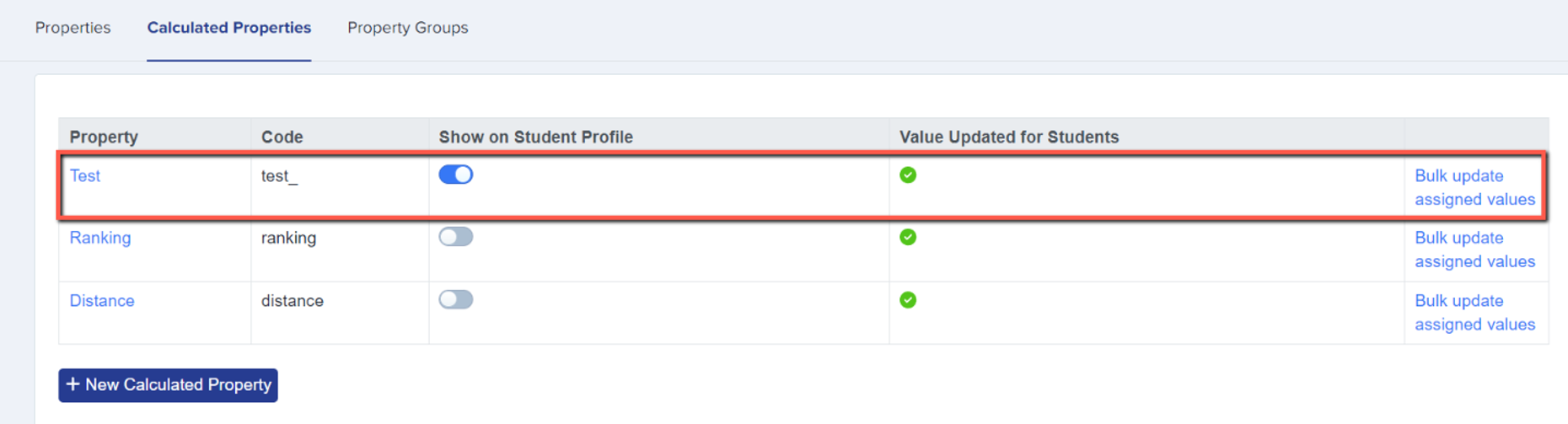
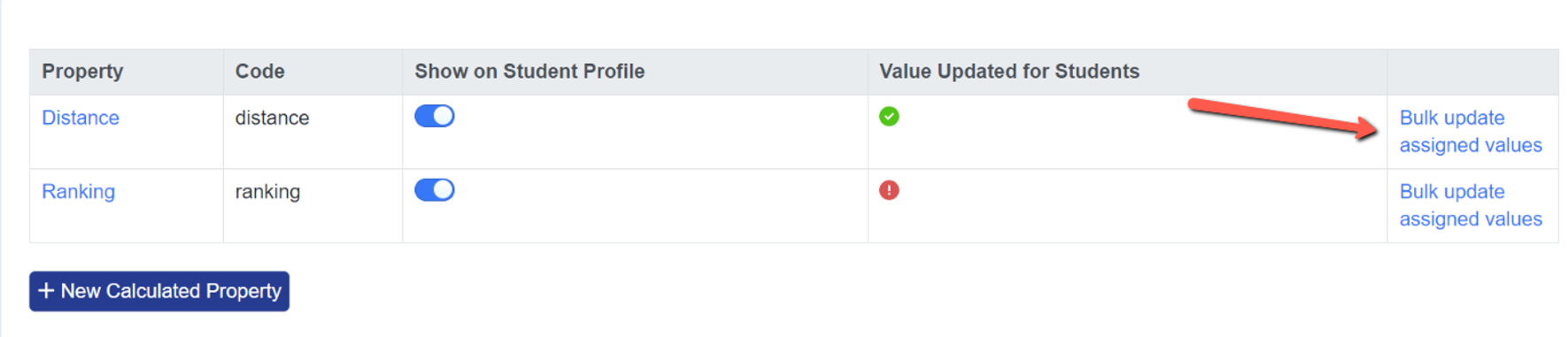
You'll find a list of your calculated Property names, their respective Codes, an option to toggle to Show on Student Profile, and the Value Updated for Students column.
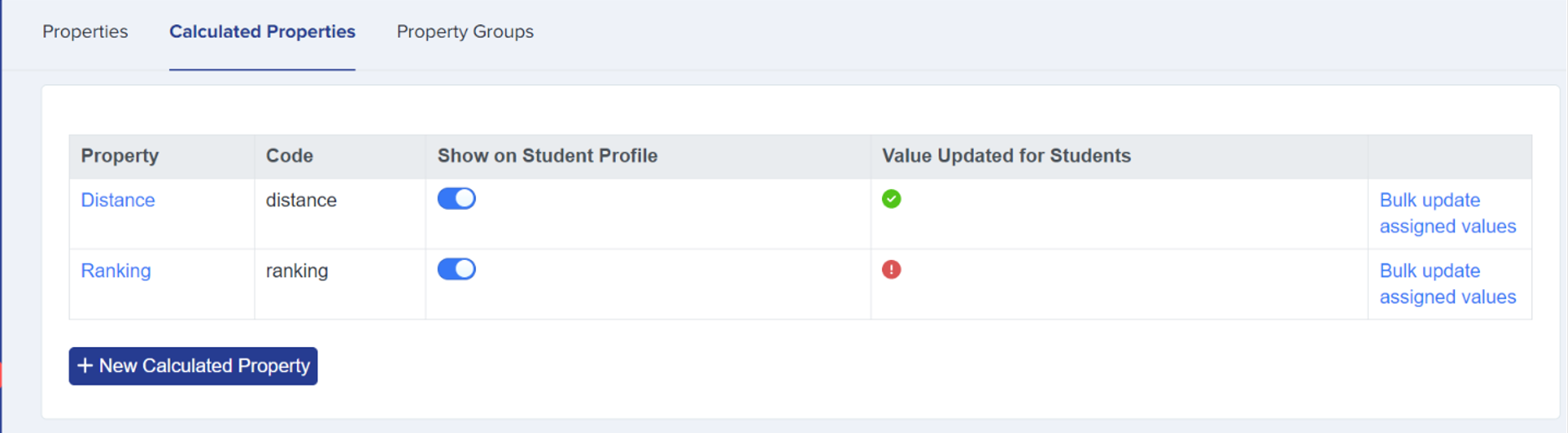
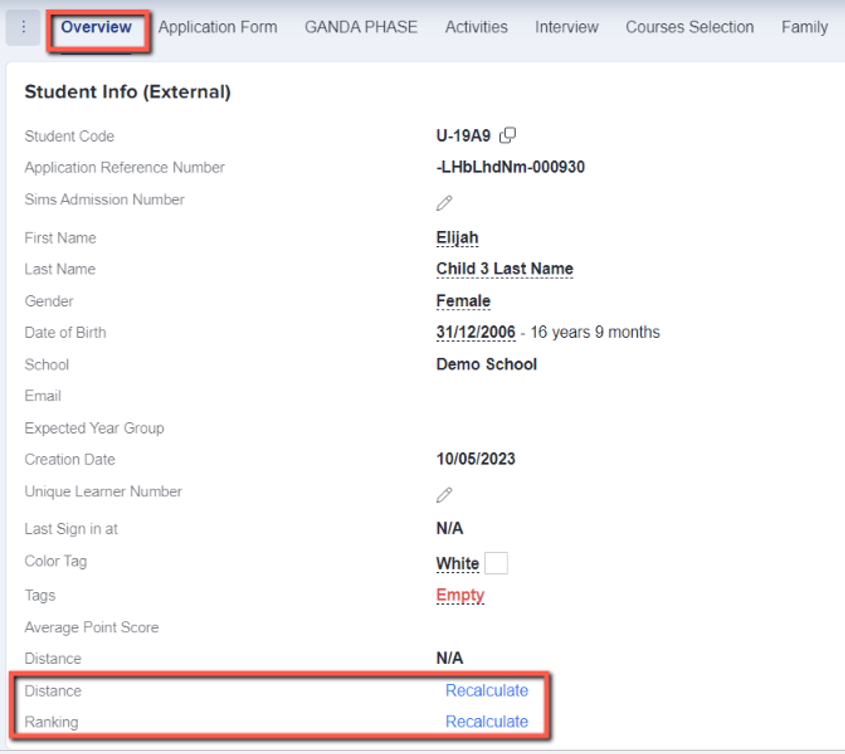

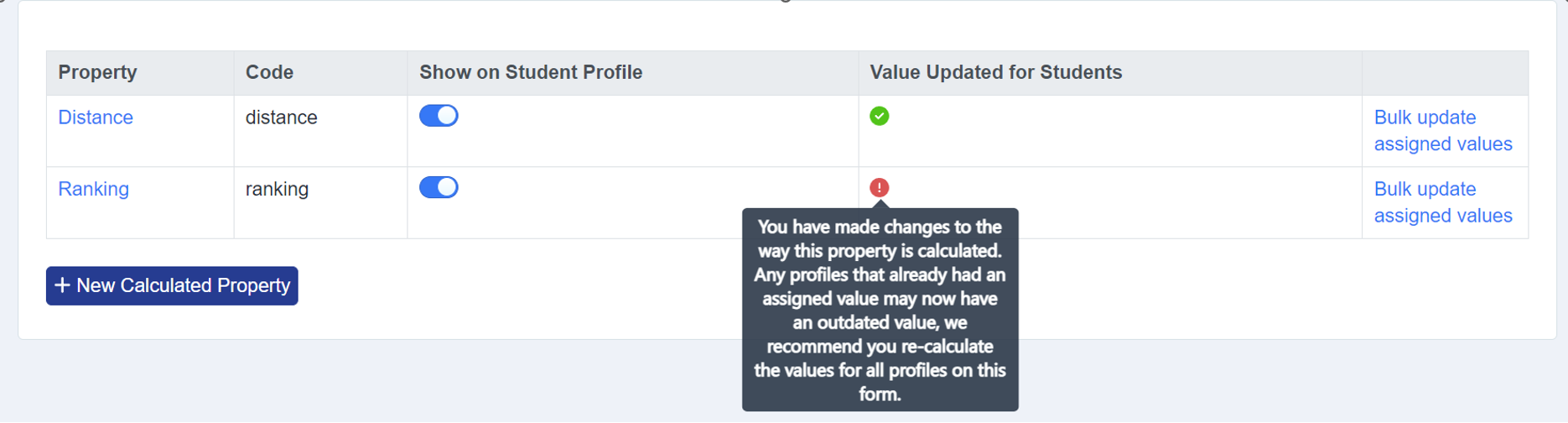
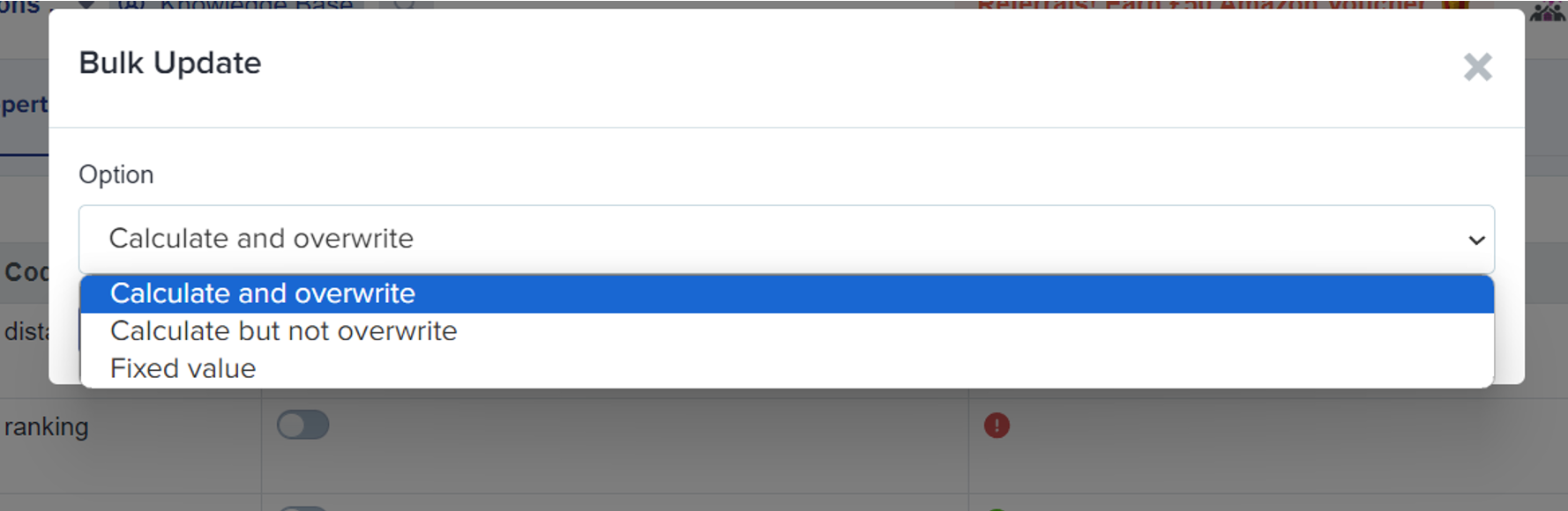
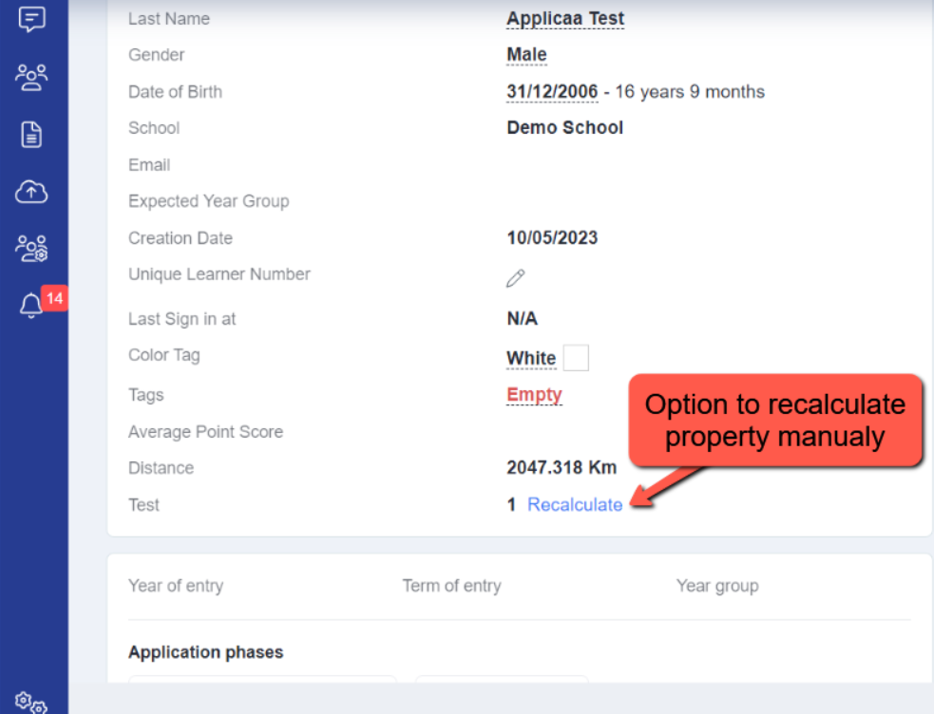
To update the profiles and bring them up to date, you can utilize the last column, which is named 'Bulk Update Assigned Value.' It provides you with three options:
- Calculated and Overwrite
- Calculated but Do Not Overwrite
- Fixed Value
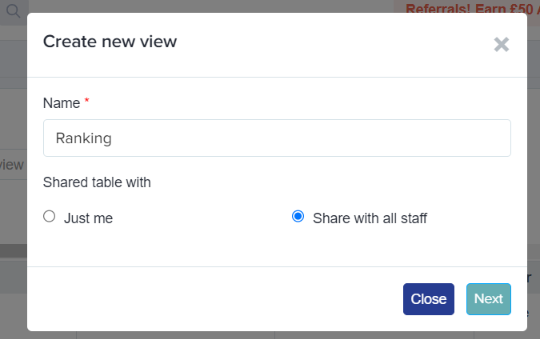
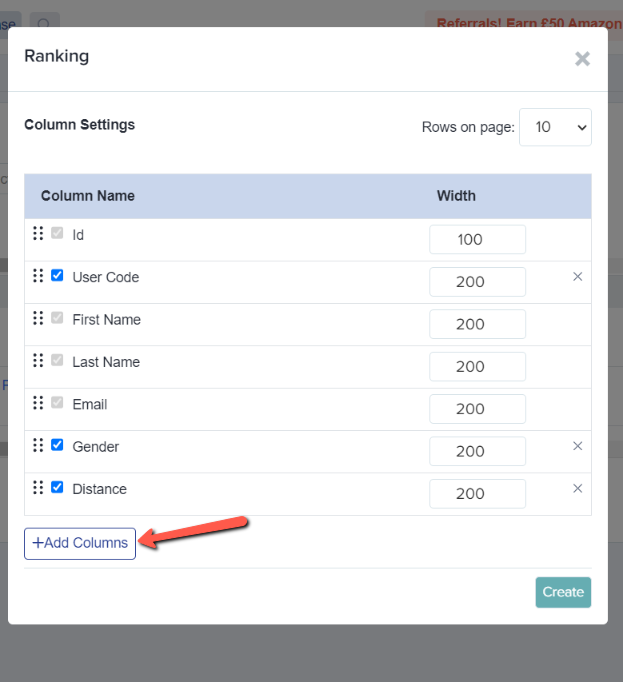
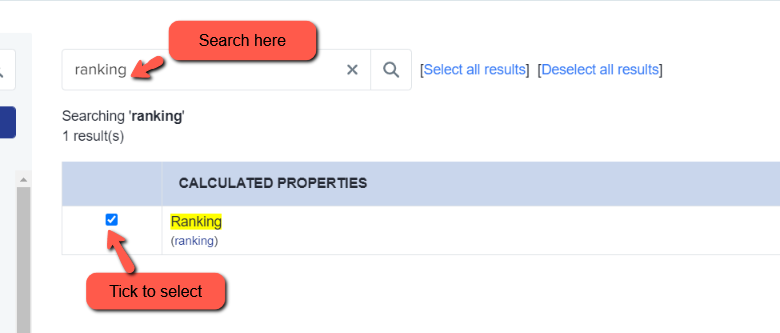
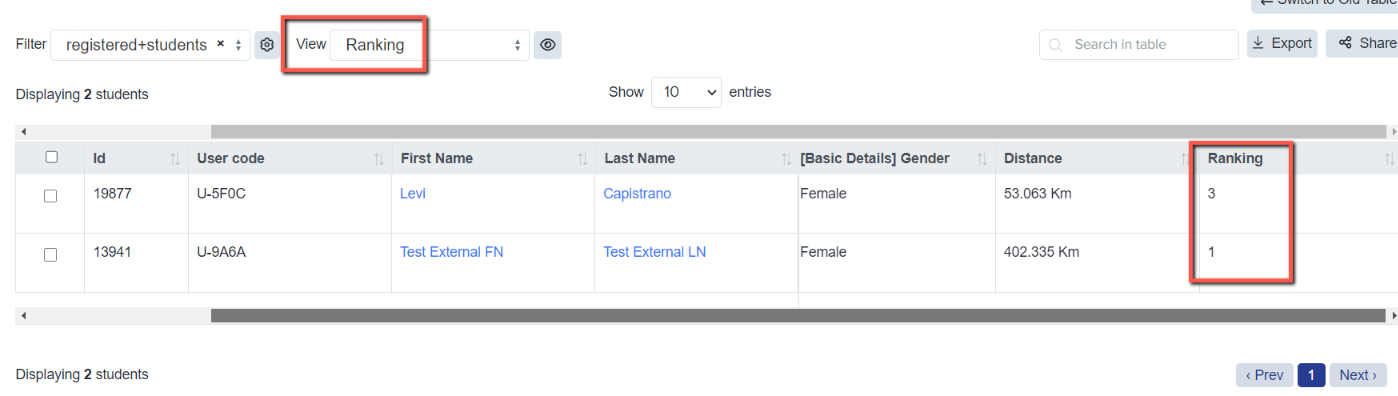
Rank applicants in an application group
The product uses Application Groups for this task. A calculated property does not become an admission group. It stores a value for each student. You can use that value to rank the students in an application group.
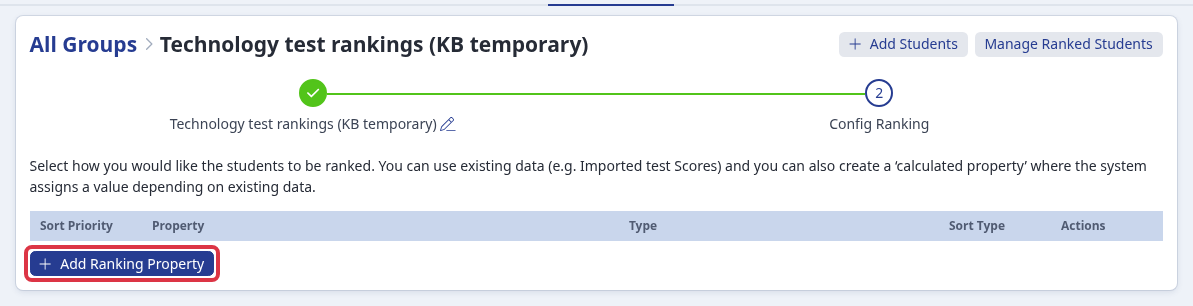
Open the application group that you use for admissions and select “Add Ranking Property”.
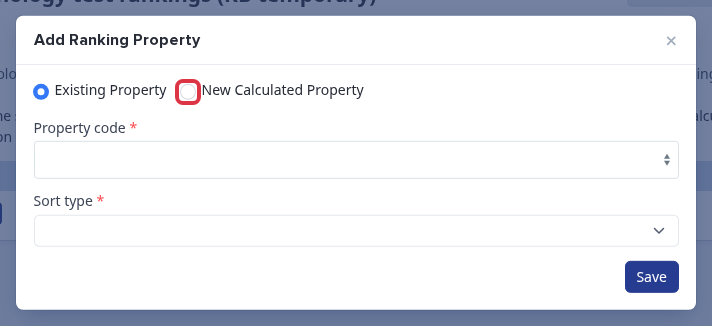
Select “New Calculated Property” to create a ranking value. Select “Existing Property” when you already created it. Choose the property, set the sort type, and select “Save”.
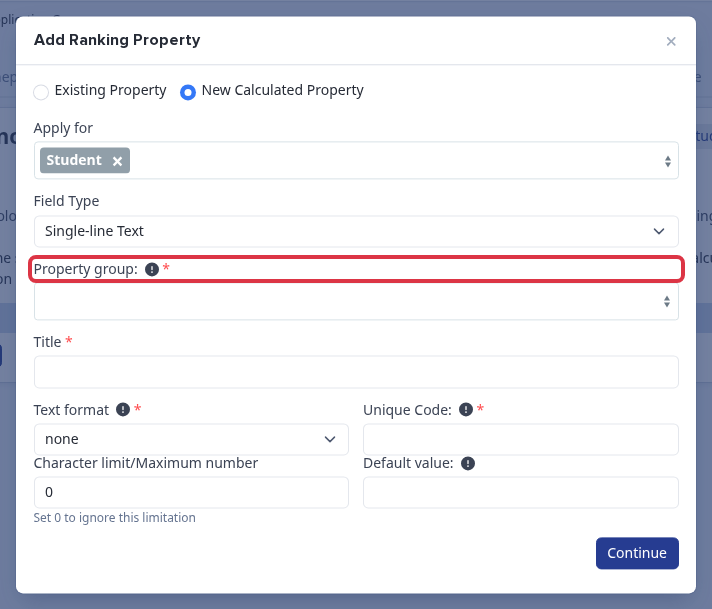
When you create the property, select “Property group”. This is a category for properties. It does not control which group students join or their rank. Enter the property details and select “Continue”. Then set the conditions and assigned values in the calculated-property page above.
Questions staff ask
What would Property group be?
Use a property group that helps staff find the Technology Aptitude Test property. It is not an application group or an admission group.
How can I rank the students who completed the technology tests?
Add the calculated property to a ranking application group and choose ascending or descending order. The system sorts students by the property value.
What it does not do
- A calculated property does not add students to an application group or change an admission-group value.