
If you wish to make use of the Enquiries step, you can do so by sharing the enquiry-specific URL for your system. Navigate to settings > application form > enquiry:

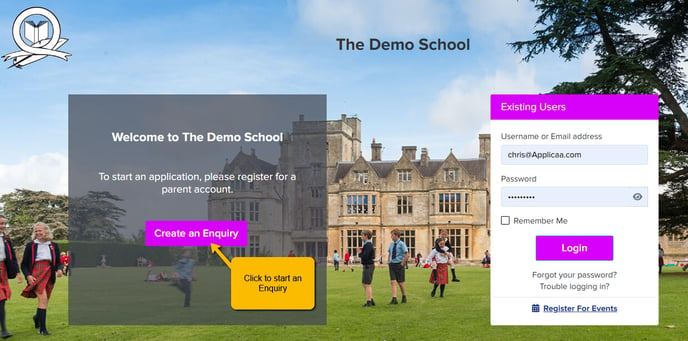
When you link your Admissions+ system's Enquiry URL to your website or marketing email, parents will be directed to your landing page, where they can create an enquiry.
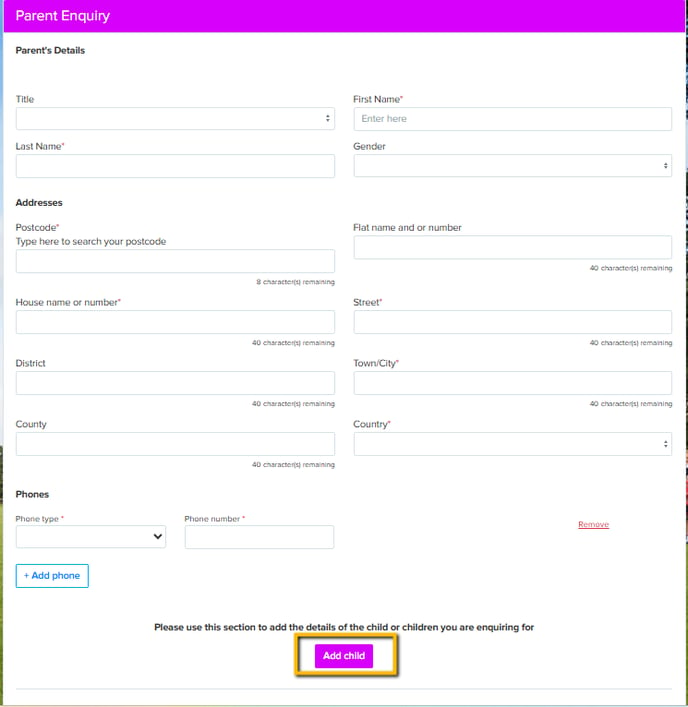
They will be invited to complete the form based on the questions you wish to gather data on. Additionally, they will be able to add their child's details by clicking on the 'Add Child' button.
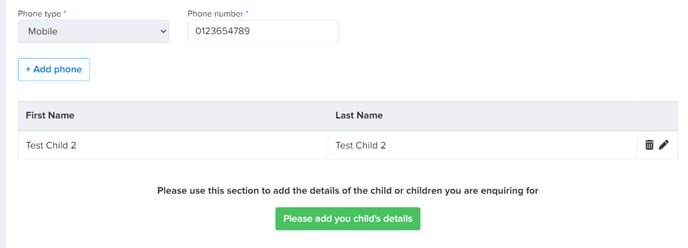
Once the parent has added the child to the enquiry, they will be able to add additional children and their details will be shown in the children table, as below:
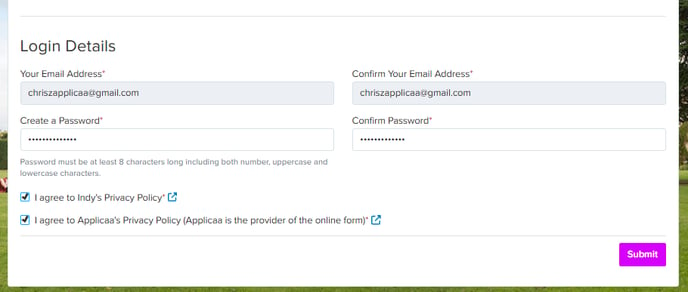
After adding the child or children, they will be asked to enter their email which will serve as their username, and create their password.
To continue, they will need to agree to your school's Privacy Policy and Applicaa's.
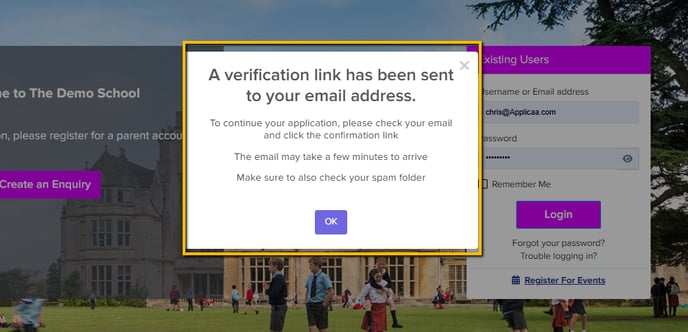
Once they click "Submit", a pop-up box will show, telling them that "A verification link has been sent to your email address".
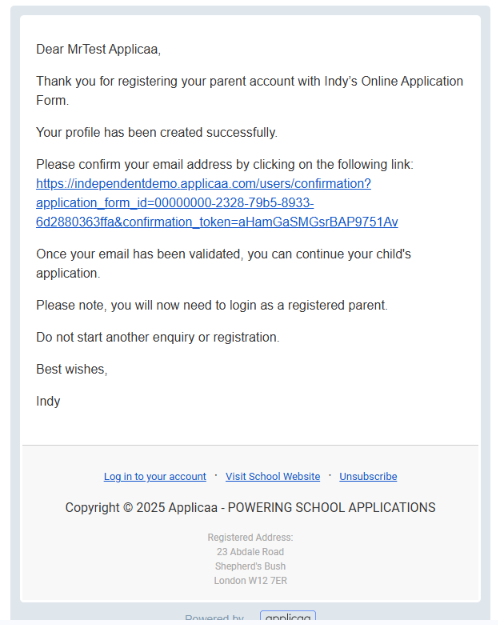
Advise the parents to check their email and click the verification link. This is a sample email the parent will get.
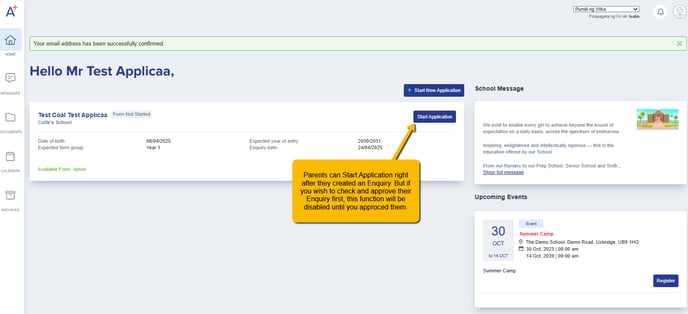
Once they have clicked the verification link, they will be directed to the "Parent Homepage".
- When you allow them to start application after they created an enquiry, they will be able to click the "Start Application" button.
- If you prefer to check and approve their enquiries first, this function will be greyed out and will only be available once you approve their enquiry.
You'll be able to see and manage your enquiries via the Parents & Enquiries section of your system.
Importing enquiries in bulk (staff)
If you already hold parent and child details from another source, such as a Local Authority Year 7 data collection or a Reception/Junior Admissions list, you do not have to wait for every parent to submit the enquiry form individually. You can bring enquiries in for many families at once with a CSV import.
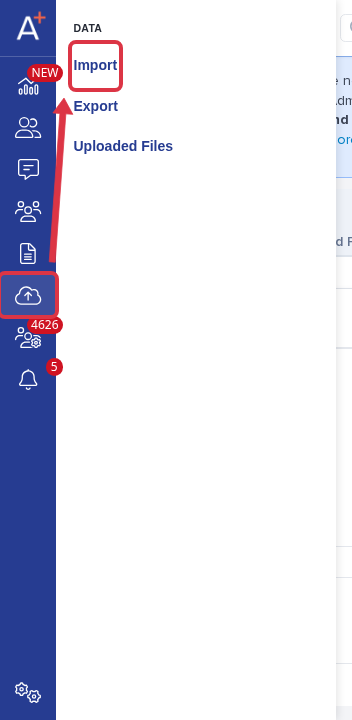
Open the Application Form, then go to "Data" > "Import" in the left-hand sidebar.
Give the import a name, then under "What would you like to update or import?" select "Users".
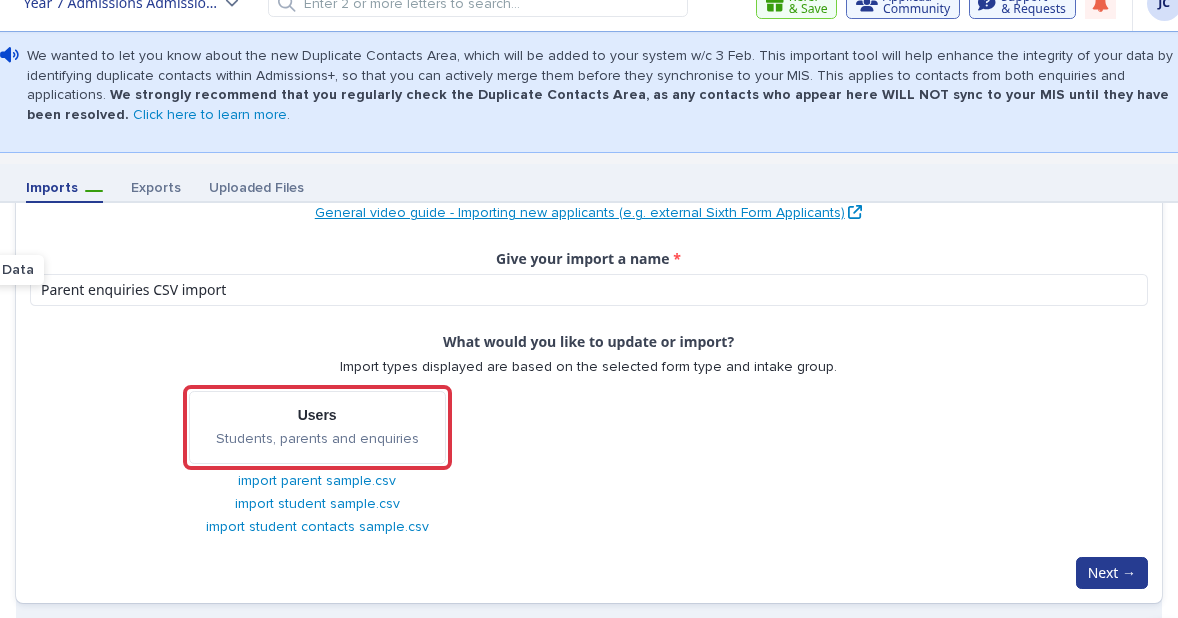
Choose "New Users", then select "Parents" as the user target. This is the selection that creates parent and enquiry records from your file.

Pick "CSV" as the source and upload your file. A sample file, "import parent sample.csv", is linked on the same screen so you can match its column layout.
On the next screen, select "Enquiry Children" under "Select type of children" so the children in your file are added as enquiries rather than full student profiles, choose the "Select application form" this import is for, and set whether the records are "Internal" or "External".

Map each column from your file to the matching Admissions+ property. Your file must include the parent's first name and last name and the child's first name and last name; the import is blocked until all four are mapped.
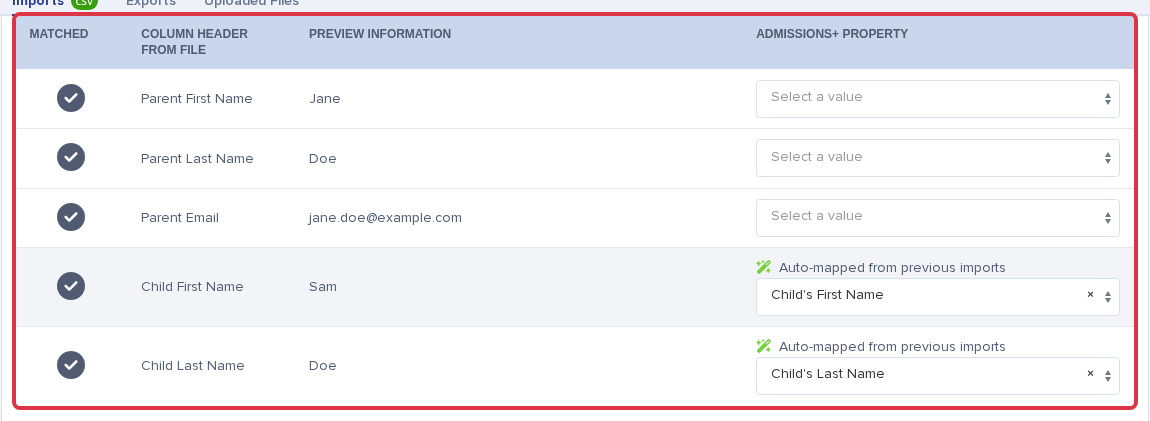
- Selecting "Enquiry Children" keeps the children as partial profiles, not visible on the dashboard, until a parent chooses a form and starts an application; selecting "Students" instead registers them as full student profiles straight away.
- The parent and child records this import creates behave the same as enquiries submitted through the public enquiry form, and you manage them the same way, through the "Parents & Enquiries" area.
Finding which Application Form an enquiry belongs to
Each Application Form's own Enquiries list only shows the enquiries that belong to it. Open the form, then go to "Parents & Enquiries" and select the "Enquiries" tab. Use the Application Form switcher at the top of the page to move between forms.
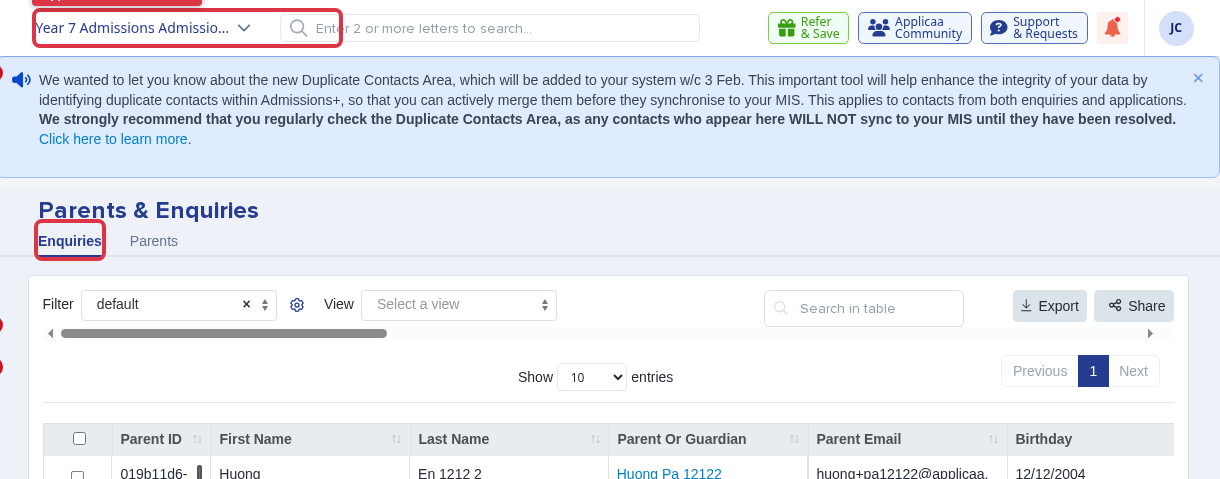
An enquiry is tied to a form by the enquiry link the parent used to submit it: the enquiry-specific URL you share under "settings > application form > enquiry" for each form carries that form's id, and this is saved onto the enquiry when it is created. If you cannot find an enquiry on the form you expect, check the other Application Forms' Enquiries tabs in turn, since the parent may have used a different form's link.
There is no single list that shows every enquiry across all forms with the form named against each row; the Enquiries tab is always scoped to the form you are currently viewing.